
If a Windows 11 update fails, record its KB number and error code in Settings > Windows Update > Update history, then run the Windows Update troubleshooter. Choose the next repair by where it stops: a failed download, an installation error on the desktop and a rollback after restarting need different checks. Retry the original update after each relevant repair, and stop when it installs.
I'd start with that distinction before clearing folders or changing drivers. “Something went wrong” tells you an update failed; it doesn't identify the damaged file, incompatible driver or connection problem.
Find the failed update and the stage
If Check for updates stops with a connection message before offering a package, use the update-service connection checks before choosing an installation repair.
Open Settings > Windows Update > Update history. Copy the update's full name, KB number, error code and failure date. Microsoft's upgrade error guidance explains that “Undoing changes” is a generic message: the specific code matters more than the percentage where it stopped.
Also record your installed Windows version and OS build. If Setup displays a second code, phase or operation, keep the complete message. A cumulative update for your installed release is a different task from upgrading to another Windows version.
Check the update type, too. If only an optional driver offer fails while quality updates install, record the device and driver name and use the PC or device maker's matching guidance. Don't start a Windows reinstall merely to clear one driver offer. Note whether this is one failing KB or several unrelated updates; that observation helps support choose the investigation without proving a cause by itself.
If the offer says Preview, first check what a Windows preview update means and whether you need it now. An optional OS preview and a regular security update need different installation decisions; keep the full product name and KB before treating the offer as a required repair.
| What happened | First useful check | Next evidence if it fails again |
|---|---|---|
| The update won't download, or downloading fails | Connection, available storage and Windows Update diagnostic | Fresh Windows Update log showing the download or service error |
| Downloading finishes but installation fails | Exact package/code and applicable known issues | Servicing log and DISM/SFC results |
| The PC restarts, then undoes changes | Full error and whether this was a feature upgrade | Windows Setup logs and a SetupDiag analysis for an upgrade |
| Windows no longer reaches the desktop | A recovery route for the startup failure | The last visible screen and any recovery or stop code |
On a work or school PC, send this information to IT before changing update services, security settings or the update source. Managed settings can be intentional.
If Windows says the device is no longer receiving security updates, establish the installed release, support status and ESU eligibility before applying repair steps. An expired release or missing enrollment requires a different decision from a supported update that failed to install.
Check the conditions before another attempt
Save your work, back up important files and connect the PC to power. If you're back at the desktop, restart normally once, then return to Windows Update. If Windows is still applying or undoing changes, let that operation finish rather than forcing a shutdown to run these desktop steps.
- Internet: confirm that your normal connection works. If browsing also fails, resolve that connection before retrying a download.
- Storage: check the Windows drive in File Explorer. If Windows asks for more space, free the amount it requests; review the contents before removing files.
- External hardware: disconnect nonessential drives, docks and accessories before an installation retry. Keep what you need to use the PC.
- Date and time: correct a visibly wrong clock in Settings > Time & language > Date & time.
These are the preliminary checks in Microsoft's Windows Update troubleshooting procedure. They remove obvious obstacles without assuming that every failed update means Windows is corrupt.
Before deeper repairs, check Windows release health for your installed release and the failed update's release notes. Follow a published workaround only if its version, update and symptom match. A fix for another month's KB is not automatically relevant to yours.
If the package is KB5072033, compare the confirmed KB5072033 issues and later fixes with the installed build and exact symptom. Its WSL VPN, RemoteApp and password-icon conditions describe specific post-install problems; they don't by themselves explain a failed installation.
Run the current Windows Update troubleshooter
Open Settings > System > Troubleshoot > Other troubleshooters. Select Run beside Windows Update and follow the diagnostic prompts. Microsoft's current Windows 11 guidance uses the Get Help app for automated troubleshooting.

Apply a suggested repair and restart if prompted. Return to Windows Update and retry the same package. “Troubleshooting completed” is not the final test: the update must install. If Get Help won't open or cannot complete the diagnostic, keep its message and continue with the failure evidence below.
If a procedure requires PSWindowsUpdate but PowerShell cannot find the module, first install and verify PSWindowsUpdate in the intended PowerShell session. A missing module is a setup problem; it does not establish why Windows Update itself failed.
Use the error and logs to choose a repair
A code narrows the investigation but doesn't necessarily identify the cause on your PC. For example, 0x80073712 points to a component-store problem, while 0x80070005 means access denied. An access error is not a reason to grant everyone permission to Windows folders.
After a failed retry, open Windows PowerShell as administrator and run:
Get-WindowsUpdateLogMicrosoft documents that the converted WindowsUpdate.log is a static snapshot; run the command again after another attempt. Keep the entries around the failure time, including the package identifier and component. Installation problems can also require %windir%\Logs\CBS\CBS.log, the servicing log.
Share complete logs privately with trusted support. Before posting an excerpt publicly, remove account names, personal folder paths and device identifiers.
If the diagnostic and logs point to a repeated download/cache problem, use the guarded update-cache refresh procedure. It covers checking for an existing backup folder, stopping the relevant services, renaming the download data and restarting services. Preserve logs first. Stop if a service won't stop or a rename reports access denied; don't force the change or repeatedly reset the same cache.
Repair Windows files when installation still fails
When the applicable simpler checks haven't resolved an installation failure, follow Microsoft's DISM-then-SFC sequence. DISM repairs the Windows image; SFC checks protected system files. Open Command Prompt as administrator and run the first command:
DISM.exe /Online /Cleanup-Image /RestoreHealthWait for a successful completion message before running:
sfc /scannow- DISM fails: save its exact error. If repair files can't be found, the next check is the repair source and its policy, language and servicing level. Don't paste a sample source path from another PC.
- SFC repairs files: restart, retry the original update and check its result.
- SFC finds no integrity violations: move back to the package or Setup evidence. That result doesn't establish that every update prerequisite is satisfied.
- SFC can't repair files or complete the operation: keep its message and CBS.log for the next repair or support review.
Separate a monthly update from a feature-upgrade rollback
For a monthly package, you can consider its standalone installer from the Microsoft Update Catalog. Search the exact KB and match the installed Windows release and system architecture. Read that package's installation instructions, including any required preceding packages. “The update isn't applicable” calls for an eligibility check, not a force-install command. A manual package isn't a bypass for Windows hardware requirements.
For a feature upgrade that rolls back, preserve the original Setup error and logs before cleanup. Microsoft's SetupDiag analyzes Windows Setup failures and can identify a matched failure condition. Give support its result together with the underlying logs. A driver named in that evidence justifies checking the PC maker's matching driver; a rollback percentage alone doesn't justify uninstalling random devices or changing the BIOS.
Consider a repair reinstall before resetting the PC
For persistent Windows Update or component problems on an eligible PC, Fix problems using Windows Update reinstalls the current Windows version and preserves apps, files and settings. Keep a backup and maintain power and internet throughout the repair.
Open Settings > System > Recovery. Choose Reinstall now specifically under Fix problems using Windows Update, then follow the confirmation and restart prompts.
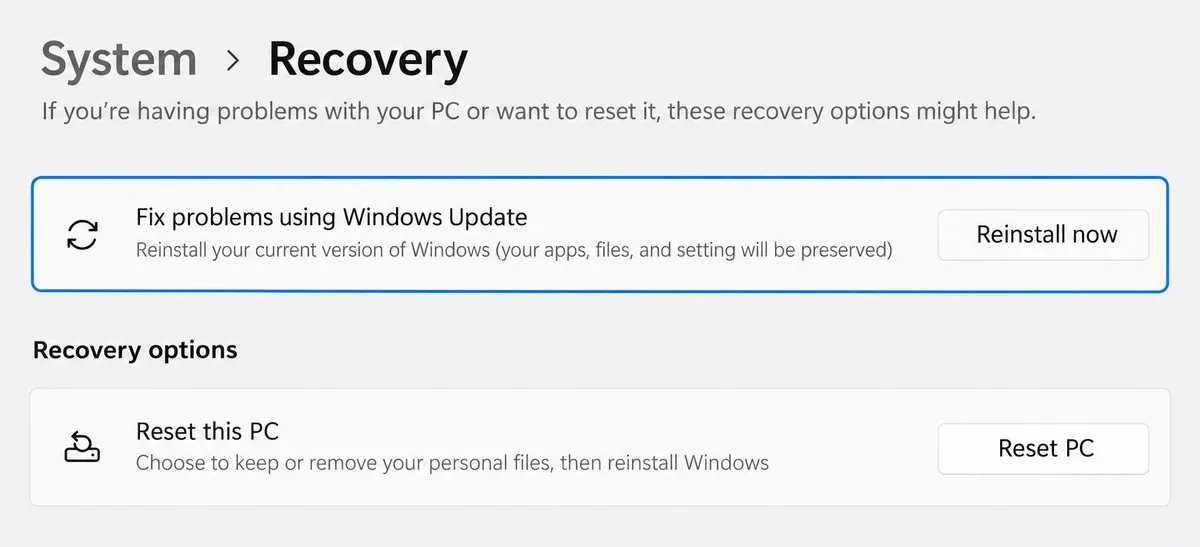
The option requires Windows 11's 2022 annual update or later, with the February 2024 optional update or a later update installed. It can be unavailable when work or school manages updates. If it isn't available, ask support for an appropriate repair route rather than selecting Reset PC as if it were the same action.
Verify the update, then stop or hand over the evidence
After the required restart, open Update history and confirm that the original package succeeded. For a feature upgrade, also check that the installed Windows version changed to the intended release. Keep a new error code if the symptom changes.
If the same update still fails, send support the Windows version/build, KB number, complete error, failure time, diagnostic outcome and relevant logs. Include DISM/SFC output or SetupDiag results when those steps applied. The Windows Update guides provide code-specific next steps; repeating the entire repair list without new evidence is unlikely to clarify which operation failed.



