
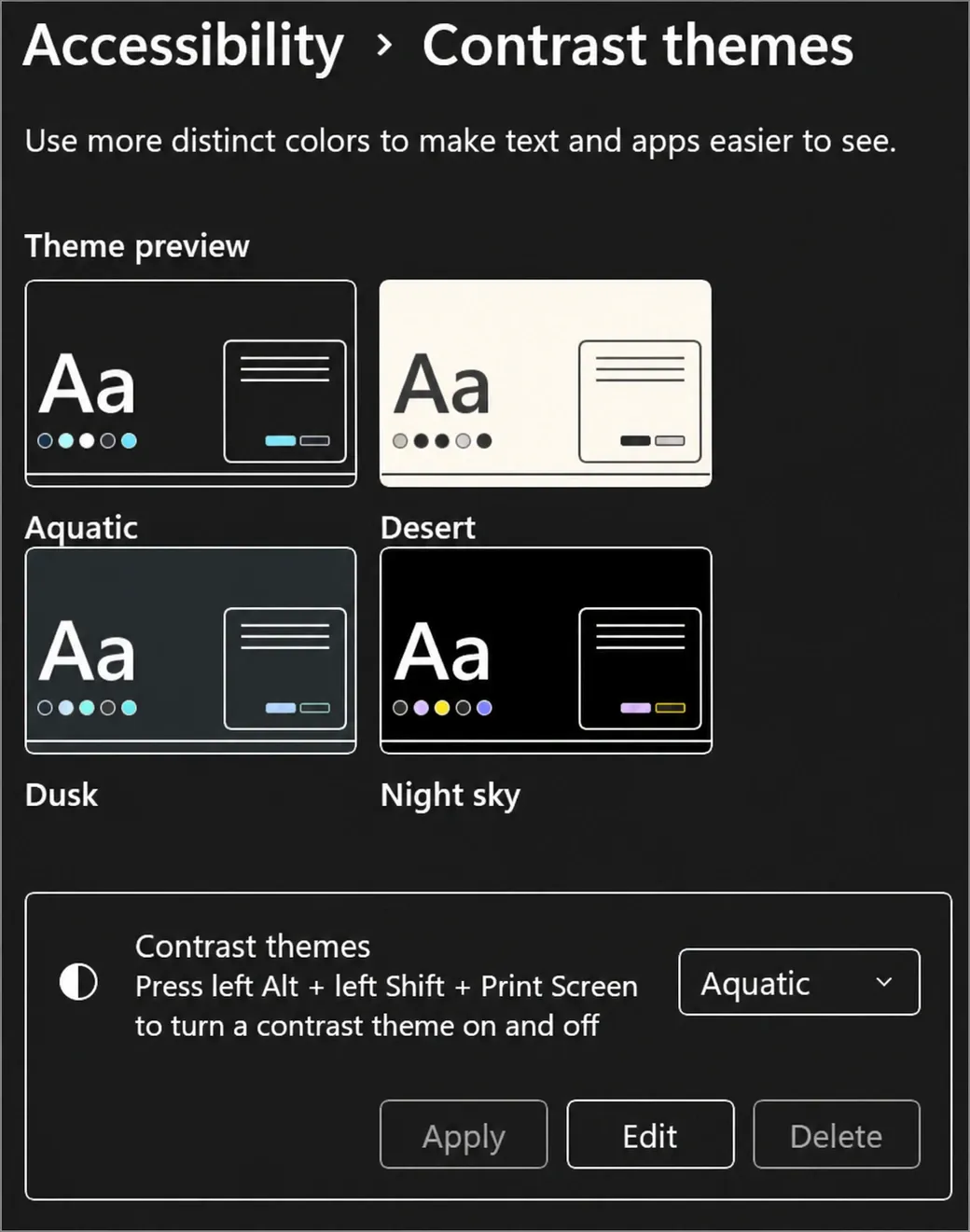
To choose a contrast theme in Windows 11, open Start > Settings > Accessibility > Contrast themes, select a palette from the dropdown and choose Apply. To return to the standard colors, select None and apply it. Record your existing theme first, especially if you rely on its colors to read the screen.
I'd try an existing palette before editing individual colors. That gives you a complete starting point to compare in the apps you use, while keeping the original choice available to restore.
Choose and apply a contrast theme
- Open Start > Settings > Accessibility > Contrast themes.
- Note the current selection in the Contrast themes dropdown. Keep any accessibility arrangement you need.
- Select the theme you want to try, then choose Apply.
- Let Windows finish changing the colors. Microsoft's contrast-theme instructions note that a brief Please wait screen can appear.
Compare text, links and buttons
Return to a familiar document or webpage. Read a paragraph, find a link, select a short piece of harmless text and locate an ordinary button without activating a destructive command. Check the parts you actually need to distinguish, including an unavailable option if one is present.
Keep the palette if those elements are easier for you to follow. If a particular app or page becomes harder to use, record which part is unclear and compare another theme or restore the original. Don't judge the entire arrangement from the Settings preview alone.
Save your own contrast colors
If a starting palette is close but one element is unclear, select the theme on the Contrast themes page and choose Edit. Microsoft's custom color procedure provides separate roles for Background, Text, Hyperlinks, Inactive Text, Selected Text and Button Text.
- Select the color for the role you want to change.
- Choose a new color from the palette, adjust its brightness with the slider and select Done.
- Select Save as, enter a new name for the custom theme, then choose Save and apply.
- Repeat the same text, link, selection and button comparison.
I'd change one role at a time to keep the effect of each choice clear. Check the text against its background as a pair; a color that looks distinct in the picker may be difficult to follow in the actual page.
Restore your recorded theme
Return to Settings > Accessibility > Contrast themes, select the exact theme you recorded and choose Apply. If your original choice was None, select None and apply it. Reopen the familiar content to confirm the restored colors are usable.
Keep a contrast arrangement you rely on rather than turning it off just to match someone else's screen. If the controls are unavailable on a managed PC, ask its administrator to check the setting.
If the problem is an unexpectedly black wallpaper rather than choosing a readable palette, use the black desktop background checks. That guide separates the saved background from an accidental contrast setting.