To turn off Do Not Disturb in Windows 11, press Windows+N and select the active Do Not Disturb bell in notification center. You can also open Settings > System > Notifications and set Do not disturb to Off. If it turns itself back on, check the automatic conditions and the separate Focus setting below.
I'd keep notification permissions enabled while finding out why alerts are being silenced. Switching every notification off may make the desktop quiet, but it won't help when your goal is to receive an important message.
Choose the control for the result you want
| Your goal or symptom | Start here |
|---|---|
| Quiet time now, with missed notifications available later. | Turn Do Not Disturb on; review its priority exceptions. |
| Do Not Disturb returns after you turn it off. | Check automatic conditions, then the separate Focus configuration. |
| One app's banners or sounds are unwanted or missing. | Review that sender's notification permission and banner or sound controls. |
| Some banners still appear while Do Not Disturb is on. | Check alarms, reminders and the allowed priority apps. |
| Notification content is visible while the PC is locked. | Review the app's lock-screen content setting; keep account protection in place. |
Microsoft's Windows 11 notification instructions distinguish Do Not Disturb from turning a sender off. With Do Not Disturb on, banners can still appear for alarms, reminders and your chosen apps. Other notifications go directly to notification center. It isn't a promise that every alert or sound from every application will disappear.
Switch Do Not Disturb and review missed notifications
- Press Windows+N, or select the clock or notification bell on the taskbar, to open notification center.
- Select its Do Not Disturb bell to change the mode. In the illustrated active state, the blue bell and Do not disturb is on message identify the selected mode. Select that bell to turn it off; select the control again when you deliberately want quiet time.
- Open Settings > System > Notifications and check the Do not disturb switch if you need to confirm its state. Review missed notifications in notification center.
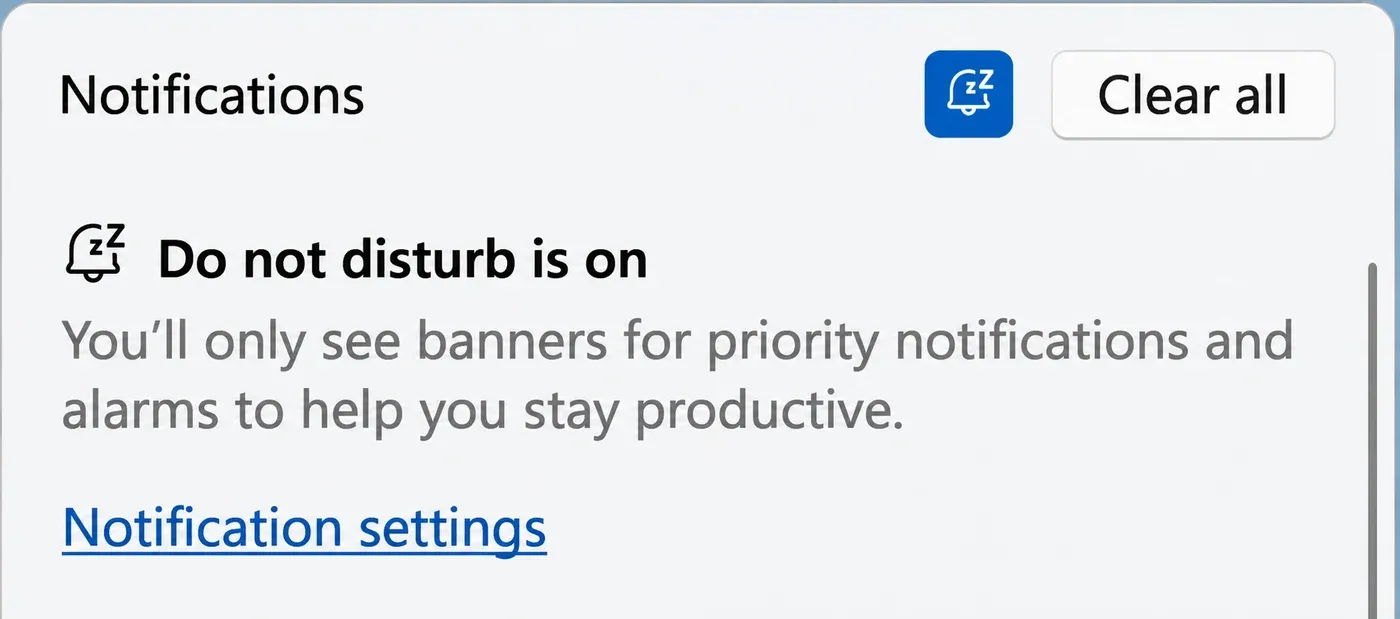
Manually enabling Do Not Disturb isn't a timed Focus session. Microsoft describes that manual choice as remaining on until you switch it off.
Don't select Clear all just to change the mode. That button removes notifications from the center. Turning Do Not Disturb off doesn't send a fresh test message or establish that a particular app's notification permission is enabled.
Review the five automatic conditions
If the mode returns, open Settings > System > Notifications and expand Turn on do not disturb automatically. Record the selected conditions and any schedule before changing them. Microsoft lists these Windows 11 conditions:
- During certain time of the day: inspect the scheduled time if reactivation follows a pattern.
- When duplicating the display: check this when you mirror a screen for a presentation. Merely having several monitors isn't the same condition.
- When playing a game: compare the mode before entering the game and after leaving it.
- When using an app in full-screen mode: compare entering and leaving that app's fullscreen view.
- For the first hour after a Windows feature update: this is a specific feature-update condition, not every ordinary app update.
Clear only the conditions you don't want. If you want Do Not Disturb to stay off unless you switch it on yourself, clear all five automatic conditions, then check Focus too. Turn the currently active mode off and repeat the action that previously brought it back. Changing a trigger and checking the current switch are separate steps.
A Windows 11 report about Zoom's fullscreen view describes the bell changing with that view and improvement after clearing the fullscreen condition. Other replies report continued reactivation after automatic options were disabled. I'd use the trigger comparison to establish what happens on the affected PC, rather than assume every recurrence has the same cause.
Check Focus as a separate trigger
Open Settings > System > Focus. In Microsoft's Focus instructions, starting a focus session turns Do Not Disturb on by default. The Turn on do not disturb option configures future sessions, so it deserves its own check even after you clear the notification page's automatic conditions.
- Record the current Turn on do not disturb choice under Focus.
- Clear that option if you want future focus sessions to leave this notification mode alone. You can keep Focus and its timer without choosing this particular behavior.
- If a focus session is running and you don't need it, end the session using its controls. Check the current Do not disturb switch manually afterward and turn it off if you want alerts now.
- Before checking a later session, start with Do not disturb off. Then verify both the intended timer behavior and the notification you need.
Microsoft specifically notes that Do Not Disturb stays on after a focus session if it was already on before the session started. Don't assume the timer ending will always turn it off.
Focus can also hide taskbar badges and flashing during a session. Those are separate visual cues. If your actual problem is a responsive taskbar that won't retract, use the taskbar hiding and app-attention checks rather than changing notification services.
Keep the notifications you need working
For quiet time with selected interruptions, go to Settings > System > Notifications > Set priority notifications. Review the Calls and reminders choices, then use Add apps for the apps you want allowed through Do Not Disturb. Keep essential work alerts in mind before removing an exception.
An exception doesn't enable a sender whose notifications are off. Record the original permission states before changing them. To receive the wanted app's alerts, keep the master Notifications switch on. Under Notifications from apps and other senders, select that app and turn its notifications on too. Choose whether it should Show notification banners, Show notifications in notification center and Play a sound. Leave unrelated senders alone for this comparison.
The sender's Priority of notifications setting, with Top, High or Normal choices, controls its ordering in notification center. That isn't the same as adding the app to Do Not Disturb's priority exceptions.
Use a harmless notification you can reproduce through the app's supported controls, such as a test message to yourself if it supports one. Check whether it reaches the app, appears as the intended Windows banner, plays the wanted sound and remains in notification center. If it reaches the app but no banner appears, that is a different result from the message never arriving.
Repeat the check in the situation that matters: ordinary desktop use, the affected fullscreen app or your next planned focus session. Restore any temporary setting you don't want to keep. A Windows notification preference doesn't establish an app's internal availability status or guarantee incoming-call delivery.
If the concern is privacy while locked, review Hide content when notifications are on lock screen for the app. You don't need to remove the lock screen or weaken sign-in protection to change the content shown there.
Record unexplained reactivation before changing more
If Do Not Disturb still returns with unwanted automatic conditions cleared and Focus configured as intended, record the time, the app you opened, display mode and whether a focus session was active. Note whether the Windows switch actually changed or only one application's alerts stopped. Include your Windows version and edition from Settings > System > About, following Microsoft's device-information instructions. Add the OS build if it's displayed.
Check an affected app's own notification or quiet-time preferences through its current supported instructions. On a managed PC, give IT the recorded state and trigger, especially if a setting is unavailable or reverts. A company-wide call-alert or kiosk configuration needs the responsible administrator's review.
I wouldn't change CloudStore or QuietHours registry values, restart notification services, delete scheduled tasks or disable security software for this symptom alone. Likewise, stopping an app from launching at sign-in changes a different behavior; the startup-app controls aren't a general Do Not Disturb repair.
If the recurrence remains unexplained, retain the individual comparison results for Microsoft, the app vendor or IT instead of applying a blanket notification reset.