
Error 0x80070002 means Windows couldn't find a file it needed. In Windows Update, start by recording the failed KB and whether the failure happens during download, installation or a restart into a new Windows version. Run the Windows Update troubleshooter, then use that stage to choose between a fresh update download, component repair and upgrade-log analysis.
I wouldn't download a replacement DLL from a search result or delete registry keys from an old Server tutorial. The code tells you a file wasn't found; the surrounding log tells you which operation needs attention.
Identify the missing-file operation
Microsoft defines ERROR_FILE_NOT_FOUND as “The system cannot find the file specified”. That doesn't mean your personal documents have disappeared, and it doesn't name the missing file by itself. The same code can occur in backup, an app installer or Windows Setup; this route addresses Windows Update on Windows 11.
If Company Portal or an Intune Windows app (Win32) reports 0x80070002 during app installation, use the Intune missing-file and install-command checks. That route follows the packaged files, execution context and detection stage; the Windows Update commands below address a different operation.
- Open Settings > Windows Update > Update history. Record the complete update name, KB, error and failure time.
- Press Windows + R, run
winverand record your Windows version and OS build. - Note the last stage you saw: download failed, installation failed at the desktop, or restart rolled back a feature upgrade.
- Check the exact update's Microsoft KB and your release's support and release information. Don't apply a fix for another Windows version merely because its code matches.
For a work or school PC, give these details to IT before changing services or update sources. On a personal PC, save your work, back up important files, keep power connected and restart normally once. Retry the same update. If it installs and the required restart completes, stop here.
Start with the Windows Update diagnostic
Use Microsoft's current troubleshooter in Get Help rather than an old downloadable repair utility. In Settings > System > Troubleshoot > Other troubleshooters, select Run beside Windows Update. Follow the prompts, apply an offered repair, then restart when asked.
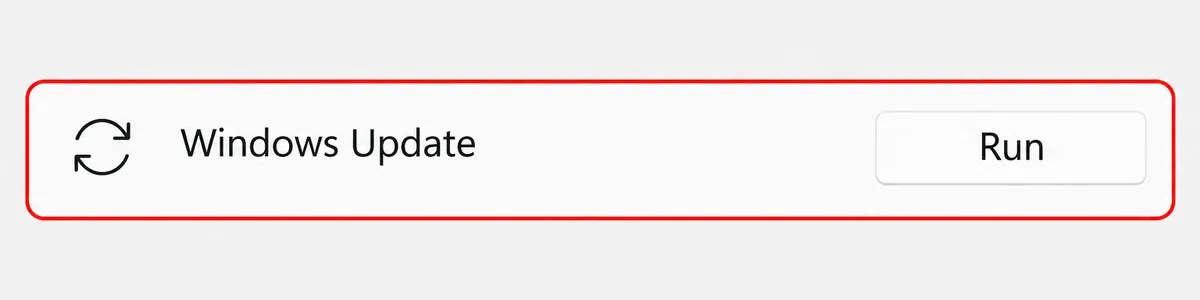
Return to Windows Update and check again. “Fixed” in a diagnostic report isn't the final result: the package must install. In a published Windows 11 upgrade discussion, the diagnostic completed while the upgrade still failed; the next useful step was collecting Setup logs. Don't repeat the diagnostic indefinitely when the symptom hasn't changed.
| Observed stage | Evidence to collect | Next route |
|---|---|---|
| Download fails before installation | Fresh WindowsUpdate.log around the failure time; exact package. | Check the download/cache path after the diagnostic. |
| Monthly update fails while installing | WindowsUpdate.log and CBS.log; any missing path or component identity. | Repair the Windows component store if the evidence points there. |
| Feature update rolls back after restart | Setupact.log and Setuperr.log from the failed upgrade. | Follow the upgrade branch; a cache reset alone doesn't diagnose Setup. |
| A named file in another application | That program's installer or operation log. | Use its supported repair process rather than Windows Update commands. |
Read a fresh log before a broad reset
Open Windows PowerShell as administrator and run:
Get-WindowsUpdateLogSearch the generated WindowsUpdate.log for 0x80070002 near the failure time, keeping the surrounding component name, update identifier and path. Microsoft's log documentation explains that this converted file is a static snapshot. Generate it again after a later attempt. For installation, inspect %windir%\Logs\CBS\CBS.log; older entries can be in the same folder's rolled-over logs.
A named missing component is more useful than a percentage at which installation stopped. Keep the original logs before resetting anything. If the entries aren't clear, send them privately to support with the KB/build, rather than posting account details or entire unredacted logs publicly.
Refresh the download cache when that branch fits
When the diagnostic hasn't helped and a repeated download/cache failure is the relevant symptom, a controlled cache reset can make Windows obtain fresh update data. Microsoft's general update troubleshooting includes update-cache repair. Renaming the cache preserves the old folder; it doesn't restore every missing system component.
Before starting: keep your backup and logs, wait until no update is installing, and check that %windir%\SoftwareDistribution.old doesn't already exist. If it does, have the earlier reset reviewed rather than deleting it or overwriting it.
Open Command Prompt as administrator. Run each line separately and read its result:
net stop wuauserv
net stop bits
If either required service cannot be stopped, don't rename the folder. Restore any service you stopped using the start commands below and investigate its exact error. An already stopped service needs no further stop action.
ren "%windir%\SoftwareDistribution" SoftwareDistribution.old
net start bits
net start wuauserv
If the rename fails, don't force access or take ownership. Restart the stopped services and keep the error for support. Otherwise restart Windows, check for updates and let the package download again. Verify the installed result after any required reboot. If the same error returns, move to the relevant log/component branch instead of repeatedly clearing the cache.
Repair Windows components with DISM, then SFC
Use this when servicing logs or other symptoms suggest missing or damaged protected components, or applicable simpler checks haven't resolved installation. Follow Microsoft's system-file repair order in Command Prompt as administrator:
DISM.exe /Online /Cleanup-Image /RestoreHealth
sfc /scannow
Wait for DISM to complete successfully before SFC. If DISM cannot obtain repair files, record its code and follow the matching repair-source guidance; a sample source path isn't a file you already have. If SFC repairs files, restart and retry the update. If it finds no violations, it hasn't identified a protected-file fault. If it can't repair files or perform the operation, retain CBS.log and follow the corresponding Microsoft support instructions.
Microsoft's dedicated 0x80070002 article applies to supported Windows Server versions and contains narrowly identified missing DLL, service and driver cases. Its registry imports and manual WinSxS file replacements aren't a generic Windows 11 checklist. I would use supported component repair or a qualified administrator's targeted assessment before copying system files from another machine.
Handle a feature-upgrade rollback separately
If a new Windows version installs until restart and then rolls back, collect the Setup logs from that attempt. Microsoft's Windows upgrade log guidance distinguishes Setup phases and locations, including Panther and Rollback under C:\$WINDOWS.~BT\Sources. Keep Setupact.log and Setuperr.log with the failure timestamp. Don't assume the last generic missing-file line is the entire cause.
Check Microsoft's upgrade preparation and error guidance, including applicable storage, driver and software checks. Use the PC manufacturer's supported drivers when a log identifies a driver issue. A forum instruction to disable a particular endpoint security product isn't permission to disable your organization's protection; let IT evaluate a matching conflict.
The repair option can be unavailable on managed devices, versions before the Windows 11 2022 annual update, or machines missing the February 2024 optional update or later. If absent or unsuccessful, discuss matching installation media with support; don't substitute a reset or boot from USB assuming it preserves applications.
For persistent system-component problems on an eligible personal Windows 11 PC, Fix problems using Windows Update can reinstall the current version while preserving apps, files and settings. Back up first, keep power/internet connected, then open Settings > System > Recovery and use Reinstall now under that specific option. This is distinct from Reset this PC.
Confirm the package and keep a useful support record
After the required restart, check Update history for the original package and winver if you were upgrading Windows. A repair tool's successful completion alone isn't the outcome. If considering a standalone update, first confirm its KB, Windows release, architecture and prerequisites; “not applicable” calls for checking those conditions, not forcing the installer.
Send support the KB/name, build, failure stage/time, fresh Update/CBS or Setup logs and changes already attempted. If the new error is 0x80070005, follow the denied-access evidence rather than assuming a file is still missing. Don't edit undocumented retry counters or download individual DLLs to suppress 0x80070002.


