
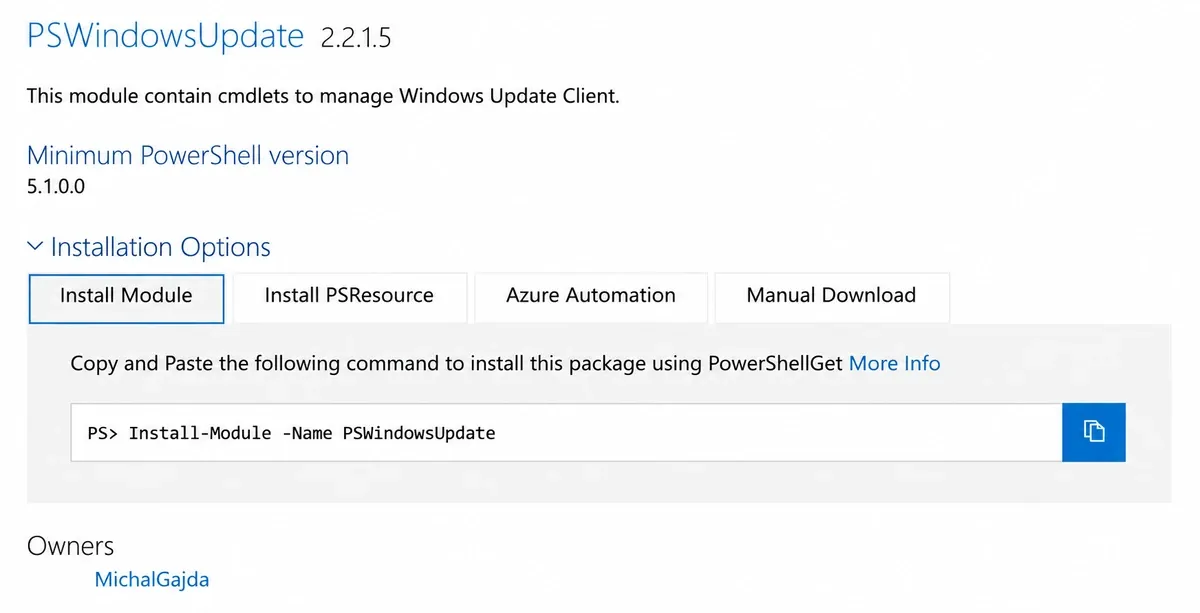
To install PSWindowsUpdate, open Windows PowerShell 5.1 and run Install-Module -Name PSWindowsUpdate -Repository PSGallery -Scope CurrentUser after checking the package and your organization's approval. Then use Get-Module -ListAvailable -Name PSWindowsUpdate to confirm PowerShell can find it. Installing this community module doesn't install Windows updates or restart the PC.
I'd verify the host and account before repeating an installation. A module installed for your interactive user may still be unavailable to a scheduled task or a different administrator account. That mismatch needs a context check, not a Windows Update reset.
Check the host and package first
Open Start, search for Windows PowerShell and open it. If you're using Windows Terminal, check the selected shell: Terminal is the window hosting the session, not proof that the session is Windows PowerShell.
$PSVersionTableLook for PSVersion 5.1 and PSEdition Desktop. The PSWindowsUpdate package listing specifies a minimum PowerShell version of 5.1.0.0 and lists Desktop under PSEditions. PowerShell 7 uses the Core edition; don't treat successful installation there as confirmation that a later Windows PowerShell job can find the same files.
The Gallery lists MichalGajda as the owner and Michal Gajda as the author. PSWindowsUpdate is a community module, rather than a built-in Microsoft update command. Microsoft explains that Gallery metadata comes from package publishers and isn't verified by Microsoft. Review the package and obtain approval before importing third-party code on a managed PC. A product-named download website alone doesn't establish the publisher's identity.
Install for the intended user
Use the same Windows account and Windows PowerShell host that will need the module. Before installing, run Get-Module -ListAvailable -Name PSWindowsUpdate. If it already lists the approved version in the expected location, move to the import check below instead of installing again.
For a new installation, check the registered repository first:
Get-PSRepository -Name PSGalleryThis displays the repository registration for the current user. Review its source location and your approved package source. If PSGallery is absent or your organization requires an internal repository, resolve that with your administrator before continuing; don't create a replacement source from an unfamiliar download link.
For an approved PSGallery installation used by your current account, run:
Install-Module -Name PSWindowsUpdate -Repository PSGallery -Scope CurrentUserCurrentUser makes the scope explicit. In Windows PowerShell, its module location is normally $HOME\Documents\WindowsPowerShell\Modules. It doesn't provide a system-wide deployment for other accounts. An approved AllUsers installation has a different scope and permissions; changing to it isn't a repair for an unexplained download error.
If a provider-installation or untrusted-repository prompt appears, read what component or source it names before approving it. Stop if it conflicts with your organization's software policy. Avoid adding -Force or permanently marking a repository trusted just to suppress a prompt.
The Install-Module documentation separates downloading module files from importing them into a session. The Gallery's Install PSResource tab uses another package manager. Its Manual Download tab saves a raw .nupkg file without unpacking it; that download alone doesn't complete this installation.
Verify discovery, then import
After installation finishes without an error, check availability in this same session:
Get-Module -ListAvailable -Name PSWindowsUpdateCheck the returned version and module location against the package you intended to install. Get-Module with ListAvailable searches the module path; it doesn't import the module. No returned entry means the current session hasn't found it.
Once the package and location are trusted, import it explicitly:
Import-Module PSWindowsUpdate
Get-Module -Name PSWindowsUpdate
The import should finish without an error, and the second command should list the loaded module in this session. This confirms module availability and loading. It doesn't confirm that a scan, download or Windows update installation will succeed.
For a final check, open a new Windows PowerShell 5.1 session under the same account and repeat the availability and import checks. A scheduled task or another account still needs its own approved module deployment and verification.
| Stage | Next check |
|---|---|
| Source error | Check the registered source, connection and exact PowerShellGet error before changing module scope. |
| No entry | Compare the host, Windows account and module path with the installation session. |
| Load error | Read the complete import error and inspect execution-policy scopes; keep organizational controls in place. |
| OS update | If an update command fails after import, record its error separately. A loaded module doesn't diagnose a failed Windows update. |
When the module is still missing
Run $PSVersionTable again in the failing session and compare it with the session used for installation. Also confirm whether a task, remote session or support tool runs under your account, another user or SYSTEM. Installing with CurrentUser in one account doesn't establish availability for those other contexts.
$env:PSModulePath -split ';'Compare the listed directories with the module location returned during verification. Microsoft's Windows PowerShell module-path guidance distinguishes user and machine module directories. Don't rewrite the machine's module path as a first response; first establish where the approved package was installed and which process needs it.
A successful import from a custom folder only confirms that session could load that path. It doesn't prove a different process can discover the module by name. One PowerShell forum report describes a working import followed by a destination-module error during a later download operation. The thread doesn't establish a definitive fix. Treat that error as a reason to inspect the actual destination and execution context, rather than assume an undocumented dependency.
Handle repository or policy errors at their source
If the download fails, save the complete error before retrying. The Gallery requires TLS 1.2 or higher. A transport, proxy or source-registration failure occurs before module loading; changing Windows Update services won't correct the package connection. Use the exact error to choose the relevant PowerShellGet or network repair.
If the error says script execution or loading is blocked, inspect the policy without changing it:
Get-ExecutionPolicy -ListMicrosoft's execution-policy precedence rules explain why Group Policy overrides local choices. Send the policy output and full import error to the administrator responsible for a managed PC. Don't use Bypass as a generic installation step.
Once the module is available and imports successfully, return to the specific approved procedure that required it. If Windows Update itself fails, keep its error code, KB number and failure stage and use the Windows 11 update-failure checks. The Windows Update guides cover those operating-system failures separately from PowerShell module setup.
If you only need to list currently available updates on this PC, use the native PowerShell update scan and completion checks. That scan does not require this module and keeps finding updates separate from installing them.



