
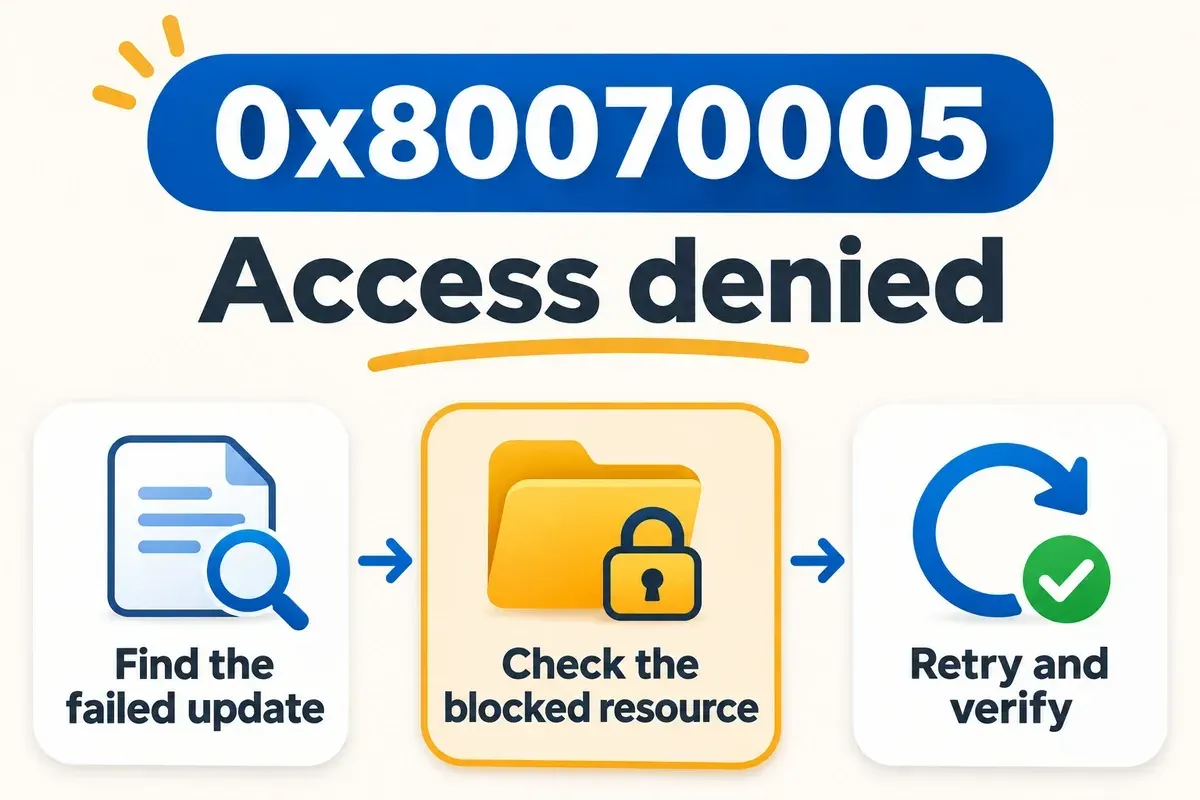
Windows Update error 0x80070005 means access denied: an update couldn't read or change a file, folder or registry entry it needed. Start with the Windows Update troubleshooter, then use the failed update's logs to choose between a security-software conflict, a damaged update cache and a system-permissions problem. Changing permissions across the whole Windows folder is a poor first move.
This route is for Windows 11 when the error appears in Windows Update. If it appears during Office activation, a Microsoft Store download or the first setup of a new PC, record that operation instead; the same code doesn't make those the same fault.
If Outlook rejects an outgoing message with 0x80070005-0x000004dc-0x00000524, use the Outlook From-account and sending-permission checks. That composite non-delivery error needs its own mailbox and client investigation before any Windows Update repair.
Identify the update before changing anything
Open Start > Settings > Windows Update > Update history. Write down the failed update's full name, KB number if shown, error code and failure time. Microsoft uses this information in its Windows upgrade and installation troubleshooting. A cumulative update, a feature upgrade and an app installer need different evidence.
Press Windows + R, enter winver and record the Windows version and OS build. Keep this beside the update name when looking for a package-specific fix; advice for another Windows release may not apply.
Check your version and edition against Microsoft's Windows 11 release and support information. If your edition has reached the end of updates, planning an upgrade to a supported release is a separate task; repairing this error doesn't extend its support period.
Save your work, back up important files and restart the PC normally. Keep the device connected to power and the internet. Return to Windows Update and retry once. If a restart finishes a pending installation, check Update history before applying another fix.
For a work or school computer, ask IT to investigate before changing services, security tools or system permissions. Microsoft's specific explanation of error 0x80070005 includes Group Policy restrictions and management agents among the possible causes. An administrator account doesn't remove an organization's policy.
Run the Windows Update troubleshooter
On a personal Windows 11 PC, I would start with the built-in troubleshooter. It can check update problems without asking you to decide which system folder needs repair.
- Open Settings > System > Troubleshoot > Other troubleshooters.
- Find Windows Update and select Run. Follow the diagnostic steps in Get Help and apply the offered fixes.
- Restart if prompted. Open Settings > Windows Update > Check for updates and retry the failed update.
These are Microsoft's current Windows 11 update troubleshooting steps. If Windows asks for an administrator password, use an account authorized to administer this PC. If you don't have that access, stop here and contact the person who manages it.
A troubleshooter saying it fixed something isn't the final check. The useful result is that the update installs and remains installed after its required restart. If 0x80070005 returns, move to the logs rather than running the same troubleshooter repeatedly.

Find what Windows was denied access to
The code identifies the type of failure, not the blocked object. Microsoft's 0x80070005 guidance names missing TrustedInstaller permissions, incorrect Component Based Servicing registry permissions, missing SYSTEM access and files locked by security software as possible causes. None is established just by seeing the code.
Open Windows PowerShell as administrator and run this documented log-conversion command:
Get-WindowsUpdateLogOpen the generated WindowsUpdate.log and search for 0x80070005 around the time of the failed attempt. Keep the surrounding entries, including the component, update identifier and any named path. For a failure while Windows installs the package, also examine %windir%\Logs\CBS\CBS.log. The Windows Update log reference explains that CBS.log covers the servicing-stack installation stage.
Generate a new WindowsUpdate.log after a new attempt. The converted file is a static copy; it doesn't keep updating in the background. Don't confuse an old failure with the attempt you're investigating.
| What you find | Next action | What to check afterwards |
|---|---|---|
| A security product blocked an update-related file at the failure time | Investigate that product and use the conflict-isolation route below. | Whether the same update completes with protection restored. |
| Repeated failures involving the update cache, after the troubleshooter has failed | Consider the controlled cache reset below. | Whether Windows downloads fresh update files and installs the package. |
| Component-store corruption or damaged protected files | Run DISM, then SFC. | The repair tool's result and a fresh update attempt. |
| A denied system path or registry key, especially after manual permissions changes | Have IT or Microsoft Support inspect ownership and access for that exact resource. | Whether the denied operation succeeds without broadening unrelated permissions. |
| Only the error code, with no useful surrounding evidence | Keep the logs and request help; don't guess which permissions to replace. | A specific blocked operation or documented package issue. |
If a later attempt reports a different code, record it. For example, 0x80070002 identifies a missing file; it isn't another name for access denied.
Check a security-software conflict without leaving the PC exposed
Review the security product's event or protection history at the failed update's timestamp. Update the product using its own supported process. A matching block is a useful lead; the mere presence of an antivirus program isn't proof.
There is a concrete published example: in a Microsoft Q&A report about KB5052093 on Windows 11 24H2, the original poster had already tried cache and system-file repairs. A different participant later reported that the update installed after disabling third-party antivirus. That is a report about one configuration, not a success rate or a reason to disable everyone's protection.
Microsoft's general update guidance allows temporarily removing incompatible third-party security software, with the means to reinstall and reactivate it ready first. On a managed PC, let IT handle this. On a personal PC, follow the security vendor's current instructions, confirm Windows security protection is active, retry the update and restore the intended protection afterwards. Don't leave antivirus or the firewall switched off as a permanent fix.
When a background conflict is plausible but the product isn't clear, a clean boot can isolate startup apps and services. Some features are temporarily unavailable during a clean boot. Leave the advanced boot options alone. Save a record of the items you change:
- Sign in as an administrator, search for
msconfigand open System Configuration. - On Services, select Hide all Microsoft services before selecting Disable all, then Apply.
- On Startup, open Task Manager. Disable the enabled startup apps you recorded, then close Task Manager.
- Select OK in System Configuration and restart. Retry the same update.
- If the failure disappears, re-enable the changed non-Microsoft items in groups, restarting and checking between changes, until you isolate the conflict. Contact that software's vendor.
- Return the PC to its normal startup configuration using the restoration section in Microsoft's instructions, re-enable the startup items you disabled and restart.
If the update still fails, restore normal startup before continuing; don't leave unrelated services disabled while trying other repairs.
Reset the update cache only after the simpler checks
If the troubleshooter hasn't helped and the failure points to update components, Microsoft's 0x80070005 procedure includes stopping the update services and renaming the cache folders. This creates room for a fresh cache; it doesn't repair every denied registry key or folder.
Before starting: save the failed update details and logs and back up the operating-system disk, as the linked Microsoft procedure requires. Wait until Windows is back at the desktop with no update installation in progress. Check whether %windir%\SoftwareDistribution.old or %windir%\System32\catroot2.old already exists. If either does, don't delete it or run the rename sequence over it; get help reviewing the earlier reset.
Open Command Prompt as administrator. These commands use Command Prompt's %windir% syntax. Run each line separately and read its result before continuing:
net stop wuauserv
net stop bits
net stop cryptSvc
If a required service can't be stopped, don't rename the folders. Restart any services you stopped using the start commands below, and investigate the service error. A service reported as already stopped doesn't need stopping again.
ren "%windir%\SoftwareDistribution" SoftwareDistribution.old
ren "%windir%\System32\catroot2" catroot2.old
net start cryptSvc
net start bits
net start wuauserv
If a rename reports access denied or another error, don't force it by taking ownership or deleting the folder. Run the service-start commands to restore the stopped services and retain the exact error for support. The intended result is two renamed cache folders and restarted services.
Restart the PC and retry the update. If it installs, check Update history after the required restart and stop troubleshooting. If the same denial returns, retain the new logs; repeating the cache reset doesn't establish a different cause.
Repair the component store, then protected system files
Use this route when the logs or other Windows symptoms point to damaged system components, or when the preceding applicable steps haven't resolved the failure. Microsoft's system-file repair instructions put DISM before SFC.
- Open Command Prompt as administrator.
- Run the DISM command below and wait for it to finish. If it fails, keep its error code and resolve that failure before assuming the component store has been repaired.
- After DISM completes successfully, run SFC. Keep the window open until verification finishes.
- Restart, retry the failed update and check Update history.
DISM.exe /Online /Cleanup-Image /RestoreHealth
sfc /scannow
DISM normally obtains repair files through Windows Update. If that source isn't working, Microsoft's Windows image repair documentation explains how to supply an appropriate repair source. Don't paste a sample /Source path for a folder that doesn't exist on your PC.
| SFC result | Meaning for the next step |
|---|---|
| No integrity violations | SFC didn't find missing or damaged protected system files. Continue investigating the denied operation. |
| Corrupt files successfully repaired | Restart and retry the update. File repair alone doesn't prove the update is fixed. |
| Unable to fix some files, or unable to perform the operation | Keep CBS.log and follow the matching result in Microsoft's SFC instructions or contact support. |
Stop before broad permission changes
If the logs identify incorrect permissions in WinSxS, SoftwareDistribution or Component Based Servicing, Microsoft's dedicated 0x80070005 procedure contains permission and ownership repairs. It also requires an operating-system-disk backup first. Have a qualified administrator apply the matching repair and check its output, especially if permissions have already been changed manually.
I wouldn't grant Everyone: Full control across AppData or Windows to remove this error. That changes access for unrelated files without identifying the account and operation that failed. Taking ownership of the entire component store, unloading security drivers or using a registry-cleaner download is also an unsuitable next step for a home troubleshooting checklist.
If the failure is a feature upgrade rather than a monthly update, check Microsoft's upgrade-specific preparation and error guidance before choosing installation media. An old forum answer for a particular build doesn't establish the right upgrade package for your current Windows version.
For escalation, send the update name and KB, Windows version and OS build from winver, failure time, original and current error codes, the relevant WindowsUpdate.log and CBS.log entries, and the changes already attempted. Remove personal account details from material you post publicly. Use Get Help or your organization's support team to decide whether a targeted permissions repair or Windows recovery is appropriate. A clean installation isn't the next action merely because this code appeared.


