
0x80073712 reports corruption in the Windows component store. First check the failed update's KB for a known installation issue; the code doesn't prove that your PC needs reinstalling. If no package-specific resolution applies, run the Windows Update troubleshooter, repair the component store with DISM, then run SFC and retry the update after restarting.
My first decision is whether the problem follows a particular update or persists across servicing operations. That separates a documented package problem from a system repair that needs logs and a suitable source.
Check the exact KB before repairing Windows
Open Settings > Windows Update > Update history and copy the failed update's complete name, KB, error and failure time. Run winver from Windows + R to record the version and OS build. For a work or school device, send these details to IT before changing security tools, policies or repair sources.
There is a concrete reason to check the KB first. Microsoft's March 26, 2026 preview KB5079391 for Windows 11 24H2 and 25H2 was withdrawn from new devices after installation failures. Microsoft then documented KB5086672 as resolving that specific 0x80073712 installation issue.
This is a historical package example, not a recommendation that every reader install a March update. Check your own failed KB's current known issues and replacement guidance. A later applicable cumulative update may be the right route; don't force an old package onto a newer build or interpret “not applicable” as another corruption diagnosis.
Microsoft's Win32 error definition calls the underlying condition ERROR_SXS_COMPONENT_STORE_CORRUPT. It identifies the servicing category; it doesn't name the damaged package or establish why that condition occurred. Missing manifests, a failed download and an update-specific defect require different evidence.
Run the diagnostic, then verify the actual update
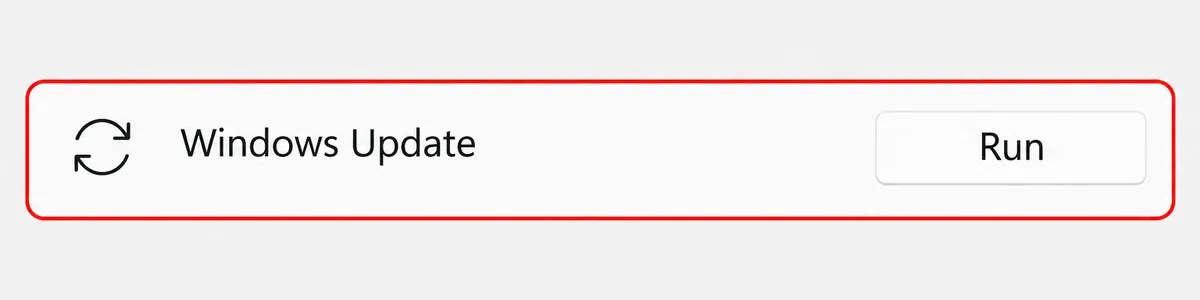
Save your work, back up important files, connect power and confirm internet access. Restart once to finish pending work. On a personal Windows 11 PC, use the current Windows Update troubleshooter in Get Help: open Settings > System > Troubleshoot > Other troubleshooters, select Run beside Windows Update and follow its prompts.
Apply an offered repair and restart if requested. Return to Windows Update and retry. If the package installs and its required reboot completes, stop troubleshooting. If it fails, record the new time and code. A diagnostic saying it made changes isn't proof that the component store or update is now healthy.
Repair the component store before running SFC
For a continuing servicing failure without an applicable KB-specific solution, use Microsoft's DISM-then-SFC sequence. DISM addresses the Windows image; SFC checks protected system files afterwards. Open Command Prompt as administrator and run:
DISM.exe /Online /Cleanup-Image /RestoreHealthLeave the window open until the operation returns a result. A progress percentage by itself isn't a reason to force a shutdown. If DISM reports success, run:
sfc /scannowWait for verification to finish. Restart, retry the original update and check Update history. I wouldn't call this fixed solely because DISM completed: the original package's installation is the result that matters.
| Result | What to do next |
|---|---|
| DISM succeeds and SFC repairs files | Restart and retry the same KB; keep the results if installation still fails. |
| DISM succeeds; SFC finds no integrity violations | Don't invent a damaged-file diagnosis. Check the update's fresh servicing entries and package guidance. |
| DISM cannot find or download source files | Keep the exact error and investigate the repair source below. |
| SFC cannot repair some files or perform the operation | Retain CBS.log and follow the corresponding Microsoft SFC result instructions or ask support. |
If DISM can't obtain repair files
Microsoft's repair-source documentation explains that Windows Update is normally the source when policy allows it. On a managed PC, source restrictions can be intentional; IT should check the approved location and connectivity rather than having you override policy.
A local source must contain the files the installed image needs. The document warns that repair can fail when the target is patched beyond the source, and that required language components matter. A WIM source also requires the correct image index. A downloaded ISO, an assumed drive letter and index 1 aren't automatically a valid source.
Use a qualified administrator or Microsoft Support to select the appropriate source and follow the documented /Source and /LimitAccess options. The latter prevents fallback to Windows Update; adding it blindly can remove a working fallback. Don't repeatedly run the same failing command or copy individual manifests into WinSxS from a download site.
Use the log that matches the failed operation
For a cumulative or Framework servicing update, inspect %windir%\Logs\CBS\CBS.log at the recorded failure time. Keep the lines identifying the affected package, manifest or component with the surrounding error. For Windows Update activity, run Get-WindowsUpdateLog in administrator Windows PowerShell. The generated Update log is a static conversion; create a fresh one after another attempt.
For a Windows feature upgrade that rolls back, SetupDiag analyzes Windows Setup logs. Setup normally runs it automatically after a failed upgrade, with results at %windir%\Logs\SetupDiag\SetupDiagResults.xml. Keep the matched rule, last phase, operation and error. If the result is absent or unclear, retain the Panther/Rollback Setup logs for support rather than guessing from one generic line.
A download/cache fault may justify a fresh download, but resetting the download cache isn't the same as repairing the component store. If that branch fits and you haven't already reset it, use the controlled cache-reset procedure with service and rename failure checks. Retain logs first, stop if the backup folder already exists and don't force ownership changes when a rename fails. Repeated cache resets without changed evidence aren't a new diagnosis.
Use a repair reinstall only after the matching checks
For persistent component problems on an eligible personal PC, Microsoft's Fix problems using Windows Update option reinstalls the same Windows version and preserves apps, files and settings. Back up first and keep the PC connected to power and the internet throughout.
This option can be unavailable when updates are managed, on releases before the Windows 11 2022 annual update, or without the February 2024 optional update or later. Local administrator rights don't override those conditions. If it is absent or fails, have support assess matching installation media; don't boot a clean-install USB assuming it retains applications.
- Open Settings > System > Recovery.
- Under Fix problems using Windows Update, select Reinstall now. Don't choose Reset this PC as an equivalent action.
- Review the restart choice, then select OK when ready. Windows downloads and installs the repair version.
- Complete the restart and check the original failed update again.

If the error remains, provide the full KB/name, Windows build/edition, failure time, DISM and SFC outcomes, relevant CBS/Update or SetupDiag evidence, repair source used and changes attempted. Redact private account information before sharing publicly. A new error requires its own interpretation; broad registry cleaning, deleting WinSxS and permanently disabling security software don't follow from 0x80073712.


