Windows devices, printers and drivers
Turn ClickLock On or Off in Windows 11
Choose ClickLock for selecting without holding the mouse button down, then check the saved setting and practice releasing the selection.
Troubleshooting guides
Diagnose Windows 11 printing, Bluetooth, audio, camera, display and input problems. Separate a missing device from a connection, permission or driver failure.
Start with the affected device and what Windows reports. An offline printer and a print service that keeps stopping need different checks. For an input device, keep another way to control the PC available before changing drivers.
Choose Printer offline when the queue reports the device as offline. Choose Print spooler keeps stopping when the Windows printing service will not remain running.
Check whether another pointing device works and whether the touchpad is disabled before considering a driver change.
Use the AMD guide for a confirmed AMD device. Note the driver version and whether a particular application triggers the failure.
Windows devices, printers and drivers
Choose ClickLock for selecting without holding the mouse button down, then check the saved setting and practice releasing the selection.
Windows devices, printers and drivers
Choose a comfortable interval for two intentional clicks, check it with the native folder test and restore your original setting if needed.
Windows devices, printers and drivers
Choose how far content moves when you roll the mouse wheel, compare the same document, and keep pointer, touchpad and app controls separate.
Windows devices, printers and drivers
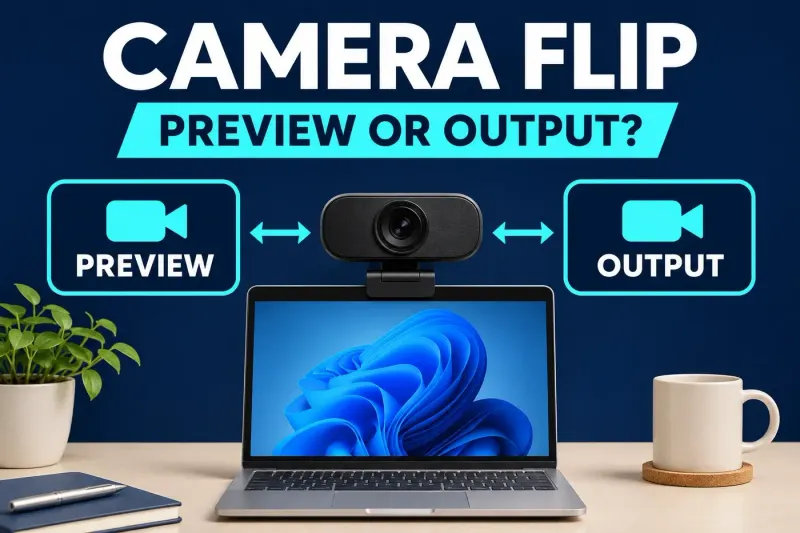
Separate a mirrored self-view from the received or saved picture. Use the supported app or camera control, then check the result in the destination.
Windows devices, printers and drivers
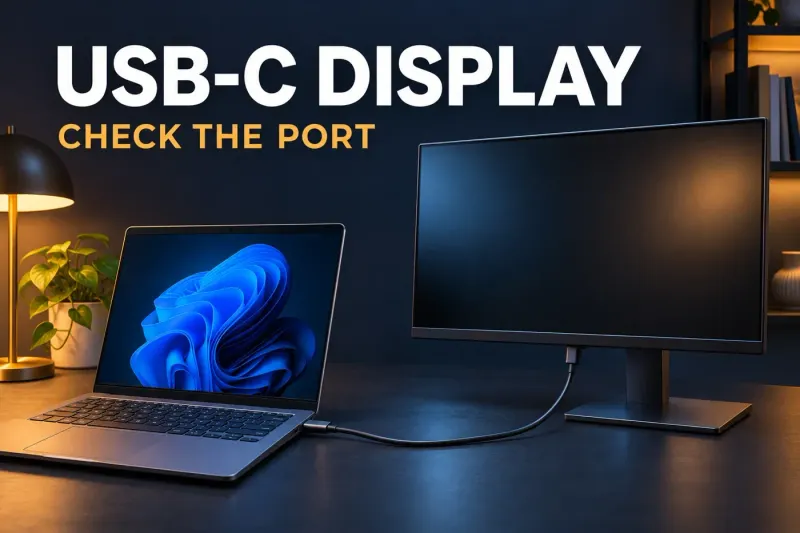
Check the supported video path before changing drivers. A USB-C connector that charges or carries data does not confirm native display support.
Windows devices, printers and drivers
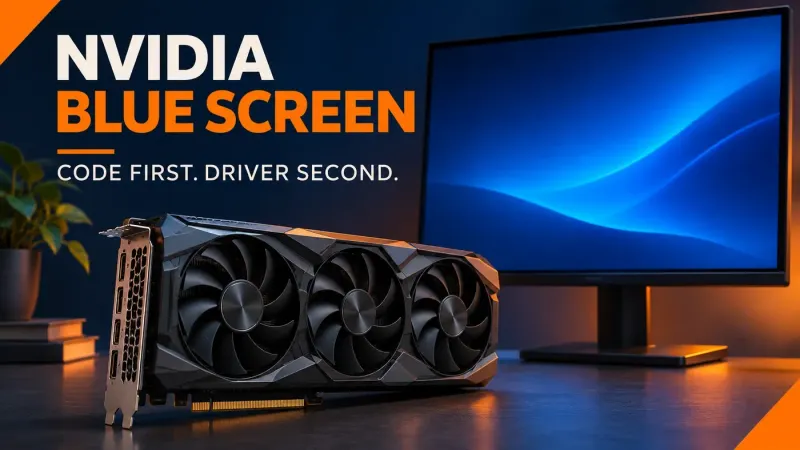
Read the stop code before cleaning drivers. NVIDIA package recovery differs from generic rollback, and a hotfix must match the actual symptom.
Windows devices, printers and drivers
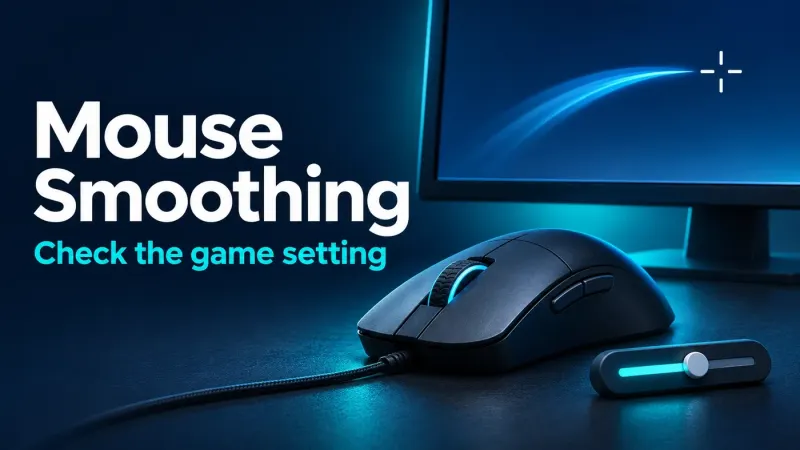
Start with the game's smoothing option, keep sensitivity unchanged and compare the same movements. Separate that choice from Windows acceleration and actual connection lag.
Windows devices, printers and drivers
Rear ports work but the front ports fail: isolate the case-front path, check the build history and collect the right evidence before changing drivers.
Windows devices, printers and drivers
Start with movement, taps and scrolling, then check your touchpad settings before adding three- and four-finger shortcuts.
Windows devices, printers and drivers
Locate the missing disk without blind formatting: check the volume state, USB or internal detection, and whether the drive already holds files.
Windows devices, printers and drivers
Use the failure time, display response and Windows records to investigate a black screen during gaming or rendering without guessing which component failed.
Windows devices, printers and drivers
Separate a busy service host from a confirmed cause, then check the same app, accessory and media controls after each change.