
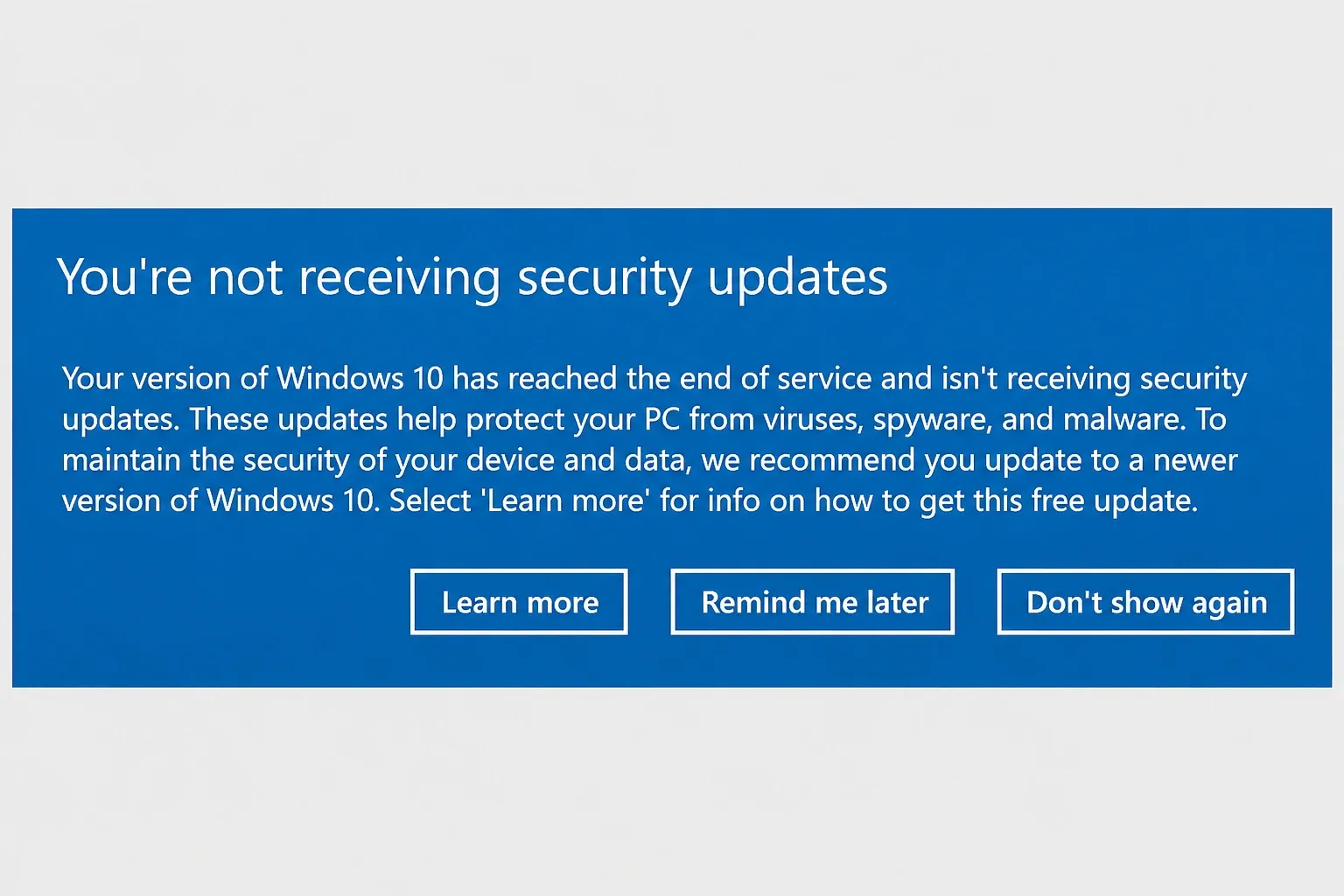
If Windows says “Your device is no longer receiving security updates,” check the installed Windows edition and version before running repair commands. The next step depends on whether that release is still supported, whether a Windows 10 PC has the appropriate Extended Security Updates (ESU) enrollment, or whether an eligible update actually failed.
I'd establish those three things before trying to hide the warning. A disappearing banner doesn't establish that the PC has received its security updates, and a working desktop doesn't establish that its release is supported.
Identify the installed Windows, not just the warning
- Open Settings > System > About.
- Under Windows specifications, record Edition, Version and OS build. Keep the full edition name if it includes Enterprise, IoT or LTSC.
- Open Windows Update and copy the exact warning. Note any failed update's complete name, KB number and error, and whether Windows requests a restart.
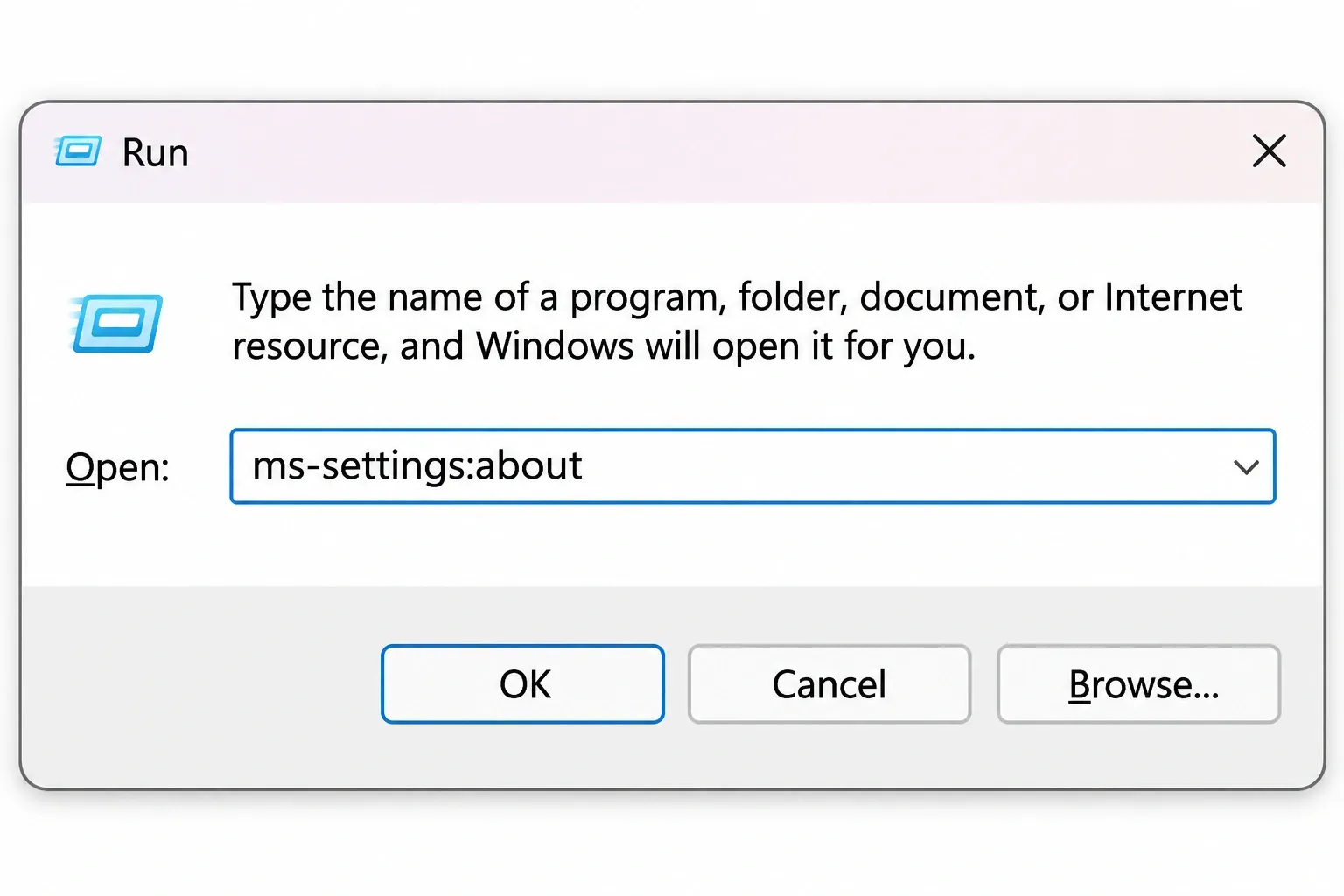
Microsoft's device-information instructions identify the edition and version fields. To open About directly, press Windows + R, enter ms-settings:about and select OK. This opens the information page; it doesn't install an update.
Keep screenshots private if they include account names, device identifiers or product information. On a work or school PC, send the details to IT before changing update policies, enrollment or licensing.
| What you establish | Next step |
|---|---|
| Ordinary Windows 10 without applicable ESU enrollment | Check the supported upgrade route or current consumer/commercial ESU eligibility. |
| Windows 10 with ESU already enrolled | Verify the enrollment and actual applicable update installation separately from the banner. |
| Windows 10 Enterprise LTSC or LTSB | Match the exact product's lifecycle; don't apply the ordinary Windows 10 deadline. |
| A Windows 11 release past its edition's end of updates | Choose a supported feature release through the appropriate update or IT route. |
| A supported release with a failed KB or upgrade | Preserve the full error and investigate that installation failure. |
Windows 10: check support and ESU separately
Ordinary Windows 10 support ended on October 14, 2025. Microsoft's Windows 10 release-status page lists ESU as a separate option and explicitly excludes LTSC/LTSB releases from that general lifecycle statement. Updating an ordinary installation to 22H2 alone doesn't restore standard support.
Some older instructions say every Windows 10 version receives 18 months of support and recommend moving to the latest Windows 10 release. Even Microsoft's older notification explanation retains that advice beneath its end-of-support notice. Use the current lifecycle and ESU requirements when deciding what this PC can receive now.
For a personal Windows 10 PC
Microsoft's current Consumer ESU requirements and enrollment instructions say the program continues through October 12, 2027, with existing coverage continuing automatically through that date. Check that page's current terms before enrolling; old guides can describe a different end date.
The documented consumer prerequisites include Windows 10 22H2 Home, Professional, Pro Education or Workstations, the latest Windows update, the required ESU Licensing Preparation Package and a non-child Microsoft administrator account used for enrollment. Don't treat having Windows activated as confirmation of ESU enrollment.
Open Settings > Update & Security > Windows Update. Microsoft says eligible devices display an Enroll now link there; follow its prompts and review the offered enrollment terms before accepting. If you already enrolled, use the same Windows Update page to check enrollment status. Don't pay again simply because a warning remains. If Enroll now is absent, check existing enrollment first, then compare the prerequisites and device-management exclusions below. Microsoft says the consumer offer isn't shown on devices that already have an ESU license.
ESU supplies critical and important security updates, rather than restoring ordinary feature development or general technical support. If you plan to move to Windows 11, check the supported upgrade offered for the device and its compatibility requirements. Keep a backup before a feature upgrade.
For a managed, commercial or LTSC PC
The consumer program isn't for commercial scenarios. Microsoft's consumer page excludes domain-joined, Microsoft Entra-joined and MDM-enrolled devices from that enrollment offer; it distinguishes Entra registered devices, which can use Consumer ESU. Don't disconnect a PC from management to make a consumer offer appear.
Ask IT to confirm the installed edition, servicing channel, applicable ESU year and deployment status. Microsoft's commercial ESU guidance describes annual coverage for eligible Windows 10 22H2 devices, with up to three years for enrolled commercial or educational PCs. Consumer enrollment and commercial annual licensing are different routes.
For LTSC or LTSB, use the exact product entry on Microsoft Lifecycle. A warning on an LTSC installation isn't enough to apply the Home/Pro deadline or prescribe a different license.
Windows 11: match the release to its edition
Windows 11 feature releases have their own support periods. Microsoft's release-information table separates Home/Pro and Enterprise/Education: the ordinary support periods are 24 and 36 months respectively. These run from the release's availability, not from the date you installed it.
For example, 24H2 Home/Pro has reached end of updates, while 24H2 Enterprise/Education has a different deadline. Installing another monthly patch doesn't change which feature release About identifies. If you're checking 25H2, use the edition-specific 25H2 support dates.
For an expired release, check the supported feature update offered in Settings > Windows Update, or follow IT's approved deployment plan. Back up important files and address any named compatibility warning before proceeding. Don't assume a larger version number is the correct target: Microsoft says 26H1 is for certain new devices and isn't offered as an in-place feature update from 24H2 or 25H2 on existing devices.
If an attempt involving 24H2 fails, the 24H2 target and installation checks distinguish an old feature-upgrade attempt from a monthly update on a PC already running that release.
If the release is supported but an update fails
“Your device is missing important security updates” is a related warning, but it doesn't by itself establish why an update is missing. On Windows 11, open Settings > Windows Update > Update history and retain the failed item's full name, KB, error and date. For an upgrade, also record the target version and any named Setup phase.
If no package has failed yet, select Check for updates and retain the result. If a restart is requested, save your work and complete that restart before checking again. A warning without a failed package is not a reason to begin a cache reset.
In one Windows 11 Pro 21H2 discussion, the owner reported reaching 25H2 after resolving a separate EFI-partition error during an upgrade. That is a specific reported outcome, not evidence that the warning always means an EFI fault. Don't delete boot files or change partitions because a forum participant needed a different repair.
Use the failed-update investigation for an actual download, installation or rollback failure. It covers the diagnostic and logs appropriate to that stage. Repeating cache resets or system-file repairs doesn't extend a release's lifecycle or supply ESU enrollment.
Verify servicing, not just the banner
After the relevant update and requested restart, reopen About to verify the intended edition and feature version. Check Update history for the applicable security update's successful installation. For Windows 10 ESU, confirm enrollment as well; an antivirus-definition update or an unrelated driver update doesn't settle Windows servicing eligibility.
A persistent banner alone also doesn't prove enrollment failed. I'd compare the release, entitlement and installed update with Microsoft's current guidance before diagnosing a display problem. An unofficial activation-tool discussion calling a banner a “visual bug” isn't confirmation for a legitimately enrolled PC or a reason to run its scripts.
If those checks conflict, give Microsoft Support or IT the exact message, edition/version/build, enrollment status, failed KB or target release, error and attempt time. Share account and licensing evidence privately. The Windows Update hub leads to the next guide once you have an actual installation symptom to investigate.




