This section is for a PC that starts but does not behave as expected on the desktop. Choose the component that fails and describe what you can still open. Sleep problems are split into a PC that will not enter sleep and a PC that cannot wake from it.
Search, Settings or the taskbar fails
Choose the affected component rather than applying every reset to the whole desktop. Record whether the issue affects one account or every account.
The PC will not enter sleep
Use the sleep-mode guide for a PC that stays awake or wakes immediately.
The PC will not wake
Use the wake guide when sleep begins successfully but the PC does not resume. Avoid treating a blank display as proof that the entire computer is unresponsive.

Windows desktop, search and sleep
Control intentional quiet time or restore wanted alerts by checking the Windows bell, five automatic conditions, Focus and individual sender permissions.




Windows desktop, search and sleep
Choose the correct Windows time zone, keep manual and automatic selection separate, and check location, daylight saving and the retained local time.

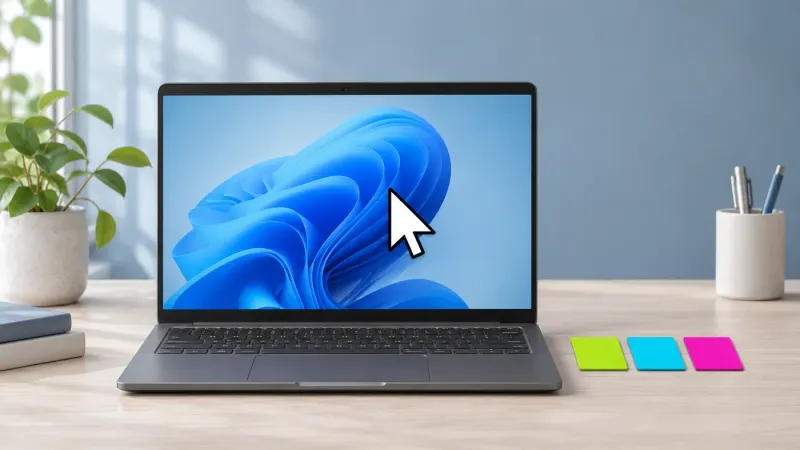
Windows desktop, search and sleep
Use the built-in pointer controls, check the result against your actual backgrounds, and keep a record so you can restore the appearance you prefer.

Windows desktop, search and sleep
Increase Windows interface text with the preview and Apply button, then check the intended app and restore your previous percentage if the layout becomes crowded.



Windows desktop, search and sleep
Choose your installed browser in Windows 11, verify ordinary web links and handle file associations or app-specific exceptions without registry changes.

Windows desktop, search and sleep
Create the native Windows 11 battery report, find its saved file and distinguish reported capacity from charge percentage and estimated runtime.
