
A Windows 11 OS update labeled Preview is normally an optional, cumulative non-security release. It lets you receive and validate fixes before they're included in the following monthly security update. It doesn't, by itself, mean your PC has joined the Windows Insider Program.
I'd skip an optional preview on a working everyday PC unless its release notes describe a currently needed fix. Keep regular security updates enabled. If the offer names .NET Framework or Insider Preview, identify that product or channel before applying the ordinary Windows OS preview rules.
What Preview means in Windows Update
Microsoft's Windows release-cycle documentation describes optional non-security previews as production-quality cumulative releases, typically published in the fourth week of the month. They're useful for early validation before the next monthly security release. “Preview” describes the release stage, not an incomplete download.
Cumulative means the release includes previously released fixes. “Non-security” describes the new preview content; it doesn't mean earlier security fixes have been stripped out. The following monthly security update includes the prior preview's non-security content along with security fixes. Waiting for that regular release is a valid choice; you don't need to install each earlier preview separately to collect its fixes.
| Release | How to treat it |
|---|---|
| OS non-security preview | Optional early fixes; review the exact KB before choosing it. |
| Monthly security update | Keep protection current. It also includes non-security fixes. |
| Insider Preview build | A separate program and selected channel; check enrollment. |
| Out-of-band update | An off-schedule response to an issue or vulnerability; read its instructions. |
The regular monthly security release is normally published on the second Tuesday. An out-of-band release can arrive as needed, so a date outside that schedule doesn't automatically make an update optional. A feature update changes the Windows version; it isn't simply another name for the monthly preview.
Decide from the exact KB
Before selecting an installation action, open Settings > Windows Update and record the offer's full title and KB number. Check the installed Windows version under Settings > System > About. Then open that KB's Microsoft support notes and match its applicable release to your PC.
- Read the improvements for a specific symptom you actually have. A long list of unrelated changes isn't a reason to install early.
- Read Known issues in this update, including affected hardware, languages, applications and any resolution. Check Microsoft's Windows release-health information for the relevant release as well.
- If the PC works and no fix is urgent, leave the optional preview unselected and continue with normal security servicing. Don't skip a separate security update just because a preview is offered alongside it.
- If an applicable fix matters now, save your work, keep an independent backup and allow time for the requested restart. On a work or school PC, let IT approve the update and maintenance window.
Production-quality doesn't promise that every configuration is free of regressions. Apply the known-issue conditions to the PC you're updating, rather than treating the label as approval. Microsoft's August 2026 preview notes for KB5120998, for example, later documented mouse-customization resets on non-English Windows installations and desktop-loading issues observed primarily on Azure Virtual Desktop hosts using FSLogix. The notes identify updates released on and after September 8, 2026 as the mouse-setting resolution, and on and after October 13, 2026 as the desktop-loading resolution. That's a historical example of why the affected conditions and current resolution matter, not a recommendation to install that older package now.
If you choose a preview, use the installation route in its own How to get this update section. Some offers expose a separate download-and-install action; the cited August package directs users to Windows Update > Advanced options > Optional updates. Don't download a package for a different release or architecture just because it has Preview in its name.
Check the early-update toggle
The Get the latest updates as soon as they're available switch is separate from Insider enrollment. Microsoft's early-update setting instructions say it prioritizes additional non-security updates, fixes and improvements for your device. Regular security updates continue with the switch either On or Off.
- Open Start > Settings > Windows Update.
- Inspect Get the latest updates as soon as they're available. If you don't want to opt into receiving those additional changes early, set it to Off.
- Confirm the displayed switch state. Read the update status separately: turning it Off doesn't remove changes already installed.
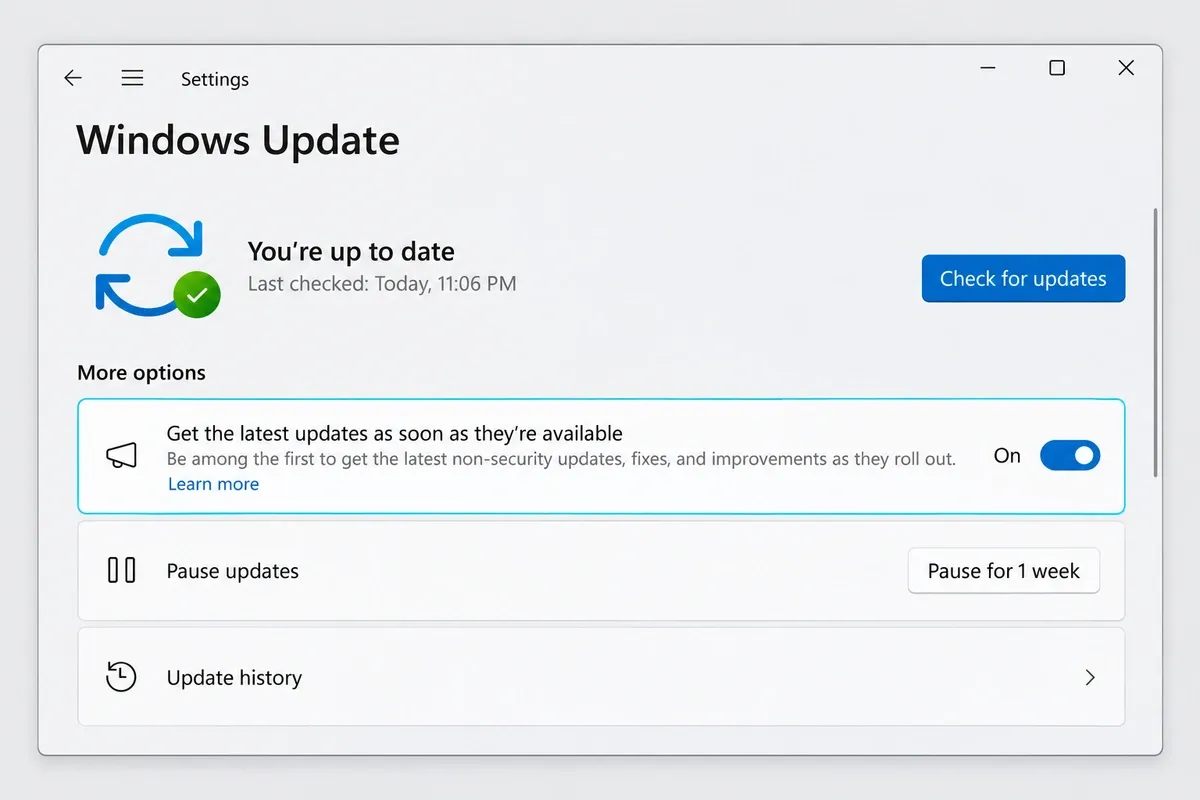
Don't use Check for updates as a harmless preview-only inspection button. Microsoft's instructions say available updates can download and install after that check, and enabling the early-update switch prioritizes offered content. Read the title and current state before choosing an action; don't assume every product waits for a second confirmation.
On a managed device, the administrator can control this setting through the optional-content policy. If it is unavailable or marked as managed, ask IT about the exact KB and policy. Don't remove management settings or disable Windows Update services to manufacture a choice.
Turning this switch Off isn't the same as pausing all updates or changing a required restart. If you need time to finish work, use the separate update-pause and restart-scheduling checks and retain a return date for security servicing.
A preview offer doesn't prove Insider enrollment
Windows Insider Preview Builds are a separate route. Microsoft's Insider setup instructions involve registration, linking an account, choosing a channel and accepting the program terms. You don't need to join that program just to receive an ordinary optional OS preview offered for your supported retail Windows release.
If the offer explicitly says Insider Preview, use an authorized administrator account to inspect Settings > Windows Update > Windows Insider Program. Record the selected channel and installed build; if the page isn't available, ask the device's administrator or IT to confirm them. Don't select Get started or enroll merely to find out whether you were already enrolled. Leaving a channel or returning to production Windows can require a different recovery process; changing the early-update switch isn't that process.
The word Preview also appears in product-specific updates. A 2022 Tom's Hardware discussion records an owner seeing a .NET Framework preview begin after Check for updates while the ordinary OS cumulative preview remained a separate offer. The replies didn't establish an authoritative explanation. An older Spiceworks .NET preview discussion likewise contains conflicting descriptions of “beta” and installation behavior. Neither thread establishes how every current Windows or .NET package installs.
I'd use the full product name and its KB notes rather than a blanket “all previews are beta” rule. Likewise, an organization's patch tool can approve optional content differently from a personal PC. Give IT the exact title and deployment state before assuming Windows enrolled you in Insider without consent.
If the preview is already installed
Don't uninstall an update solely because its title includes Preview. Open Settings > Windows Update > Update history, check the installed entry and complete an already requested restart with work saved. Then test the app or device that matters to you. A missing new feature alone isn't proof of a failed installation: Microsoft can roll features out gradually.
If a real problem began after installation, record the symptom, exact KB, Windows version/build and affected device or app. Compare those conditions with the KB's current known issues and resolution before making a repair. Use the targeted update-removal and recovery choices when appropriate; not every update can be uninstalled, and a driver rollback is a different operation.
If an old entry is missing, use the installed-build and update-history checks before resetting update data or reinstalling packages. If the actual message says the device no longer receives security updates, check its release support and servicing eligibility; choosing a preview doesn't extend a release's support period. The Windows Update hub leads to the error-specific guide once you have the package and failure stage.



