
When Windows Update says “We couldn't connect to the update service,” check the connection and run the Windows Update diagnostic before clearing update folders. A working browser doesn't establish that the update service can reach its own server. On a work or school PC, keep the required company network, VPN and update policies in place.
I'd start by separating a failed update scan from a failed installation. This message alone doesn't identify DNS, a damaged cache or a stopped service as the cause; the next check should narrow that choice.
Choose the connection check that fits
| What you see | Start here |
|---|---|
| Ordinary websites also fail | Reconnect Wi-Fi or Ethernet and resolve general internet access first. |
| Websites work; Update cannot check | Run the Update diagnostic, then inspect time and proxy settings. |
| Work or school manages the PC | Confirm the required network and update source with IT before changing settings. |
| A KB downloads or installs, then fails | Keep that package's error; use the installation branch rather than treating it as a scan-only connection problem. |
For a personal PC, confirm that Wi-Fi or Ethernet is connected and open an ordinary website. If other internet access fails too, use the Windows connection checks for “No Internet, secured” when that is the network status you see. Don't change Update's cache to repair a disconnected network.
A managed PC may get updates from an internal Windows Server Update Services (WSUS) server. Ask IT whether you need the company network or its approved VPN. Disconnecting that VPN or replacing company DNS with public DNS can remove the route to an internal service. If your personal VPN appears involved, ask its provider which configuration is supported; treat a temporary comparison as a diagnostic, not a reason to remove protection permanently.
If Chrome works but Store, Edge and Update all report no internet, keep that combination in your support notes. It is a broader clue than a single failed KB; a working Chrome session is not a reason to skip the proxy and network-route checks.
Run the Update diagnostic and keep its result
Microsoft's current Windows 11 route starts with the Windows Update troubleshooter in Get Help. You can also open Settings > System > Troubleshoot > Other troubleshooters and select Run beside Windows Update. Follow the prompts and record any repair or unresolved message.
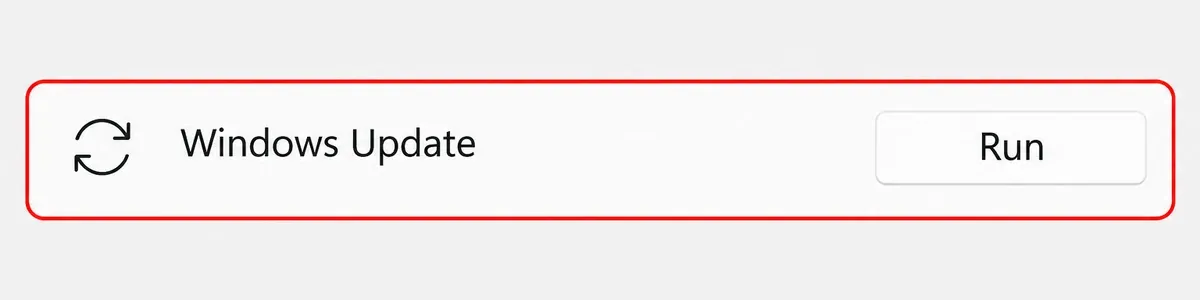
Save work, restart after the diagnostic and return to Settings > Windows Update > Check for updates. If Get Help cannot connect either, keep that result and continue with the connection checks below. If Settings itself won't open, resolve access to Settings before relying on these menu steps.
On Windows 10, the Settings route is Update & Security > Troubleshoot > Additional troubleshooters > Windows Update > Run the troubleshooter. Use the prompts available on that build. The two operating systems have different layouts in Microsoft's update troubleshooting instructions.
Check time and inspect the proxy
Incorrect date and time can interfere with Windows Update. In Windows 11, open Settings > Time & language > Date & time and check Set time automatically. Correct an obviously wrong clock before retrying. Microsoft's Windows 11 general checks also include Sync now under Additional settings when needed.
Next, open Settings > Network & internet > Proxy. Note whether automatic detection, a setup script or a manual proxy is configured. The Windows proxy instructions distinguish these configurations and explain that a VPN can have separate proxy settings. Correct a script address, server or port only when you know the intended value.
To inspect the basic WinHTTP configuration, open Command Prompt and run:
netsh winhttp show proxyThis displays the basic WinHTTP proxy and bypass list. Save the output. A direct-access result does not prove that every Update endpoint is reachable. Microsoft's client troubleshooting guidance describes WinHTTP proxy problems separately from browser-level proxy settings.
Don't paste a netsh winhttp reset proxy command just because a proxy appears. The WinHTTP command reference says that reset removes the configured proxy and switches to direct access. On a network that requires a proxy, that can make the connection worse. Give the recorded settings to IT or the network owner instead. After a known configuration error is corrected, repeat the original scan and keep its new message and time.
Find the error from the current scan
Retry Check for updates and note the time and full message. If the scan fails before offering a package, there may be no KB number to record; don't guess one. On a managed PC, give IT those details along with the intended update source. Microsoft documents that Windows clients can use Windows Update online or an internal update service; a browser reaching an unrelated website doesn't verify either route.
Open Windows PowerShell and run:
Get-WindowsUpdateLogThe Get-WindowsUpdateLog command converts the event traces to a readable WindowsUpdate.log on your Desktop by default. Look around the failed attempt's timestamp for the error code, requested server or proxy and the component reporting the failure. Keep surrounding lines, not just the last error in the file.
The converted file is a static snapshot of the update traces. Run the command again after a later attempt. If conversion fails, keep its exact message and the Windows version for support rather than deleting the source traces.
If only Update fails, use its current code and server details to choose the next check rather than repeating browser tests. If the attempt reports 0x8024402c, follow the code-specific hostname, DNS and update-source checks. If the diagnostic or error identifies a service problem, press Windows + R, enter services.msc and record Windows Update's status. A service that cannot start needs its exact startup error investigated; don't change every service's startup type to Automatic.
Avoid another reset without a new clue
Two published troubleshooting discussions show why the generic message needs diagnosis. In a Windows 11 Microsoft Q&A thread, the user reported that a component reset did not help and that Chrome worked while Edge and Store showed no internet. Later network-reset advice also received an unsuccessful reply on the visible first page.
In a separate Windows 10 WSUS case on Spiceworks, the administrator reported that cache clearing, service restarts and clean DISM/SFC checks had not resolved the message. A manual upgrade completed, but the connection error remained. The eventual outcome was replacement and repurposing of the machine, not a confirmed registry fix.
I'd preserve the scan evidence before another reset. If it points to damaged download data, the guarded update-cache refresh procedure is the next route. It includes checking for existing backup folders and stopping when services or renames fail. Save the current history and logs before changing update folders. A cache refresh doesn't repair an unreachable company server or a wrong proxy.
Keep corporate policy keys and network security in place. Blanket IPv6 disabling, copied internet-detection registry values and turning off all protection don't establish which connection failed.
Verify the scan or hand off the evidence
Return to Settings > Windows Update > Check for updates. The connection check succeeds when Windows completes the scan without the connection message. If it finds a package and that package fails during download or installation, record the KB and new code and use the Windows 11 update-failure decision guide.
A manually installed KB and a successful update scan are separate results. Verify the original scan even if a standalone package installs. If it still fails, send trusted support the Windows version and build, attempt time, message, update source, proxy output, diagnostic result and relevant log entries. Remove account names, device identifiers and internal addresses before posting excerpts publicly.
When the next attempt identifies a different code or stage, the Windows Update troubleshooting hub provides the relevant next route. Keep each new result tied to the action that produced it.



