
To change the default browser in Windows 11, open Settings > Apps > Default apps, select your installed browser and choose Set default. Then review its HTTP and HTTPS assignments and try an ordinary web link from another app. A browser's taskbar icon and its preferred search engine are separate choices.
I'd use the Windows setting first because it makes the browser choice and the individual file or link assignments visible in one place. You can keep PDF files in a different reader without changing where ordinary website links open.
Set your installed browser as default
Before changing anything, note which browser currently handles HTTP and HTTPS so you can restore that choice. If you plan to change PDF or saved-page associations, note those apps too. Use a browser that's already installed and available in your Windows account. If this is a work or school PC and the choice is restricted, ask IT about the approved browser.
If the PC is still in Windows 11 S mode, Edge remains the default browser. Review the S mode trade-offs before considering a permanent switch out.
- Open Start > Settings > Apps > Default apps.
- Under Set defaults for applications, search for the browser you want, then select its entry. For Chrome, choose Google Chrome; for Edge, choose Microsoft Edge.
- Next to the option to make that browser your default, select Set default when it is offered.
- Review the file and link type list below the button. Check HTTP and HTTPS rather than assuming every association changed.
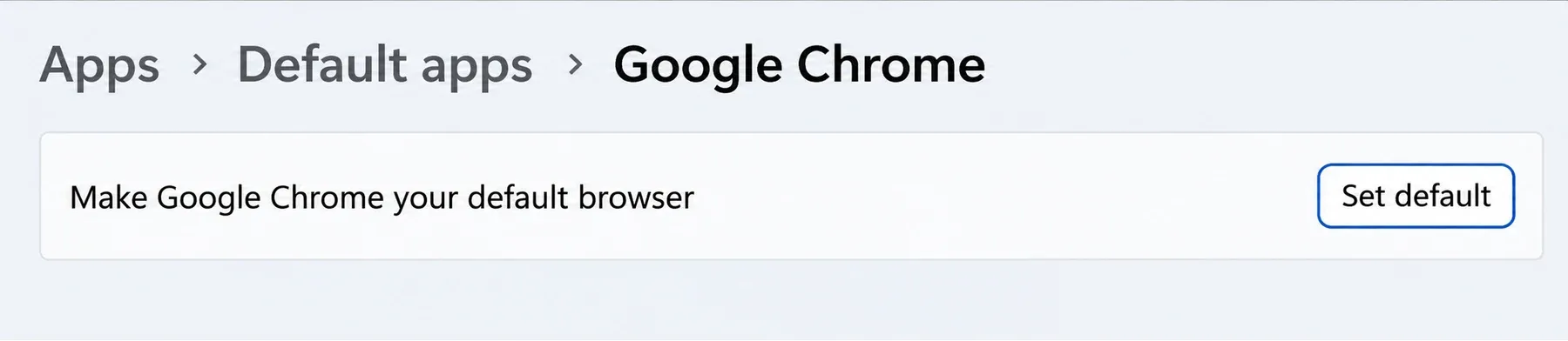
If you don't see a Set default button, use the individual link-type controls below. Don't replace this Windows 11 route with older instructions that show a single Web browser dropdown on the main Default apps page.
Check HTTP, HTTPS and optional file types
On the browser's Default apps page, select the association you want to change, choose the intended browser and confirm the selection. You can also return to the main Default apps page and search for a file extension or link type directly. Use the entries shown on your PC rather than a fixed list copied from an older Windows build.
HTTP and HTTPS: Review both. I'd normally assign the same browser to both so an ordinary website link doesn't switch browsers depending on its address. Reopen the relevant entry after changing it and confirm the intended browser appears.
.htm and .html: These matter when you open saved web-page files. If you want those files to use the same browser, review their associations too.
.pdf: Change this only if you want PDF files to open in that browser. Keeping a separate PDF reader is a valid choice; don't switch every file type simply to finish the browser setup.
Verify a link from another app
Open an ordinary HTTPS website link from another app, such as a trusted link in an email or document. Check which browser receives it. Opening the browser from its own icon only confirms that the app launches.
If the intended browser opens, the website link test has passed. Test a saved HTML file or PDF separately only if you changed those associations. This keeps a successful browser change from being confused with a separate file-opening preference.
When a link still opens elsewhere, compare the Windows HTTP/HTTPS entries with the result. If those entries show your intended browser and the exception happens only in one app, check that app's link-opening preference before changing Windows again.
When Outlook or Teams still opens Edge
Outlook for Windows and the Teams desktop app can have a separate web-link preference. Microsoft explains that this app-specific handling doesn't replace your Windows default browser.
- In new Outlook, check Settings > General > Files and links, then Open hyperlinks from Outlook in.
- In classic Outlook, check File > Options > Advanced > File and browser preferences, then the same hyperlink preference.
- In Teams, check Settings > Files and links > Link open preferences.
Choose the browser preference you want if that control is available, then retry a link from the affected app. Microsoft notes that turning this feature off in Outlook or Teams affects both apps. On an organization-managed account, ask IT if you can't change the available choice.
If your browser is missing or you want to undo it
If the browser isn't listed, check that it's installed and that you can open it in the account you're using. Google explicitly requires Chrome to be installed before choosing it as the default. Use the browser vendor's approved installation route if needed, or ask IT on a managed PC; a default-app selection can't substitute for a missing application.
To undo your changes, return to Settings > Apps > Default apps, select the previous browser and choose Set default. Review HTTP and HTTPS again, plus any PDF or saved-page associations you changed individually, and repeat the link test.
Keep search preferences separate: if the right browser opens but uses a search service you don't want, change that browser's search-engine setting. Repeating the Windows default-browser steps won't select a different search engine.



