

To check Windows 11 uptime, press Ctrl+Shift+Esc, select Performance > CPU in Task Manager and read Up time below the graphs. Its four fields are days:hours:minutes:seconds. You can read the counter without restarting the PC or changing a setting.
I'd write down the number before drawing conclusions from it. A surprisingly long uptime can reflect Windows power behavior, including Fast Startup; the number alone doesn't establish a problem.
Find Up time under CPU
- Press Ctrl+Shift+Esc to open Task Manager.
- Select Performance, then CPU. If the navigation is collapsed, expand it to see the labels.
- Find Up time beneath the CPU graphs. Enlarge the window or scroll within that view if the lower information isn't visible.
- Read all four fields together. If you're recording the value for support, note the observation date and time alongside it.
Keep the PC running while taking this observation, and leave its power settings unchanged. You don't need an administrator command window or an uptime app to read the Task Manager field.
Read the four uptime fields
Read the fields from left to right as days, hours, minutes and seconds. For example, 0:18:16:48 means zero days, 18 hours, 16 minutes and 48 seconds. The leading zero is the day count; it doesn't mean the entire value is zero.
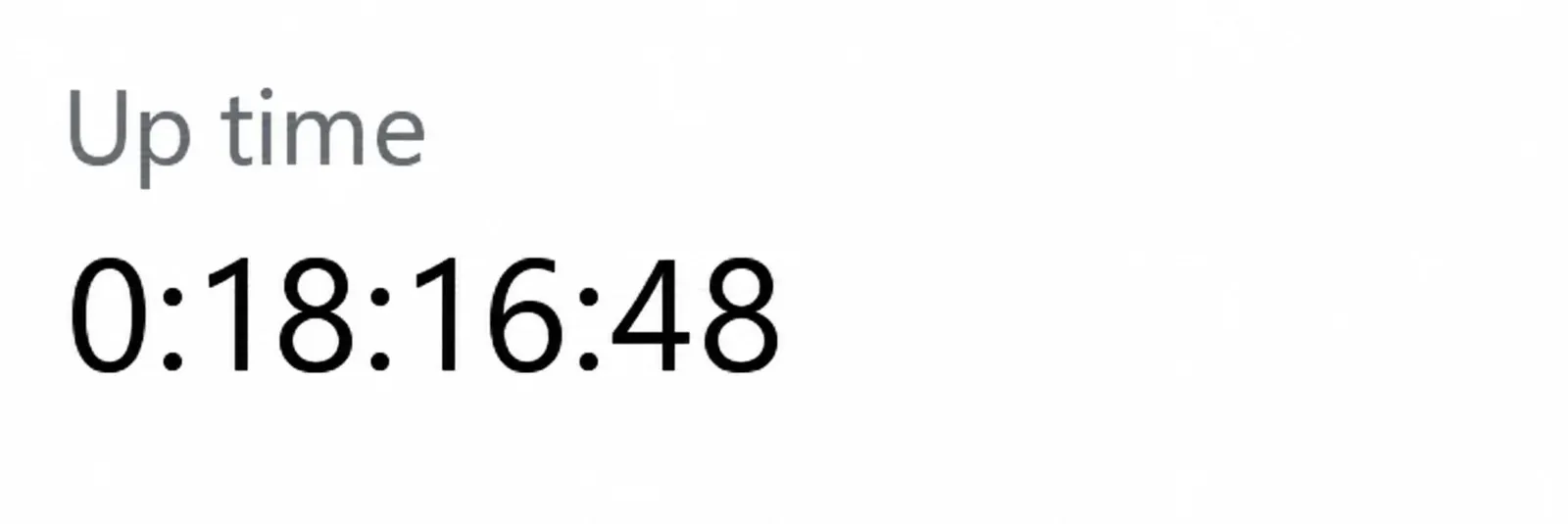
Keep the colons in your own reading so someone else can distinguish the day count from the hours. A private text note is enough; you don't need to share a full Task Manager screenshot containing unrelated process or device details.
A network adapter's Duration describes its connection. Use the CPU Up time field for this check instead of substituting a network connection timer.
Allow for sleep and Fast Startup
Up time measures elapsed system time, so it isn't a record of hours spent actively using the computer. In Microsoft's 2015 explanation of the Task Manager counter, Raymond Chen says Windows subtracts system boot time from the current time and includes time spent asleep or hibernating.
Fast Startup also helps explain a counter that seems older than the last shutdown. Microsoft's system power-state documentation describes Fast Startup as logging off user sessions while saving the kernel session to a hibernation file. The next startup can resume that saved kernel state. A shutdown followed by powering on therefore doesn't always represent a fresh start for this counter.
The same Microsoft documentation distinguishes Restart, which performs a full shutdown. If you need to decide whether a restart suits a separate problem, read the explanation of restarting Windows. Reading uptime itself doesn't require a restart or a change to Fast Startup.
I'd treat a long counter as context for a support conversation. It doesn't diagnose slowness, prove that the screen stayed on continuously or establish a restart schedule.
Recheck the counter or report a missing view
If you want to check the ongoing counter, reopen Task Manager > Performance > CPU while the PC remains running and read the same field again. Compare the complete value, allowing for the elapsed time between observations. Close Task Manager when you're done; reading this view changes no preference that needs restoring.
If the CPU view or counter is unavailable, record your Windows version and the exact missing or restricted view. Give that description to your IT team or Microsoft support. Don't change power settings or bypass an administrator's restriction merely to obtain the number.



