
If the battery is swelling or pushing the enclosure apart, stop using the device and contact its manufacturer. Otherwise, to create a battery report in Windows 11, open Command Prompt as administrator, run powercfg /batteryreport, then open the HTML file at the location the command prints.
Start with Installed batteries: compare Full charge capacity with Design capacity for the same battery. Use the report to gather capacity and usage evidence for a model-specific check. It summarizes reported information rather than running a physical battery or charger test.
For a swollen battery, don't continue using the device to collect more readings, press the case closed or puncture the battery. Microsoft's battery-care guidance puts that condition on a different path from ordinary capacity checks.
Create and open the report
- Open Start and type Command Prompt.
- Right-click Command Prompt, choose Run as administrator, and approve the prompt if you're authorized to do so. On a managed PC, use your administrator's support route if access is restricted.
- Enter this command as one line, then press Enter:
powercfg /batteryreport- Read the message showing where the report was saved. Keep that complete file path.
- Open File Explorer, go to the reported folder, and double-click the report's HTML file. It opens in your web browser.
Microsoft documents this Windows 11 report procedure. You don't need to install a battery-checking app to produce the file.
The default destination is the command window's current folder, according to the Powercfg battery-report reference. Follow the path printed by your run; another person's example path can point to the wrong place on your PC. If you generate another report later, save a dated copy of the first file before replacing it.
Compare the two capacity readings
Find Installed batteries in the report. If it lists more than one battery, keep each battery's readings together. Don't divide one battery's full-charge value by another battery's design value.
| Reading | What it tells you |
|---|---|
| Design capacity | The battery's original capacity, reported in mWh. |
| Full charge capacity | The battery's reported current capacity when fully charged. |
| Current charge percentage | How full the battery is now. A 100% charge doesn't establish that it still holds its original capacity. |
| Cycle count | A separate reported field. If it is blank or shows a dash, leave it unreported; the capacity calculation doesn't require it. |
Microsoft's battery-information definitions distinguish original design capacity from current full-charge capacity. Windows receives battery information through the platform's battery components. I'd read these values alongside the history before deciding to replace a battery, because a single percentage doesn't explain the cause of short runtime.
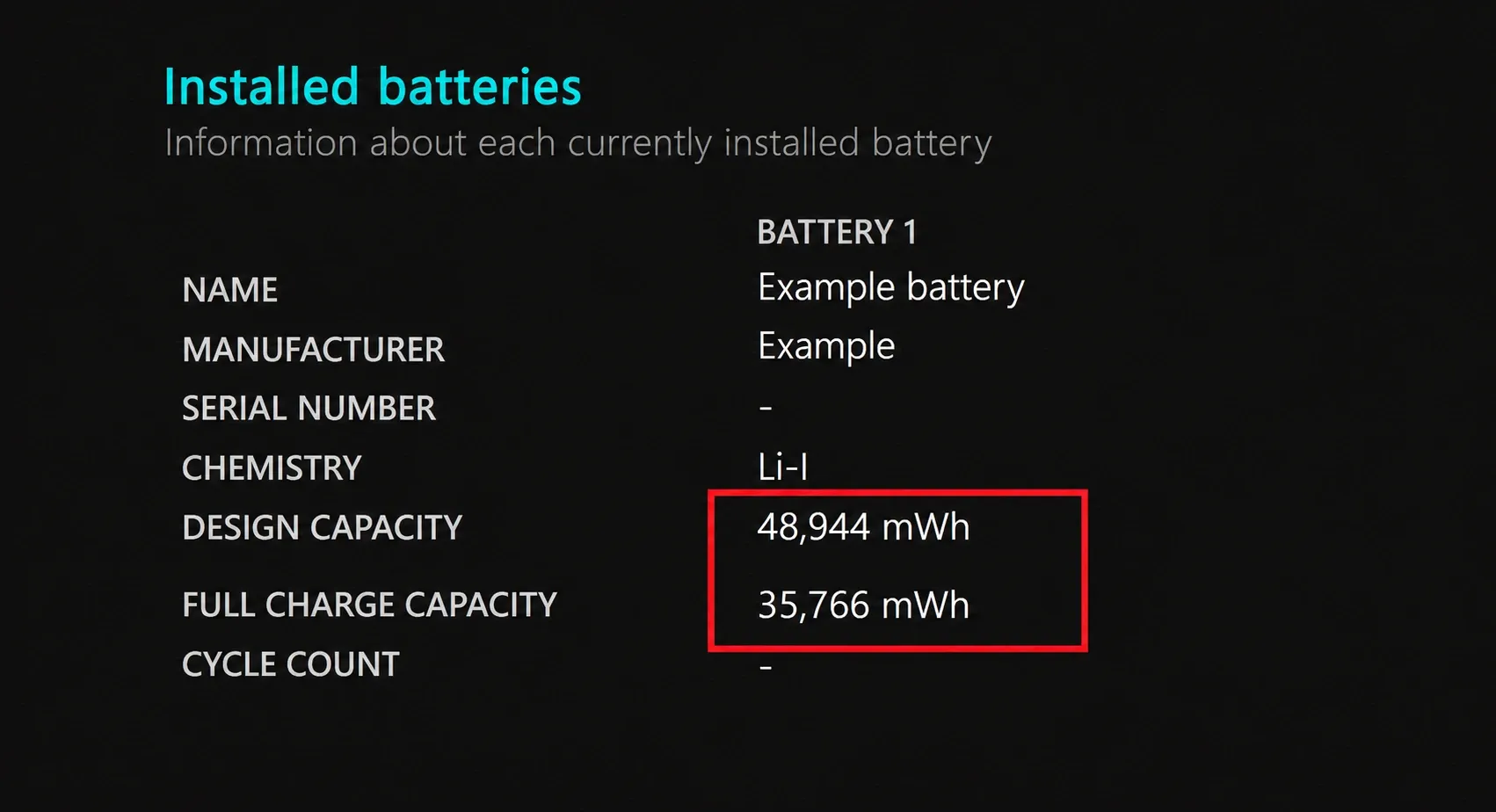
To express the comparison as a percentage, divide Full charge capacity by Design capacity, then multiply by 100. Both values must use the same units. Skip the calculation if either reading is missing, zero or clearly implausible; keep the report for model-specific support.
For a published example, Beebom's Windows 11 battery report shows a design capacity of 48,944 mWh and a full charge capacity of 35,766 mWh. That calculation gives about 73.1% of the reported original capacity, or a difference of about 26.9%. Those are the example laptop's values, not a measurement of your battery or a replacement threshold.
A battery charged to 100% can therefore have substantially less capacity than it did when new. The capacity ratio also doesn't tell you how many months the battery has left or whether a warranty claim will be accepted. Use the manufacturer's criteria for the exact model.
Read the history before the life estimate
Open Battery capacity history and look at the periods shown in the report. Compare full-charge capacity over time for the same battery. Keep a copy of the report with the date and your symptom so you can compare a later report without relying on memory.
Then check Recent usage and Battery usage around the period when runtime seemed short. Microsoft identifies these as useful starting sections in its report instructions. Note whether the observation concerns ordinary active use, a long idle period or a change in how you use the laptop before drawing a conclusion from it.
The report's battery-life estimates serve another purpose. Its since-install line is labelled as an estimate based on observed drains. It isn't a promise of how long your next session will last. I'd keep a capacity comparison and a runtime complaint separate when contacting support: the first concerns how much charge the battery reports it can hold; the second also needs the workload and circumstances.
If the report won't open or the readings are missing
No successful save message: keep the command's exact error. Check that you entered powercfg /batteryreport correctly in the authorized administrator Command Prompt. Don't uninstall battery devices or reset every power plan to make a report appear. If the error remains, give IT or the manufacturer's support team the message and PC model.
A report was saved, but you can't find it: return to the command window and follow its full path. Look for the HTML file at that location rather than assuming it went to Downloads or the desktop. If a browser shows an older report, check the file's Date modified in File Explorer, then reopen the file you just generated.
You need a different destination: create a folder you can write to first. The documented /output option accepts the complete destination path and filename. This example assumes that C:\BatteryReports already exists and that you're allowed to write there:
powercfg /batteryreport /output "C:\BatteryReports\battery-report.html"Confirm that the command reports a successful save at the intended location. Keep an error if it doesn't; changing the filename isn't a reason to change folder permissions or remove organization restrictions.
No installed battery, missing capacities or inconsistent readings: keep the report as it is and check what the manufacturer recommends for your exact model. A missing value doesn't prove the battery needs replacing. If Windows also lacks a battery reading in Settings, use the battery-detection checks to record the device state without removing battery drivers.
Take the useful evidence to support
Send the report through the manufacturer's private support route with the PC model, Windows version, the symptom and the conditions when it happens. Include the design and full-charge capacities for each battery, the periods you compared and the exact error if generation failed. Report an existing unexpected shutdown; don't repeatedly unplug an unreliable laptop to reproduce it.
Review the file before posting it publicly: battery information can include device and battery identifiers. Remove personal names, computer names and serial numbers from any public excerpt. Keep the original intact for the authorized support team, which can apply its model-specific diagnostics and service criteria.



