
To change the date format in Windows 11, open Settings > Time & language > Language & region, expand Regional format and choose Change formats > Short date. Record the current Short date pattern before selecting an offered format. If the pattern you want isn't available, use the classic Region > Formats > Additional settings > Date controls to enter a custom Short date pattern.
I'd change Short date on its own. Switching the whole regional format can affect time, number and currency defaults as well, which adds unnecessary changes when you only want a different date order.
Record your current Short date first
Before choosing any preset, record the exact original pattern. A custom format already in use might not appear in the Settings list, so an approximate sample date isn't enough for restoring it.
- Press Windows + R, enter intl.cpl and press Enter to open Region.
- On Formats, select Additional settings, then open the Date tab.
- Copy the Short date field exactly, including capital letters and separators. Note its Short date example too.
- Select Cancel in Customize Format, then Cancel in Region to leave this inspection without applying changes.
Microsoft's Windows regional settings instructions document this direct Region shortcut and the Date tab. Keep your regional format profile, country or region, display language, keyboard layouts and calendar unchanged throughout this task.
Choose an available preset in Settings
Open Start > Settings > Time & language > Language & region. Expand the Regional format row and select Change formats. Opening that row is separate from choosing a different regional profile in its drop-down list.
Open Short date and choose an available example with the order and separators you want. Leave Long date, the time formats, first day of the week and calendar alone. The dates shown in these lists are format examples; they aren't a way to set the computer's current date.
If an offered preset suits you, verify the saved format. If the desired pattern or Change formats button is missing, use the custom field below. You don't need to add a language or change your country to enter a date pattern.
Enter a custom Short date pattern
Open intl.cpl > Formats > Additional settings > Date again. Replace only the Short date field with your chosen pattern. Keep the original you recorded, even if you have already tried a Settings preset.
Windows uses case-sensitive date format characters: dd is the day with a leading zero when needed, MM is the numeric month, and yyyy represents the year. Use uppercase M and lowercase d and y.
These examples illustrate October 22, 2024 in an English Gregorian format:
| Short date pattern | Illustrative date |
|---|---|
MM/dd/yyyy | 10/22/2024 |
dd/MM/yyyy | 22/10/2024 |
yyyy-MM-dd | 2024-10-22 |
dd-MMM-yyyy | 22-Oct-2024 |
MMM uses an abbreviated month name from the regional format. An English display language alone doesn't guarantee English month names, and other calendars can represent years differently. Keep your existing calendar and check the actual example your PC displays.
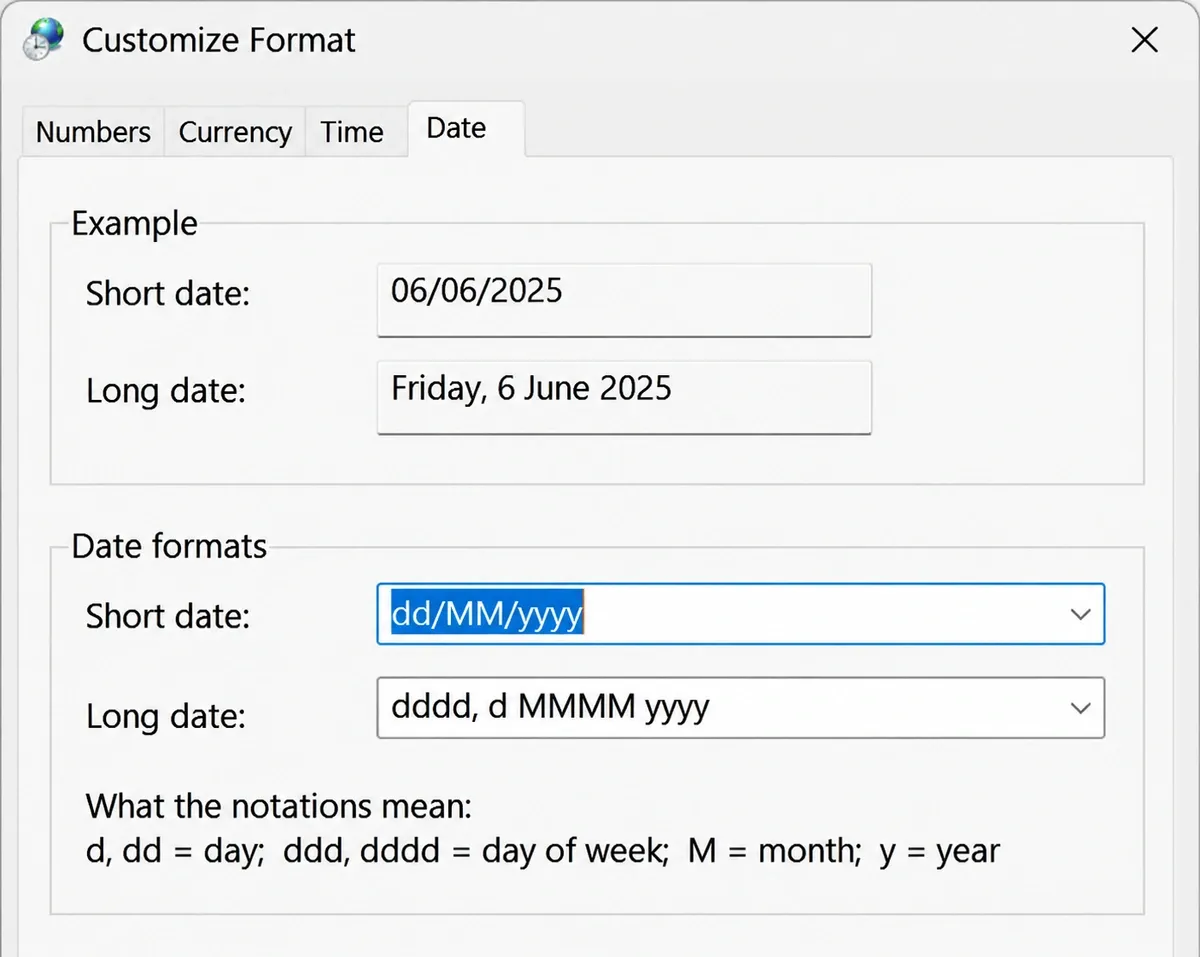
Select OK in Customize Format and OK in Region, then check the saved pattern and its example as described below. Leave the other fields alone. Don't select Reset: that restores broader regional defaults rather than your recorded Short date.
Verify and restore the format
Reopen the same Date tab and confirm that Short date retains the pattern you chose. Compare its Short date example with that pattern. Then check the particular Windows view or app where you need that presentation; an app can have its own format settings.
For Access, Microsoft's regional settings guide notes that you may need to close and reopen the database. A saved Windows pattern doesn't promise that every open app, website or spreadsheet immediately changes its display.
To undo the change, return to Region > Formats > Additional settings > Date, restore the exact original Short date pattern and select OK in both dialogs. Reopen the field and check its example again. Restore that recorded value even if a different preset looks similar.
If the field is unavailable, rejects a pattern or later reverts, record your Windows version, the exact pattern or message and the affected app. Ask the device administrator about a managed restriction, or use that app's support when only its display differs. Changing the date's presentation won't correct a wrong clock or time zone, convert spreadsheet text into dates, or add a timestamp to an image. Other Windows interface tasks are in the desktop guides.



