
To change font size in Windows 11, open Settings > Accessibility > Text size, adjust the slider and select Apply. Use this setting when lettering is too small but the size of your icons and apps is comfortable. Check the window you wanted to improve afterward, because not every application responds to text scaling in the same way.
I'd start with Text size for a lettering problem because Display Scale enlarges images and apps as well. Keep the current percentage before changing it so you can return to a readable layout if the larger text crowds a menu or dialog.
Increase text size and apply the change
Microsoft's text-size instructions for Windows 11 provide a preview before you apply the setting. Start with the text you need to read, rather than choosing the largest available value.
- Press Windows + U to open Accessibility settings, then select Text size. You can also open Start, choose Settings and follow Accessibility > Text size.
- Note the current percentage. Preserve an accessibility setting you already rely on instead of assuming it was at the default.
- Drag the Text size slider to the right. Read the sample in Text size preview and choose a size you can follow comfortably.
- Select Apply. Moving the slider changes the preview; Apply commits your choice.
- Return to the window whose text was small. Check the same labels, menu or filenames, and confirm that you can still reach its buttons and read complete lines.
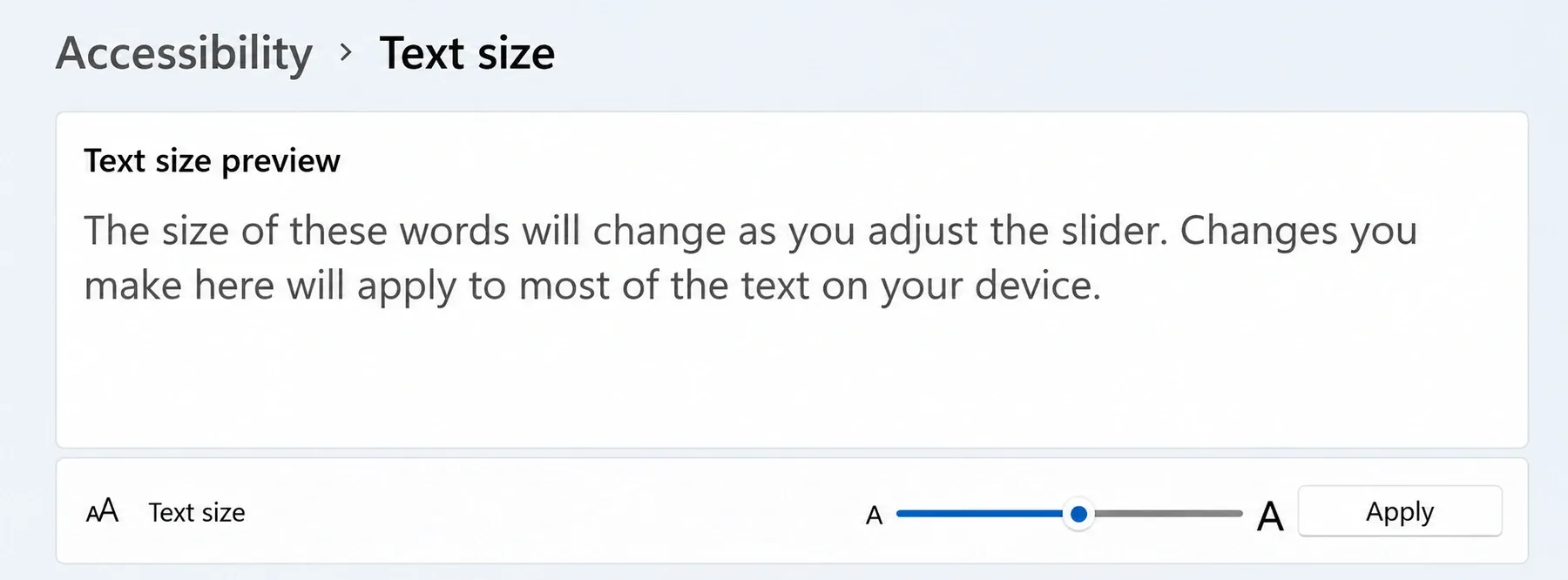
This is the Windows 11 Accessibility page. Instructions using Ease of Access > Display > Make text bigger describe the Windows 10 route on Microsoft's separate Windows version instructions.
Check what you want to enlarge
Text size changes interface lettering. It doesn't choose a different font family or change the point size saved in a Word document. Match the control to what is difficult to see.
| What looks too small | Useful next step |
|---|---|
| Windows lettering, with comfortable icon and app sizes | Use Accessibility's Text size preview, slider and Apply. |
| Icons, apps and lettering across the interface | Consider Display Scale rather than increasing text alone. |
| Menus or labels in just one application | Check that app's own accessibility or display controls. |
| The words inside a document you are editing | Use the document's font-size controls to change its formatting. |
| A small area you need to inspect briefly | Use Magnifier for a temporary closer view. |
If the whole interface is small, the Display Scale and taskbar-size checks cover that different adjustment. For a temporary closer look, Microsoft's Magnifier shortcuts are Windows + Plus (+) to start or enlarge the view, Windows + Minus (-) to reduce magnification and Windows + Esc to close it. If a display view is locked, press Windows + Esc once to release the locks and again to close Magnifier.
When one app stays small or text gets cut off
A larger preview doesn't guarantee that every part of an app will change. Microsoft's text-scaling guidance for app developers explains that custom controls, older frameworks and fixed-size layouts may need extra support. Larger text also needs room to wrap or rearrange within the window.
If Settings text changes but your chosen app remains difficult to read, check that app's documented font or accessibility options. Don't keep raising the Windows percentage until every other window becomes oversized. Text size also isn't a reliable way to resize taskbar icons; use the taskbar controls for that job.
If labels overlap, text ends disappear or buttons become difficult to reach after the change, return to Accessibility > Text size, restore the percentage you recorded and select Apply. Compare the same window again before making another adjustment.
Make text smaller or restore the original size
Move the same slider left and select Apply to reduce an enlarged text setting. Microsoft's documented text-scaling range is 100% to 225%, with 100% as the default. This reduces a previous enlargement toward 100%; it doesn't make text smaller than that baseline. Your recorded value is the better rollback target if you already relied on a larger accessibility setting.
Keep the smallest change that makes the intended text readable without crowding the controls you need. If only one app is still uncomfortable, work on that app's settings next, with the rest of Windows left at a useful size.



