
To change the refresh rate in Windows 11, open Settings > System > Display > Advanced display, select the screen you want to configure, then choose a supported value under Choose a refresh rate. Before selecting a value marked with an asterisk (*), check your current resolution: Windows changes the resolution to use that rate. Afterward, verify both the refresh rate and resolution for the same display.
I'd record those two values before changing anything. A higher Hz number can come with a lower resolution, and selecting the old refresh rate again may leave the reduced resolution in place.
Select the intended display first
Refresh rate describes the number of times the screen updates per second. For example, 60 Hz means 60 screen updates per second. This setting belongs to the selected display, so check the screen name before changing a laptop panel or an external monitor.
- Open Start > Settings > System > Display.
- Under Related settings, open Advanced display.
- Use the display selector at the top to choose the screen you intend to configure.
- Record its current resolution and refresh rate under Display information. If Windows shows separate desktop and active signal modes, keep their labels with the values.
Microsoft's refresh-rate instructions identify Display information as the place to check the selected screen's current resolution, refresh rate and variable refresh rate support. If the external monitor isn't available to select, follow the second-monitor detection checks before trying to configure its frequency.
Check the asterisk before changing Hz
Open Choose a refresh rate and inspect the available values. An asterisk means that rate doesn't support the current resolution. Selecting it makes Windows change the resolution to achieve the selected refresh rate; the star isn't a recommendation to choose that option.
Plugable documents a specific connected-display example that offers 3840 × 2160 at 60 Hz and 2560 × 1440 at 120 Hz. Choosing 120 Hz* changes that setup from 4K to 1440p. Those are the example's supported combinations, not a specification for your monitor.
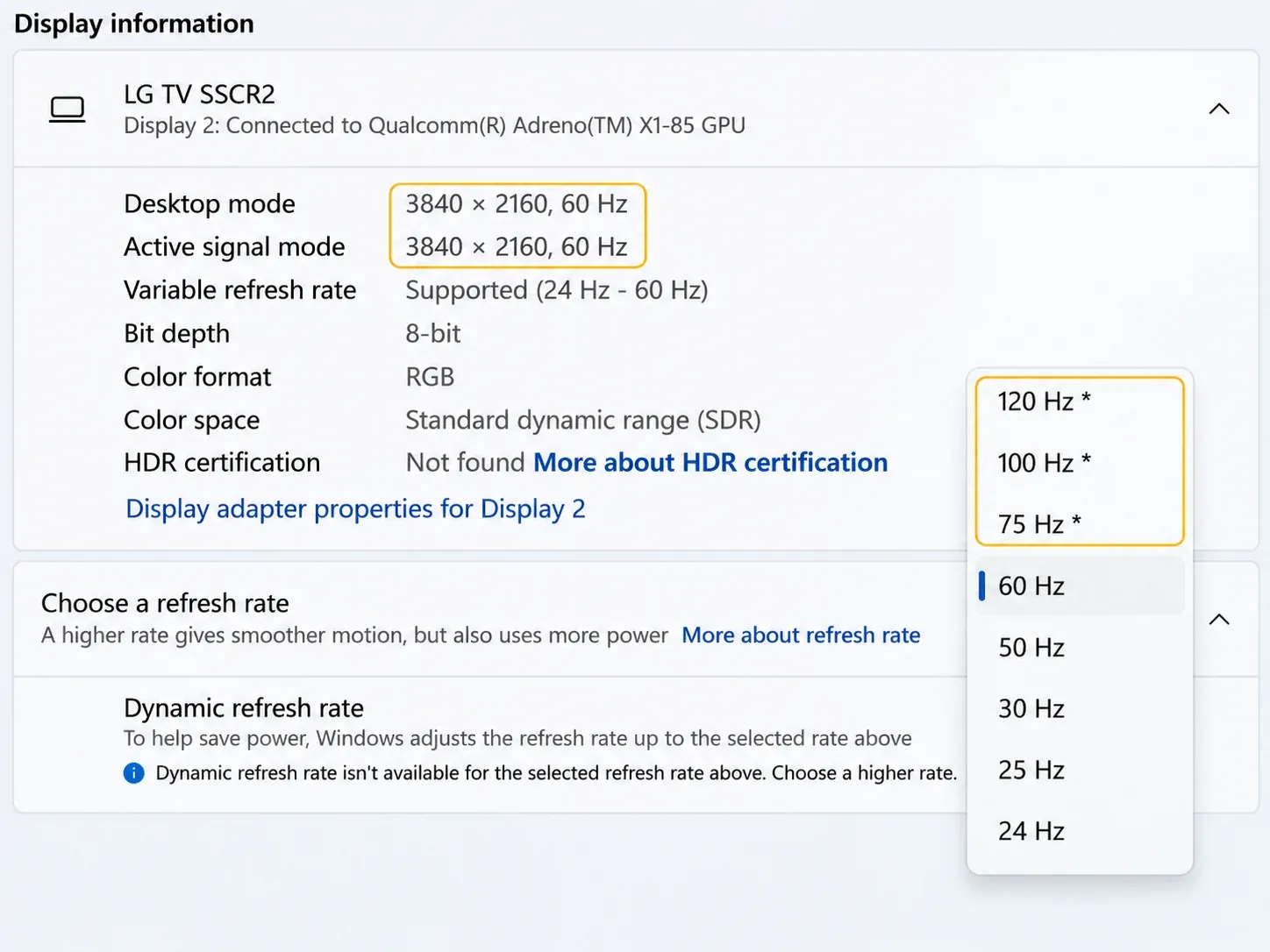
If preserving the current resolution matters more than the offered higher rate, choose a supported combination that retains it. Don't assume the largest number in the list is the right choice for your work.
Apply one rate and verify both values
If the rate has an asterisk (*), choosing it will change this display's resolution. Record the current resolution and refresh rate before selecting a value.
Select the offered rate you want, then return to Display information for the same screen. Compare the displayed resolution and refresh rate with your recorded values. Check the desktop text and the scrolling or other task that prompted the change, keeping the same display connection during the comparison.
A retained Hz value confirms the setting Windows reports. It doesn't establish a particular game's frame rate, input delay or battery-life improvement. Keep the setting only if the resulting resolution and behavior suit the task.
To undo the change, select the original supported rate. Then check the resolution again. Plugable's resolution and refresh-rate guidance warns that Windows may retain a reduced resolution after you lower the rate. If that happens, return to Settings > System > Display and select the original supported resolution, then revisit Advanced display to confirm the pair.
A missing rate needs a supported connection
If the desired rate isn't listed, check the supported resolution-and-refresh-rate combination for the entire connection. The display, computer's graphics hardware, dock or adapter and video cable all matter. A monitor's advertised maximum alone doesn't confirm that your current connection supports it at the resolution you want.
Start with the exact model specifications for each component and the port being used. Some connected setups offer a higher rate only at a lower resolution. Record the display and computer models, dock or adapter model, cable connection, current resolution and desired Hz before asking the relevant manufacturer about the combination.
A missing option alone doesn't establish a damaged driver. If the specifications confirm the desired combination but Windows still doesn't offer it, give the manufacturer those connection details so support can check the actual setup.
Use Dynamic Refresh Rate only if supported
Dynamic Refresh Rate (DRR) lets Windows adjust the refresh rate according to your activity. On compatible hardware, the Dynamic refresh rate toggle is on the Advanced display page. It is a separate choice from selecting a fixed value under Choose a refresh rate.
Microsoft specifies that DRR requires a display supporting variable refresh rate (VRR) and at least 120 Hz. A VRR indication by itself doesn't establish that DRR is available on the computer.
If a game appears to run at a lower refresh rate after you enable DRR, Microsoft recommends disabling DRR. Keep that comparison separate from a fixed-rate change so you can identify the setting involved. Finish by checking the intended display's retained resolution and refresh rate again.



