
When Windows 11 says Display connection might be limited, check whether the exact PC port, cable and connected display or dock support the video connection you're trying to use. A USB-C port that charges a laptop or runs USB accessories doesn't by itself confirm DisplayPort Alternate Mode. I'd verify those capabilities before removing drivers: Windows can't switch on a display mode that the hardware doesn't support.
The notification isn't proof of a broken monitor or port. First record whether you have no picture, an occasional dropout, a missing dock output or a working display with a recurring warning. Those situations need different next checks.
Identify the connection that triggers the warning
Write down the PC model, which physical port you're using, the cable or adapter model, any dock and the monitor input. Include intermediate HDMI switches and other adapters. Note whether the warning appears when you connect the dock, connect the monitor, wake the computer or start a particular display mode.
Keep the laptop screen or another working display available. Save work and safely eject any storage attached to a dock before disconnecting it; the same connection can also carry network, audio and other devices. On a work PC, preserve the approved dock configuration and involve IT before changing its software.
| Your connection | Start here |
|---|---|
| USB-C to a display, video adapter or dock | Confirm the host port, accessory and cable support the required video mode. |
| A USB graphics dock or adapter | Identify its graphics technology and the requirements of the particular output you're using. |
| Direct DisplayPort or HDMI, with no USB-C video path | Record that distinction. Don't assume an absent USB-C Alternate Mode explains this connection. |
| The picture works, but the warning remains | Check whether a different or unused dock feature is unsupported before dismissing the notification. |
There are reports of this warning with a direct DisplayPort monitor, too. That discussion didn't establish a confirmed general cause. If your route has no USB-C display device, use the exact GPU and monitor specifications and ask their manufacturers about the recorded connection rather than buying a USB-C adapter on the strength of the wording alone.
Check the exact USB-C port's video specification
Open the PC manufacturer's specification sheet or manual for your exact model. Find the port diagram and the entry for the physical USB-C socket you're using. Look for explicit support for the display mode required by the monitor, adapter or dock, such as DisplayPort Alternate Mode. A data-transfer speed or charging specification alone doesn't answer that question.
Microsoft's checks for this display notification require the PC, external display and cable to support the relevant Alternate Mode. They also distinguish using the correct USB-C port from merely using a connector that fits. If the PC has more than one USB-C port, use the one documented for that video feature.
For example, ASUS shows how to find a model's USB-C capabilities through Tech specs and its electronic manual. Its examples separate data-only, charging and display functions. Port markings can help, but use the model documentation when the symbol is absent or unclear; one manufacturer's logo examples aren't a universal port map.
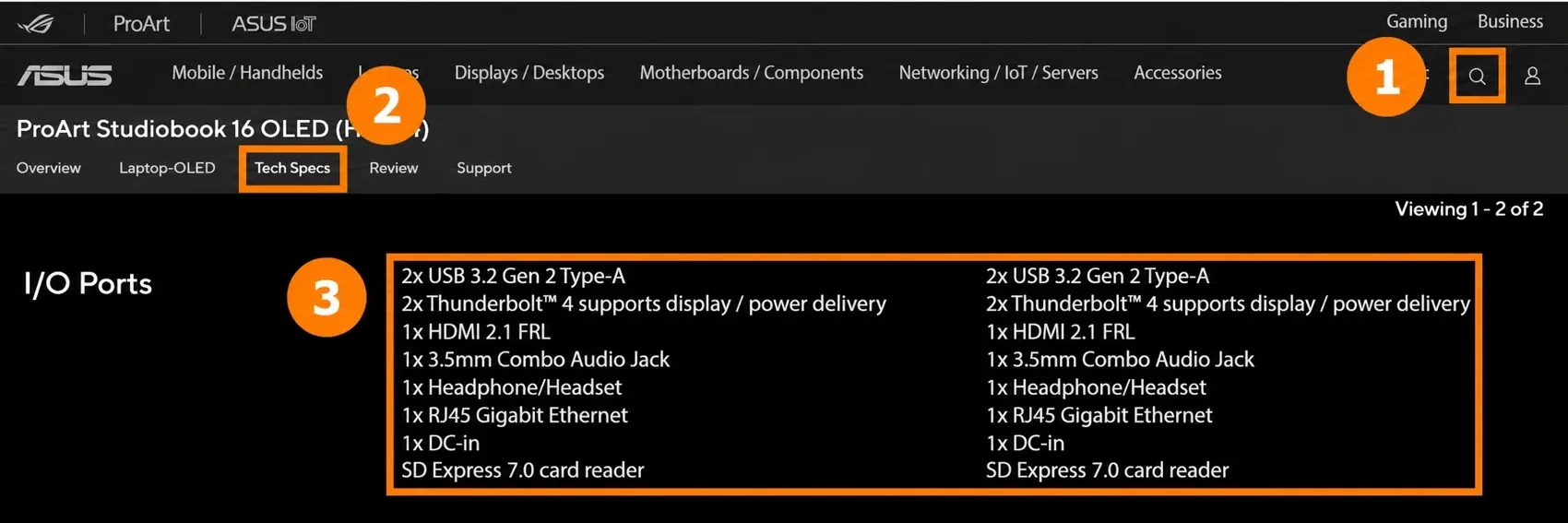
If the manual describes that port as data-only, stop searching for an Alternate Mode switch. Microsoft says the supported mode is selected automatically; there isn't a setting that adds an unsupported mode. Use a video output the PC and display support, or have the manufacturer identify a compatible alternative.
Match the cable and simplify the route
Check the monitor or dock instructions for the host-facing connector, required cable and power supply. Don't substitute a charging cable simply because it has USB-C plugs. Match the cable's documented video features to the devices at both ends, and confirm that you're using the accessory's intended PC connection rather than another USB-C socket.
- After saving work and ejecting dock storage, remove extra hubs, switches and adapters that aren't required for a supported direct display connection.
- Connect one display or its specified video adapter directly to the PC's documented video-capable port. Keep any required accessory power connected.
- Select the monitor input that matches the connected cable. Check both the picture and whether the same notification returns.
- If necessary, compare with one known-working cable that supports this exact route. Change one item at a time and record the result.
Microsoft recommends connecting the device or dongle directly to the PC for this warning. A successful direct route makes the removed dock, adapter chain or its compatibility the next area to investigate; it doesn't prove that a particular component is defective. If the direct route also fails, recheck its documented support before replacing hardware.
In an Intel community investigation of a dock-dependent warning, the user reported that bypassing the dock removed the notification, while driver changes and a Windows reinstall hadn't resolved it. The thread didn't establish a general fix. I'd keep the direct-versus-dock comparison and send it to the PC and dock manufacturers before escalating to a reinstall.
If this exact USB-C route previously carried video, keep that history with the current evidence. A Lenovo discussion of video stopping while charging still worked contains different outcomes from power-reset attempts and a report of the problem returning. It doesn't establish a universal reset procedure. Record any preceding update or sleep event and use model-specific manufacturer instructions; don't uninstall every USB controller, flash firmware or press an unidentified reset hole because another model's owner did.
Separate a missing feature from a working display
A working screen doesn't confirm every video output on a dock. In a Plugable support case involving a data-only USB-C laptop port, the user's DVI display worked, but support identified the dock's separate HDMI 4K output as requiring unsupported DisplayPort Alternate Mode. That explains that model combination; it isn't a diagnosis for every working screen that produces this warning.
Check the requirements for the output you use and any other feature the accessory advertises. If a dock uses DisplayLink or another USB graphics chipset, follow the adapter identification and matching USB graphics driver checks. Synaptics offers DisplayLink drivers for devices with DisplayLink USB graphics chipsets; that isn't native USB-C Alternate Mode. Installing an unrelated driver won't establish that the PC supports the dock's other video features.
Follow product-specific restrictions too. Astropad's guidance for USB-C Luna Display specifies a compatible GPU-connected port and rules out motherboard USB-C ports for that product. Don't transfer that restriction to every monitor or dock; use the instructions for your actual accessory.
If the supported video route is confirmed but Windows doesn't list the monitor, continue with the display detection, input and projection-mode checks. If the message is instead USB device not recognized, record its Device Manager status and use the USB device recognition checks. Neither symptom is solved by hiding this notification.
Decide whether to leave connection notifications enabled
Turning off notifications changes what Windows tells you; it doesn't add video support or repair a dropout. I'd leave them enabled until the PC and accessory requirements are understood and the intended display works reliably.
If you've confirmed that an unused feature is responsible and you still want to silence USB connection messages, Microsoft's Windows 11 notification instructions are to open Search, type usb, select USB settings and change Connection notifications. This controls USB issue notifications more broadly, so you may miss another useful warning. Restore the setting when troubleshooting a new USB problem.
Verify the intended output and send useful evidence
Check that the display shows the intended desktop at a mode supported by the PC, connection and monitor. Repeat the ordinary connection or wake event that triggered the warning. Record separately whether the picture works, whether it drops out and whether the notification returns; an absent popup isn't sufficient evidence of a repaired video connection.
If the limitation remains unexplained, send the PC or accessory manufacturer the exact models, Windows version, physical port, cable, connection diagram and direct-versus-dock result. Include the full notification and the trigger. Share serial numbers only through its private support channel. The device troubleshooting hub keeps any follow-up tied to the remaining symptom; leave working ports and unrelated drivers in place.



