

To change mouse scroll speed in Windows 11, open Settings > Bluetooth & devices > Mouse. Under Scrolling, select Multiple lines at a time and adjust Lines to scroll at a time, or choose One screen at a time for larger jumps. These controls change how much content moves when you roll the wheel.
I'd start with the line setting if scrolling repeatedly overshoots the intended paragraph. Record the existing choice first, then compare the same document before deciding to keep the change.
Adjust the wheel scroll amount
Use the Scrolling section of the Mouse page. The separate Mouse pointer speed slider changes pointer movement; it isn't the wheel control. Microsoft's mouse-settings instructions distinguish the two.
- Open Start > Settings > Bluetooth & devices > Mouse.
- Record the current Roll the mouse wheel to scroll choice. If it is set to Multiple lines at a time, also record the current line setting. A screenshot of the slider position is useful if no number is visible.
- Select Multiple lines at a time from that dropdown.
- Move Lines to scroll at a time toward the left to reduce the amount or toward the right to increase it. Make one small adjustment before comparing.
- Return to your document or web page, click inside its content, and roll the wheel slowly. Keep the same zoom and window size so the comparison remains useful.
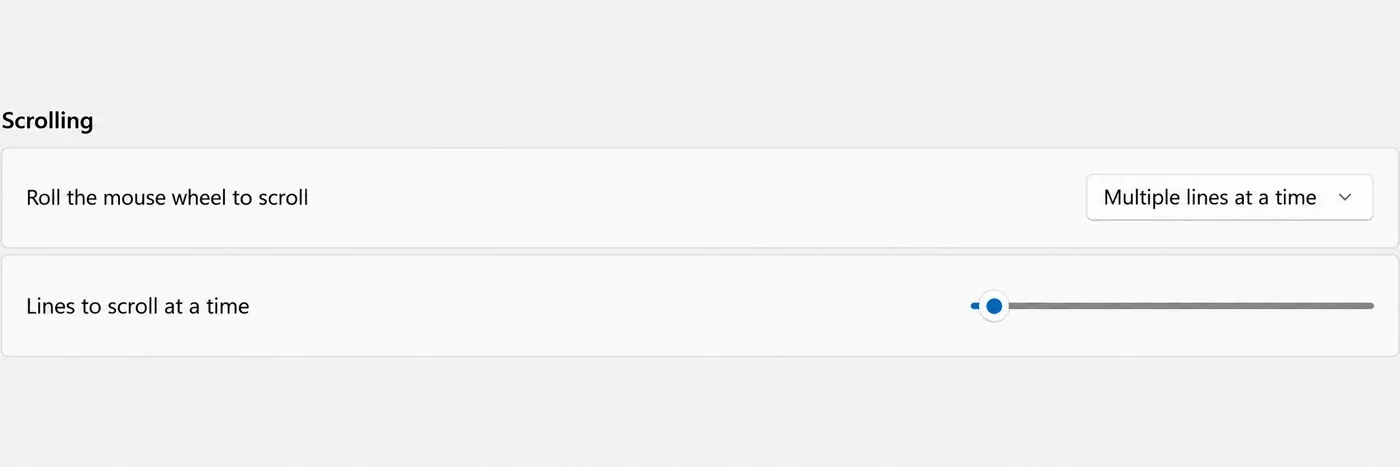
For a notched wheel, compare one deliberate notch at a time. Microsoft's instructions define the line setting as the number of lines scrolled for each wheel notch. With a wheel that turns freely, use a short, repeatable movement rather than a long spin while choosing your preference.
Choose lines or one screen
Multiple lines at a time gives you a line amount to adjust. Lower it if a slow wheel movement skips too much of your reading; raise it if you need repeated turns to reach the next part of the document.
One screen at a time selects a larger paging action. Choose it from the same dropdown if that is what you want, then compare it in the actual document you use. I'd keep the line mode for close reading because large jumps make it easier to pass over the sentence I'm trying to follow.
You don't need someone else's “best” number. Choose an amount that lets you reach the next passage comfortably, and restore your recorded setting if the change makes navigation harder.
Keep the other scroll controls separate
Microsoft's inactive-window scrolling option, labeled Scroll inactive windows when hovering over them, controls whether the wheel can scroll a window that isn't active. It changes which window receives scrolling, rather than the line amount. Leave it unchanged while comparing speed, and keep the pointer inside the document you intend to scroll.
If your Mouse page offers Scrolling direction, that selects whether a downward wheel motion scrolls down or up. Reversing direction won't choose a smaller line amount.
Two-finger touchpad scrolling is a different input. Use the Windows 11 touchpad gesture settings when that is what you are changing. Middle-click browser autoscroll is also different from rotating the wheel; compare ordinary wheel turns for this setting.
If content moves while your hands are clear, reducing the line amount doesn't establish why unwanted input is occurring. Keep that symptom separate from choosing a comfortable amount for intentional scrolling.
Verify and restore the setting
Reopen the Mouse page and confirm the selected mode and line setting. Repeat the comparison in a second ordinary application. A comfortable result in one document doesn't establish that every program handles wheel input identically.
If only one application still scrolls too far, check that application's own scrolling or page-navigation help before changing Windows again. When the wheel changes a game control or a numeric value instead of moving a page, use that program's controls. If you already use software for your exact mouse model, note its active profile and any documented wheel options; keep those changes separate so you can tell which setting helped.
To undo the adjustment, return to Settings > Bluetooth & devices > Mouse, restore the recorded wheel mode and line setting, and compare the same document again. If the preference keeps changing, record when it happens, the mouse model, active mouse-software profile and affected apps before asking the device maker or your IT team for help. The devices and drivers hub groups related input problems.



