
Mouse smoothing processes mouse movement to make the resulting cursor or camera motion look smoother. For direct game aiming, I'd start with the game's smoothing option Off, if it exposes one, and compare the same movements before keeping the change. Windows Enhance pointer precision is an acceleration control; turning it off doesn't establish that a game's smoothing is disabled.
The useful question is which input layer you are changing. A game setting, the Windows desktop pointer and a mouse utility can affect different parts of the experience. Don't change all three at once to fix a vague “floaty” feeling.
Separate smoothing, acceleration and sensitivity
The ProSettings explanation of mouse smoothing describes interpolation that adds movement points to make motion appear smoother. That is a useful description of the effect, rather than proof that every game or sensor uses the same algorithm.
| Term | What to check |
|---|---|
| Mouse smoothing or filtering | Processing intended to make motion smoother. Look for the specific game's documented option. |
| Mouse acceleration | Movement speed changes how far the pointer travels. The Windows preference is a separate control. |
| Sensitivity | The amount of camera or pointer movement. Keep it unchanged while comparing smoothing. |
| Raw input | An input path, rather than a promise that the game applies no later processing. |
Microsoft's RAWMOUSE documentation says raw mouse events aren't subject to the speed setting in Control Panel's Mouse Properties. That distinction explains why a Windows pointer change may affect the desktop without changing a game's aim. It doesn't establish how a particular game processes the events afterward.
Even camera sensitivity and menu-cursor speed need not be the same setting. The OpenMW input reference, for example, says camera sensitivity doesn't affect its GUI cursor. Compare the camera you are trying to improve, rather than judging only the menu arrow.
Compare the game's smoothing option on its own
Open the current game's input or mouse options and check its help for a control called Mouse Smoothing or a documented equivalent. Menu paths and available controls differ. A controller aim-smoothing slider isn't evidence of a mouse setting.
- Record the game's version and the current smoothing state. Keep your mouse DPI, game sensitivity and other input settings unchanged.
- Use the same quiet practice area or repeatable scene. Compare a small adjustment, a longer turn, a direction reversal and a deliberate stop.
- If smoothing is available and enabled, set it to Off through that game's controls, then apply or save as the game requires. If it is already Off, leave it there and check the other branches rather than repeatedly toggling it.
- Reopen the option and confirm the selected state was saved. If the game requires a restart for that option, save your progress and follow its documented restart instruction before comparing. Then repeat those movements in gameplay. Judge whether the camera stops and reverses in a way you prefer, and whether small corrections remain comfortable.
- If motion feels worse or there is no useful difference, restore the recorded state before trying another setting.
My preference is the setting that makes corrections predictable for that game. “Off” is a sensible comparison for direct aiming, not a promise of a higher hit rate or a particular latency reduction. For a deliberately softened camera in casual play, keeping smoothing can be a reasonable choice.
The Deep Rock Galactic smoothing discussion shows why an on/off recommendation alone is incomplete: the questioner says they disabled it, but doesn't report a controlled before-and-after result. Replies also mix smoothing with acceleration and other responsiveness options. Keep those changes separate.
Recognize the Windows control that gets confused with smoothing
Enhance pointer precision is the Windows pointer-acceleration preference. Use the existing Windows mouse acceleration instructions if that is the desktop behavior you want to change. The dialog below identifies the classic checkbox; it doesn't show the smoothing state of a game.
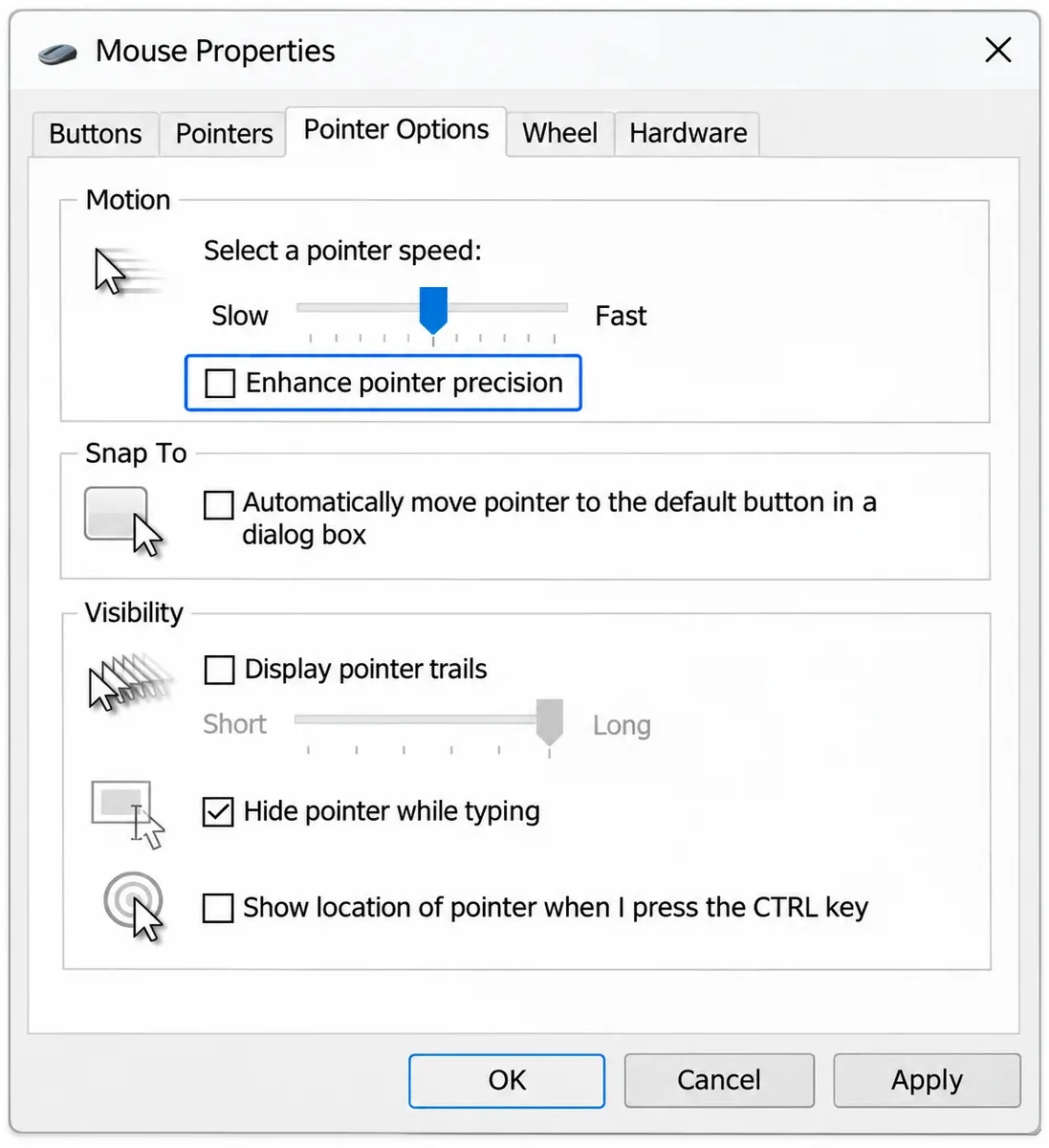
Microsoft's mouse-settings instructions list pointer speed and Enhance pointer precision separately. Changing pointer speed to compensate while also changing smoothing makes the comparison harder to interpret.
If the game has no smoothing switch
Check the current release's official help or support information before editing a configuration file. A setting name from another game isn't a supported instruction for yours. Record the exact title, release and input mode when asking its support team whether smoothing can be changed.
Epic lists Enable Mouse Smoothing in Unreal Engine's developer Input Settings. Those are project settings for developers. Their existence doesn't establish that every shipped Unreal game exposes that switch, reads the same configuration key or uses that input path. Don't install an editor or copy a universal INI tweak to change a game's player preference.
If you already use a mouse utility, check the documented options for your exact model and active profile. Don't install a generic optimizer or flash unrelated firmware merely because a guide calls several kinds of input processing “smoothing.” Keep any supported utility change separate from the game comparison.
Follow a different branch for pauses or unwanted movement
A pause after idle or repeated wireless stutter needs the Bluetooth mouse connection and lag checks. An arrow that jumps with your hands clear needs the unwanted-input and pointer-jump investigation. Neither symptom proves that smoothing is enabled.
Check the saved state again on your next normal game launch. Keep the game setting only when the same scene is easier to control with your other settings unchanged. If the problem persists, give support the game version, mouse model, connection mode, relevant option states and the specific movement that still feels wrong. The devices and drivers hub groups related input problems.


