

To change double-click speed in Windows 11, open Settings > Bluetooth & devices > Mouse > Additional mouse settings. On the Buttons tab, adjust the Speed slider under Double-click speed, try the folder icon, then select OK.
This setting controls the time allowed between two intentional clicks. Moving toward Slow allows a longer gap; moving toward Fast requires the clicks to be closer together. I'd move toward Slow first when a comfortable pair isn't recognized, because this allows more time between clicks.
Choose a comfortable double-click interval
Microsoft's mouse-settings instructions place this control on the Buttons tab of Mouse Properties. Leave pointer speed, primary-button selection and ClickLock unchanged while choosing the interval.
- Open Start > Settings > Bluetooth & devices > Mouse.
- Under Related settings, select Additional mouse settings. In Mouse Properties, select the Buttons tab.
- Record the original position of the Speed slider in the Double-click speed group. A screenshot is useful when the dialog doesn't show a numeric value.
- Move the slider a little toward Slow to allow more time between clicks, or toward Fast to require a quicker pair.
- Double-click the folder icon beside the slider at your comfortable pace. Check whether the folder opens or closes. If it doesn't, try a slower setting and repeat the same deliberate pair of clicks.
- Select OK when the folder test behaves as you intend.
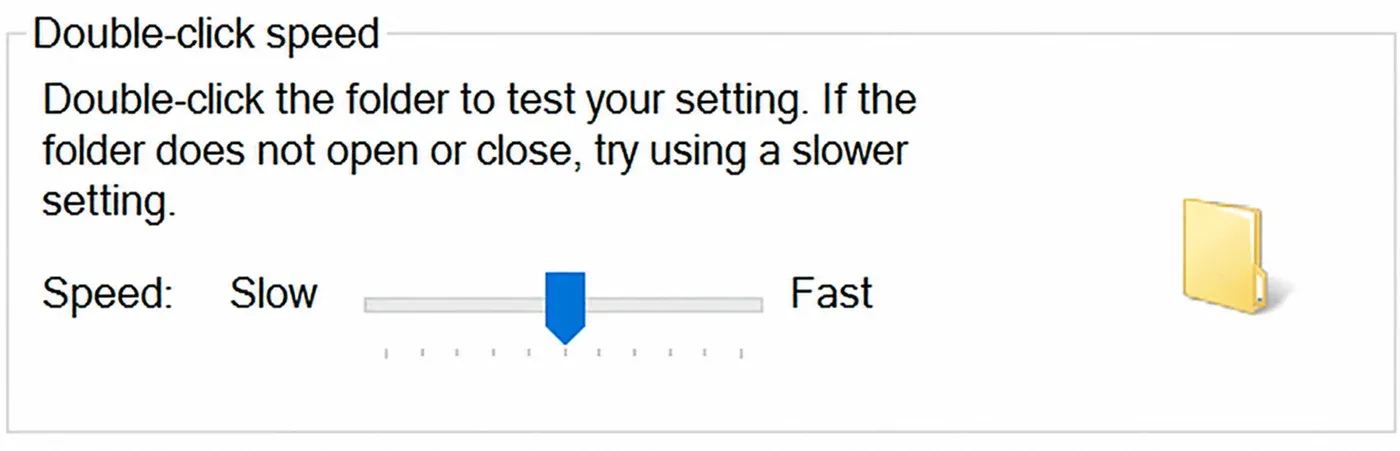
Keep the pointer over the folder icon while trying the same pace. Make one small slider change at a time so you can compare its effect.
Check the saved setting
Reopen Additional mouse settings > Buttons and confirm that the slider remains where you left it. Try the dialog's folder icon again.
If File Explorer is configured to open items with a double-click, also try opening an ordinary folder you recognize. Avoid a file that could run a program or change something while you are checking the setting.
When Explorer is configured to open items with a single click, that folder behavior is a separate preference. Don't use it to conclude that the timing slider failed. Use the Mouse Properties folder test to compare double-click timing without changing Explorer's opening preference.
Separate timing from other mouse behavior
Mouse pointer speed changes how the pointer moves across the screen. The double-click slider changes the allowed gap between two clicks. Microsoft's definition of double-click time describes that interval.
A clicks-per-second counter measures how many clicks you make in a period. A high score doesn't choose a comfortable Windows interval, and this setting doesn't make a physical button click faster.
If one deliberate press produces an unwanted extra click, record that symptom separately. Changing the intentional two-click interval doesn't establish whether the cause is the mouse, its software or an application. It also isn't a debounce control. Keep that repair question separate from this preference adjustment.
Restore your original timing
To undo the adjustment, return to Mouse Properties > Buttons, put the slider back at the position you recorded, and select OK. Reopen the dialog and try the folder icon again.
If the setting won't stay selected, note when it changes, your mouse model and whether the behavior occurs in one application or several. Give that information to your device maker or IT team rather than repeatedly changing unrelated controls. The devices and drivers hub groups related mouse guidance.



