
To use a touchpad in Windows 11, slide one finger to move the pointer, tap to select, and slide two fingers to scroll. Tap with two fingers for a right-click menu; pinch two fingers together or spread them apart to zoom in an app that supports it. For settings, right-click Start and open Settings > Bluetooth & devices > Touchpad. Some gestures need a precision touchpad, and customized actions can differ from the defaults below.
I'd learn movement, selection and scrolling before changing multi-finger shortcuts. That gives you a clear way to tell an unfamiliar gesture from a setting or application that behaves differently.
Start with one and two fingers
Use the touchpad below the keyboard. A touchscreen is the display itself; its edge swipes and press-and-hold commands are a separate set of controls. Microsoft's Windows touchpad gesture reference lists these actions:
- Move the pointer: Slide one finger across the pad. The pointer moves without selecting text.
- Select an item: Tap once. The item receives the selection or action appropriate to that app.
- Open a right-click menu: Tap with two fingers, or press the lower-right corner where supported. A context menu opens for the item under the pointer.
- Scroll: Slide two fingers vertically or horizontally. The document or page moves in a direction it can scroll.
- Zoom: Move two fingers apart to zoom in; pinch them together to zoom out. Content changes size in an app that supports the gesture.
Practice on a long page with room to scroll. Put the pointer over the page content, then use a short two-finger movement. A short page already at its edge gives you little useful feedback. For pinch zoom, compare an app with a visible zoom control so you can distinguish zooming from scrolling.
A tap and a physical press are different actions. Microsoft's Surface touchpad instructions describe both tapping and pressing the touchpad's button areas. Another laptop can have separate buttons or different click hardware, so use its documented controls rather than pressing harder when a gesture doesn't respond.
Drag with your model's supported control
On a Surface touchpad, Microsoft documents two ways to move an item or select text: hold the left touchpad button while sliding a finger, or tap, immediately tap again and hold, then drag. Release the held control when you're finished. For another laptop, check its touchpad manual and the available Taps options before assuming the same tap-and-drag method is enabled.
I'd practice by selecting a few words in a disposable text document. It gives you visible feedback without moving a file into a different folder. Keep the pointer over the intended text before starting; lifting after an ordinary tap won't keep a drag active.
Find tap and scroll settings
- Right-click Start, choose Settings, then open Bluetooth & devices > Touchpad.
- Expand Taps to inspect the options offered for tapping and right-clicking.
- Expand Scroll & zoom to inspect the offered scrolling and zoom options.
- Record the current choice before changing it. Change one relevant option, then repeat the same gesture in the same app.
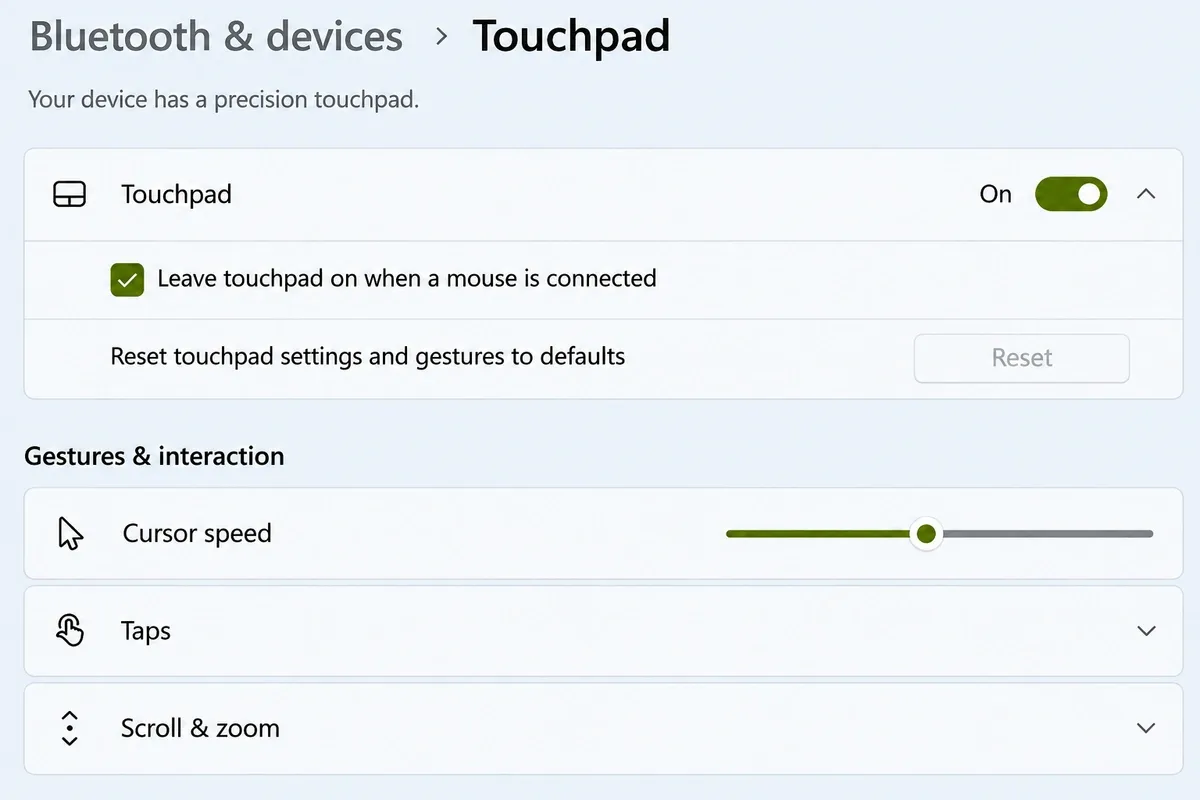
The image shows a precision touchpad with those sections collapsed. Your device's available options determine what you can change. Cursor speed adjusts pointer movement; changing it isn't the same as enabling a tap or choosing a gesture action.
Don't turn the main Touchpad switch off while relying on it to navigate. A touchpad that doesn't move the pointer at all needs the touchpad enablement and device-detection checks, with a working alternative input available before driver changes. You don't need to reset all gesture preferences just to learn what a two-finger scroll does.
Use three- and four-finger shortcuts
Once the basic controls work, try the Windows 11 defaults below. Some require a precision touchpad. If your gesture does something else, inspect its assigned action before treating it as a failure.
| Gesture | Default Windows 11 action |
|---|---|
| Swipe three fingers up | Show all open windows. |
| Swipe three fingers down | Show the desktop. |
| Swipe three fingers left or right | Switch between open apps or windows. |
| Swipe four fingers left or right | Switch desktops. |
On Settings > Bluetooth & devices > Touchpad, expand Three-finger gestures or Four-finger gestures and use the section's drop-down menus to choose an action. Microsoft's instructions allow these actions to be customized; the default table doesn't override a choice you've already made. Try the assigned action with suitable windows or desktops available. Keep a note of the previous assignment so you can put it back.
Use Touchpad for these changes. The separate Touch page and its three- and four-finger touch switch concern the touchscreen. Old Windows 10 instructions that assign taps to Cortana or Action Center aren't the Windows 11 defaults in this table.
Separate learning from a gesture failure
Check movement, a single tap, a right-click menu and two-finger scrolling separately. If movement works, one missing gesture doesn't establish that the entire touchpad has failed. Inspect that gesture's setting and compare another suitable app before changing a driver. Note whether the action does nothing, moves in an unexpected direction, or jumps farther than intended.
App comparisons matter. In an Adobe discussion about external touchpads, the questioner reported different pan, zoom and rotation behavior across devices and applications on Windows 10. A reply suggested resetting Photoshop preferences, but the thread has no confirmed repair from the questioner. That report supports checking the app boundary; it doesn't make a preferences reset a routine step for learning a laptop touchpad.
If a gesture works normally except inside one program, record the app name, version and whether it was opened with administrator privileges. Those details describe the conditions; they don't by themselves identify the cause. Don't disable Windows security controls to make a custom gesture work. If the pointer moves unexpectedly even with your hands clear of the pad, use the unexpected pointer-movement checks to separate the active input devices.
Stop adjusting gestures once the actions you need work predictably in your chosen app. For a missing Touchpad page, a completely unresponsive pad or a device-status error, continue with the existing repair guide. The Windows devices hub groups those input and device problems by symptom.



