
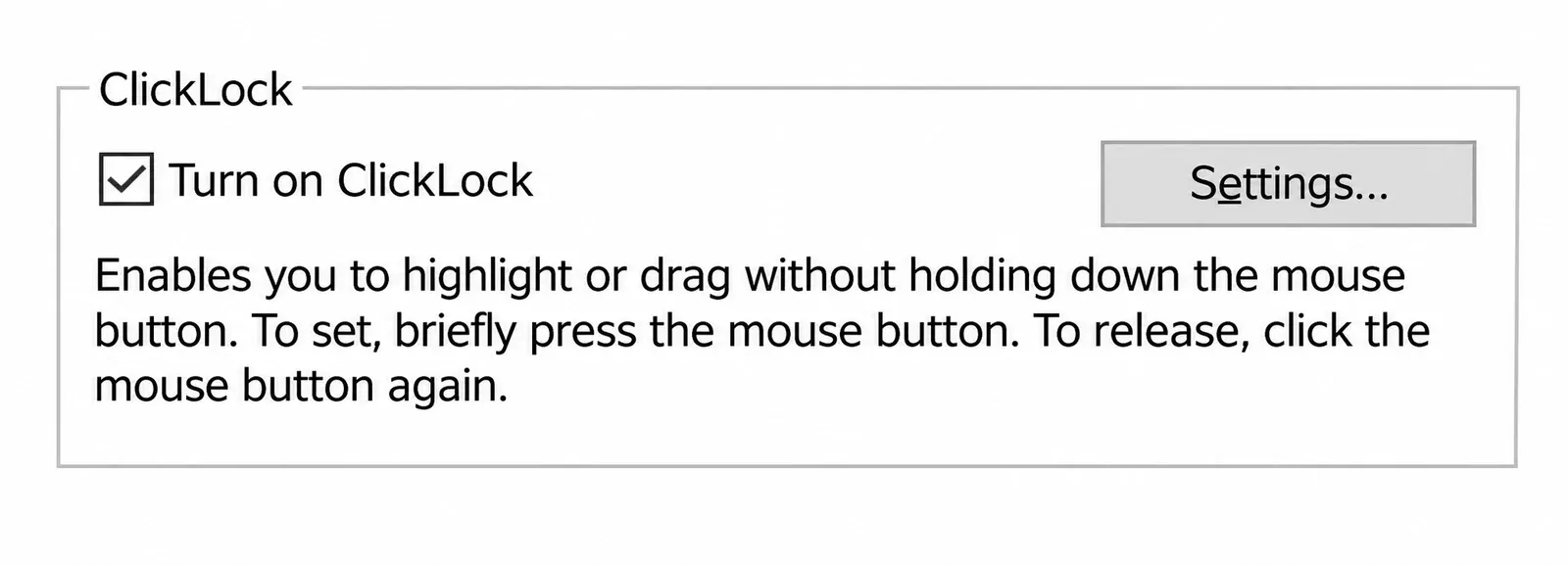
To turn ClickLock on or off in Windows 11, open Settings > Bluetooth & devices > Mouse > Additional mouse settings. On the Buttons tab, select or clear Turn on ClickLock, then choose OK. With ClickLock on, you can highlight or drag without keeping the mouse button held down.
I'd practice with a few words in a disposable document before moving any files. That shows the locked selection without putting a file in the wrong folder. Keep ClickLock if you rely on it, and retain a working way to navigate before turning it off.
Choose ClickLock in Mouse Properties
Microsoft's Windows 11 mouse-setting instructions place ClickLock on the Buttons tab. The same tab has primary-button and double-click controls; leave those at your intended settings while choosing ClickLock.
- Open Start > Settings > Bluetooth & devices > Mouse.
- Under Related settings, select Additional mouse settings. In Mouse Properties, select Buttons.
- Record whether Turn on ClickLock is currently checked. Select it to turn ClickLock on, or clear it to turn ClickLock off.
- Select OK to confirm your choice.
Practice a selection and release it
Save your work, then type a few nonsensitive words in a disposable document. Keep the pointer away from Delete, Send and payment controls. Avoid using important files as drag targets.
Wellnomics' ClickLock operating instructions describe a brief press to set the lock and another click to release it. With ClickLock on, try that sequence on your sample text:
- Place the pointer at the start of the sample text. Briefly press and hold the mouse button you use for selection.
- Release the physical button, then move across a few words to highlight them.
- Click the same button again to release ClickLock. Check that moving the pointer no longer extends the selection.
Finish that release before starting another action. Remove the sample text when you're done.
Verify or restore your ClickLock preference
Reopen Additional mouse settings > Buttons and confirm that Turn on ClickLock retains your chosen state. If you kept it on, repeat the harmless selection and release. If you turned it off, select a few sample words while holding the button, then release it. Move the pointer and check whether the selection stops extending. Check both the saved checkbox and the behavior you intended.
To undo the change, restore the exact checkbox state you recorded and select OK. Reopen the dialog to confirm it. Keep the arrangement that supports your usual input.
If dragging or highlighting continues with the checkbox cleared, record whether it happens with the mouse, the touchpad or both, and in one app or across Windows. A Microsoft Q&A report describes that unresolved pattern; its suggested fixes have no confirmed result from the questioner. Give the device model, affected apps and saved checkbox state to the manufacturer or your IT team.
For a pointer that disappears or won't move, use the separate pointer visibility and mouse-input checks.



