
For a Windows 11 black screen after login, press Windows + Ctrl + Shift + B once to reset the graphics driver. If the desktop stays black, press Ctrl + Alt + Delete and open Task Manager; restart Windows Explorer, or run explorer.exe if Explorer isn't listed. If those controls don't appear, check the display output before moving to recovery.
I'd use the response to those checks to choose the next step. A visible security screen or Task Manager gives you a way to investigate the missing desktop without immediately resetting Windows.
Confirm that the black screen begins after sign-in
This guide applies when the Windows sign-in screen appears, you enter your password or PIN, and the desktop doesn't load. Note whether a pointer is visible, whether the keyboard responds and whether the desktop eventually appears. A delay that ends by itself needs its duration and trigger recorded; it isn't the same observation as a desktop that never arrives.
If the icons, taskbar and apps work and only the wallpaper is black, check the Background type, selected photo and personalization settings. A usable desktop with a missing picture needs that appearance check before the missing-shell recovery below.
If the field is white, first use the white-screen checks for app, Windows and display response to distinguish a white window or missing desktop from a panel that stays white before Windows. Return to the shell checks here when the security screen or Task Manager remains usable.
A screen with a stop code is a crash, even if its background is black. A blinking text cursor before the sign-in screen, a monitor showing No signal, and a PC stuck on Restarting need different investigations. Don't rebuild boot configuration merely because a screen turns black after you have already signed in.
Check graphics and the selected display
Microsoft's blank-screen troubleshooting steps start with graphics and output checks. After Windows + Ctrl + Shift + B, you may hear a beep or see a flicker. That response doesn't establish that the driver was the cause; check whether the desktop actually returns.
If you use a dock or multiple displays, press Windows + P. When the projection panel is visible, select the intended display mode. If you can't see it, Microsoft's keyboard sequence is Windows + P, then P again, then Enter to change modes. Check the connected displays after the change instead of repeatedly sending keys without observing the result.
On a laptop, disconnect external displays and the dock and check the built-in screen. For a desktop monitor, check its power, selected input and cable connections; try a known-working cable or monitor if available. Restore one connection at a time if the desktop returns. A display that works before sign-in can still lose the expected output afterward.
If Task Manager opens, try the desktop shell
Press Ctrl + Shift + Esc, or use Ctrl + Alt + Delete > Task Manager. In a Remote Desktop session, use Ctrl + Alt + End for the remote security options. If the pointer doesn't work but the security screen is visible, try the arrow keys and Enter to select Task Manager.
- In Task Manager, look for Windows Explorer under Processes. Select it and choose Restart or Restart task, according to your Task Manager version. Explorer windows and the taskbar may briefly disappear.
- If Windows Explorer isn't listed, choose Run new task. Older layouts put this under File.
- Enter explorer.exe and select OK. Don't substitute a similarly named downloaded program.
If the taskbar and desktop return, save work and back up important files. Then check whether the failure returns at the next normal sign-in with work saved. Launching Explorer can restore access without explaining why it failed to start.
If Explorer doesn't appear or immediately disappears again, record that result and any error. In a Microsoft-hosted black-screen report, the user could open Task Manager and files but reported that launching Explorer hadn't resolved the problem. They later reported success after wiping and reinstalling Windows. That is one reported outcome, not a reason to erase files before checking the remaining recovery paths.
When the desktop returns, investigate the recent change
Record when the problem began: after a graphics-driver installation, a Windows update, a new startup app, or connecting a dock or monitor. Change one thing, then repeat the normal sign-in that originally failed.
If another account already exists on the PC and you are authorized to use it, compare sign-in there. A working desktop in that account is a lead toward an account-specific problem, not proof that you should delete the affected profile. Keep the original account and files intact while you investigate.
If it began after a display-driver update
Open Device Manager and expand Display adapters. Record the adapter names and, under Properties > Driver, the provider, version and date. A PC can list more than one graphics adapter; don't assume that the first item is the one changed.
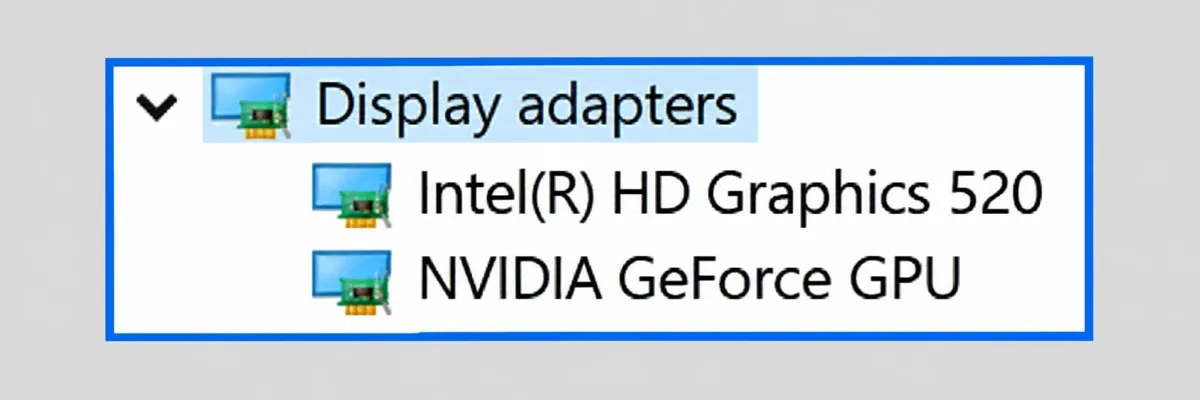
For the adapter whose driver was recently changed, use Properties > Driver > Roll Back Driver if available. Administrator permissions are required. Follow the prompt and restart if requested. Microsoft's driver rollback and update instructions also cover obtaining a compatible driver when rollback is unavailable. Use Windows Update or the PC/device manufacturer's official site, with the correct model, Windows version and architecture.
I'd choose rollback for a clear new-driver regression before installing several different packages. If you can't identify the changed adapter, preserve the recorded versions and ask the PC manufacturer rather than uninstalling every display device. A third-party driver updater isn't needed for this check.
If it began with a startup app
In Task Manager, open Startup apps. Note the original state of the app you suspect, disable that startup entry and test another sign-in. This changes its automatic launch; it doesn't uninstall the app. Reenable it if the test doesn't support that lead.
For an app launched through a folder shortcut, inspect the personal and shared Startup folders and record the specific shortcut before changing it. Those folders are one launch route; they do not account for every startup application.
For a broader background-software investigation, follow Microsoft's complete clean-boot procedure. It requires administrator access, hiding Microsoft services before disabling the other services, recording disabled startup items and restoring normal operation afterward. A clean boot can temporarily remove functionality. Don't change advanced boot settings or disable services indiscriminately; ask IT to handle a managed device.
If you can't reach a usable desktop
When Ctrl + Alt + Delete displays the security screen, hold Shift while choosing Power > Restart. You can also use Shift + Restart from the sign-in screen. Have your BitLocker recovery key available before using recovery tools. Match the key ID if requested; Microsoft can't recreate a lost key, and a managed PC's key may be held by IT.
If neither screen is accessible and normal controls fail, a forced power-off is a last resort that can lose unsaved work. Follow the manufacturer's power-off procedure. Don't interrupt an active firmware update or installation. If the PC subsequently can't start Windows, use the bounded Microsoft recovery-entry procedure: interrupt normal startup at the logo twice, then allow the third start to enter Automatic Repair. Stop repeating power cuts if recovery doesn't appear; use the manufacturer's recovery route or appropriate recovery media.
Before choosing Safe Mode, make sure you know the account password. Microsoft's sign-in guidance states that PIN and biometric options are unavailable there. If you don't have the password, use the appropriate account-recovery route first; don't configure a persistent Safe boot setting.
In recovery, select Troubleshoot > Advanced options > Startup Settings > Restart, then press 4 or F4 for Safe Mode. Choose 5 or F5 only when you need Safe Mode with Networking.

Safe Mode uses a limited set of files and drivers. If the desktop works there, investigate what differs from normal startup, including the recent driver or startup app. It doesn't prove that all hardware is healthy. Restart normally after a targeted change to test the original failure.
If the problem began with a particular Windows update, record the KB or version before considering removal. The Windows 11 update guide helps separate update and startup failures. If an existing restore point predates a recent app, driver or settings change, choose Troubleshoot > Advanced options > System Restore. System Restore preserves personal files but can undo affected apps, drivers and settings; review Scan for affected programs.
If Explorer still fails, preserve evidence before a reset
Microsoft's post-sign-in diagnostic guide covers the Winlogon Shell setting, clean boot and evidence from explorer.exe or userinit.exe. Registry changes require a backup and an actual incorrect configuration. Don't paste a registry fix, change Winlogon permissions or disable App Readiness simply because another PC had a black screen. Have IT check a managed or customized-shell device.
If Task Manager lets you run tools, its Run new task control can open eventvwr.msc. Check Windows Logs > Application around the failed sign-in for entries naming Explorer or Userinit. Save the event details and exact time. A support engineer can use Microsoft's process-capture guidance when the ordinary checks don't identify the cause; process dumps can contain private information, so share them through the support provider's private channel.
If the event at the same failure time names dwm.exe instead of Explorer, use the DWM crash and graphics-trigger checks to preserve its module and exception code and choose a targeted comparison. A black screen alone does not identify the failed process.
Before a reset or reinstall, secure a backup and review what each recovery option removes. Keep my files still removes apps and settings; Remove everything and a clean installation can erase personal files. Don't treat another user's reinstall result as a diagnosis of your PC.
A useful success check is a normal sign-in with the desktop and taskbar visible, followed by another sign-in or restart with work saved and the usual display configuration restored. If the failure returns, keep the screen state, keyboard responses, recent changes, adapter versions and event details. The startup and recovery hub groups further checks by where Windows stops.




