

For a white screen of death in Windows 10 or 11, first check whether another window, the security screen or the display's own menu can still appear. A white app window needs a different fix from a laptop panel that stays white before Windows loads. Save accessible work, identify which part still responds, then follow the matching branch below.
I'd make that distinction before changing drivers or opening recovery. The color alone doesn't identify a failed graphics adapter, a damaged screen or corrupted Windows files.
Identify what can still draw on the screen
Record when the white field appears: inside a particular app, after sign-in, or as soon as the display turns on. Note whether a pointer, taskbar, other windows or a manufacturer's startup logo is visible. A moving pointer is an observation, not a diagnosis.
| What you can see | Choose this check |
|---|---|
| Other apps appear over or beside the white area | Check the affected app or missing desktop before restarting the PC. |
| Ctrl + Alt + Delete displays security options | Windows can still display that screen. Use the Windows branch below. |
| An external monitor's own menu appears over the white field | Check its selected input and the PC-to-display path. |
| The built-in laptop panel stays white before Windows or during its screen test | Use the exact model's display diagnostics and record the pattern. |
| The screen becomes white only during a planned color test | Check the expected sequence. A white test frame can be normal. |
Check whether one app is covering the desktop
Press Alt + Tab to switch between open windows. If another app appears normally, save your work there. Try Esc to leave the current task or dismiss a dialog. A full-screen page or app can cover the desktop without Windows having stopped; Esc doesn't exit every app's full-screen mode.
Close the identified white window through its visible close control. Microsoft's Windows keyboard shortcuts also list Alt + F4 for closing the active window. Confirm which window has focus first: unsaved work can be lost, and with no windows open that shortcut prompts for shutdown.
If the problem returns only in that app, record its name, version and the action that triggers it. Reopen it after saving work and compare another file or page where appropriate. An actually unresponsive Explorer window belongs in the File Explorer freezing checks; a white browser window doesn't establish an Explorer fault.
Check whether Windows still responds
Press Ctrl + Alt + Delete. If the security screen appears, open Task Manager; Ctrl + Shift + Esc is another documented shortcut. Note whether the white field is the desktop background while usable windows remain above it, or whether one application is unresponsive.
The distinction appears in published reports. In a Windows 10 white-screen question, the owner could still use Opera and Task Manager, although Windows + R didn't work. A separate startup white-screen discussion described a rotating startup circle followed by a white field with unresponsive input. Those are different starting points for investigation. The startup-thread owner later reported that Windows returned without identifying the cause; that report doesn't justify repeated cold starts as a repair.
For a missing desktop after sign-in, use the responsive-Windows checks for Explorer, graphics and recovery. That page's title describes a black background, but its Task Manager and missing-shell branch is relevant when the background is white and those same controls remain usable. Follow the observed symptom; don't assume the two colors have one cause.
When Windows is loaded, Microsoft's blank-screen troubleshooting includes pressing Windows + Ctrl + Shift + B to reset the graphics driver. Try it once and check whether the normal image returns. A beep or flicker alone doesn't establish that the problem is repaired.
Save accessible work before using a normal Power > Restart. If no normal control responds, a forced power-off is a last resort that can lose unsaved work. Don't interrupt an active firmware update or installation. Use the manufacturer's shutdown procedure instead of repeatedly cutting power to see whether the color changes.
Check an external monitor's own menu
Use the monitor's physical menu button or joystick to open its on-screen display. ASUS's external-monitor troubleshooting instructions explain checking the input that matches the connected cable; the button location and menu differ by model. Observe whether the monitor can draw that menu over the white area.
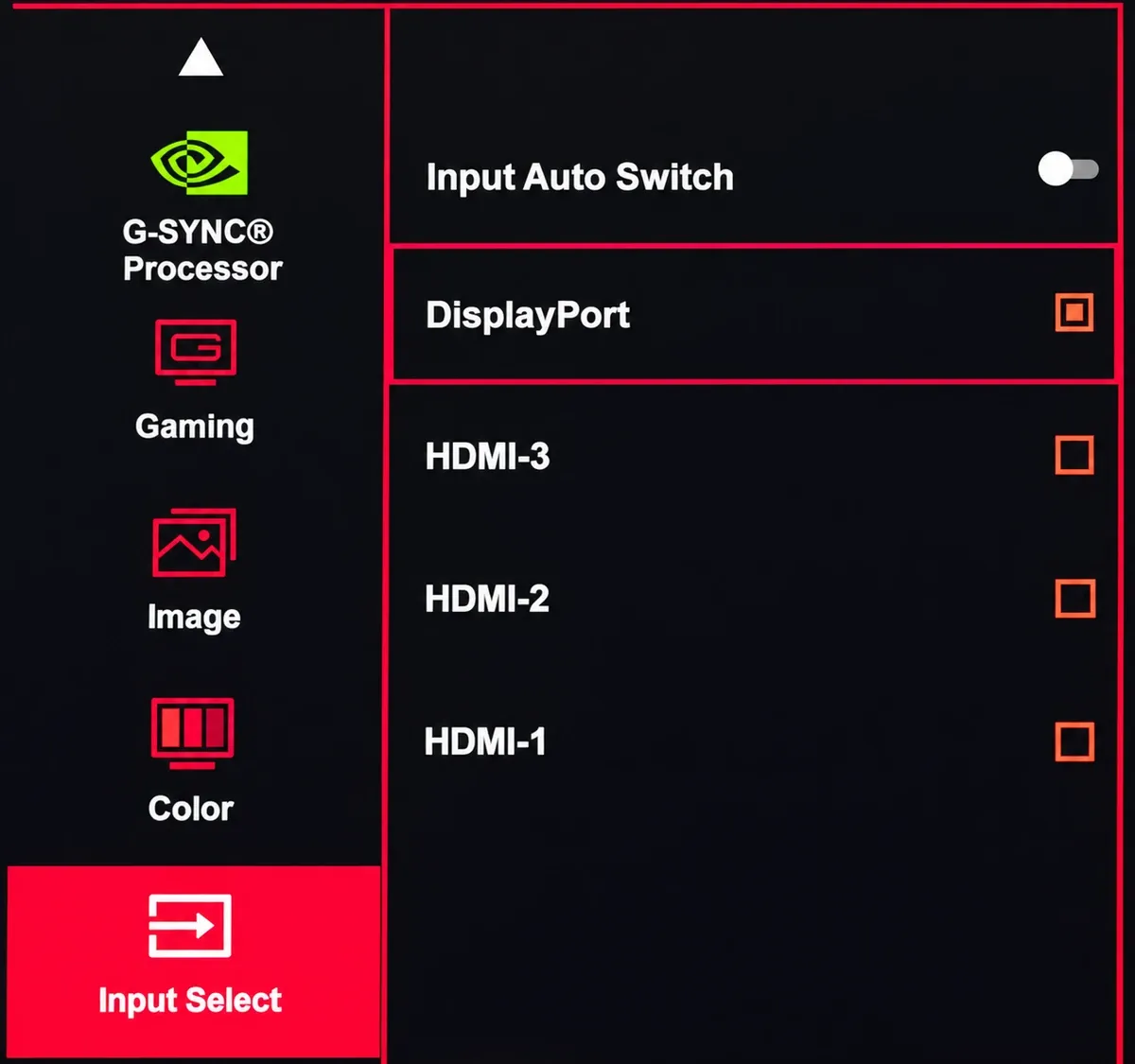
A visible menu gives you another observation, not clearance for every component in the screen. If the menu works but the PC image doesn't, continue with the external display input, cable and connection comparisons. They include a compatible known-working cable or another display when available. Change one connection at a time and record which image changes.
If the monitor can't show its own menu, check the exact model's controls and display self-test instructions before changing Windows. A locked menu or a missed button isn't proof of a dead panel. Keep the power-light color separate from the picture color: ASUS's indicator tables describe the light, not a white image covering the screen.
Test a built-in laptop screen by its model
For a built-in panel that is white before sign-in, use the laptop manufacturer's screen diagnostic. The external monitor's OSD route above doesn't apply to that panel.
On a supported Dell laptop, Dell's LCD built-in self-test procedure runs a screen hardware check independently of Windows settings, graphics drivers and software. Check your model's instructions first. The following D-key procedure is for Dell laptops, not desktop monitors or every laptop brand.
- Save work if Windows is accessible, then shut the laptop down completely and wait for all lights to turn off. Disconnect external monitors, USB devices, the dock and headphones. Connect the laptop's power adapter.
- Hold D, press Power, and keep holding D until colors appear. Then release D.
- Watch the entire panel through the changing colors. Look for persistent lines, dark patches, flicker or incorrect colors. Dell's basic test includes black, white, red, green and blue; enhanced versions use a different sequence.
- Press Esc to stop the test. Record what appeared and any diagnostic light pattern for the model's support team.
A full white frame during that planned sequence is expected. A panel that remains white without progressing, shows a defect through different test colors, or never starts the documented test needs further assessment. If nothing happens, confirm the laptop was off, the charger is connected and D was held before Power; if the test still won't start, contact support rather than opening the panel.
Normal test colors narrow the investigation to what this screen check covers. They don't test Windows, the graphics driver or every part of the PC. If the startup image is normal but the white field returns only after Windows loads, return to the Windows branch. Don't update the BIOS merely to obtain a different test layout.
Verify the normal image returns
After a targeted change, check the state that originally failed: reopen the affected app, complete sign-in, or check the intended display connection. With work saved, perform a normal restart and confirm that the desktop and the needed application remain usable. A successful shortcut or one color-test frame isn't that verification.
For a recurring app-only white window, send the app developer the trigger and version. If the white field persists before Windows or during the model's panel diagnostic, provide hardware support with the model, the stage where it appears, whether menus still draw and the exact test behavior. Share serial numbers, recovery keys and private screen contents only through the provider's private support channel. For failures that move to a named startup error, choose the matching route in the startup and recovery hub.



