
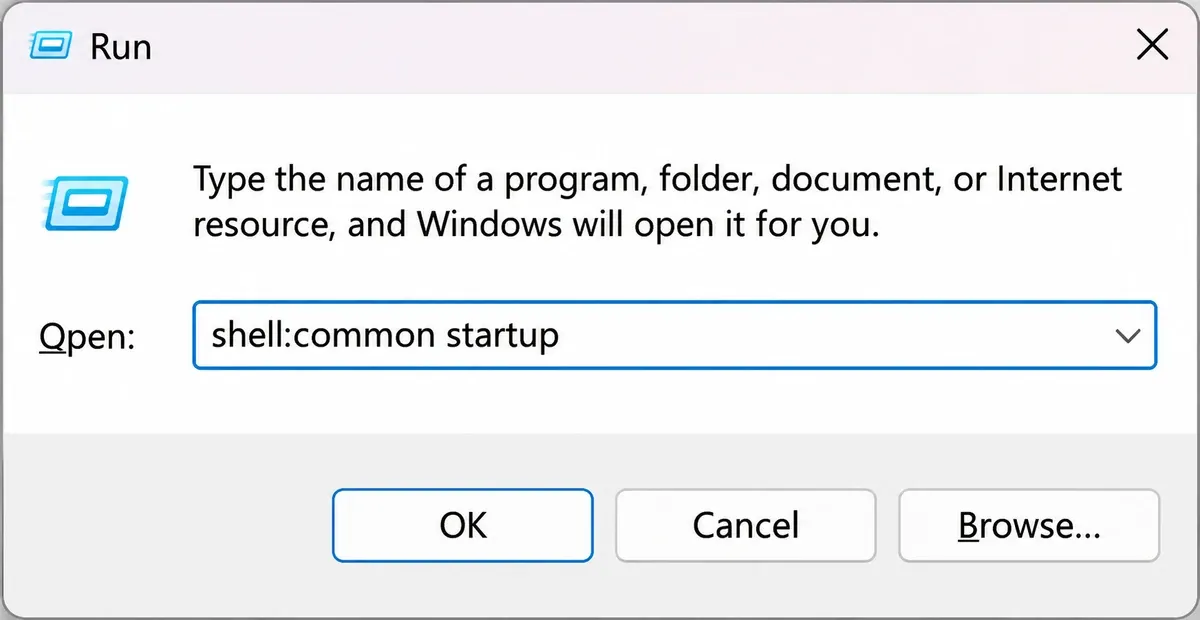
shell:common startup opens the Startup folder for all users in Windows 11. Press Windows key + R, enter that command and press Enter. Shortcuts in this shared folder can launch apps when users sign in. For an app that should start only with your account, use shell:startup instead.
I'd choose the user scope before adding anything. A personal convenience app rarely needs to launch for every account, and a shortcut in the shared folder doesn't install the app for other users or make it a background service.
If you want to choose which registered apps open at sign-in, use the Settings and Task Manager startup-app controls before adding another shortcut. The shared folder below serves the separate all-users shortcut task.
Open the shared Startup folder
- Press Windows key + R to open Run.
- Type
shell:common startup. Keep the colon aftershelland the space betweencommonandstartup. - Press Enter or select OK.
- File Explorer opens the shared Startup folder. Check the address bar before adding or removing a shortcut.
The standard shared-folder path is:
%ProgramData%\Microsoft\Windows\Start Menu\Programs\StartupYou can also paste that path into File Explorer's address bar and press Enter. Microsoft's startup-application instructions identify this as the folder for all users of the device. You don't need to reveal hidden folders to open it through Run.
Choose shared or personal Startup
| Who needs it? | Run command |
|---|---|
| Your account | shell:startup |
| All users | shell:common startup |
The personal folder normally corresponds to:
%userprofile%\AppData\Roaming\Microsoft\Windows\Start Menu\Programs\StartupBoth folders can display the name Startup, so the window title alone doesn't tell you which one you're editing. Microsoft defines CommonStartup as a common folder and Startup as a per-user folder. Check the path or reopen the intended command if you're unsure.
Shared-folder changes may require administrator permission. On a managed PC, ask the administrator to approve an all-user launch rather than changing folder ownership or access permissions. An app installed only in one user's profile may also be unavailable to other users; putting its shortcut in the common folder doesn't change that installation scope.
Add a shortcut and check the next sign-in
If the app already offers a working start-at-sign-in option, use that control instead of adding a second launch entry. Record its current setting before changing it.
Use a shortcut to an installed, approved app. Keep the app's executable and installation files in their original location.
- Open the chosen Startup folder using the command above.
- Open Run again, enter
shell:appsfolderand press Enter. This opens the Applications folder. - Find the app, then drag it from the Applications window into the chosen Startup folder to create its startup shortcut. Approve a shared-folder change only if you're authorized to make it.
- Open the new shortcut once under the intended account. Confirm it launches the right app without a missing-file error.
- Save your work, then sign out and sign back in. Confirm the app starts in the intended account.
For all-user use, also verify the shortcut under another intended account with its user's permission. A successful launch in your account doesn't prove the target app is installed or usable in every profile.
This is a sign-in mechanism. It isn't a way to run a program before anyone logs in, and adding a shortcut doesn't guarantee an immediate launch. Microsoft's guidance on logon startup processing notes that Windows may delay programs in the Startup group to reduce interference. Don't diagnose a failure solely because the window didn't appear the instant the desktop opened.
Remove or undo one startup shortcut
Record the shortcut's name, folder and target before changing it. To stop that folder entry from launching, remove its shortcut from the appropriate Startup folder. Keep a copy outside both Startup folders if you may want to restore it. Don't delete the app's executable or installation folder.
Save your work and sign out and back in to check the result. Deleting a startup shortcut doesn't uninstall the app. If you want to undo the change, copy the saved shortcut back into the same Startup folder and repeat the sign-in check.
If the app still opens, inspect its own startup preference and Settings > Apps > Startup or Task Manager > Startup apps. Other startup registrations can exist independently of that shortcut. Avoid deleting every similarly named entry while trying to identify one launch source.
If the shortcut doesn't launch
If the folder command itself fails, recheck the colon and space, then try the ProgramData path above in File Explorer. Record an access-denied or missing-folder message. On a managed device, have IT check that folder rather than creating a replacement or changing its permissions.
First open that exact shortcut manually in the affected account. If it fails there too, record the error and check whether the app or its target location is available. Microsoft lists removed apps, removable drives and network paths among causes of missing startup targets. Fix the target or app installation before adding another startup entry.
If manual launch works, confirm that the shortcut is inside Programs\Startup, not just Programs. A regular Start menu shortcut isn't the same as a Startup-folder entry. Then check the intended user scope and any existing startup control in the app, Settings or Task Manager. An empty Startup folder doesn't mean no applications start automatically.
Keep app-specific behavior separate from the folder check. Launching minimized, waiting for a network connection or requesting administrator approval can require the app's own supported configuration. Moving the shortcut to the shared folder doesn't establish a fix for those conditions.
If Run or Explorer opens but the Start menu itself won't respond, use the Start menu recovery steps. For a missing desktop after sign-in, follow the black-screen-after-login checks. Those failures need a different diagnosis from an app shortcut that doesn't launch; the Windows desktop guides keep those paths separate.



