
If your desktop background is black but the icons, taskbar and apps still work, open Settings > Personalization > Background. Set Personalize your background to Picture, then use Browse photos to select an image you can open on this PC. Check whether the setting had changed to Solid color before assuming the graphics driver failed.
I'd start with that stored setting and a known-working picture. A missing wallpaper needs a different investigation from a missing desktop: if the taskbar and desktop never appear after sign-in, use the black-screen-after-login checks instead.
Restore a picture background
- Right-click an empty area of the desktop and choose Personalize, then Background. You can also open that page through Windows Settings.
- Note the current background type. If it says Solid color with black selected, change it to Picture.
- Select a built-in picture under Recent images for a quick comparison if one is shown. Otherwise, use another photo you can open on the PC. For your own photo, open the file in your usual image viewer first to confirm it's accessible and shows the expected picture, then select it through Browse photos.
- Return to the desktop. If the photo appears, leave the setting alone and repeat the sign-in or sleep/wake action that originally made it disappear, with your work saved.
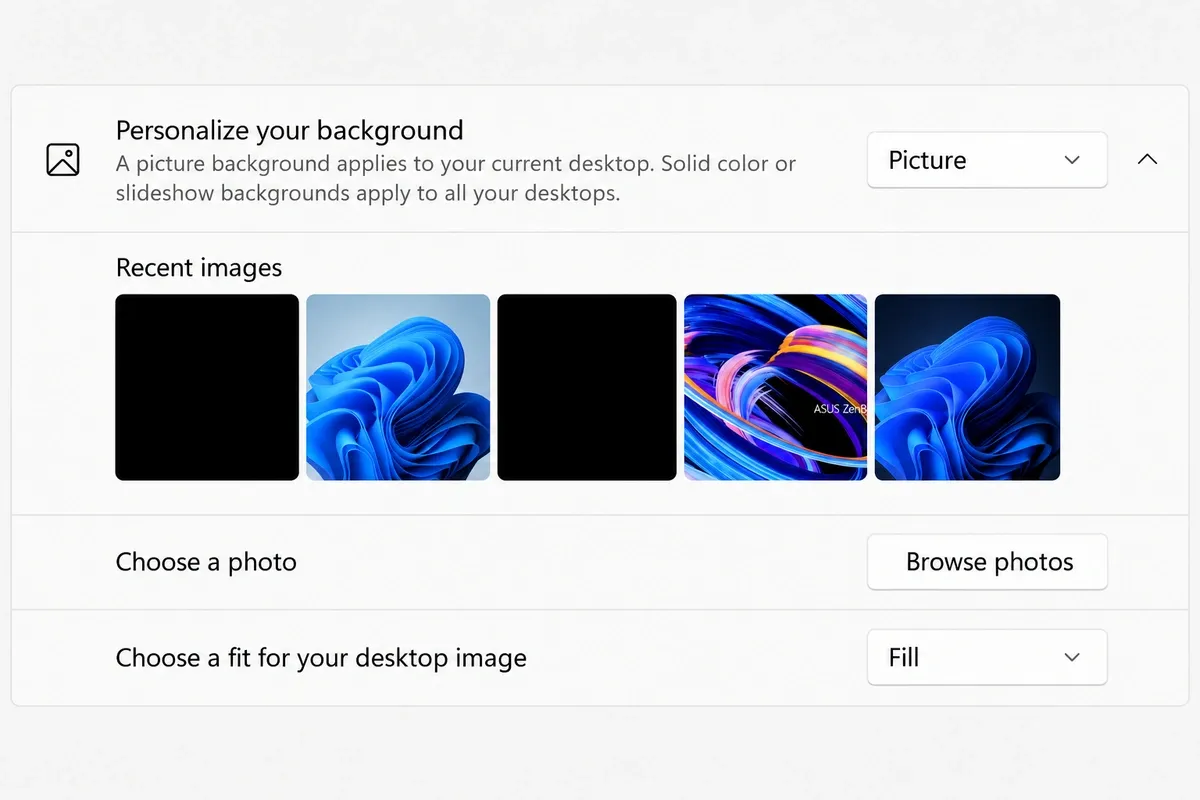
Microsoft's desktop background instructions distinguish Picture, Solid Color, Slideshow and Windows spotlight. ASUS also starts its black-background procedure by reselecting a picture or using Browse photos. Its ScreenPad instructions apply to that separate ASUS display, not every Windows monitor.
There is a useful reported outcome in this black-wallpaper discussion: commenter Carol found Solid Background with black selected on both an old and a new computer. Switching to Picture and choosing a photo helped for the period she reported. She later saw the setting revert while changing another feature and selected Picture again. That supports checking the actual background type; it doesn't prove every black wallpaper has the same cause.
| What you see | Next check |
|---|---|
| Solid color is selected | Choose Picture and verify the photo. |
| Picture is selected, but one file fails | Compare a built-in image and check the original file. |
| Only borders around the photo are black | Check the image-fit choice before troubleshooting the whole desktop. |
| No usable desktop or taskbar | Follow the missing-desktop route instead of wallpaper settings. |
Check the image and background mode
If a built-in picture works but your photo doesn't, check the photo's current location. A moved, deleted or unavailable source is a more specific lead than “Windows is corrupted.” In a frequent black-background report, the advisor identifies file availability as one possibility, but the owner doesn't confirm a final fix.
Keep the original photo. For a controlled comparison, copy an image you can open to a folder on the PC that stays available, then select that copy through Browse photos. Don't delete the Themes folder or its cached files as the first attempt to restore one picture.
Slideshow uses a folder rather than one photo. Check that the selected folder still contains accessible images. If you want to isolate the problem, record the slideshow folder and interval, then temporarily choose Picture with a built-in image. Windows spotlight is another background source; comparing it with a local Picture helps separate that source from the desktop's ability to display a photo.
If you use multiple virtual desktops, check which desktop is active before reselecting a picture. Microsoft allows a different picture for each desktop and notes that Slideshow isn't supported with multiple desktops. That limitation is separate from having several physical monitors.
Black space around a visible photo can be a fit choice. Microsoft documents that Fit can leave bars when the aspect ratios differ, and Center can leave a border around a small image. Try Fill if you want the screen covered, knowing it can crop part of the photo. That isn't the same symptom as the entire wallpaper disappearing.
Check accessibility and customization
Open Settings > Accessibility > Contrast themes and note the selected theme. Contrast settings can intentionally change the desktop's appearance. If a contrast theme was enabled accidentally and you don't need it, select None and apply the change. Preserve an accessibility theme you rely on; a wallpaper preference shouldn't make text harder to read.
If a wallpaper app or theme manager is installed, pause its background-changing feature through its own controls and compare one normal sign-in with the built-in Picture choice. Record the original configuration so you can restore it. An organization-managed wallpaper or disabled control belongs with IT; don't remove policy keys to force a personal photo.
Watch whether Picture changes back to another mode or stays selected while the image disappears. Those are different observations. I'd collect that distinction before turning off account synchronization, creating another profile or resetting personalization across every device.
Check a matching update before repeating resets
Windows has had a confirmed failure where repeatedly choosing a photo couldn't help. Microsoft documented that the August 27, 2026 update KB5120998 could prevent desktop settings from loading on Windows 11 24H2 and 25H2. A default black background appeared regardless of the saved values; slideshow settings or contrast themes could also be affected.
The official resolved-issues entry for desktop background settings says this was fixed in the September 8, 2026 update KB5124008 and later updates. Early news saying a fix was still pending describes the period before that resolution.
Press Windows + R, enter winver and record the version and build. Check Settings > Windows Update > Update history for the installed updates. If that incident matches your installation, use the latest applicable Windows security update or IT's approved update path. Don't uninstall an unrelated security update or manually install an old package just because a forum names it.
Verify the original trigger
If the desktop appears stale, turns black in patches or redraws when windows move, save work and let file transfers finish before refreshing Explorer. Open Task Manager with Ctrl + Shift + Esc, find Windows Explorer under Processes and select Restart. The taskbar and desktop may briefly disappear. Use the Explorer and taskbar recovery steps if the shell itself also stops responding.
A temporary redraw isn't a lasting repair. In a Windows 11 sleep/wake report, the owner said Next desktop background restored the image temporarily. After several suggested changes, including an SFC repair, they reported three days without the problem. That combined result doesn't identify which change mattered or establish a permanent fix.
After your targeted change, repeat the original trigger and check both the visible picture and the stored Background type. For multiple monitors, inspect each display rather than judging from the preview alone. Stop once the intended picture survives that check.
If it recurs, keep the build, selected mode, image location, affected monitor, trigger and recent customization changes for support. If Settings won't open, use the Settings launch checks. The Windows desktop hub groups the neighboring shell and display-setting problems.



