Windows Update errors and installation problems
Fix Windows Update Error 0x80248007 on Windows 11
Find the missing update-data operation, preserve a fresh log and choose between a controlled cache refresh, managed-source checks and component repair.
Troubleshooting guides
Choose a Windows 11 update repair by download, installation or rollback stage. Find error-code guides, driver-update checks and supported recovery routes.
Windows Update errors and installation problems
Find the missing update-data operation, preserve a fresh log and choose between a controlled cache refresh, managed-source checks and component repair.
Windows Update errors and installation problems
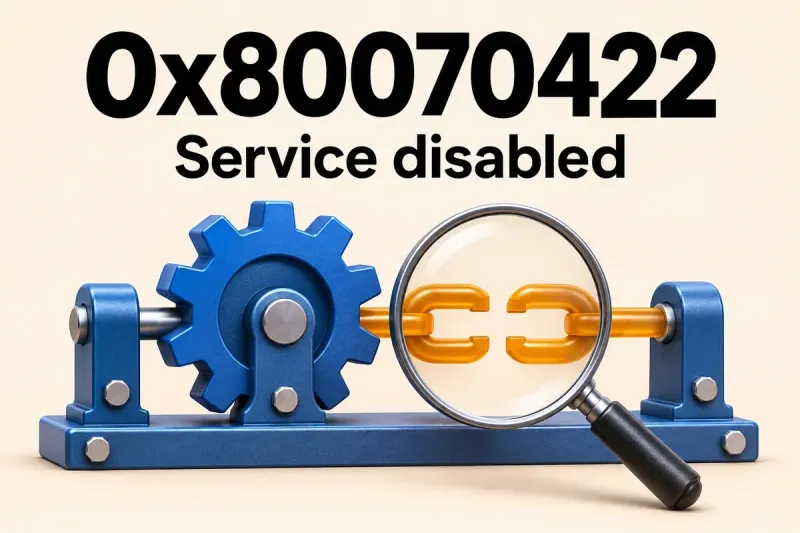
Find the disabled service before changing Windows. Check Update service settings, respect managed policy and separate Xbox or Store failures.
Windows Update errors and installation problems
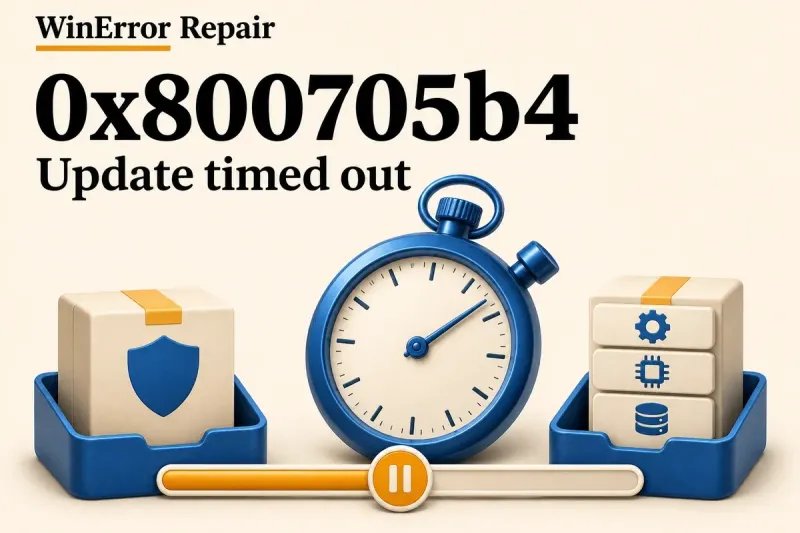
Separate a timed-out update scan from a failing Defender package. Check the right result before resetting download data or repairing Windows.
Windows Update errors and installation problems
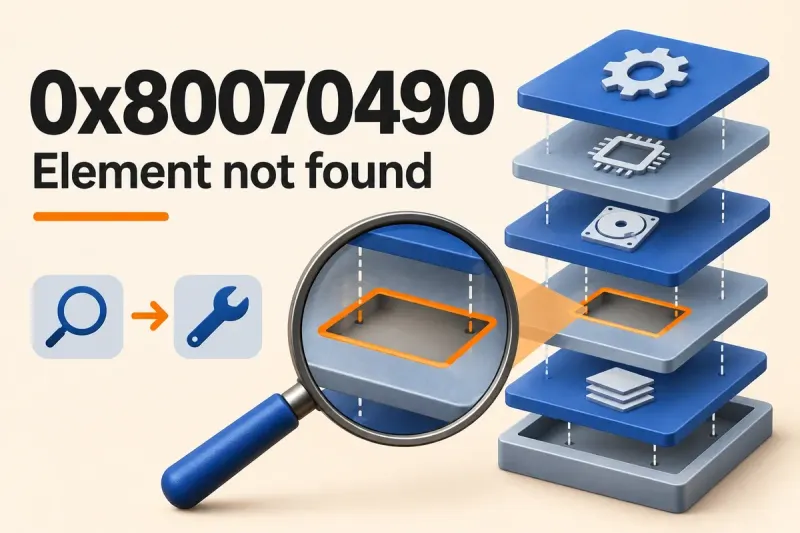
Locate the missing element before repairing Windows. Follow the update-specific route, read fresh CBS logs and avoid unrelated Store or Server fixes.
Windows Update errors and installation problems
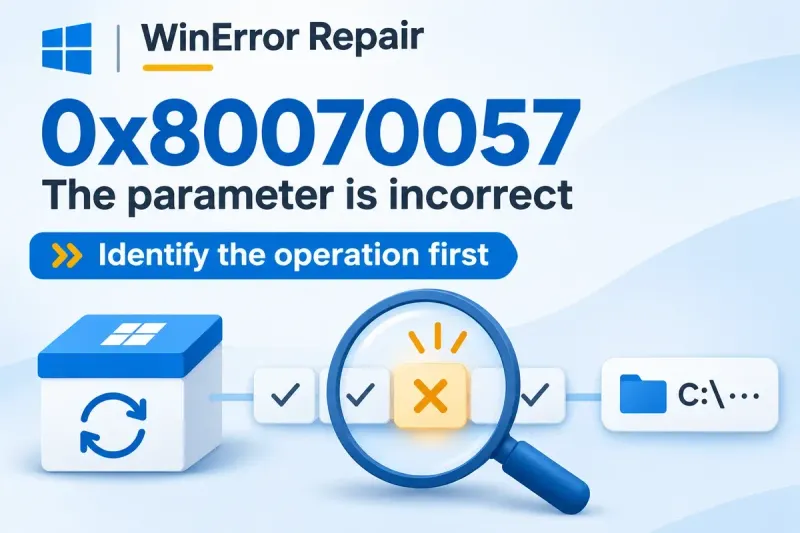
Identify which update operation rejected a parameter. Use current diagnostics and fresh logs before cache resets, component repair or recovery.
Windows Update errors and installation problems
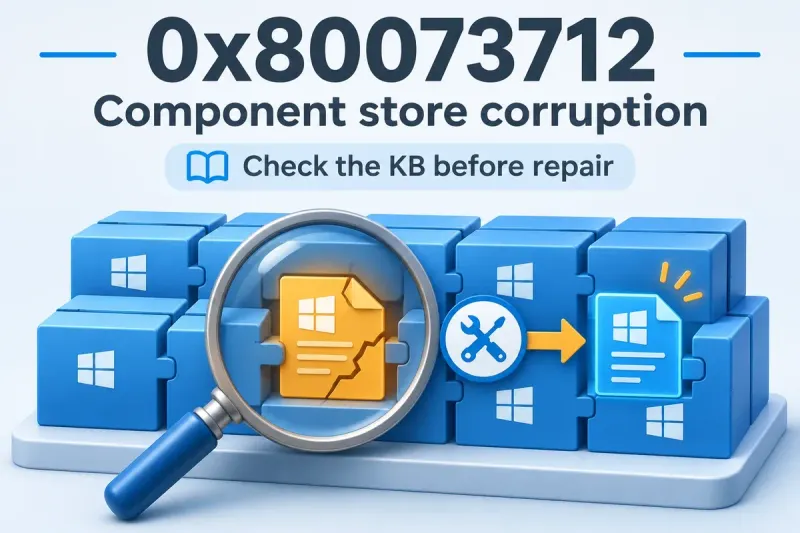
0x80073712 points to component-store corruption. Check for a package-specific issue first, then choose the supported repair using the tool results and logs.
Windows Update errors and installation problems
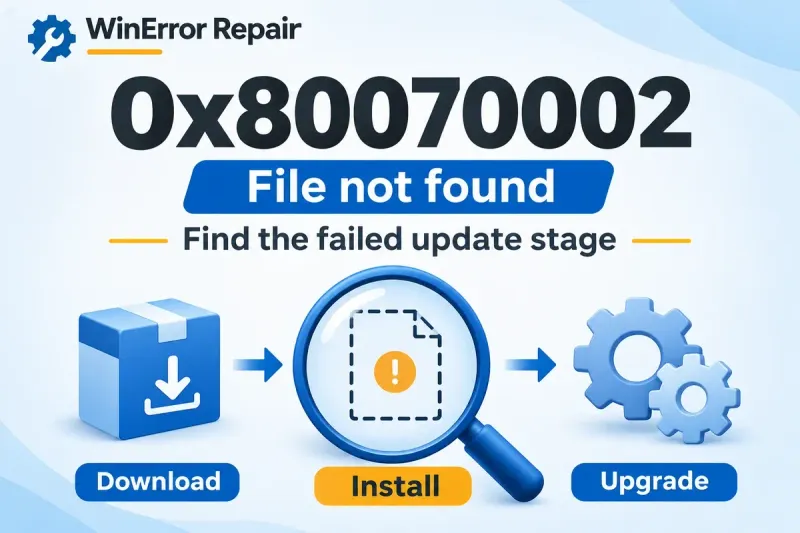
Find which update stage failed before changing files. Follow a Windows 11 route for download-cache problems, missing components and upgrade rollbacks.
Windows Update errors and installation problems
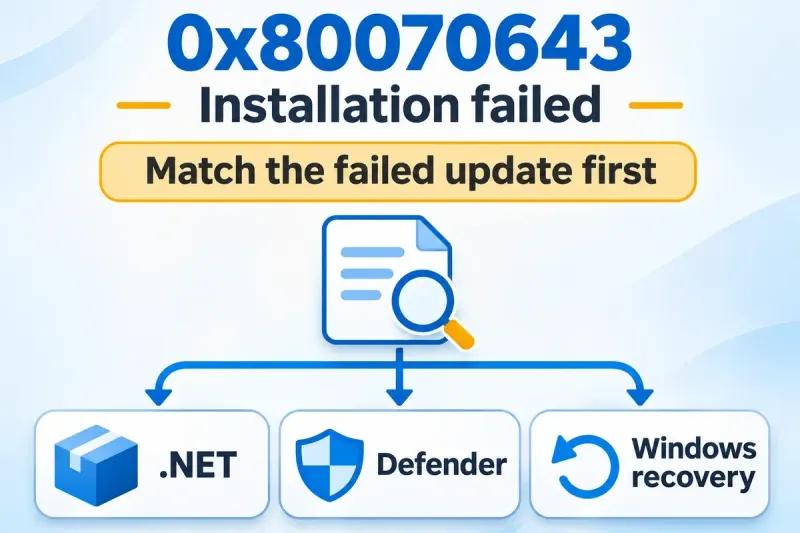
0x80070643 reports a failed installation. Find the package first, then use the matching .NET, Defender, recovery or Windows servicing repair.
Windows Update errors and installation problems
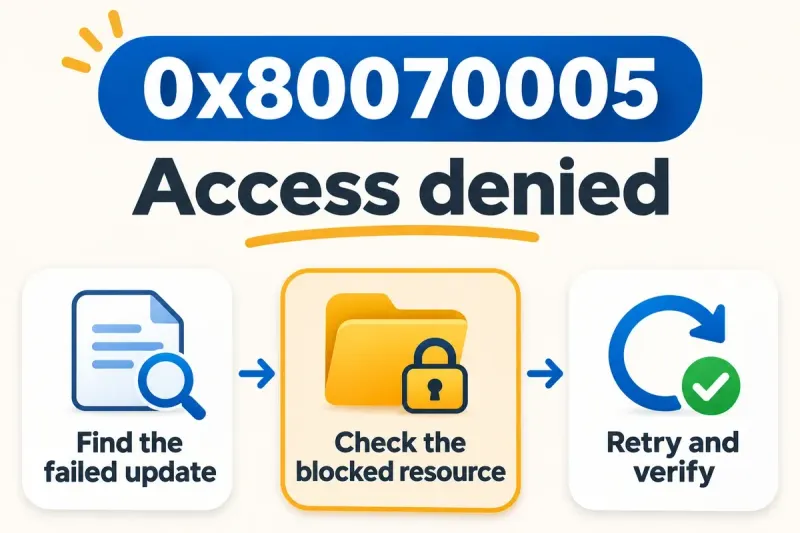
0x80070005 means access denied. Identify the blocked resource, choose the matching Windows Update repair, then verify the installation after restarting.