
0x80070057 means “The parameter is incorrect.” When it appears in Windows Update, record the failed update and run the Windows Update troubleshooter before changing system settings. If it returns, use fresh logs to identify whether Windows rejected a download path, a servicing operation or an upgrade step; the code alone doesn't diagnose a damaged disk.
I would keep the operation in view throughout this repair. Advice for formatting a Windows 7 installation disk, backing up files or installing an application doesn't become a Windows 11 update fix because it uses the same number.
Record exactly where the parameter error appears
Microsoft's Win32 definition is ERROR_INVALID_PARAMETER, value 87. It doesn't identify the rejected value. A message inside a repair command also needs separating from the original error in Windows Update.
- Open Settings > Windows Update > Update history. Record the complete package name, KB if shown, code and time.
- Press Windows + R, run
winverand record the Windows version and OS build. - Note whether checking, downloading, installation or a feature-upgrade restart failed. If a command produced the error, preserve that exact command and its output.
- Check the package's Microsoft KB and release/support information before using a fix for another build.
If this is a work or school PC, ask IT to check the approved update configuration. Local administrator access doesn't authorize overriding managed policy. On a personal PC, save your work, back up important files, connect power and restart once before retrying the same update.
Run the current update troubleshooter
Open Settings > System > Troubleshoot > Other troubleshooters. Select Run beside Windows Update and follow the diagnostic prompts in Get Help. This is the current Microsoft diagnostic route; an old downloaded troubleshooter may no longer match Windows 11.
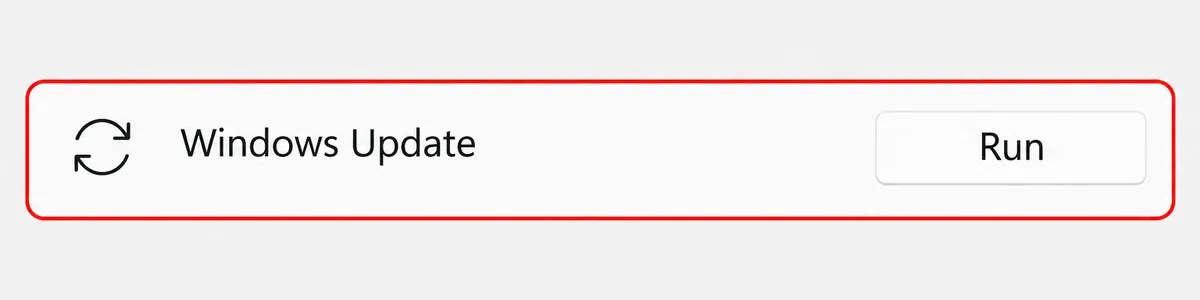
Apply an offered fix, restart if requested and retry the package. Stop if it installs and completes its required restart. If not, retain the diagnostic result and move to evidence rather than treating “changes made” as a successful installation.
Check the low-impact conditions in Microsoft's general update guidance: working internet, available system-drive space and correct date/time. If the clock is wrong, open Settings > Time & language > Date & time, correct the automatic time/time-zone settings as appropriate and use Sync now. Review any proposed file cleanup before accepting it; don't empty Downloads or erase a backup drive to meet an arbitrary space target.
Find the rejected operation in fresh logs
In Windows PowerShell as administrator, run:
Get-WindowsUpdateLogSearch the generated log near the failure timestamp for 0x80070057, keeping the surrounding component, path and update identifier. Microsoft's log reference explains the static conversion and installation logs. Regenerate the converted file after another attempt; don't judge a new repair from yesterday's entries. For a servicing installation, also retain %windir%\Logs\CBS\CBS.log.
| What the evidence identifies | Applicable next action | Verification |
|---|---|---|
| A download/cache operation | Use the controlled fresh-download branch after preserving logs. | Same package downloads and installs after restart. |
| A particular path, mapping or access problem | Have its configuration and permissions checked; preserve dependent backups/apps. | The same operation succeeds with the intended storage configuration. |
| Damaged servicing components | Run DISM, then SFC, checking both results. | Repair succeeds and the update itself installs. |
| A Windows feature-upgrade rollback | Read Setup logs/SetupDiag, not just the update-download log. | Target Windows version completes setup and stays installed. |
| Error 87 inside a command you typed | Check the command's documented syntax and tool context before rerunning it. | Correct command completes; then reassess the original update. |
There is a useful published report of recurring update failure associated with a mapped B: backup path. The author reported that removing that mapping allowed updates after repeated repairs hadn't solved the recurrence. This is one configuration-specific report, not a rule that B: is forbidden. Don't disconnect or delete your own mapping without checking its backup and application dependencies.
Refresh a failing download without forcing permissions
When the log points to update-download data and the troubleshooter hasn't helped, a cache reset can obtain a fresh copy. Use the documented cache-reset route with service-stop and rename checks. It preserves the prior SoftwareDistribution folder, requires administrator Command Prompt, checks for an existing backup name and restarts the stopped services.
Do not reset while an update is actively installing. If a service won't stop or a rename returns access denied, restore the services you stopped and retain the error; don't force the rename with broad ownership changes. A fresh cache doesn't correct every invalid path or servicing parameter. If the same update still fails, return to the new log entries.
A standalone package can help distinguish delivery trouble from a servicing failure only if that package is available and applicable. Match the exact KB, Windows release, architecture and installation prerequisites using its official instructions. Don't force an installer that reports “not applicable,” and don't assume every update has a Catalog download.
Repair system components when the evidence fits
Open Command Prompt as administrator and follow Microsoft's DISM-before-SFC sequence:
DISM.exe /Online /Cleanup-Image /RestoreHealth
sfc /scannow
Wait for DISM to succeed before running SFC. If it fails, preserve the exact error and use the matching repair-source guidance. Don't invent a source path or assume another computer's component files match your installation.
If SFC repairs files, restart and retry the original update. No integrity violations means SFC hasn't found a protected-file fault. If it cannot repair files or perform the operation, keep CBS.log and follow the corresponding Microsoft result instructions. A successful scan alone doesn't establish that Windows Update now accepts the parameter.
Escalate a persistent failure without deleting partitions
For a feature-upgrade failure, keep the Panther/Rollback Setup logs and any automatic SetupDiag result. Record the phase and operation so support can assess drivers, software and package compatibility instead of prescribing repeated generic resets.
For persistent component problems, an eligible Windows 11 PC may offer same-version repair through Windows Update. It preserves apps/files/settings, but needs backup, power/internet and supported eligibility; managed devices may not offer it. Ask support to assess this or matching repair media before choosing any reset.
I wouldn't delete partitions, format storage, replace a drive or edit undocumented Windows Update registry values from this code alone. Those actions need their own diagnosis and data-recovery plan. For support, provide the operation, KB/name, Windows build, failure time, exact rejected command/path if found, fresh logs and changes attempted. Redact private details before public posting.


