
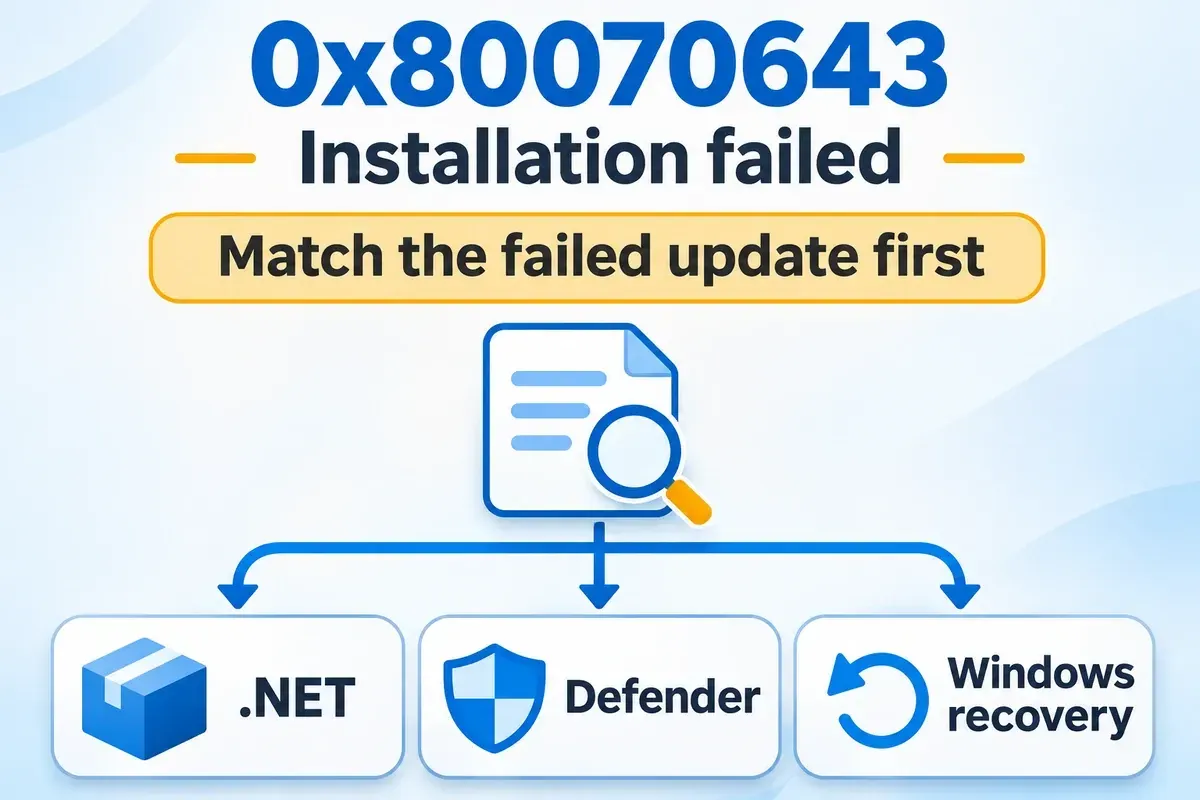
Windows Update error 0x80070643 means the installation failed, but the code doesn't identify the broken component. Open Update history and copy the failed update's full name before choosing a repair. A .NET runtime update, Microsoft Defender intelligence update and Windows recovery update can show the same code and need different actions.
I would start with that package name, a normal restart and the Windows Update troubleshooter. I wouldn't resize a recovery partition or install .NET Framework simply because an update reports 0x80070643.
If the failure is in Configuration Manager client setup rather than Windows Update, follow the CCMSetup 0x80070643 package and log checks. Preserve ccmsetup.log and the named prerequisite or client MSI log before changing Windows Update components.
Find the package behind the error
Open Settings > Windows Update > Update history. Record the update name, KB number if present, error and failure time. Press Windows + R, enter winver, and record your Windows version and OS build. For a manual installer, also check Settings > System > About > System type so you can match x64 or Arm64 packages.
The underlying Windows Installer value is 1603, ERROR_INSTALL_FAILURE: fatal error during installation. Treat it as the end of an unsuccessful operation, not proof that every PC has the same cause. If you see the error in an app installer rather than Windows Update, use that application's installation log and support instructions.
| Failed update name | Start here | Avoid this mismatch |
|---|---|---|
| .NET Runtime, Desktop Runtime, ASP.NET Core or SDK | Match the installed .NET product, version and architecture. | The .NET Framework Repair Tool isn't a general repair tool for modern .NET. |
| .NET Framework cumulative update | Check its KB and the Framework repair branch. | Don't uninstall Framework versions used by applications. |
| Security Intelligence Update for Microsoft Defender Antivirus | Update protection definitions and verify their version. | Don't turn protection off as a repair. |
| Windows Recovery Environment update | Check that exact KB's affected Windows versions and prerequisites. | Don't resize partitions from the error code alone. |
| Windows cumulative update or unclear package | Run the troubleshooter, then inspect fresh update and servicing logs. | Don't choose a random repair utility or a similarly named KB. |
Check your version and edition against Microsoft's Windows 11 support information. An unsupported release needs an upgrade plan; clearing an installation error doesn't extend support. If this is a work or school PC, send the package details to IT before changing update sources, security software or partitions.
Restart once and run the current troubleshooter
Save your work, back up important files, connect power and confirm the internet connection works. Finish any pending restart, then retry the update once. If it fails again, use Microsoft's Windows Update troubleshooter in Get Help.
- Open Settings > System > Troubleshoot > Other troubleshooters.
- Find Windows Update, select Run and follow the Get Help prompts.
- Apply the offered repair and restart when asked.
- Return to Windows Update and check for updates. Compare the result with the same package name you recorded.
A completed diagnostic isn't proof that the installation succeeded. If the same update fails, choose its branch below. Repeated retries without a change provide little new information.
If the failed package is a .NET update
First distinguish modern .NET from .NET Framework. Microsoft documents them as different products with separate installation and servicing paths. A failed .NET 8, 9 or 10 runtime update doesn't establish a fault in .NET Framework 4.8.
For modern .NET, copy the full product name from Update history and compare it with the installed application entry. Runtime, Desktop Runtime, ASP.NET Core Runtime and SDK aren't interchangeable downloads. Multiple versions and architectures can coexist because applications need different components.
- Open the official .NET download path linked in Microsoft's Windows installation instructions. Select the required supported product and architecture, rather than installing an unrelated newer major version.
- For a system-wide installation, run the matching installer with administrator rights. Use that product's installer repair option when available. Microsoft documents
/repairfor its .NET installer as checking and restoring key files and components. Don't apply that switch to an arbitrary Windows update package. - Keep the installer result and any log it produces. A documented exit code of
3010means a restart is required; complete it before evaluating the update again. - Retry the original update and check its result. If repair fails, keep the exact product/version and installer error for Microsoft or application support.
If the package explicitly says .NET Framework, the Microsoft .NET Framework Repair Tool targets Framework setup and update problems. Read its supported Framework versions and operating systems before using it. If your configuration isn't covered, use the servicing-log and component-repair route below; the tool doesn't cover every built-in Windows component or modern .NET runtime. For a supported configuration, follow its prompts, retain its diagnostic result, restart if required and retry the matching update.
I wouldn't uninstall all .NET entries as a cleanup step. That can remove components applications still need while leaving the failed package's cause untouched. If a Framework repair tool doesn't apply to your Windows component, use the servicing-log and component-repair route below.
If Microsoft Defender security intelligence failed
Use this branch only when the failed item is a security intelligence or definition update. An error opening the Windows Security app and a failed antivirus definition installation aren't automatically the same problem.
On a personal PC using Microsoft Defender Antivirus, open Windows PowerShell as administrator. Record the current definition version and update time from the AntivirusSignatureVersion and AntivirusSignatureLastUpdated fields:
Get-MpComputerStatusMicrosoft's Defender status command exposes these properties. Then request an update through the configured sources:
Update-MpSignatureThe signature update command uses the configured update-source order. Run the status command again afterwards and check the version/time together with a new Windows Update scan. No version change can mean the definitions were already current; a new error needs investigation rather than an assumed success.
If the command fails, keep its full error. On a managed PC, IT needs to check the approved update source and connectivity. Microsoft's Defender update-source guidance includes Microsoft Update, WSUS and other managed sources. Don't override those policies or switch off real-time protection to make a status message disappear. If another antivirus product is active, confirm the intended protection configuration with its vendor or administrator.
If a recovery update or KB5034441 is involved
The widely repeated recovery-partition advice comes from a specific Windows 10 incident. It isn't a general Windows 11 fix. Microsoft's former KB5034441 link now leads to KB5042320 for Windows 10 versions 21H2 and 22H2, which replaces that update.
That document requires 250 MB of free space in the recovery partition. This is free space, not a universal 250 MB total partition size. It also describes conditions where the update isn't offered, including an already updated recovery image. The package's current channel table says Microsoft Update Catalog: No, so a blanket instruction to download every failed update from the Catalog is wrong here.
For an actual recovery package, open its KB, match your Windows release and check the documented prerequisites. Microsoft uses reagentc /info to inspect Windows RE status. An enabled status alone doesn't prove that the partition has enough free space or that a particular update applies.
Partition changes can affect recovery and data. I would have a qualified administrator assess the exact layout and current Microsoft procedure, with a verified disk backup and recovery information ready, before changing it. If your failed package is .NET or Defender, return to its branch; disk resizing isn't justified.
Use fresh logs when the package still fails
Record a new failure time. In Windows PowerShell as administrator, run Get-WindowsUpdateLog, then inspect the generated log around that time and the failed update identifier. For Windows servicing failures, also retain %windir%\Logs\CBS\CBS.log. Microsoft's update-log reference separates Windows Update activity from servicing installation; the converted WindowsUpdate.log is a static snapshot and must be regenerated after a later attempt.
If this is an application's MSI installation, use its own documented logging procedure. Microsoft's 1603 troubleshooting examples include already installed software, encrypted or substituted destinations and insufficient SYSTEM permissions. Those are conditions to verify for that installer, not reasons to grant Everyone full control across Windows.
When the logs or other Windows symptoms point to component corruption, open Command Prompt as administrator and follow Microsoft's DISM-then-SFC order:
DISM.exe /Online /Cleanup-Image /RestoreHealth
sfc /scannow
Wait for DISM to finish successfully before running SFC. If DISM fails or can't find repair files, retain its error and use the matching Windows image repair-source instructions; don't paste a sample source path that doesn't exist. If SFC repairs files, restart and retry the update. If it finds no violations, investigate the package rather than declaring it repaired. If it cannot repair files or perform the operation, retain CBS.log and follow the matching support route.
If evidence points to a download-cache fault or a background security conflict, Microsoft's general update troubleshooting provides the next applicable checks. Keep logs before a cache reset. Don't delete caches while an installation is active, disable security permanently or use registry-cleaner software. If the new error is 0x80070005, investigate the denied operation rather than continuing to treat it as the same installation failure.
Verify the result before hiding or replacing an update
After any required restart, check Windows Update and Update history for the original package. For Defender, also check the current signature version; for a .NET installer, keep the installer result. If a later update replaces the failed one, confirm the replacement in the package's official KB or servicing guidance. An old failed-history entry alone doesn't establish the PC's current state.
If the failure remains, send support the full package name and KB, Windows version/build, architecture, failure timestamp, fresh logs, security-product details and the exact repairs attempted. Remove private account information before posting publicly. Don't hide a security update just because the code is generic, and don't perform a clean installation until the package-specific and recovery options have been assessed.


