

0x80070422 means a service cannot start because it is disabled or has no enabled devices associated with it. When Windows Update shows it, inspect the Windows Update service and run the update troubleshooter. Restore a service that was disabled unintentionally; don't change every stopped or Manual service to Automatic.
My priority here is to identify the service and why its configuration changed. Repeated cache resets won't explain a setting that an update-blocking tool or organization policy keeps switching back.
Check where the disabled-service error appears
Microsoft defines ERROR_SERVICE_DISABLED as 1058, hexadecimal 0x422. Its Windows Update error guidance specifically calls for checking the Windows Update service. Neither definition names every service involved in every app using this code.
- Open Settings > Windows Update. Save the full message and whether checking, downloading or installing fails.
- In Update history, record the package name/KB if one is shown and the failure time.
- Run
winverfrom Windows + R; record the version and OS build. - Note recent changes: a debloat or update-blocking tool, manual service edits, security software, or work/school management.
If only a game installation fails, use Xbox's specific 0x80070422 Gaming Services guidance. If Store sign-in is the failing operation, retain that detail: a Windows 11 community discussion reports a disabled Microsoft Account Sign-in Assistant in that context. It's an attributed account-related case, not a reason to change unrelated services on every update failure.
On a work or school PC, ask IT to investigate the disabled service and its policy. Don't bypass managed restrictions. On a personal PC, save work, back up important files and restart normally once before making changes.
Inspect Windows Update in Services
Press Windows + R, enter services.msc and open Windows Update. Its service name is wuauserv. Record both Startup type and Service status before changing anything; they answer different questions.
| What you see | What it tells you | Next action |
|---|---|---|
| Startup type: Disabled | The service is configured not to start. | Check management and any tool that disabled it before restoring it. |
| Manual, possibly labeled Trigger Start | It isn't disabled; starting on demand can be intentional. | Try the update diagnostic and preserve any actual start error. |
| Status: Stopped | The service isn't running at that moment. | Check startup type and the result of starting the required service. |
| Start or Apply returns an error | There is a specific configuration, permission or dependency failure to investigate. | Save the exact message; don't force permissions. |
Windows supports services starting when a trigger occurs and stopping after idle time. A stopped service between jobs is therefore not proof that Windows is damaged. Likewise, Manual isn't another spelling of Disabled.
For a personal PC where Windows Update itself is Disabled and no managed restriction applies, restore its enabled configuration. If you recorded the original setting before a tweak, restore that setting. The service-specific Microsoft community guidance lists Manual for Windows Update; it does not require changing all update-related services to Automatic.
- In Windows Update Properties, change the unintended Disabled setting to the appropriate enabled setting, such as Manual, and select Apply.
- Select Start if it is stopped. If confirmation asks for administrator permission, use an authorized administrator account.
- If it starts, select OK, return to Settings > Windows Update and select Check for updates.
- If the scan works, install the intended updates and complete the required restart. Recheck the service configuration afterward if it previously reverted.
If the setting is already Manual or Automatic, don't keep changing it to chase the code. Save the result of Start or the diagnostic and inspect which service the failure actually names.
Run the current troubleshooter and verify the update
Open Settings > System > Troubleshoot > Other troubleshooters. Select Run beside Windows Update and follow Get Help. Microsoft's current troubleshooting instructions include restarting afterward and checking for updates again.
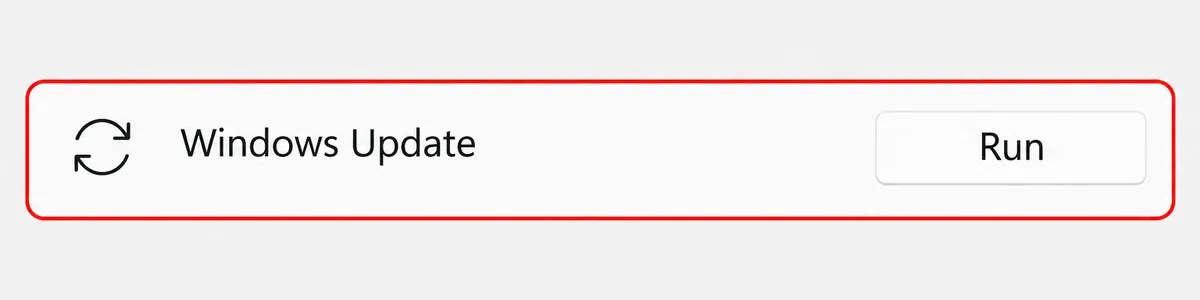
Keep the diagnostic result. If checking now completes and the original update installs through its restart, stop. If a different error replaces 0x80070422, record it as the next problem rather than repeating the disabled-service procedure.
Other services can matter, including Background Intelligent Transfer Service for update delivery. Inspect the service actually named in a dependency or diagnostic failure. Don't import a registry file from another PC or set BITS, Update Orchestrator, Delivery Optimization and protected repair services to a single startup value. Their roles and configuration are different.
If access is denied, a service is missing or the setting reverts
An administrator prompt is expected for protected changes. Access is denied even with an authorized administrator account, a missing service or an immediate return to Disabled needs investigation, not broader ownership changes. Record the service name, original setting, exact message and the time it changed.
- A known update-blocking tool made the change: use that tool's documented restore function, with the original configuration recorded. Re-enable updating there before retrying in Windows, so a background task doesn't undo the change.
- The PC is managed: ask IT to check service configuration and management policy. Don't remove enrollment or edit policy registry values to override it.
- The cause is unknown: run a scan with the PC's trusted security product and give support the results. This is an investigation step, not a diagnosis of malware from the code alone.
- The service is missing or won't start: retain the exact error and use current logs to choose a component repair or support route. Don't recreate it from an unverified script.
For an update-client failure, open Windows PowerShell as administrator and run:
Get-WindowsUpdateLogThe converted update log is static, so generate it after the failed retry. Retain entries near its timestamp with the component and named service. For a servicing installation, also retain %windir%\Logs\CBS\CBS.log. Redact account names and private paths before posting excerpts publicly.
Repair damaged components only when the evidence points there
A scan is a later step when services are missing, component errors accompany the failure, or supported configuration repair hasn't resolved it. It doesn't replace finding an update-blocking policy. In Command Prompt as administrator, follow Microsoft's repair order:
DISM.exe /Online /Cleanup-Image /RestoreHealth
sfc /scannow
Let DISM finish successfully before SFC. If DISM cannot obtain repair files, save the exact error and ask support to check a matching repair source. A disabled update service or managed source setting can matter to the repair's access; don't invent an ISO path or bypass policy.
If SFC repairs files, restart and retry the original operation. If it finds no integrity violations, it hasn't found a protected-file fault. If it can't repair files or perform the operation, keep CBS.log and follow the corresponding Microsoft result instructions. None of these scan messages alone confirms that Windows Update works.
Persistent component damage may justify same-version Windows repair through Settings > System > Recovery. Back up first; the eligible Fix problems using Windows Update > Reinstall now option preserves apps/files/settings and requires power/internet. It may be absent on managed devices, versions before the Windows 11 2022 annual update, or PCs without the February 2024 optional update or later. Ask support about matching repair media if it isn't available.
Keep unrelated network and registry changes out of this repair
Some guides recommend disabling IPv6 for this error. Microsoft warns against disabling or unbinding IPv6 without a justified need, because Windows components expect it. A disabled-service code by itself doesn't establish that need.
I would also leave Windows Update policy registry values, service permissions and unrelated account services alone unless the diagnosis identifies them. If the service stays enabled but the error persists, give support the operation, version/build, package, service settings, exact start error, fresh logs and the tool or policy that last changed the configuration. That evidence is more useful than a list of indiscriminate resets.


