
Save the exact 0x8024a105 message and the action that produced it, then restart normally and retry that action once. If the error returns, run the Windows Update diagnostic for your version of Windows and keep its result. Choose the next repair from the failed stage or a more specific error; the code alone doesn't establish a damaged cache, a proxy problem or malware.
I'd collect that evidence before resetting update components. This error appears in reports about checking for updates as well as attempts to install them, so a single list of commands can miss the actual failure.
Check the code, Windows version and failed operation
Copy the complete message rather than typing the code from memory. Microsoft's Windows Update component reference lists 0x8024A005 as WU_E_AU_NO_REGISTERED_SERVICE. That is a different code from 0x8024A105; don't borrow its definition by changing a digit. The current reference doesn't list the latter code.
Record the Windows edition, version and OS build in Settings > System > About. Then open Windows Update:
- Windows 11: Settings > Windows Update. Open Update history for a recorded installation failure.
- Windows 10: Settings > Update & Security > Windows Update. Open View update history for a recorded installation failure.
Note whether the error appears immediately after Check for updates, during a download, while installing a named KB, or after a feature-upgrade restart. If no update was found, there may be no failed KB to record. Keep the time of the attempt and any additional code that appears on retry.
In the Super User discussion about 0x8024a105, the original poster also saw 0x80242006 for a feature update and a diagnostic warning about proxy settings controlled by an organization. Those details identify separate checks; they don't show that every 0x8024a105 case has a proxy fault.
For Windows 10 Home and Pro, ordinary support ended on October 14, 2025. Check your edition's lifecycle and any applicable extended-update entitlement with the administrator. Repairing Windows Update doesn't extend the support period or make an ineligible update applicable.
Retry once with the basic conditions corrected
- Back up important files and save open work. Keep a laptop connected to power.
- Use a normal Start > Power > Restart, then return to the same update action. If an installation is actively running, let it finish rather than interrupting it to follow these desktop steps.
- Confirm that the PC has a working internet connection. Correct an incorrect date or time under Settings > Time & language > Date & time.
- Read any storage request and free the requested space before retrying an installation. Don't delete personal files without a backup.
These are general checks in Microsoft's Windows Update troubleshooting procedure. If the error repeats, record the new result and move to the diagnostic. Repeated restarts without a changed condition don't supply a diagnosis.
Run the diagnostic for Windows 11 or Windows 10
On Windows 11, open Settings > System > Troubleshoot > Other troubleshooters. Find Windows Update, select Run and follow the Get Help prompts. Save what it reports and whether it applied a repair, then retry the original action.
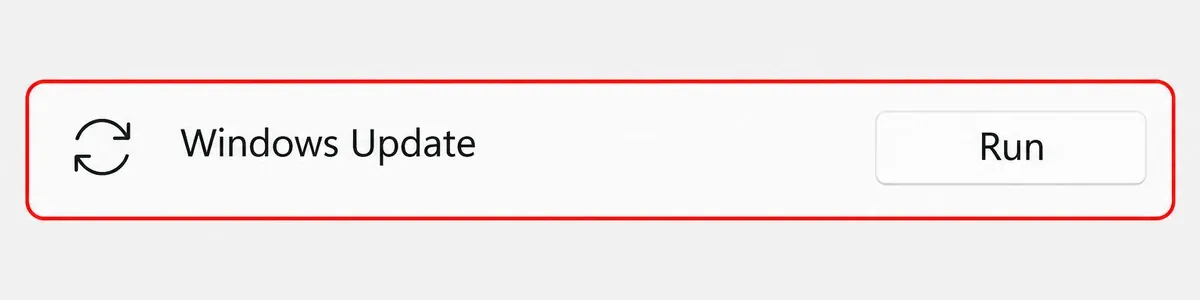
On Windows 10, Microsoft's procedure uses Settings > Update & Security > Troubleshoot > Additional troubleshooters > Windows Update > Run the troubleshooter. Use the available diagnostic or support prompts on your build. The Windows 11 image above illustrates a different Settings layout.
If the diagnostic itself fails to open, keep that message too. In the Microsoft-hosted 0x8024a105 question, the reporter encountered an error in the Help window as well as Windows Update. That additional failure is useful to support; it isn't a reason to assume the update diagnostic completed.
Use the result to choose the next check
- A connection or proxy problem is reported: confirm the required work VPN or network is connected and give IT the exact diagnostic. If proxy settings say they are managed by your organization, don't remove them or reset networking to bypass the policy.
- A service cannot start: record its name and the service error. If the new code is 0x80070422, use that service-related meaning instead of continuing to diagnose the earlier code.
- A named update fails during installation: preserve the KB and new error. For example, 0x80073712 points the investigation toward servicing corruption; it doesn't justify every reset command found for 0x8024a105.
- The scan works but a feature upgrade fails: keep the target version and failure stage. For a Windows 11 target, use the update-failure decision guide and preserve Setup logs.
Don't disable the firewall or uninstall security software just because a general article names malware or antivirus as a possible cause. Investigate an actual security alert or a documented software conflict with the relevant administrator or vendor.
Repair system files when the evidence points there
If the diagnostic or a later failure points to system-file damage, open Command Prompt as administrator. Microsoft's System File Checker procedure runs DISM first:
DISM.exe /Online /Cleanup-image /RestorehealthWait for a successful completion message before running:
sfc /scannowLet SFC reach 100% verification and save its final message. If DISM fails or asks for source files, stop and keep that code instead of repeatedly running the same sequence. DISM's /CheckHealth option checks an image's recorded corruption state; it isn't the repair command above.
After a completed repair, restart and retry the same update action. A successful system-file repair and a successful Windows Update are separate results.
Collect a readable update log before a broad reset
For a repeated failure, reproduce it once and note the time. Open Windows PowerShell and run:
Get-WindowsUpdateLogThe Get-WindowsUpdateLog command merges update trace files into a readable WindowsUpdate.log on the current user's Desktop by default. On Windows 10 versions before 1709, decoding has extra version and symbol-server requirements; give support the old build number rather than assuming the modern instructions will decode it.
This is a snapshot. Run the command again after a new reproduction if you need the newer attempt included. Microsoft's update-log guide distinguishes scan and download activity from installation servicing in %systemroot%\Logs\CBS\CBS.log. A feature-upgrade rollback needs its Setup logs as well.
Send support the edition and build, original and later codes, failed action, KB or target version if known, attempt time, diagnostic result and relevant log. Review logs for account names, internal addresses and other private details before posting excerpts publicly.
Clear Windows Update's cache after preserving the failure
I'd leave cache cleanup until after the diagnostic and log capture. It can help when downloaded update files are damaged, but it doesn't correct an organization policy or establish why the original scan failed.
Use administrator permissions for cache cleanup, and let IT choose the procedure on a managed PC. Continue only at the desktop, with no update installation running, and when the diagnostic or support guidance calls for it. If Windows Update won't stop or files remain locked, stop and save that message; don't force deletion. Microsoft's procedure is:
- Press Windows + R, enter services.msc and press Enter.
- Find Windows Update, right-click it and choose Stop.
- Open C:\Windows\SoftwareDistribution in File Explorer. Delete its contents, keeping the SoftwareDistribution folder itself.
- Return to Services, right-click Windows Update and choose Start. Retry Windows Update and record the result.
If the service won't stop or files remain locked, stop the cleanup and save that message. Don't repeatedly force deletion, change folder permissions or delete catroot because another guide mentions catroot2. On a managed PC, let IT choose the component-repair procedure.
Confirm that the original action now succeeds
If checking for updates was failing, verify that the check completes. If installing a named KB was failing, verify its successful status in update history and complete the requested restart. If it was a feature upgrade, confirm the resulting version under System > About.
If the error persists, use the collected evidence to decide with support whether a component repair or an in-place installation is appropriate. Check the target release, compatible media and what will be kept before proceeding. A clean installation removes files and apps; it isn't the automatic next step for this code. Browse the Windows Update troubleshooting hub for the specific code or stage that the next attempt identifies.



