
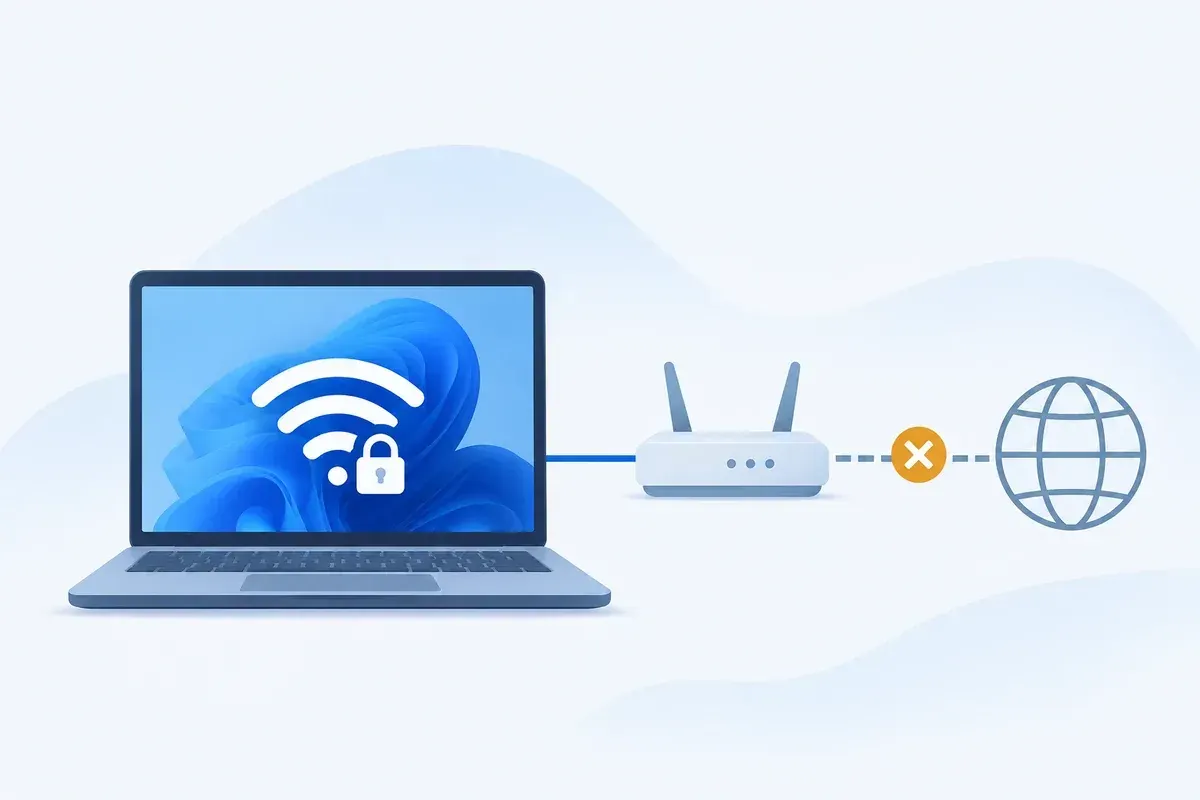
When Windows 11 shows “No Internet, secured”, test a trusted website and the app you need before resetting anything. If neither works, compare another device on the same Wi-Fi, then check this PC's IP address and DNS. If browsing works but Windows still reports no internet, investigate connectivity detection instead of repeatedly reinstalling the wireless driver.
I'd start with that distinction because the status text isn't a complete diagnosis. “Secured” doesn't promise internet access, and the label doesn't establish that your router, adapter or Windows installation is faulty.
Decide whether internet access or only its status is failing
Try more than one trusted website and a separate app. Record whether all traffic fails, only one site fails, or browsers work while Microsoft Store or Windows Update doesn't. If Windows won't join the Wi-Fi network at all, use the separate “Can't connect to this network” procedure.
| Result | Next check |
|---|---|
| Other devices also lack internet on this Wi-Fi | Check the router, modem and provider before changing this PC's drivers. |
| Only this PC fails, but it works on a trusted hotspot | Compare the original network's address assignment, DNS and access rules. |
| This PC fails on several working networks | Run Windows diagnostics and examine its adapter, proxy or VPN configuration. |
| Websites work, but Windows says no internet | Follow the connectivity-detection branch below and record which apps still fail. |
Microsoft's Wi-Fi troubleshooting guide distinguishes a local Wi-Fi connection from internet access. Run the Network and Internet troubleshooter in Get Help and save its finding. Also save work and restart the PC once. On a public or guest network, complete the network's expected sign-in page if one is required; confirm it belongs to that network before entering credentials.
Check the original network before resetting the PC
Try a second device on the same Wi-Fi, with cellular data off if you're using a phone to check Wi-Fi internet access. If several devices fail, check the provider's outage information from a working connection. For your own home equipment, warn other users before restarting it: everyone using it will disconnect.
Follow the equipment's instructions. Microsoft's general sequence is to unplug the router and modem, wait at least 30 seconds, power the modem first, wait for it to be ready, then power the router and allow it to start. A combined modem/router has its own single-device procedure. A power restart doesn't require pressing the factory-reset button.
Check your mobile plan before testing with a phone hotspot: tethering can consume mobile data and may cost extra. If only this PC fails, try a trusted phone hotspot or Ethernet connection when available. A working alternative narrows the comparison; it doesn't prove that every setting on the original router is correct. Avoid changing several router and Windows settings at once.
Check the active Wi-Fi address and gateway
Open Command Prompt and run this read-only command:
ipconfig /allFind the wireless adapter for the connected Wi-Fi. Record its IPv4 address, Default Gateway, DHCP Enabled and DNS Servers. Ignore a disconnected Ethernet adapter or a VPN's virtual adapter when identifying the Wi-Fi connection. Microsoft's ipconfig reference explains the output and the difference between displaying settings and changing them. Keep the full output private; it includes device and network details.
| Finding | What to do |
|---|---|
| A 169.254.x.x IPv4 address on a home network that should use DHCP | Windows hasn't obtained the expected router-assigned IPv4 address. Check DHCP on the router and retry that connection. |
| A deliberate static address on a managed network | Ask its administrator to verify the address, subnet and gateway. Don't replace them with a guessed home-router address. |
| An assigned address and gateway, but no working sites | Check gateway reachability and name resolution next; an address alone doesn't establish internet access. |
On a home network intended to use automatic assignment, check Settings > Network & internet > Wi-Fi > Manage known networks, choose the affected network and select Edit beside IP assignment. Restore Automatic (DHCP) if an unintended manual configuration replaced it. Preserve deliberate settings first: Microsoft's TCP/IP settings instructions describe automatic assignment of both IP and DNS in this flow.
If the adapter uses DHCP, an administrator Command Prompt can renew just that adapter's lease:
ipconfig /renew "Wi-Fi"Replace Wi-Fi with the exact adapter name shown by ipconfig; quotation marks keep a name containing spaces together. This isn't for a deliberately static connection. Record any DHCP error instead of repeating the command. You don't need to release every adapter's address first, especially during remote support.
You can also ping the Default Gateway actually shown for Wi-Fi: type ping, a space and that address. A reply confirms that destination answered; it doesn't prove the internet or DNS works. A timeout alone doesn't prove a router is broken, because a device or policy can block ping responses.
Test DNS before replacing its settings
With a usable connection to the local network, run:
nslookup example.comMicrosoft's nslookup documentation explains that omitting a second argument queries the default DNS server. A returned address shows that query resolved; a timeout or refusal needs investigation and doesn't automatically mean the whole internet is down.
On a personal network where another resolver is allowed, compare:
nslookup example.com 8.8.8.8This sends that lookup to Google Public DNS without changing the adapter's saved settings. If it succeeds while the default lookup fails, investigate the configured resolver or the path to it. On a managed network, public DNS may be blocked intentionally and may not resolve internal names; give IT the results instead of replacing its DNS.
If you have administrator permission on a personal PC with automatic settings and no deliberate custom DNS configuration, a reversible DNS change is an option after that comparison:
- Open Control Panel > Network and Internet > Network and Sharing Center > Change adapter settings.
- Right-click the active Wi-Fi adapter, select Properties, then select Internet Protocol Version 4 (TCP/IPv4) > Properties.
- Record the existing settings. Leave the IP-address selection unchanged. Under DNS, select Use the following DNS server addresses and enter
8.8.8.8and8.8.4.4. - Confirm the dialogs and test again. Restore Obtain DNS server address automatically if that was the original setting and the change doesn't help. Keep IPv6 enabled.
Google's Public DNS Windows instructions describe the classic adapter dialog and the need to retain the original settings. Its example is labeled Windows 10; the classic IPv4 dialog is also available in Windows 11. If you find deliberate custom or advanced DNS entries, stop and review them with the network owner. A DNS change chooses a different resolver; it doesn't repair a failed Wi-Fi join or a provider outage.
For a suspected stale local DNS cache, ipconfig /flushdns in an administrator Command Prompt clears that cache. It doesn't assign a missing DHCP address, restore an unreachable router or fix a VPN policy.
If browsing works, investigate Windows connectivity detection
Windows uses the Network Connectivity Status Indicator, or NCSI, to assess connectivity. Microsoft's NCSI overview describes active HTTP probes and passive traffic checks. A proxy, captive portal or blocked probe can affect the reported result. The same document specifically notes that Windows 11 hosts NCSI in Network List Manager.
Check whether the problem begins with a VPN connection, a manual proxy, a filtering app or a particular network. For a personal VPN, use its supported connection diagnostics; if you compare with it disconnected, close sensitive traffic first and reconnect afterward. On a work PC, keep required VPN and proxy policy in place and ask IT to check the probe path. Don't turn off the firewall or disable NCSI's active probing to hide the status; Microsoft warns against the latter.
One Windows 11 community report describes working browsers and downloads while Store sign-in and Windows Update failed. The poster said repeating reset commands didn't help. In a different report, the poster said changing DNS restored access after the reset advice hadn't helped. These describe different failure paths; neither justifies applying the same reset bundle to every PC.
Use driver recovery or Network reset only when the evidence fits
If this PC fails across working networks or Device Manager shows an adapter problem, obtain the correct wireless driver for the exact PC or adapter model. Use the wireless driver recovery steps with a compatible package available offline before uninstalling a driver. Windows may reinstall it after a restart, but keep the manufacturer package ready if automatic installation fails. Don't remove GPU drivers or dismantle a PC because an unrelated community case mentioned doing so.
Microsoft places Network reset last: it removes network adapters and their settings, then reinstalls adapters with defaults after restart. It can require VPN or Hyper-V virtual-switch setup afterward and can change known connections to public profiles. Save work, credentials and deliberate configuration, and ask IT first on a managed PC.

The Windows 11 path is Settings > Network & internet > Advanced network settings > Network reset > Reset now. Confirm only when prepared, let Windows restart and reconnect. Don't combine it with disabling IPv6, enabling file and printer sharing, changing service startup types or resetting firewall rules merely to remove this label.
Verify the original connection and the affected app
Return to the original Wi-Fi, reopen trusted sites and retry the app that failed. Check Windows' reported status too. If browsing works but Store or Update still fails, keep investigating that mismatch; a green network icon alone isn't the whole result. For recurring trouble, record the time, active adapter, address assignment, gateway and DNS results, VPN/proxy state and other-device comparison for support.
Use the Windows network troubleshooting hub to choose a guide for a different symptom. Once the PC joins Wi-Fi, repeating password removal isn't a substitute for locating where internet access stops.


