
If Windows 11 stays at Downloading 0% in Settings, check that downloads aren't paused, confirm the connection and available storage, then run the Windows Update troubleshooter. If the same update still won't start, save a fresh update log before refreshing its download cache. The percentage alone doesn't identify the cause or tell you whether a restart is safe.
I'd keep the first attempt simple. Repeatedly clearing folders can remove useful evidence while leaving a connection or update-policy problem untouched. This guide is for a download that won't begin while you can still use the Windows desktop.
Confirm which screen shows 0%
Read the word beside the percentage. Downloading, Installing and a firmware flash progress screen describe different operations.
- Settings > Windows Update says Downloading: use the connection and diagnostic checks below.
- Windows Update says Installing, or reports a failed installation: record the KB and error, then use the repair path for the failed update stage.
- Windows 11 Installation Assistant or an ISO download: record the tool's name, stage and error. Don't assume the Settings download cache is the tool's failed component.
- An update, BIOS or firmware screen outside the desktop: keep power connected and follow the PC maker's instructions for that screen. Don't use desktop cache instructions or force a power-off because it says 0%.
There isn't a reliable universal “stuck after 30 minutes” rule. Microsoft's download guidance ties the duration to connection speed, network settings and update size. A progress display is a clue; an unchanged number isn't proof that no work has occurred.
Record the update and check download conditions
In Settings > Windows Update, note the full update name, KB number if shown, status and any error. Check Update history for a failed attempt. Record your Windows version and OS build as well, so a known issue for a different release doesn't send you toward the wrong workaround.
Note whether Microsoft Store downloads also fail. That gives support another symptom to investigate; it doesn't establish that the Store and Windows Update have the same fault.
Also distinguish one stalled package from several updates that all remain at 0%. Keep the individual names and messages; that pattern helps support choose what to investigate without proving a cause on its own.
- Paused updates: check whether Settings says updates are paused. Resume them when you're ready to download and install.
- Connection: confirm that normal websites open. If browsing also fails, repair the connection first. On a personal PC, a permitted alternative connection can help distinguish a network-specific problem.
- Data limits: check whether your current Wi-Fi or Ethernet connection is metered. Some updates won't download automatically on a metered connection. Prefer a suitable unmetered network; don't turn off a real data limit without considering the cost.
- Storage: check the Windows drive's free space in File Explorer. If Windows asks for more space, meet its request after reviewing what you're removing. A single free-space figure doesn't cover every package or feature upgrade.
- Clock and power: correct a visibly wrong date or time, connect the laptop to power and save your work before a normal restart.
For a connection you intentionally keep metered, Microsoft documents Settings > Windows Update > Advanced options > Download updates over metered connections. Enabling it permits additional data use; review the metered-connection settings and their effect on updates before changing it.
If this is a work or school PC, or a setting is controlled by your organization, send the update details to IT. Don't remove update policies, change the update server or disable security tools to make the progress bar move.
When Windows is at the normal desktop and isn't applying an update, restart through Start > Power > Restart, then try Windows Update again. A forced shutdown is a different action and isn't part of this download check.
Run the Windows Update diagnostic
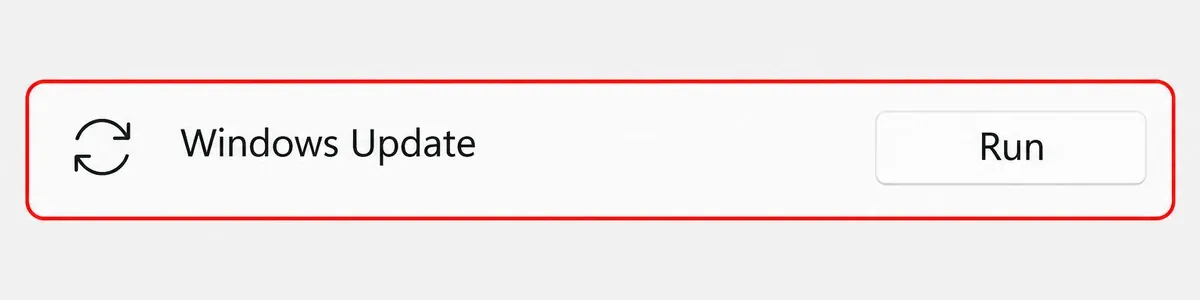
Open Settings > System > Troubleshoot > Other troubleshooters. Find Windows Update and select Run. Microsoft's current Windows 11 procedure uses the Get Help app to diagnose update problems; follow its prompts and keep any repair result or error.
Restart if requested, then retry the original update. If downloading begins, let it finish rather than carrying on with cache repairs. The next test is whether that package installs, including any requested restart.
If Get Help won't open, or the diagnostic completes without changing the download, note that outcome. Continue with the evidence below rather than treating “troubleshooting completed” as an installed update.
Capture the download failure before changing the cache
After another failed attempt, record the time and open Windows PowerShell as administrator. Run:
Get-WindowsUpdateLogThe command converts Windows Update traces into a readable WindowsUpdate.log. It's a static snapshot of the update activity, so generate it again after a new retry. Keep the entries around the failure time and the full error, rather than selecting an unrelated warning elsewhere in the file.
For support, ProtocolTalker entries concern communication with the update service, while DownloadManager concerns payload downloads. Those component names help locate the failed operation; they don't make every line a diagnosis. Microsoft's log guide also identifies C:\ProgramData\USOShared\Logs as relevant when an available update never triggers a download.
Share full logs privately with trusted support. Remove account names, personal paths and device identifiers before posting excerpts in a public forum.
Refresh download data only when the evidence fits
Microsoft includes a download-cache refresh in its Windows Update troubleshooting steps. It's a reasonable next check when a personal PC repeatedly fails to download after the connection and diagnostic checks. It isn't proof that the cache caused every 0% stall.
Save the logs first, then follow the guarded SoftwareDistribution refresh procedure. That guide checks for an existing backup folder, stops the required services, renames the download data and starts the services again. Stop if a service won't stop, a folder is in use or access is denied. Don't force-delete protected folders or repeat the reset without a new result.
If Windows reports a disabled service or error 0x80070422, investigate that specific condition. On a managed PC, have IT check why it's disabled. Changing every update-related service to Automatic or running a copied DLL reset list isn't a targeted response to a download at 0%.
Check the result and choose the next investigation
Return to Windows Update and retry the same package. Once it downloads and installs, complete the requested restart and confirm the package in Update history. Stop the download repairs when the original problem is resolved.
If downloading finishes but installation fails, keep the new code and move to the installation or rollback checks. If you installed a package through another route, reopen Settings and check Update history before treating the old percentage as a fresh failure. When a later offered update also won't download, keep both observations: one installed package doesn't establish that automatic updating is healthy.
For a persistent 0% download, give support the KB or update name, Windows version/build, failure time, exact message, diagnostic result and fresh logs. Include whether other downloads work and whether another permitted network changes the result. The Windows Update hub groups the related error guides, but those observations should decide the next repair.


