
Keep the PC connected to power while Windows says Undoing changes made to your computer. The message means an update or upgrade couldn't complete and Windows is rolling back; it doesn't identify the cause. If the desktop returns, save the failed update's code before retrying. If Windows repeatedly restarts into the same message, use the recovery route below and protect your files before choosing a reset or reinstall.
I'd separate those two situations first. A completed rollback needs a failure diagnosis; a computer that can't boot needs a way back into Windows.
This automatic rollback happens because the installation failed. It's different from choosing Go back in Recovery after a completed Windows upgrade. Check the installed version once the desktop returns before deciding which problem you still need to solve.
Decide whether the rollback finishes or loops
- The message is still on screen: let the rollback continue with power connected. Don't delete update files or repeatedly interrupt it.
- The desktop returns: go to the failure-recording steps below. Returning to Windows 10 after an attempted Windows 11 upgrade also means the upgrade didn't complete.
- The PC restarts and repeats the same sequence: record any blue-screen stop code and use Windows Recovery Environment, or WinRE.
- A recovery-key screen appears: retrieve the BitLocker key for that device. Stop if you can't obtain it; ask the device administrator rather than reset the PC to bypass encryption.
There isn't a universal hour limit after which forcing power off becomes safe. Keep the exact message, approximate start time and whether the screen changes through repeated restarts. If the rollback remains on one screen and you can't reach Windows, contact the PC maker or IT with those details before forcing a shutdown. The steps that follow apply once a desktop or recovery menu is available.
If the desktop returns, capture the failed update first
On Windows 11, open Settings > Windows Update > Update history. Copy the failed update's full name, KB number and error code. For a feature upgrade, record the intended version and the current version and OS build under Settings > System > About. After a Windows 10-to-11 rollback, use Settings > Update & Security > Windows Update > View update history on the restored Windows 10 desktop.
Microsoft describes “We couldn't complete the updates. Undoing changes” as a generic upgrade error that needs the specific failure code. Don't diagnose a graphics driver, damaged partition or antivirus conflict from that message alone.
Back up important files, check the requested free space and complete applicable pending updates before another upgrade attempt. For a repeated Windows 11 update failure, run Settings > System > Troubleshoot > Other troubleshooters > Windows Update > Run and follow the Get Help prompts in Microsoft's Windows Update diagnostic procedure. Save the result. On a managed PC, give IT the KB, code and installed build before changing update policies.
Choose the next repair by the code and failed stage. Use the Windows 11 update-failure guide for a monthly update, or the 24H2 and 25H2 installation checks when that is the named upgrade. Clearing a download cache during a rollback won't diagnose an installation failure.
Reach recovery when the PC keeps restarting
If Windows displays Automatic Repair, select Advanced options. If you can reach the sign-in screen, hold Shift while choosing Power > Restart. From a working Windows 11 desktop, use Settings > System > Recovery > Advanced startup > Restart now.
Microsoft's WinRE access instructions also describe automatic recovery after repeated startup failures. Its deliberate boot-interruption procedure concerns a failed normal startup. Don't keep cutting power during an active update or rollback to imitate it.
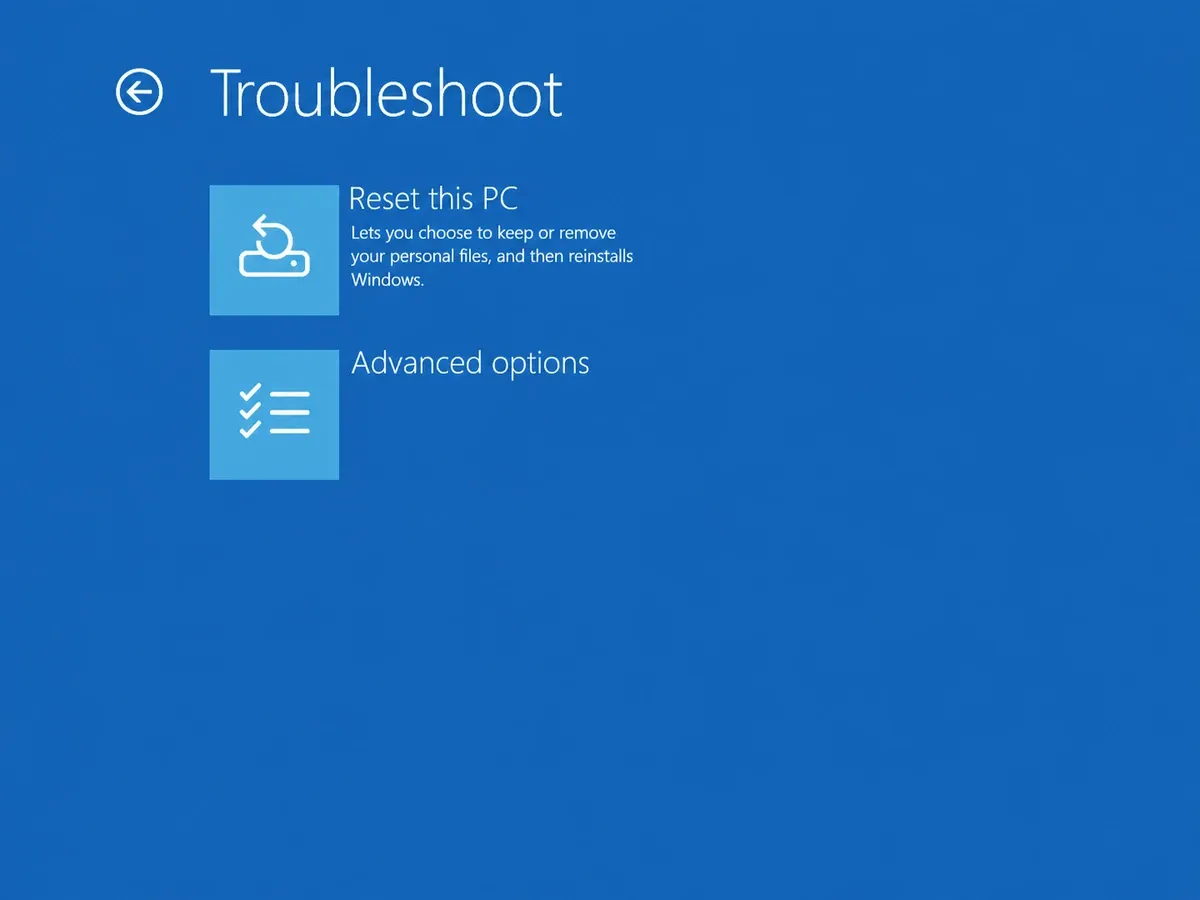
Have the BitLocker recovery key available before using recovery tools on an encrypted PC. At Choose an option, select Troubleshoot, then Advanced options. The nearby Reset this PC option has different effects on applications and settings, so leave it alone while trying the targeted recovery tools.
Choose the recovery tool for the failure
For a failure that began immediately after a recent Windows update: Removing a security update also removes its protection. Select Troubleshoot > Advanced options > Uninstall Updates. Follow the prompts for the relevant update. Some updates can't be removed, and an upgrade that already rolled back may not leave the intended update available. Don't uninstall unrelated updates one after another.
Microsoft documents this update-uninstall route. Once access is restored, arrange the next supported update rather than leave updating disabled.
If the relevant update isn't listed, or a recovery tool says it couldn't complete the operation, keep that exact message. Continue with the next applicable option below or give the result to support. Repeating an identical failed operation doesn't establish a new cause.
For a startup failure that still prevents Windows from loading: select Troubleshoot > Advanced options > Startup Repair > Restart. Startup Repair checks problems that prevent Windows from starting. Keep its report if it cannot repair the PC. It doesn't establish that the original upgrade succeeded.
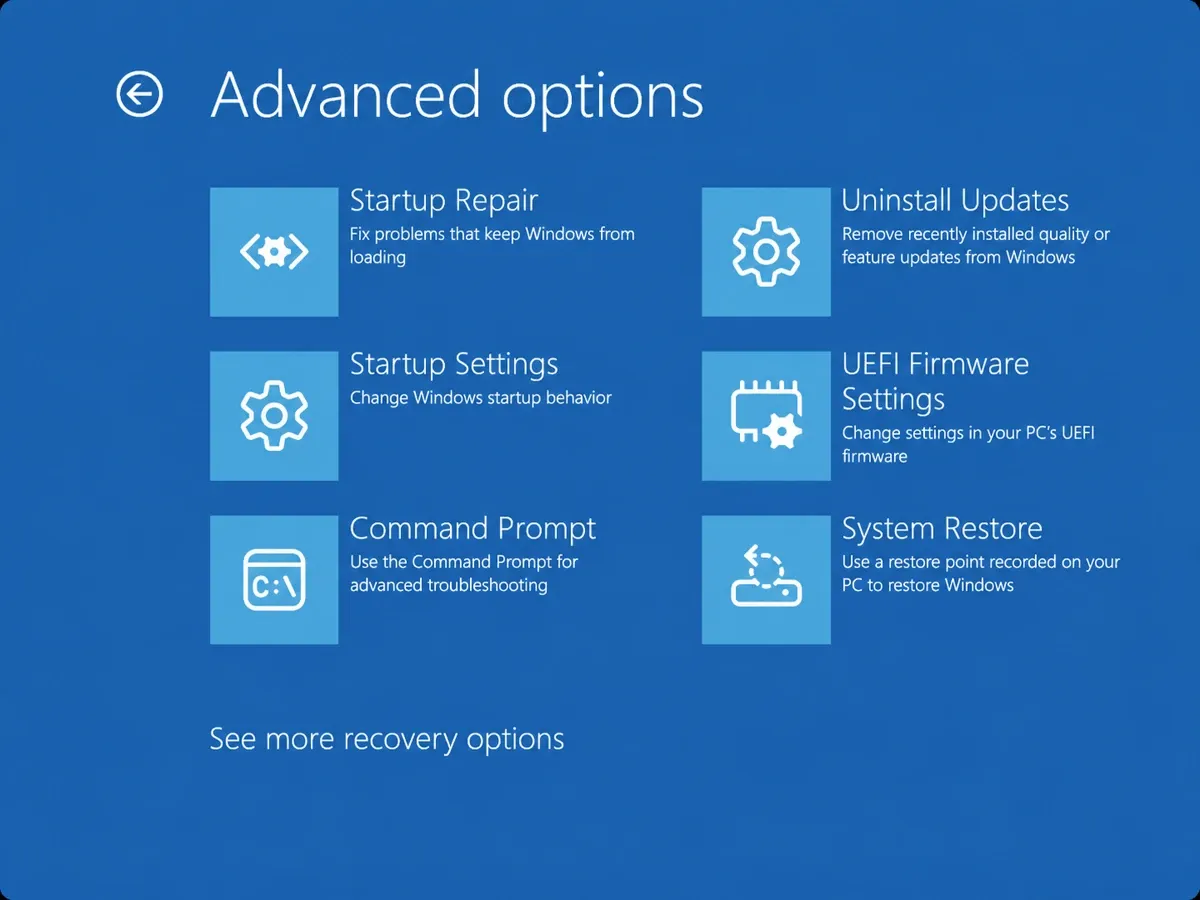
If a suitable restore point exists: System Restore reverses system and application changes without affecting personal files. Open Troubleshoot > Advanced options > System Restore. Select a point from before the problem, use Scan for affected programs to review the consequences, then select Next > Finish when ready. Restart when prompted. It requires an available restore point; it doesn't create a past working state on demand.
Read the recovery option's full name. Point-in-time restore is a separate, newer option that can roll back personal files too. My preference is to establish the file effects before confirming any recovery, especially when the only copy of a document is on the affected PC.
If recovery won't open, use media to reach the tools
On another working PC, prepare appropriate Windows installation media or obtain recovery media from the PC maker. Microsoft's Windows 11 download page explains the x64 Media Creation Tool and its requirements. Use a blank USB drive with at least 8 GB; creating the media erases that drive. The x64 tool isn't for Arm-based PCs, which need the appropriate device recovery route.
Connect the prepared media to the affected PC and boot from it. If it doesn't start from USB, use the PC maker's instructions for its boot menu. On the initial Windows setup screen, select the language and preferences, choose Next, select Repair my PC, then select Next to enter WinRE. Use the targeted tools above. This is the recovery-entry procedure in Microsoft's WinRE instructions; it isn't a direction to begin a clean installation.
If none of the tools works and important files aren't backed up, stop before Reset this PC, Cloud rebuild or a clean installation. Microsoft's recovery comparison explains the different file and app effects: even Reset with Keep my files removes apps and settings, while Cloud rebuild removes personal files too. Ask IT or the PC maker to establish a file-recovery plan first. Don't assume the Windows volume will have its usual drive letter in recovery.
Check the result before attempting the upgrade again
Once Windows starts, back up the files you need and check the installed version and build. Review the original KB or feature upgrade again. A successful startup after recovery only confirms access has returned; the failed update still needs investigation.
For a feature-upgrade rollback, preserve any %WinDir%\Logs\SetupDiag\SetupDiagResults.xml that matches the attempt, plus the original setup logs before cleanup. SetupDiag analyzes failed-upgrade logs and can identify the failure phase and component. The Assistant and rollback evidence guide explains the automatic-result and manual-diagnostic routes. Use the complete failure code to choose the next repair, then verify the intended version after all requested restarts.
If another attempt rolls back, keep the PC model, current and target versions, full code, attempt time, recovery-tool result and logs together for support. The Windows Update hub links the related code and installation guides without requiring another blind retry.




