
Before retrying a failed Windows 11 24H2 installation, open Settings > Windows Update > Update history and copy the failed item's name and complete error. Then check the version and edition already installed. Moving to 24H2, updating a PC already on 24H2 and installing a downloaded package require different checks.
I'd confirm the intended release first. An old tutorial can send you toward a version your PC no longer needs, while a monthly-update problem can survive an unrelated feature-upgrade attempt.
Check whether 24H2 is still the right target
Open Settings > System > About and note the Windows edition, version and OS build under Windows specifications. Keep those details with the failed update's KB number, error and attempt time.
If the installed product is Windows 10 LTSB, check its exact LTSB release, support date and ESU route with IT before choosing a replacement. An ordinary Windows 11 feature-update offer is not confirmation of the approved servicing channel for a specialized device.
Microsoft's 24H2 release-status page says Home and Pro reached end of updates on October 13, 2026. It recommends moving those editions to a supported release, currently 26H2 or 25H2. Enterprise and Education have a different lifecycle: their monthly security updates continue until October 12, 2027.
On a personal Home or Pro PC, check the supported feature update offered in Windows Update before pursuing an old 24H2 installer. On a work or school device, ask IT which release and deployment route are approved. Don't assume that the current Installation Assistant or download page still supplies the version named in an older video.
Identify which installation failed
- The PC runs an older version and “Windows 11, version 24H2” fails: investigate a feature upgrade, including compatibility and Windows Setup logs.
- The PC already runs 24H2 and a cumulative update fails: keep the exact KB and follow the servicing branch below. Reinstalling the feature version isn't the first diagnostic.
- A downloaded .msu package fails: check its release, architecture and prerequisite instructions. A standalone-package error doesn't establish that Windows Update has the same fault.
- The update stays at Downloading 0%: use the checks for a download that never begins. A download stall and a rollback after restarting aren't interchangeable.
If Windows no longer reaches the desktop, stop these desktop procedures. Use the recovery option that matches the startup failure, with your backup and BitLocker recovery key available before recovery changes.
If the compatibility warning names a Western Digital NVMe disk, use the model and firmware checks for WD and SanDisk SSDs before trying another Windows installation route. Match the exact drive and complete the supported firmware procedure, then verify the intended Windows target.
If Setup names SentinelOne Agent and says the PC requires a newer app version, follow the SentinelOne compatibility and managed-agent checks with IT. Confirm the approved agent and Windows target before retrying; a generic update reset won't establish application compatibility.
Prepare a controlled retry and run the diagnostic
Back up important files, save your work and keep the PC connected to power. Check free space on the Windows drive and meet any additional-space request from Setup. Disconnect nonessential external hardware before an upgrade retry; keep the input devices and connection you need.
Don't delete System Reserved, EFI or recovery partitions to make an update install. A partition-related error needs its own diagnosis; an old video's deletion list can leave the PC unable to start.
Check the installed and target releases' known issues before changing drivers or policies. Match the exact affected device, update and symptom. A compatibility hold should be resolved through the documented guidance rather than overridden to force the upgrade.
Don't use hidden NVMe performance overrides to bypass a storage warning. The Native NVMe support and benchmark checks separate that experimental storage change from a model-specific firmware fix. Keep the named compatibility issue and the actual installation result as the checks that determine whether to retry.
For a failure in Windows Update, open Settings > System > Troubleshoot > Other troubleshooters. Select Run beside Windows Update and follow the Get Help prompts, as described in Microsoft's update troubleshooting procedure.
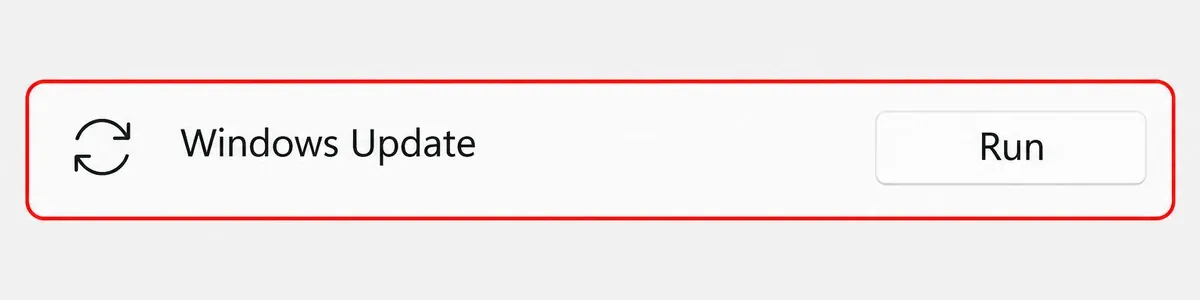
Restart when requested. Record whether the retry fails before the restart, rolls back during Setup or completes. A diagnostic reporting a repair isn't proof that the original update installed.
For a feature-upgrade rollback, preserve the Setup evidence
Copy both parts of an error such as 0xC1900101 - 0x20017, along with any named phase or operation. Microsoft's upgrade-error guidance describes 0xC1900101 errors as usually driver-related. Use the identified device or driver evidence to choose a manufacturer update; don't uninstall every driver because the progress bar stopped.
Before cleanup or another installation method, retain the available Windows Setup logs. SetupDiag analyzes those logs to identify an upgrade failure. When Setup runs it automatically, its result is saved at %windir%\Logs\SetupDiag\SetupDiagResults.xml. Give trusted support the result and underlying logs, including the last phase and operation. If that file is absent, keep the original error and available logs instead of assuming there was no failure.
I'd resolve a repeated failure at the same phase before switching among an ISO, Assistant and Windows Update. Changing the entry point without identifying the failed operation can repeat the same problem and obscure which attempt produced the evidence.
For a standalone package, check checkpoint prerequisites
Older 24H2 forum reports sometimes concern a monthly update failing after the feature upgrade succeeded. They aren't evidence that every failed move to 24H2 requires the same old KB.
Microsoft documents a specific “Operation is not supported” failure when double-clicking a post-checkpoint .msu. Its conditions include having the latest checkpoint and a later update installed, then adding a Feature on Demand or language pack from a local source without Windows Update or WSUS connectivity. In that scenario, the documented resolution is to download and reinstall the checkpoint cumulative updates and the latest update.
If your conditions and message match, follow that article's package procedure or let IT apply it. Its Catalog download dialog lists the required packages for the selected architecture; its local package folder must contain no unrelated .msu files. Don't download only one file from a multi-package set or force a package marked not applicable. For a different message, start with that KB's own instructions and the full error.
Repair servicing when an applicable update keeps failing
For failures in Settings, preserve a fresh readable update log before broad changes. Open Windows PowerShell as administrator and run Get-WindowsUpdateLog. Microsoft's log reference explains that this produces a static snapshot; run it again after a later attempt and retain the entries around its time.
If system-file or component problems remain, use Microsoft's DISM and SFC sequence. Open Command Prompt as administrator and run:
DISM.exe /Online /Cleanup-Image /RestoreHealthAfter DISM reports successful completion, run:
sfc /scannowWait for the final result and keep it. If DISM fails or SFC can't repair the files, retain the exact output and %windir%\Logs\CBS\CBS.log for support. Don't keep running the same commands without addressing the reported error. A clean scan doesn't establish that a feature upgrade is compatible or that a downloaded package is applicable.
Use current-version repair only for the installed system
An eligible PC can use Settings > System > Recovery > Fix problems using Windows Update > Reinstall now to repair its current Windows version while preserving apps, files and settings. Keep a backup, power and internet available, confirm the prompts and restart when the repair finishes.
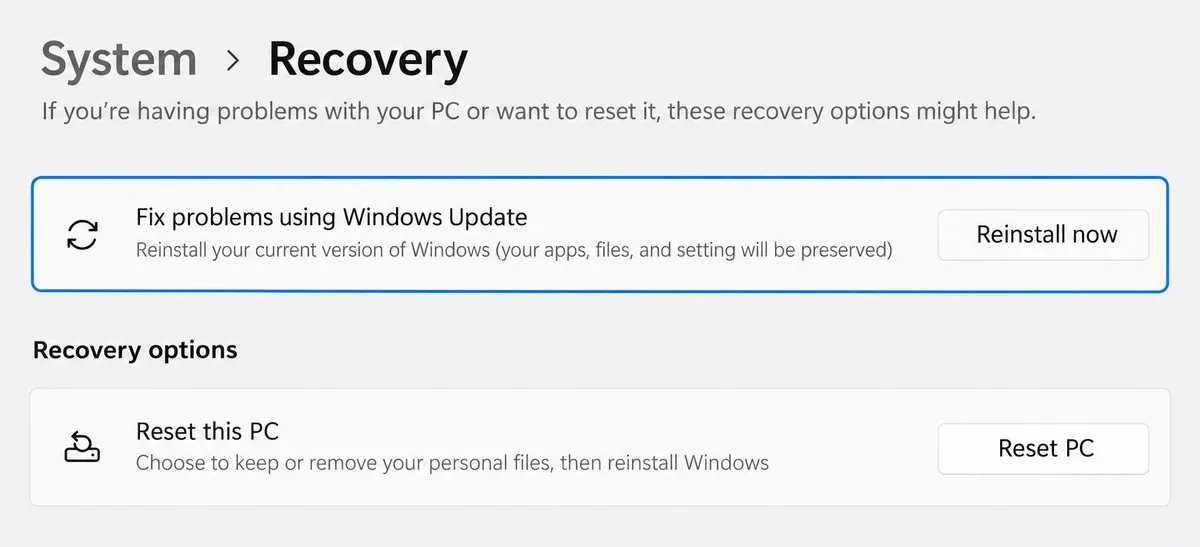
Microsoft's repair-reinstall instructions require Windows 11's 2022 annual update or later and the February 2024 optional update or a later update. Update management by work or school can make the option unavailable. Repairing an older installed version doesn't itself upgrade it to 24H2, and repairing 24H2 doesn't extend its edition's support lifecycle. Don't substitute Reset PC; it has different effects on apps and settings.
Verify the intended result
For a feature upgrade, check the Windows version after restarting. For a monthly update, check that the same failed KB now appears successfully installed in Update history. If you chose a newer supported release, verify that release rather than treating an old 24H2 offer as the target.
If installation still fails, give trusted support the edition/build, intended target, complete error, attempt time and failed stage, together with the diagnostic and relevant logs. Remove personal paths and identifiers from public excerpts. The general failed-update guide covers other servicing branches; the Windows Update hub helps you choose the guide for the actual symptom.



