
If Windows 11 keeps failing to install version 25H2, check your current version before repeating repairs. The enablement-package route requires 24H2 with KB5064081 or a later cumulative update. Record the full error and whether the failure happens in Settings or after a restart, then repair that stage and retry the offered feature update.
I'd separate an unsuccessful move to 25H2 from a monthly update failing on a PC that already runs 25H2. They can display similar error messages, but a feature enablement package won't repair every failed cumulative update.
If you only need to find how long your installed release remains supported, check the Windows 11 25H2 support dates by edition. A lifecycle deadline and an installation error need different next steps; identify Edition and Version before choosing a repair.
Confirm that 25H2 is the update you're trying to install
Check the Windows version and OS build in the PC's About settings. Then open Settings > Windows Update > Update history and copy the failed item's complete name, KB number if present, error and date.
- You're still on 24H2 and “Windows 11, version 25H2” fails: check the enablement prerequisites below.
- You're already on 25H2 and a numbered cumulative update fails: investigate that specific KB through the failed-update repair guide. Installing the feature enablement again isn't the same task.
- 25H2 isn't offered: check eligibility, management and compatibility information rather than treating the absence as an installation error.
- An ISO or Installation Assistant rolls back: preserve the Windows Setup error and logs. That's a different evidence trail from a small enablement package failing in Settings.
Confirm the intended target, too. Microsoft's 25H2 status page points eligible devices toward 26H2. Don't assume an old tutorial's download button still supplies 25H2. For an organization that requires a particular release, let IT choose the approved version and deployment route.
If the upgrade completed and the concern is that a managed PC now needs more security-update restarts, check the 25H2 Hotpatch enrollment and baseline cycle. Upgrading a Hotpatch-enrolled device during a Hotpatch month can change its servicing cadence until the next baseline. That expected behavior calls for a policy and calendar check, rather than repeating installation repairs.
Check the 24H2 baseline before using the enablement package
Microsoft explains that 24H2 and 25H2 share a common core. The small enablement package turns on the 25H2 features already delivered through the 24H2 servicing path. Its KB5054156 instructions require Windows 11 24H2 and KB5064081, released August 29, 2025, or a later cumulative update.
On an eligible personal 24H2 PC, install the applicable pending cumulative updates and complete their requested restarts before retrying the feature update in Windows Update. You don't need to seek out the old preview package if a later qualifying cumulative update is already installed.
If the current cumulative update also fails, solve that servicing problem first. Repeatedly applying an enablement package won't establish that the baseline is ready. If you're on an older Windows release, this 24H2 enablement procedure doesn't apply; use a supported upgrade route for your starting version and intended target.
Microsoft's Update Catalog tab for KB5054156 says the enablement update is available through the other release channels. A standalone monthly KB and the 25H2 enablement package aren't interchangeable. Don't force a package marked not applicable or install a forum download without checking the official route and prerequisites.
Match the error and compatibility information
Check the known issues for the installed release and intended target, along with the failed update's release notes. Match the exact version, package and symptom before using a workaround. A problem affecting audio or Remote Desktop after an installed update doesn't by itself explain why your feature update won't install.
Microsoft uses safeguard holds to prevent affected devices being offered a new feature update. If Windows identifies a compatibility issue, follow that guidance rather than overriding the hold to force an upgrade.
Keep every part of an installation error, including a second code or phase if one appears. Microsoft's upgrade guidance describes errors beginning 0xC1900101 as usually driver-related. That calls for the relevant driver and Setup evidence, not uninstalling every device. “Undoing changes” alone doesn't identify which component failed.
Try the desktop diagnostic and record its result
Back up important files, save your work and keep the PC connected to power and a stable internet connection. Check available space on the Windows drive and meet any space request shown by Windows. Disconnect nonessential external devices before an upgrade retry, keeping what you need to operate the PC.
Open Settings > System > Troubleshoot > Other troubleshooters. Select Run beside Windows Update and follow the Get Help diagnostic prompts.
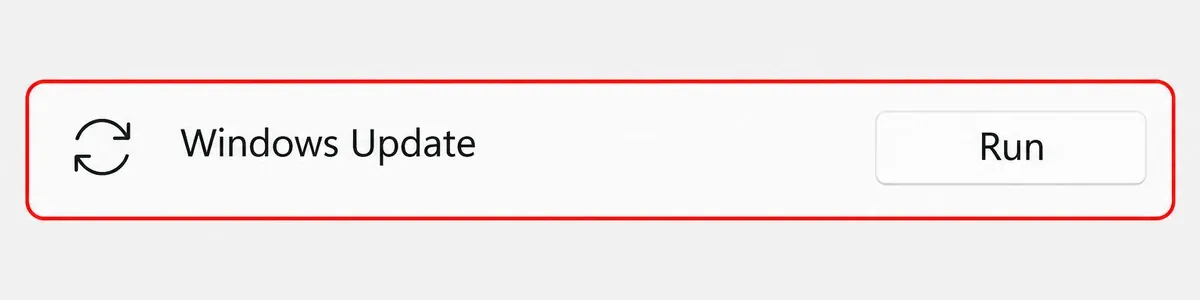
Restart when requested and retry the original offer. If Get Help itself shows a service or connection error, record it separately; that isn't the feature update's installation code. For a download that never begins, use the download-at-0% checks before changing installation components.
Use servicing repair or Setup logs for the failed stage
If the update fails in Settings before a restart, save a fresh WindowsUpdate.log: open Windows PowerShell as administrator and run Get-WindowsUpdateLog. Microsoft documents that this converted log is a static snapshot, so generate it again after a new attempt. Keep the entries around the failed update's time.
For persistent installation or component problems after the relevant checks, follow Microsoft's DISM-then-SFC sequence. Open Command Prompt as administrator and run:
DISM.exe /Online /Cleanup-Image /RestoreHealthAfter DISM reports successful completion, run:
sfc /scannowWait for SFC to finish. Keep both results and restart if required before retrying. If DISM fails or SFC can't repair the files, preserve the exact message and %windir%\Logs\CBS\CBS.log for support. A clean SFC scan doesn't prove that the feature update's prerequisites or compatibility checks are satisfied.
For a full Windows Setup upgrade that rolls back, preserve its logs before disk cleanup. SetupDiag analyzes Windows Setup failures; when Setup runs it automatically, its result is saved at %windir%\Logs\SetupDiag\SetupDiagResults.xml. Give support the result and underlying Setup logs, including the last phase and operation. Don't assume that an enablement failure creates the same Setup log trail.
If that XML file is absent, keep the original error and available Setup logs; a missing analysis file doesn't establish that the upgrade succeeded. Share complete logs privately with trusted support, and remove personal paths, account names and device identifiers from public excerpts.
Repair the installed Windows version if servicing remains broken
An eligible PC can use Fix problems using Windows Update to repair the version already installed while preserving apps, files and settings. On a PC still running 24H2, this repairs 24H2; it isn't itself the switch to 25H2.
Keep a backup, power and internet available. Open Settings > System > Recovery and choose Reinstall now under Fix problems using Windows Update. Follow the confirmation prompts and restart when the repair finishes.
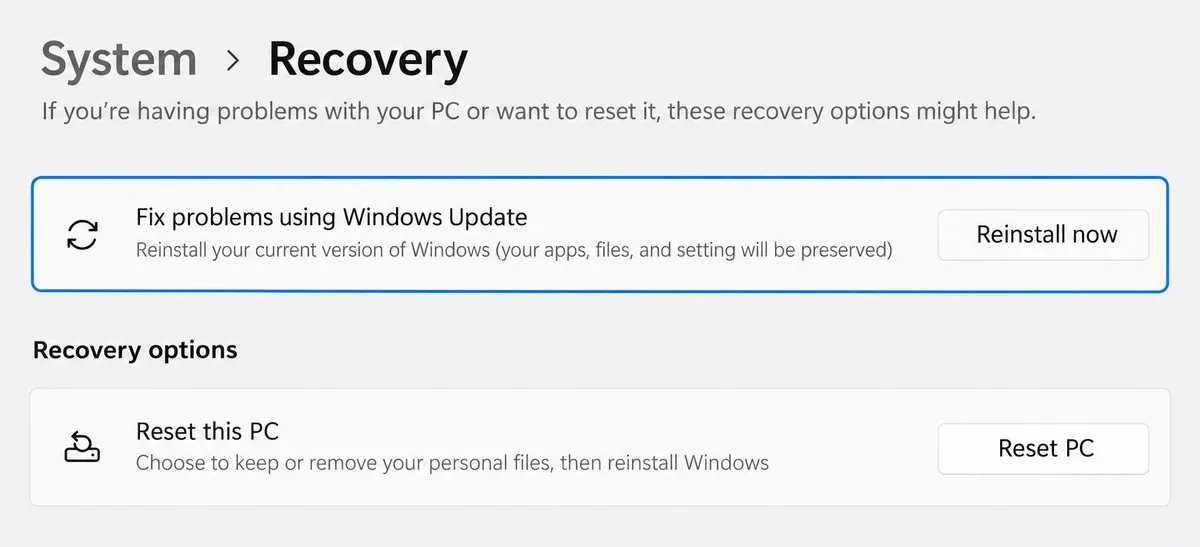
Microsoft's repair-reinstall guidance lists its availability requirements: Windows 11's 2022 annual update or later, with the February 2024 optional update or a later update installed. The option can be unavailable when work or school manages updates. Don't select Reset PC as a substitute; it has different effects on apps and settings.
After the current-version repair, return to Windows Update and check the applicable cumulative updates and required restarts again. Retry the offered 25H2 feature update only after the 24H2 baseline is ready and the intended target is confirmed.
Verify the version change or hand over the failure evidence
After a successful feature-update restart, check both the Windows version and Update history. The intended change is to 25H2 when that is the approved target; successful installation of a different monthly KB isn't that version change.
If it still fails, send trusted support your starting version/build, intended target, update name, complete error, failed stage and time. Include the diagnostic result, servicing output and relevant logs. On a managed device, give those details to IT before changing policies or trying another upgrade tool. The Windows Update hub links related repairs, but a repeated rollback with the same evidence is a reason to investigate the failure rather than repeat the entire list.



