
If sound isn't working in Windows 11, open Settings > System > Sound and check which device is selected under Output. Choose the speakers or headphones you want to hear, unmute them and try a known audio clip. If that works but one app stays silent, check the app in Volume mixer. If no output device appears, investigate detection and the audio driver instead.
I'd establish those two facts before reinstalling a driver: can Windows see the intended output, and does the failure affect every app? A silent monitor output and a missing laptop sound device need different next steps.
Check where Windows is sending the sound
- Open Start > Settings > System > Sound.
- Under Output, select the speakers, headphones or other device you intend to use. Selecting an output here also sets it as the default.
- Check that Windows volume isn't muted or at zero. Start at a comfortable level, and check the speaker or headset's own volume and mute controls.
- Play a familiar audio clip. Compare another app before deciding that all Windows audio has failed.
An HDMI or USB connection can leave another output selected. Microsoft specifically warns that a monitor without built-in speakers can be the default audio device even though it produces no sound. Its Windows audio guide also describes selecting the output from the arrow beside the taskbar volume slider.
For wired speakers, check power, the cable and the correct audio output jack. A headphone output and microphone input serve different purposes; use the labels and your device's manual. Try another direct USB port for USB audio. If headphones are plugged in, unplug them and test the built-in speakers separately.
For Bluetooth audio, confirm that the headset is connected and selected as the sound output. Pairing alone doesn't establish where an app sends audio. If the headset won't connect, follow the Bluetooth connection checks before changing the PC's audio driver.
| What you find | Where to continue |
|---|---|
| The intended output works in another app | Check the silent app's volume and output selection. |
| The output is listed, but every app is silent | Check whether the device is enabled, then try audio troubleshooting and enhancements. |
| No intended output is listed, or Windows says no audio device is installed | Check detection in Device Manager and the matching manufacturer driver. |
| One connection works, but another doesn't | Record which device, cable and port work; investigate the failing path rather than resetting Windows. |
For the original SMSL M3, use the M3 USB connection and input checks before choosing a driver. Its adjacent IN DC socket supplies power only; IN1 carries USB audio data, while optical and coaxial connections use the PC's digital output.
If only one app is silent, use Volume mixer
Open Settings > System > Sound > Volume mixer. Under Apps, check that the affected app isn't muted and that its volume is raised. Expand its controls if necessary and confirm its Output device. Also check any output selector and mute control inside the app itself, then play the same clip again.
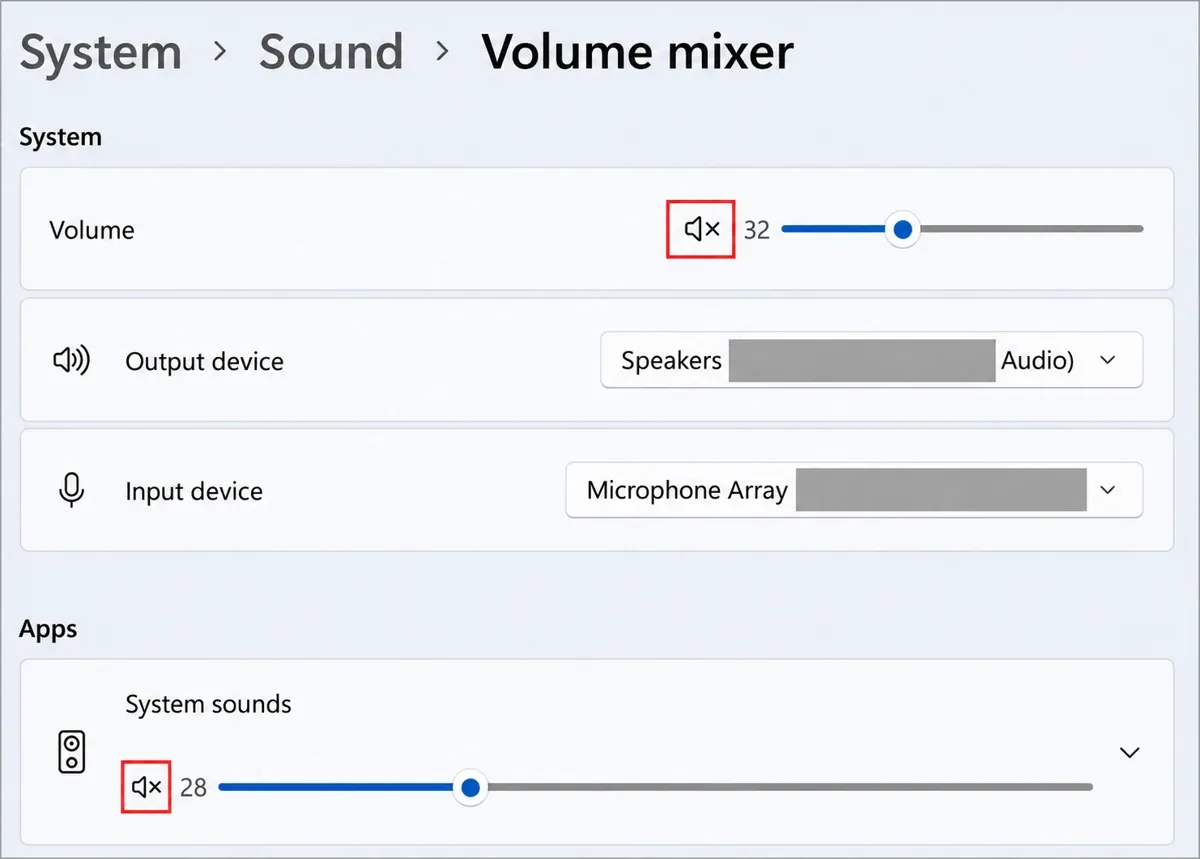
If the app is missing from the Apps list, use the missing Volume mixer entry checks to start playback and compare the actual output and audio session. An absent entry needs a different check from an app that is already listed but muted.
Microsoft's app-audio troubleshooting steps confirm that an app can use a different output from the system default. If Windows sounds and another app work through the intended speakers, keep that working comparison when contacting the failing app's support team. It narrows the problem without proving that the app itself is defective.
For a Behringer X32 used as a recording interface, check the expansion-card driver and DAW audio selection. X-USB and X-LIVE use separate packages, and X32-Edit controls the console. A recording app's ASIO channels need their own check alongside the Windows playback output.
If you can hear the call but others can't hear you, check the recording side using the Windows 11 microphone test and permissions guide. Raising speaker volume doesn't restore microphone access.
If the output is listed but nothing plays
Check that the playback device hasn't been disabled. From Settings > System > Sound, open More sound settings under Advanced. On the Playback tab, select the intended device, open Properties and check that Device usage is set to Use this device (enable). Return to Sound and test that same output.
Next, open Get Help and run the automated audio troubleshooter. You can also use Settings > System > Troubleshoot > Other troubleshooters > Audio > Run. Follow the prompts and record any device or service error it reports. Microsoft's current Windows 11 instructions use Get Help; an older guide's “Playing Audio” screen may look different.
If troubleshooting doesn't restore playback, try turning off enhancements for the chosen output. Open Settings > System > Sound, select that output device and look for Audio enhancements under its advanced settings. Set it to Off, then replay the same audio. Microsoft's no-sound guide documents this Windows 11 route. Controls depend on the driver; don't assume a missing Enhancements tab is itself an error.
Change one setting at a time and keep the original value. If disabling an effect makes no difference, restore it before trying another change. Save your work and use Start > Power > Restart if you haven't restarted since the problem or a pending audio update.
If you can't find More sound settings, use the direct route to the classic Sound control panel and select Playback. Opening the dialog is a navigation step; if the intended output is missing or silent, continue with the matching checks below.
If Windows can't find an audio output device
- Right-click Start and open Device Manager.
- Expand Sound, video and game controllers. Note the device's exact name and any error in its properties.
- If the intended device is listed and Enable device is offered, enable it.
- If it isn't listed, select View > Show hidden devices, then Action > Scan for hardware changes.
- Check Settings > System > Sound > Output again. If it remains absent, obtain the correct audio driver for your PC or sound device model.
These checks follow Microsoft's missing-output-device instructions. A hidden entry or successful scan isn't a playback result. Confirm that the device appears as a usable output and can play sound.
A speaker icon with an X is a reason to inspect the selected device and its status, rather than proof of one particular driver failure. For an external device, compare another compatible port or computer if available. Note whether a known working headset or speaker works on the original PC. Those comparisons help support distinguish an accessory or connection problem from the computer's audio path.
If playback works but the Realtek settings app reports an RPC error, inspect the Realtek Audio Universal Service component and service status before changing the whole audio setup. A Startup apps entry and a running Windows service answer different questions.
Choose a driver step based on when sound stopped
If the device is detected but its driver may be outdated, Microsoft's audio driver guide recommends Settings > Windows Update > Check for updates. Install an applicable audio update and restart as directed. In Device Manager, another documented option is to right-click the relevant audio device under Sound, video and game controllers and select Update driver > Search automatically for drivers.
“The best driver is already installed” doesn't rule out a suitable manufacturer package. Check the PC or audio-device maker's official support page for the exact model, Windows 11 and the correct system architecture. A Realtek or Intel package mentioned in another person's reply isn't automatically compatible with your hardware.
If sound stopped immediately after a driver update, check the driver rollback instructions: the relevant device's Properties > Driver > Roll Back Driver. Administrator permissions are required. If the button is available, choose a reason, confirm and restart if prompted. If it's unavailable, ask the manufacturer about a supported earlier package.
A targeted reinstall is a later option if updating doesn't help. Download the correct manufacturer package first and save your work. In Device Manager, identify the relevant audio device, select Uninstall device, confirm and restart. Windows attempts to reinstall its driver; if that doesn't happen, use the saved manufacturer package or its support instructions. Don't start by deleting every audio driver or forcing an unrelated generic driver.
Repeat the same output and app tests after each change. If a microphone shares that audio device, check it too before returning to a call. A change that restores speakers but breaks recording still needs attention.
Two later checks for a detected device
Microsoft's app-audio guide includes restarting Windows Audio and Windows Audio Endpoint Builder. Close your call or recording first, search Start for services.msc, open Services, then right-click each of those services and choose Restart if available. Test playback again. If a service won't start, keep the exact error for support; don't change service accounts or dependency settings by guesswork.
If troubleshooting explicitly reports Audio services not responding, use the Windows Audio service-state and failed-start checks to record both audio-service states and the exact start error. A service that shows Running still needs a playback test; keep that result separate from a failed service start.
For a detected device that remains silent, the general Microsoft audio guide also documents trying another supported audio format. Open More sound settings > Playback, select the intended device, open Properties > Advanced and note the existing Default Format. Choose another available format, select OK and test. Restore the original if it doesn't help. There is no single bit depth or sample rate that repairs every sound device.
When to involve the manufacturer
Contact the PC or audio-device manufacturer if the expected device remains absent, a service returns an error, or the matching supported driver doesn't restore playback. Provide the PC model, Windows version, audio device and driver version, the last working date, and which speakers, headphones, ports and apps you tested. Remove serial numbers, account names and other personal details before posting screenshots publicly.
Don't treat an update mentioned in a forum as a confirmed cause on your PC. In a Microsoft Q&A discussion about intermittent muting, the poster confirmed having the update an advisor asked about, but the visible follow-up doesn't establish a successful repair or a general cause. Record your own update history and symptoms before considering a system-wide change.
I'd stop short of resetting Windows for unexplained silence while those device and connection checks are unresolved. If you need audio immediately, use a known working approved output while arranging the repair. For related hardware problems, see the device troubleshooting hub.



