

If Volume mixer isn't showing an app, start a familiar audio clip in that app and leave it open while you check Settings > System > Sound > Volume mixer. Confirm which speakers, headphones or monitor the app is using. An open program isn't necessarily an active playback session, and the classic mixer only shows controls for the selected playback device.
I'd compare the missing app with one that already plays through the intended device before changing drivers. A working second app gives you a useful boundary: investigate the first app's playback and output route while preserving the audio that works.
Start playback before looking for the app
- Open the affected app and play a clip you know contains sound. Keep listening levels low; don't turn every slider up to maximum.
- Check the app's own mute and playback controls. In a browser, confirm the page or player isn't muted and playback has actually started.
- Leave the app open, then open Settings > System > Sound > Volume mixer. Look under Apps for its name.
- If it appears, check its mute control, volume and Output device. Select the device you intend to hear, then replay the same clip.
- If it stays absent, play audio from a second app through that device and compare whether its entry appears. Close and reopen the mixer after starting playback if its list still looks unchanged.
Microsoft's audio-session description explains why this matters: sessions can be active, inactive or expired. The classic mixer removes expired sessions, and System sounds has special handling. Seeing only System sounds doesn't prove every installed app has been muted or deleted.
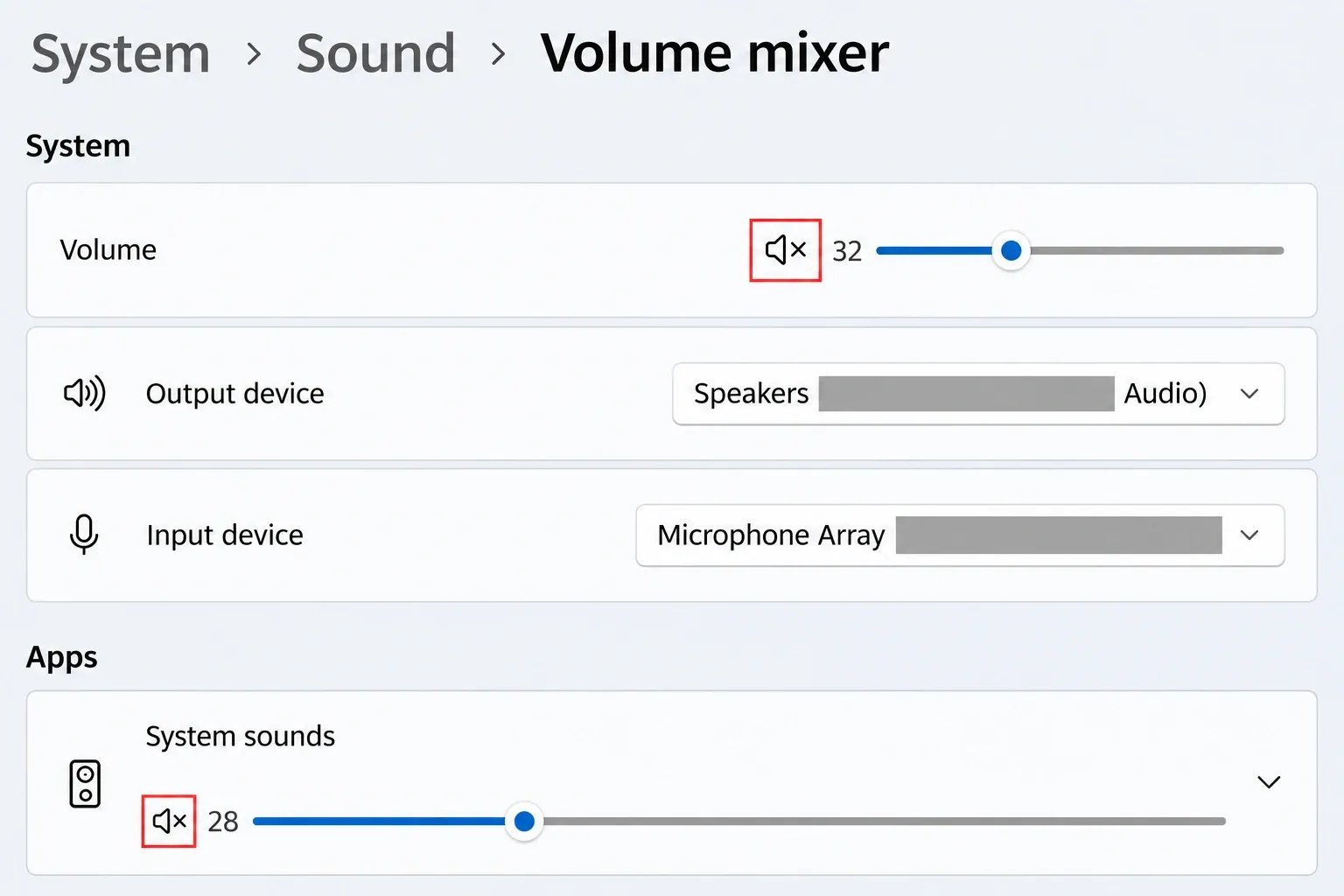
If the entry appears but playback remains silent, switch to the checks for an app that is listed but has no sound. The remaining steps here address a missing entry.
Check which mixer and playback device you're viewing
Windows 11 Settings and the classic Volume Mixer serve related tasks, but their controls aren't interchangeable. Settings provides the per-app output selector described in Microsoft's app-audio instructions. An app can use a different output from the system default.
To compare the classic view, press Windows + R, enter sndvol and press Enter. Check the device named in that window. Use its Device selector, when available, to inspect the output the app is actually using. Don't assume that a mixer showing laptop speakers also covers a game routed to a USB headset or HDMI monitor.
Microsoft documents the classic mixer's Device and Applications controls separately. The Applications group represents apps sharing that device; it isn't an inventory of every running program. Use Settings or the app's audio preferences to choose the app's destination, rather than looking for a per-app sound-card button in the classic window.
| What you find | Next check |
|---|---|
| The app appears after starting a clip | Check that entry's mute, level and output; retest the original audio. |
| The app plays through another device | Choose the intended output in the app or Settings, then replay and inspect that device's mixer. |
| Another app works on the intended device | Keep the working device configuration; inspect the missing app's own output and playback mode. |
| No ordinary app plays or appears | Check the wider Windows audio path and service status. |
| The app appears, but its settings vanish after closing | Record a settings-persistence problem separately from a missing live entry. |
If the output device itself is missing, follow the relevant HDMI audio-device checks or Bluetooth output and profile checks. A missing monitor or headset is a different failure from a missing app slider on an available device.
Look for a session name, not one slider per window
Related processes or multiple instances can share a control. Microsoft also allows an app to assign a session display name; the automatic name can come from a window title or the application's version information. Look for a plausible app or session label before deciding it is missing.
Don't expect each browser tab to have its own Windows slider. Compare the browser's entry while your chosen page plays, and use the page's player controls for a single clip. A microphone-only capture session also isn't the same thing as a playback entry: Microsoft's classic mixer documentation describes rendering controls, not capture-device controls.
A disappearing entry after an app fully closes can be normal session cleanup. Closing a window alone may leave a background process running, so it isn't a reliable test of whether its audio session has ended. The useful check is whether the app appears and plays correctly after you reopen it and start audio again.
Check the app's output mode before changing exclusive control
If only one app is absent, open its audio preferences and note the selected output and playback mode. Where the app offers a shared-mode Windows output, select it for a comparison, save the setting and restart playback. Record the old choice first so you can restore a specialized setup.
I wouldn't treat Allow applications to take exclusive control of this device as a universal missing-app fix. That checkbox permits exclusive use; it doesn't force an app to create a shared playback session. Microsoft's exclusive-mode explanation says shared-session volume controls don't affect exclusive streams, and an exclusive stream can prevent other apps from using the endpoint.
Close the suspected exclusive player and replay the second app. If sound returns, compare the player's documented shared-output option before changing the whole device. For the device's classic Properties dialog, use the Sound Control Panel navigation. Keep a record of any setting you change and restore it if the comparison doesn't help.
Escalate according to what actually failed
If neither app plays or creates a usable entry, save your work and close calls and recording sessions before restarting Windows. After signing back in, replay the same clip and check the intended output again.
If the problem continues across apps, inspect Windows Audio and Windows Audio Endpoint Builder using the audio-service status and start-error checks. Don't change service logon accounts, permissions or dependencies to make a slider appear. A failed service needs its exact status or error; running services with one missing app point back toward that app.
When an app appears during playback but loses its volume or routing preference after closing, write down that separate symptom. Reports involving modified Windows installations and registry keys don't establish a general fix for an absent live session. Avoid deleting audio-policy registry branches or installing a third-party driver updater for this comparison.
For an unresolved case, record the Windows version, app version, selected device, whether the app actually plays, whether it appears in Settings or sndvol, and whether the second app works. Send that small comparison to the app vendor or your IT team. Stop changing the system once the app appears on the intended output and the original audio task works.



