
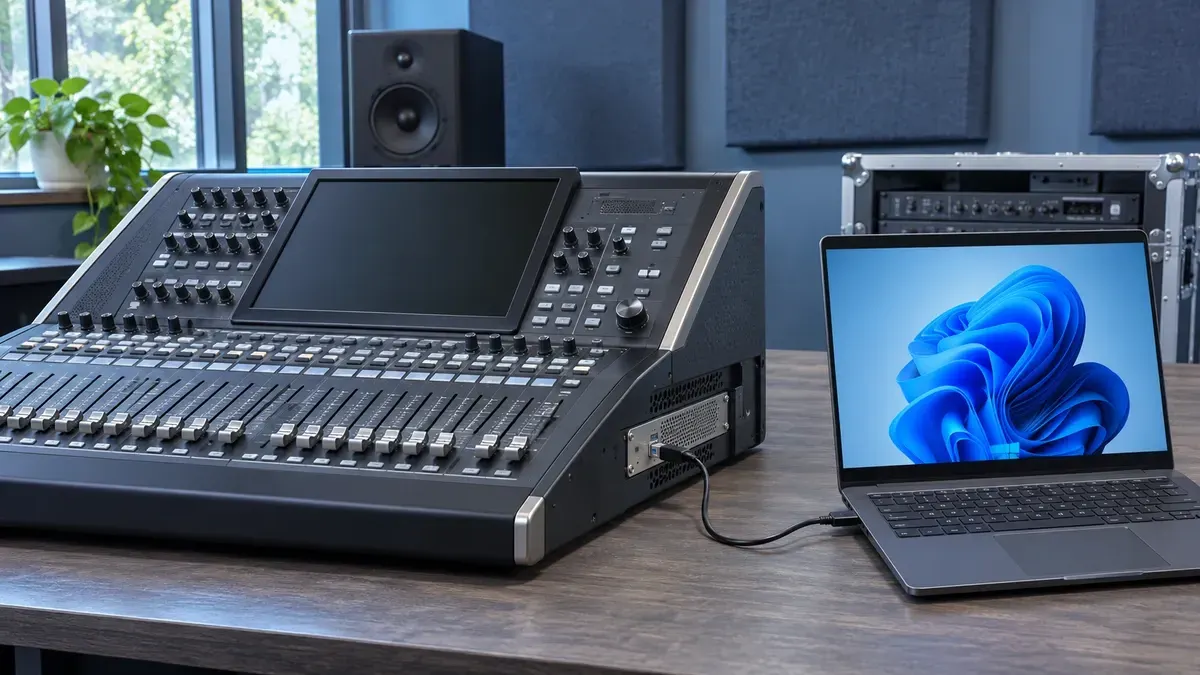
Download the Behringer X32 audio driver for the expansion card installed in your mixer. Use the X-USB package for an X-USB card and the X-LIVE package for an X-LIVE card; Behringer lists separate Windows USB audio downloads at version 5.72.0. X32-Edit is the console-control application, so downloading it alone doesn't install the matching USB audio driver.
I'd read the card label before opening an installer. An older X32 may have an X-UF card, and a secondhand console may have a replacement card. The console's model name alone doesn't settle which driver you need.
Identify the card and audio connection
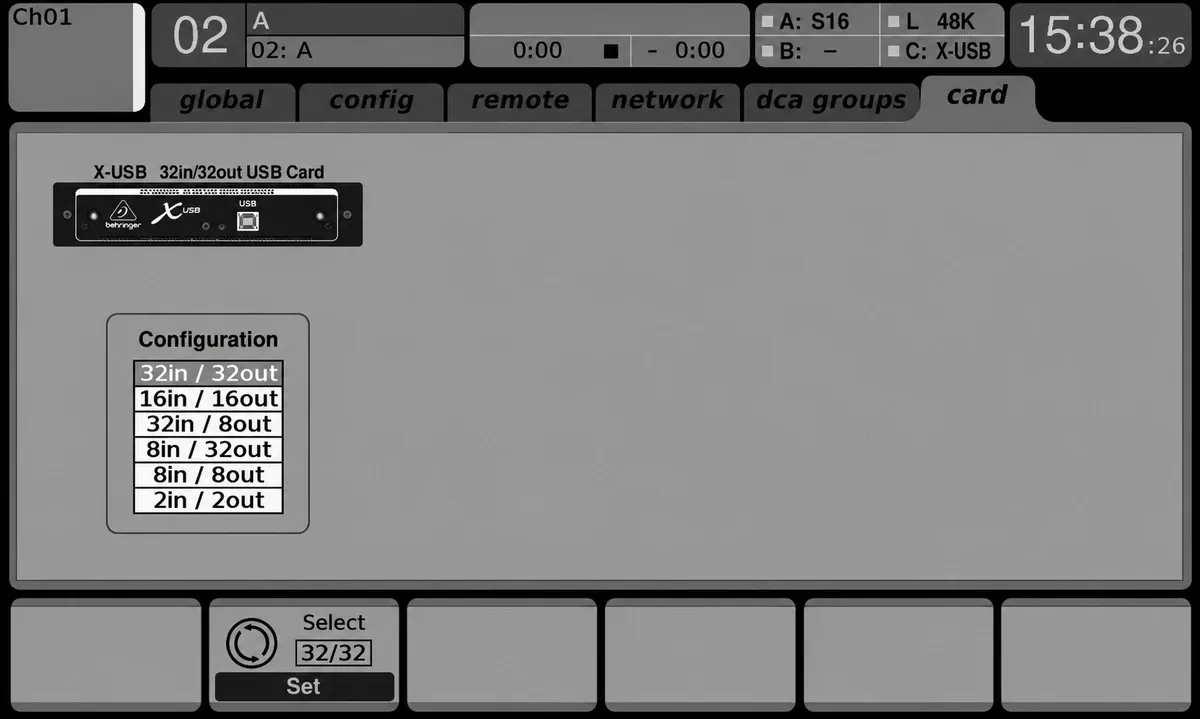
Inspect the label on the rear expansion card without removing it. On an X-USB-equipped console, Setup > Card also shows the card configuration. The X32 manual's USB interface section explains that the console detects X-USB during boot and identifies it as C: X-USB. It also notes that early consoles shipped with X-UF.
| What you identify | Which download or connection applies |
|---|---|
| X-USB expansion card | Use the X-USB Windows audio driver. Its official card page lists X-USB audio 5.72.0. |
| X-LIVE expansion card | Use the separate X-LIVE USB audio package in the X32 downloads. Check X-LIVE in the filename even when the visible link says USB audio. |
| X-UF expansion card | Identify whether you're using USB or FireWire, then confirm the supported package with Behringer. The X32 page's X-UF 1394 download is a FireWire package. |
| Another expansion card | Use that card's own connection and support instructions. Don't install X-USB simply because the console is an X32. |
| X32-Edit over Ethernet | This controls the console. Use the audio card's connection separately for computer recording and playback. |
For USB audio, connect the PC to the USB connector on the identified audio expansion card. The top-panel USB-A recorder is for a storage device, including recording a board mix; it isn't the computer's multichannel audio connection. Behringer's X32 product and download page separates the USB recorder, expansion interface and Ethernet control functions.
Get the official Windows package
Open the X32 page's Downloads > Drivers section. The two current USB audio entries have different filenames: one contains X-USB and the other X-LIVE. Use the X-USB 5.72.0 package or the X-LIVE 5.72.0 package to match your card. The version number alone isn't enough to choose between them. For X-USB, the dedicated X-USB download page labels the card's package directly.
The X-USB page marks the hardware as legacy but still provides its downloads. It lists 5.12.0 under previous versions and an older 2.23 audio/firmware bundle separately. Don't choose the older bundle as a routine driver update or start a firmware updater to fix an unrecognized Windows device.
Check Windows support before running the package. Record your Windows version and processor architecture, then check the current package's requirements. The product page labels the download Windows; the old manual's XP, Windows 7 and Windows 8 list doesn't establish current Windows 11 or Arm support. If your exact system isn't covered, ask Behringer for the supported card/driver combination. Don't turn off Windows driver protections to force an unconfirmed package.
A public X-USB download request describes an X32 Rack owner unable to reach Behringer's site. That explains the temptation to use a mirror, but it doesn't validate somebody else's installer. The current product pages provide direct downloads without product registration. If the official service is temporarily unavailable, return to it or use Behringer's support route instead of a driver-updater utility.
Install without disrupting a working mix
Save the computer's projects and close audio applications before changing their driver. Schedule the change outside a performance or recording, and preserve the console's working scene and routing settings. Installing a PC driver isn't a reason to initialize the mixer, recall an unfamiliar scene or change the clock source.
- Download the package for the identified card from Behringer. Check the card name in the archive filename before extracting it.
- Extract the ZIP to a folder. Open the matching setup executable and follow its prompts, including any instruction about when to connect the card. The manual's Windows ASIO instructions describe running the installer from the unpacked folder; current filenames can include the card name and version.
- Approve the installation only when the download and publisher match the official package. If Windows blocks it or the installer reports an unsupported system, stop and keep the exact message for support.
- Follow the package's connection order and complete any requested restart. Before opening the recording app, confirm that the powered console's audio card is connected to a compatible PC USB data port. Avoid changing the console's audio routing at this stage.
- Open your recording application's audio settings and select the matching manufacturer's ASIO driver. Check that the intended inputs and outputs are available before opening a live session.
For example, FL Studio's audio settings are under Options > Audio settings. Its Device menu lists installed audio drivers, and Image-Line recommends the interface manufacturer's ASIO driver when one is supplied. Input and output selections are then made in the Mixer's IN/OUT menus. Other recording apps have their own audio-device and channel-enablement controls.
Verify channels before changing routing
X-USB supports up to 32 inputs and 32 outputs at 44.1 or 48 kHz. The manual's card configuration and specifications also describe smaller channel modes. Read the current mode on the console and the available inputs in your recording app. A two-channel mode or a stereo Windows endpoint doesn't establish that the multichannel driver failed.
Keep the session and interface on a supported matching sample rate. I'd preserve the working console rate and clock while checking the computer, particularly when the console is linked to stage boxes. A driver installation shouldn't become an unplanned clock change for the whole system.
Verify recording and playback separately at a low monitoring level. Use a small test project outside the live session. Select an intended card input on a track, arm it as your app requires and check whether the expected source reaches that track. For playback, select the intended card output pair and confirm where those returns enter the console.
The manual distinguishes Routing > Card Out, which chooses signals sent to the computer, from console channel inputs set to Card, which receive computer returns. Changing a live microphone channel's input to Card can replace its source. Inspect the existing route first; don't repatch every input or recall a virtual-soundcheck scene just to make a meter move. Avoid feeding a return back into the same recording path.
A historical Audacity forum case about X32 multitrack recording shows the distinction: the owner could record a stereo input but couldn't select the desired 16 tracks. The reply focused on the recording app's available devices and ASIO support. That 2020 report isn't a compatibility statement for every current Audacity version; check your installed app's supported audio hosts before reinstalling a driver that already passes audio.
Follow the failure stage
| What fails | What to check next |
|---|---|
| The console doesn't identify the expected card | Record what Setup shows and contact Behringer. A Windows installer can't establish that the console recognizes its expansion hardware. Don't reseat a card in a powered mixer. |
| Windows doesn't detect the connected audio card | Confirm the labeled card connector, a working USB data cable and a direct compatible PC port. Inspect the identified device's full status in Device Manager. |
| The DAW doesn't list the card driver | Recheck the installed card-specific package and the app's ASIO support/device selection. Close other audio apps while comparing one host at a time. |
| The driver appears, but channels are missing | Compare the console's card mode with the app's enabled inputs/outputs. Check whether you're viewing a stereo Windows endpoint instead of the card's ASIO channels. |
| Channels are listed, but recording or playback is silent | Check the relevant send or return route, track selection and monitoring. Keep the existing live microphone routing intact. |
| Audio works but crackles or drops out | Record the current buffer and sample rate. Try one larger supported buffer, then replay the same project. Keep the change only if it helps. |
Behringer's manual recommends a larger buffer when dropouts occur. Image-Line likewise explains that longer buffers reduce glitches while adding delay. Change one setting at a time; there isn't a single smallest buffer that suits every PC or session.
If Device Manager shows an unknown USB device or a descriptor error, follow the Windows USB connection and exact-error checks. If the DAW works but ordinary Windows apps play through the laptop instead, use the Windows output and app-volume checks. Those are different failure stages from missing X32 ASIO channels.
After any change, repeat the same short recording and playback checks, then close and reopen the app to confirm the intended device remains selected. If it still fails, give Behringer the console model, expansion-card name, Windows version and architecture, driver version, exact error, app/audio-host selection and the first stage that fails. Keep hardware serial numbers and account details out of public screenshots. The devices and drivers hub connects the separate Windows detection and audio paths.



