
If your microphone isn't working in Windows 11, open Settings > System > Sound > Input, select the microphone you intend to use and run its recording test. If you can hear the recorded sample, check the failing app's input selection and microphone permissions. If the microphone isn't listed, check its connection and hardware mute control before changing its driver.
I'd use that recording test before reinstalling anything. It separates a microphone Windows can record from one that an app can't use, and avoids treating “my meeting has no audio” as proof that the microphone is broken.
Identify the microphone you want to use
A laptop's microphone array, a webcam microphone and a headset microphone are separate inputs. Note which one you want to use, whether the problem affects every app, and whether it began after an update or a change of headset, dock or USB port.
- Check the headset or microphone's physical Mute button. For a laptop's built-in microphone, check its model-specific microphone mute key or privacy control.
- Make sure a wired microphone is firmly connected to the correct supported jack or USB port. If it uses a USB hub or dock, compare a direct connection to the PC.
- For a Bluetooth headset, confirm that it is paired and connected. If connection fails, use the Windows 11 Bluetooth pairing checks first.
- Position the microphone where its manufacturer recommends, then speak normally while testing. Don't compensate for a muted or disconnected device by pushing every volume control to maximum.
If you're using a phone through WO Mic, follow the WO Mic client, connection and virtual-device checks first. The phone app, Windows client and virtual microphone must all be working before the call can use that input. Keep the same input selected when you return to the Windows recording test.
Microsoft's microphone troubleshooting guide starts with access, connection, mute and input selection. A working webcam picture doesn't establish that its microphone is selected or available.
For a Jabra Evolve2 75, check the boom mute, wearing detection and Jabra Link input before changing drivers. The headset can mute when removed or when the boom rises. Follow that model-specific route, then return to the Windows recording test below with the intended input selected.
Record a sample in Windows
- Open Start > Settings > System > Sound.
- Under Input, choose the microphone under Choose a device for speaking or recording.
- Select the arrow to the right of that device to open its properties.
- Under Input settings or Microphone test, select Start test and speak normally.
- Select Stop test, then Play under the recorded sample. If it is quiet, adjust Input volume and repeat.
These are Microsoft's documented setup and test steps. Labels can vary with your Windows version. Test the intended microphone rather than accepting whichever input was already selected.
| Test result | Useful next check |
|---|---|
| The sample contains clear speech | Check microphone permissions and the failing app's selected input. |
| The sample is quiet | Check position, mute and Input volume, then record again. |
| The microphone is listed, but the sample contains no speech | Recheck the selected input, connection and mute state; run Input devices troubleshooting. |
| No intended microphone appears | Check All sound devices and Device Manager, then the matching manufacturer driver. |
If playback itself is silent through every output, check that your chosen speakers or headphones can play another known sound before judging the microphone from the sample. A missing playback output is a separate observation from a missing recording input.
If the recording contains a steady hum or buzz, use the microphone hum and connection checks. Compare the recording and playback paths before treating the noise as a driver failure.
If the sample contains speech but it is too quiet, distorted or full of room noise, follow the microphone input-level and sensitivity checks. Adjust the detected input and compare a new recording before continuing with access or driver repairs.
Allow the app to use the microphone
Open Settings > Privacy & security > Microphone. Turn on Microphone access and Let apps access your microphone, then allow the listed app you want to use. For a desktop program, also check Let desktop apps access your microphone farther down the page.
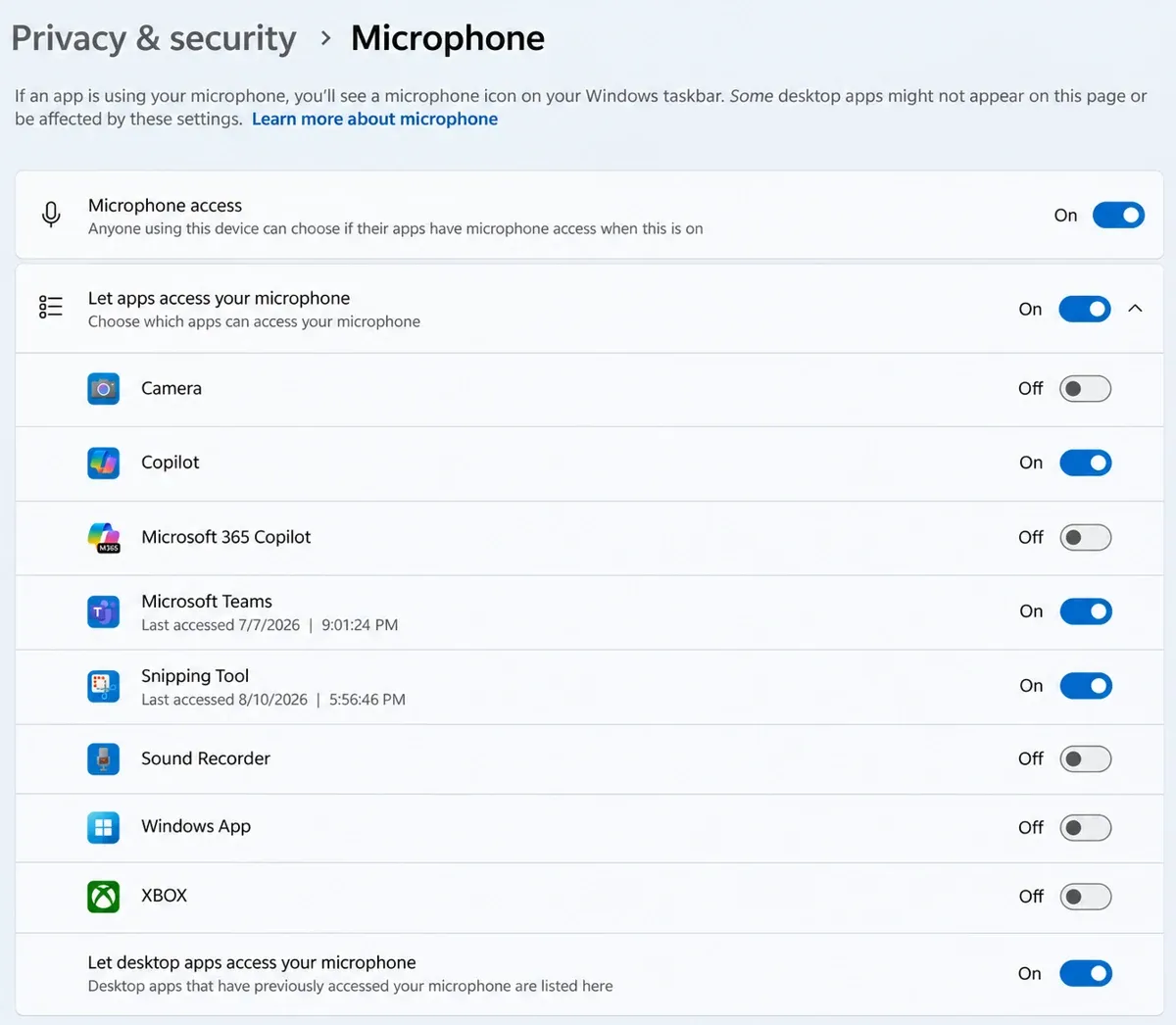
Microsoft notes that desktop apps don't use the same individual-app list and can't be controlled individually through that desktop-app switch. A desktop program's absence from the list doesn't by itself mean it is uninstalled. Don't turn every listed app on just to make one meeting app work.
If a permission control is unavailable on a work or school PC, ask your administrator to check policy. Don't edit registry consent entries to override managed settings. Close and reopen the affected app after changing access, then make a short test recording or use its microphone test before joining a call.
If you're using a webcam's microphone, Microsoft's guide notes that the app may also need camera permission through Privacy & security > Camera. Check that requirement for the app you're using rather than granting camera access to every program.
If Windows records, but one app doesn't
If the failing app is We Were Here Together, continue with the Together walkie-talkie and PC voice checks. Match the game input to the working Windows microphone, then test one speaker at a time before changing drivers.
Open that app's audio settings and explicitly choose the same microphone that passed the Windows test. Check its input level and in-app mute control. An app can retain a different input from the Windows selection, particularly after switching between a laptop microphone, headset and webcam.
For a call in a web browser, also check that the meeting website has microphone permission in the browser. Windows permission and a website's permission are separate checks. In Chrome, Google's microphone instructions use Settings > Privacy and security > Site settings > Microphone: review the site's permission and select the intended default microphone. Allow the meeting site you trust, then leave and rejoin the test call. Other browsers have their own site-permission controls; ask IT if a managed setting can't be changed.
A successful Windows sample narrows the next investigation; it doesn't prove that every app, website or audio effect is configured correctly. Keep the working sample result and the app-specific failure together when asking that app's support team for help.
If Windows has no usable recording input
In Settings > System > Sound, scroll to Advanced. Open All sound devices to see whether the microphone is listed but unavailable for use. Under Troubleshoot common sound problems, choose Input devices and follow the prompts. You can also open Get Help and describe “microphone not detected.” Record what it finds, then repeat the recording test.
For a microphone disabled in the recording-device list, open More sound settings > Recording. Right-click the empty area and select Show Disabled Devices if needed, then right-click the intended microphone and choose Enable. This makes a listed, disabled input available; it doesn't install a physically missing device. If the control is restricted, ask the PC's administrator rather than changing policy.
Open Device Manager and inspect Audio inputs and outputs and Sound, video and game controllers. Keep the exact device names, status errors and driver versions. If a device you expect is missing, select View > Show hidden devices and Action > Scan for hardware changes. A hidden entry is a clue to previous installation, not a successful recording test.
On a new PC that has never detected the microphone, confirm the manufacturer's specifications and setup instructions. For an external USB microphone or webcam, test another direct USB port and, if available, another compatible computer. Note whether another microphone works on the original PC. Those comparisons help the manufacturer distinguish the accessory, connection and computer without immediately resetting Windows.
Choose the audio driver step from the history
Microsoft's audio driver instructions recommend Settings > Windows Update > Check for updates first. Install an applicable audio update and restart as directed. In Device Manager, you can also expand Sound, video and game controllers, right-click the relevant audio device and select Update driver > Search automatically for drivers.
If Windows reports that the best driver is installed, check the PC or audio-device manufacturer's official support page for the exact model. A newer or more suitable manufacturer package may still be available. Match Windows 11 and the system architecture; don't install a Realtek, Intel or ASUS package simply because another user's microphone uses that brand.
A failure that followed a driver update may call for the documented rollback route: the relevant device's Properties > Driver > Roll Back Driver. Administrator permissions are required. If available, choose a reason, confirm and restart if requested. If unavailable, ask the manufacturer about a supported earlier package.
If updating doesn't help, a targeted driver reinstall is a later option. Download the correct manufacturer package first and save your work. Identify the relevant audio device in Device Manager, select Uninstall device, confirm and restart. Windows attempts to reinstall the driver. If it doesn't, use Action > Scan for hardware changes and the saved manufacturer package. Keep other audio devices in place; don't remove every driver package as a first attempt.
After each driver change, repeat the same Windows recording test and the failing app's test. If you need a meeting immediately, use a known working approved headset or another supported device while arranging the repair, rather than making multiple untracked system changes just before the call.
Why forum fixes need a hardware match
A Windows 11 22H2 microphone discussion contains several different outcomes. One user reported that disabling Intel Smart Sound Technology helped a Poly Blackwire headset. Other participants reported improvement after updating that component; another explicitly said disabling it and checking drivers hadn't helped. A user with AMD hardware couldn't apply the Intel-specific suggestion.
That thread supports checking the actual component and its driver history, not disabling Intel audio components on every PC. Likewise, a popular reply in a separate sudden microphone failure thread describes disabling audio enhancements on an ASUS Zenbook running Windows 10. Its reported result isn't a verified Windows 11 repair.
My next step after failed input, permission and model-specific driver checks would be the manufacturer or IT team, with the test results attached. Include whether the device appears in Sound and Device Manager, whether the Windows sample contains speech, which apps fail, and what changed before the failure. Remove serial numbers and personal identifiers from public screenshots. More hardware guides are in the Windows devices and drivers hub.



