
For Windows Update error 0x80240034, check the connection and run the Windows Update diagnostic before changing system files. Microsoft defines this code as WU_E_DOWNLOAD_FAILED: Update failed to download. If the same download keeps failing, preserve its KB and logs, then use the supported cache-clearing procedure to request fresh files.
I'd keep the download failure separate from whatever happens next. If a fresh download completes but installation fails with another code, repeating the download repair may miss the actual fault.
Record the update and the stage that failed
On Windows 11, open Settings > Windows Update and note the current status. Open Update history and copy the complete failed item name, KB number, date and code. Record any different code on the main update screen too. Under Settings > System > About, keep the Windows edition, version and OS build for package and support checks.
The official error-code reference defines 0x80240034 as a download failure. It doesn't prove that Windows has malware, that a registry entry is damaged or that Developer Mode is the cause. Those diagnoses need additional evidence.
If the PC is currently on a full-screen installation or rollback message, let Windows finish returning to the desktop before using these Settings and cache steps. Don't interrupt an active installation to delete its download files. A desktop download problem and a PC that can't boot need different recovery routes.
Check connection, storage and the built-in diagnostic
Back up important files and keep the PC connected to power. Confirm the intended Wi-Fi or Ethernet connection under Settings > Network & internet. If the connection is disconnected, restore it first. On a work or school PC, keep the update access your organization requires and give IT the failed KB before changing VPN, proxy or update-source settings.
Check available space under Settings > System > Storage. If Windows asks for more space, free the requested space using files and apps you recognize. Space needed for a particular update varies; a single free-space number isn't proof this download will succeed.
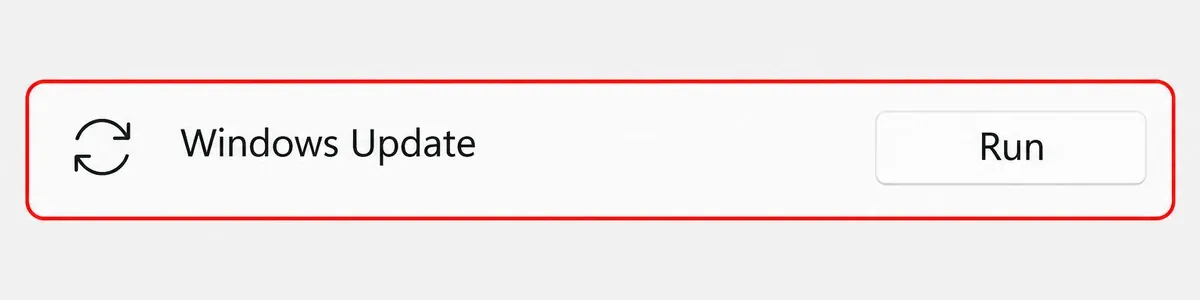
Open Settings > System > Troubleshoot > Other troubleshooters. Select Run beside Windows Update and follow the Get Help prompts. This follows Microsoft's current update troubleshooting procedure.
Restart normally if requested and check the original item again. If the download now succeeds, continue through the update's normal installation and restart prompts. Confirm success in Update history rather than stopping when the progress bar changes.
If the diagnostic reports that Windows Update isn't running, press Windows + R, enter services.msc and inspect the Windows Update service. Record its status and startup type. If it's stopped and Start is available, start it and retry. If it's disabled or won't start, keep the message and ask IT or support to investigate the configuration; don't set every service to Automatic.
Clear the cache when the download keeps failing
If the same update still fails to download, save the current error details and relevant logs first. Microsoft's procedure clears the contents of the update cache so Windows can obtain the files again. Use an administrator account, and on a managed PC have IT approve the servicing change.
- Press Windows + R, type
services.mscand press Enter. - Find Windows Update, right-click it and select Stop. If it won't stop, keep that error and ask support rather than forcing changes to permissions.
- Open File Explorer and go to
C:\Windows\SoftwareDistribution. Confirm the complete path. Delete the files and folders inside that directory, following the Microsoft cache-clearing instructions. - Return to Services, right-click Windows Update and select Start. If deletion was blocked, restore the service before leaving this step and report what failed; don't take ownership of Windows folders to force it.
- Return to Settings > Windows Update and check for updates. Keep internet access available for a fresh download, then follow any restart prompts.
Keep the operation confined to that cache location. Don't delete WinSxS, pending.xml, boot files or arbitrary registry keys as an extension of these steps. A failed cache cleanup isn't a reason to use a more aggressive script.
Choose the next action from the new result
- The original KB installs: check its successful status after any required restart and check for further applicable updates.
- The download fails again with 0x80240034: collect the fresh attempt time and log. Ask IT or support to investigate the download source and matching errors; don't repeat the same cache deletion indefinitely.
- Download finishes but installation fails: record the new code and KB. Use the Windows 11 installation-failure guide for the next branch, including checking whether a manual package or preserving repair is appropriate.
- DISM or other checks report component corruption: investigate that finding separately. A completed download doesn't establish that the component store is healthy.
If system-file repair is warranted, Microsoft's supported sequence uses an administrator Command Prompt: run DISM.exe /Online /Cleanup-Image /RestoreHealth, wait for a successful-completion message, then run sfc /scannow and wait for verification to reach 100%. Keep the final messages. If DISM can't find source files or SFC can't repair files, give support the logs instead of copying a Windows folder from another PC or guessing an ISO source.
Collect a useful download log for support
After the relevant failed attempt, open Windows PowerShell as administrator and run Get-WindowsUpdateLog. Microsoft explains that this converts the update traces into a static WindowsUpdate.log snapshot. Generate it again if you need to capture a later failure.
Provide the KB, both screen/history codes, Windows version/build, attempt time, diagnostic result and new log. For an installation failure, include C:\Windows\Logs\CBS\CBS.log; for a failed DISM repair, include C:\Windows\Logs\DISM\dism.log. Share logs privately and remove personal paths and identifiers from public excerpts.
If the new error is 0x80070002, the missing-file code reference helps distinguish that result. If no download begins and Settings remains at zero, follow the Windows 11 download-at-zero checks. The Windows Update hub keeps the stage-specific routes together.


