
If Windows 11 says your Wi-Fi password is incorrect, first confirm the exact network name and current password with the network owner. Then forget only that saved network and reconnect. If the same PC accepts another trusted network but still rejects this one, investigate the router's security and device-access settings rather than repeatedly resetting Windows.
I'd verify one fresh connection before changing the router password. Devices that are already connected aren't proof that a newly entered password is correct, and changing the password can disconnect everyone using that network.
Confirm the network and the current Wi-Fi password
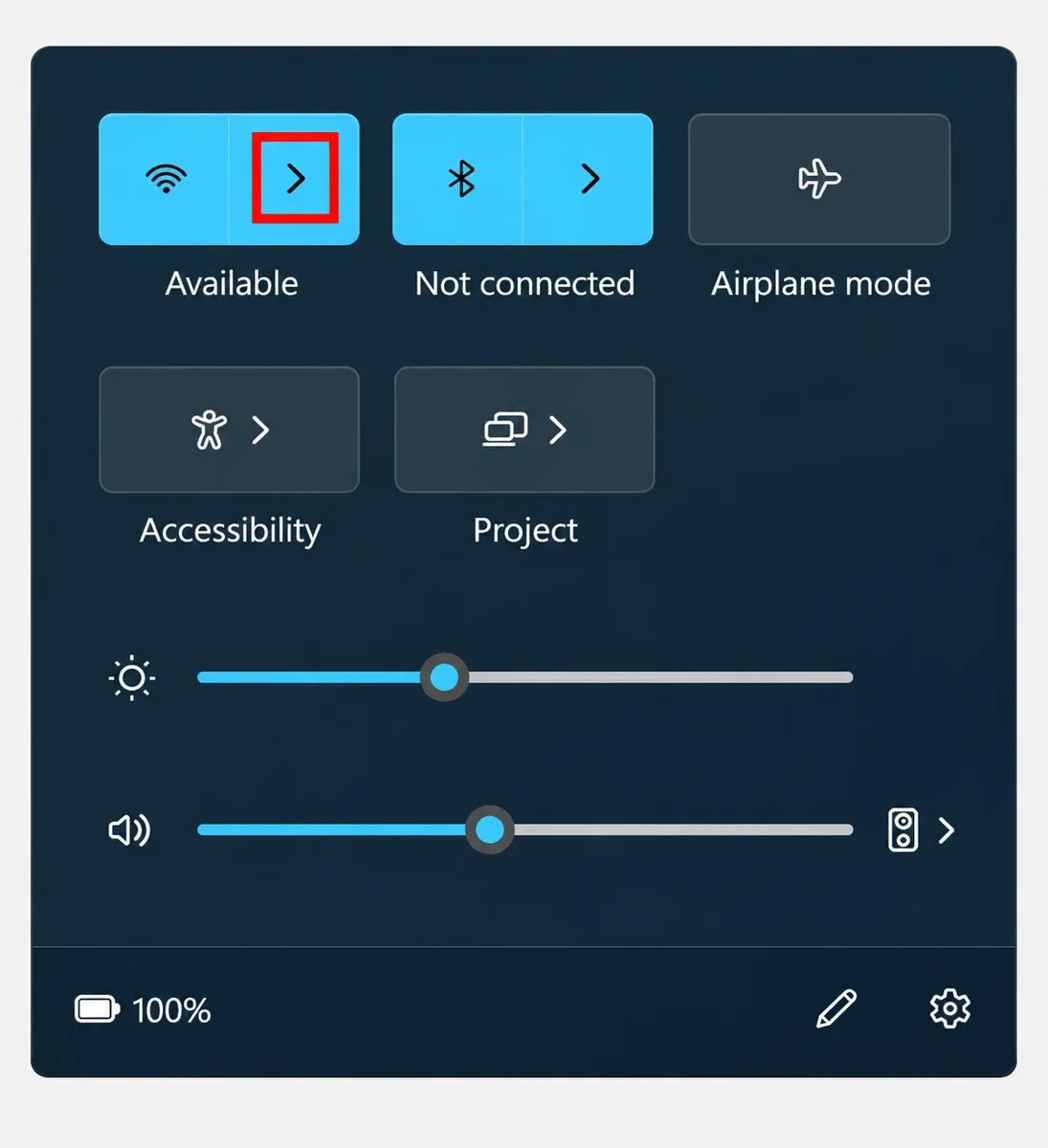
Select the network, sound or battery area of the taskbar, then the arrow beside Wi-Fi to open Manage Wi-Fi connections. Choose the exact network the owner identifies. A similarly named guest network or extender may have different credentials. Microsoft's Windows Wi-Fi connection instructions show this route.
- Use the Wi-Fi network password, not the router's administration password or your Windows PIN.
- Check uppercase letters, keyboard layout, number keys and symbols. If the password field offers a reveal control, use it only when nobody else can see the screen.
- A label on the router is useful only if its original Wi-Fi credentials haven't been changed. Ask the owner for the current credentials instead of guessing.
On another authorized Windows 11 PC, the owner can check Settings > Network & internet > Properties > Wi-Fi network password > Show. The password can also be viewed for a saved network under Manage known networks on supported current versions. A saved value may be stale, so compare it with the router's current configuration. Don't put a password or its QR code into a public support post.
If this is a work or school network requesting a user name, certificate or domain, stop treating it as a household password problem. Ask IT for the approved Wi-Fi profile and authentication instructions. Don't accept an unexpected certificate or switch the network to an open connection.
Forget this network and make one fresh connection
First make sure you have the current password and permission to reconnect. For an organization-managed profile, ask IT before removing it.
- Open Settings > Network & internet > Wi-Fi > Manage known networks.
- Find the affected network and select Forget. Leave other saved networks alone.
- Open the Wi-Fi list again, select the same network, choose Connect and enter its current password.
- Record the exact message if Windows rejects it. “Can't connect to this network” and “Connected, no internet” are different outcomes from an incorrect-key message.
Microsoft includes this forget-and-reconnect procedure in its Wi-Fi troubleshooting. If the connection now works, stop making changes. If it joins but has no internet, follow the connected-but-no-internet checks; repeatedly entering a password won't repair that later stage.
Compare the PC and the network separately
Save your work and restart Windows normally. With permission, compare the PC on another trusted Wi-Fi network or a phone hotspot with a known data allowance. Also ask another authorized device to make a fresh connection to the original network using the confirmed credentials. Avoid disconnecting a device whose owner can't recover its connection.
| Comparison | Next action |
|---|---|
| Several devices reject a fresh connection to this network | Owner verifies the current password and router configuration. |
| Only this PC fails here, but it joins a hotspot | Check this network's saved profile, security compatibility and device access. |
| This PC fails on several trusted networks | Check its Wi-Fi driver and Windows diagnostics. |
| Manual connection works; failure returns after sleep | Investigate reconnect and power behavior with its recorded events. |
That comparison narrows the problem; it doesn't prove which device is defective. In a Windows incorrect-password discussion, the PC joined a phone hotspot, but resetting the network and updating the driver didn't resolve another location's Wi-Fi failure. A router-password change helped at home, not an unrelated network the user couldn't administer. Those are different conditions, not a universal password-change fix.
Have the owner check compatibility and device access
If you control the home router, check its current firmware and documented security mode. For a rented gateway, use the ISP's approved instructions. A normal restart interrupts everybody briefly; arrange it first and follow the manufacturer's procedure. Don't press the factory-reset button as a routine password check.
If the owner already provides separate 2.4 GHz and 5 GHz network names, try the other supported one with its own confirmed credentials. Microsoft includes this comparison in its Wi-Fi guide. Success on one band helps identify a compatibility or configuration difference; it doesn't prove that the other network's password was mistyped. Don't create an unprotected test network.
Keep Wi-Fi security enabled. Router, adapter and driver support all matter for WPA3; Windows 11 support alone doesn't establish compatibility for every adapter. In Command Prompt, this read-only command displays the adapter's reported capabilities:
netsh wlan show driversCheck Authentication and cipher supported in infrastructure mode. Microsoft explains the requirements in its WPA3 and Wi-Fi hardware guidance. Give the PC and router models to their manufacturers if the security modes don't match; don't downgrade to WEP, TKIP or an open network to force access.
Ask the owner to inspect device pauses, access schedules and allowlists. Xfinity's Windows 11 password-error thread recommends verifying the current credentials and checking whether the device is paused, but the public exchange doesn't contain a confirmed final fix. Don't label every password error an Xfinity pause.
If this network authorizes devices by MAC address, ask its administrator to check the address Windows uses for this specific network. Windows supports both global and per-network random hardware addresses. Don't disable that privacy feature for every network or remove the router's access controls; have the administrator resolve the specific registration mismatch.
Use the failure record before a broad reset
Run the Network and Internet troubleshooter in Get Help and note its actual result before changing the driver. If only the PC still fails, install the supported Wi-Fi driver from Windows Update or the PC manufacturer's official site. Match the PC model and Windows version.
For a problem that began immediately after a driver update, inspect Device Manager > Network adapters > your Wi-Fi adapter > Properties > Driver and ask support whether to use Roll Back Driver. Rollback requires administrator permissions. Save the current version and a supported recovery installer first. A missing rollback option isn't a reason to download an old driver from an unrelated site.
To collect a connection record, open Command Prompt as administrator and run:
netsh wlan show wlanreportOpen the HTML file at the path Windows returns. Microsoft's wireless network report guide explains its recent sessions, failures, adapter details and event reasons. Find the attempt at the recorded time. The report contains identifying system and network information, so share only the relevant details through the support team's private channel.
If the failure happens only after sleep, use the Wi-Fi after-sleep guide. If manual connection always works but startup doesn't, use the automatic connection checks. Those patterns need more than another password reset.
A Windows network reset removes adapter settings and can require VPN or virtual-network software to be configured again. Reserve it for a diagnosed broader PC networking problem with recovery details ready. After any targeted repair, confirm that the intended network shows Connected and the required internet access works; then stop. More networking paths are in the Windows networking hub.


