
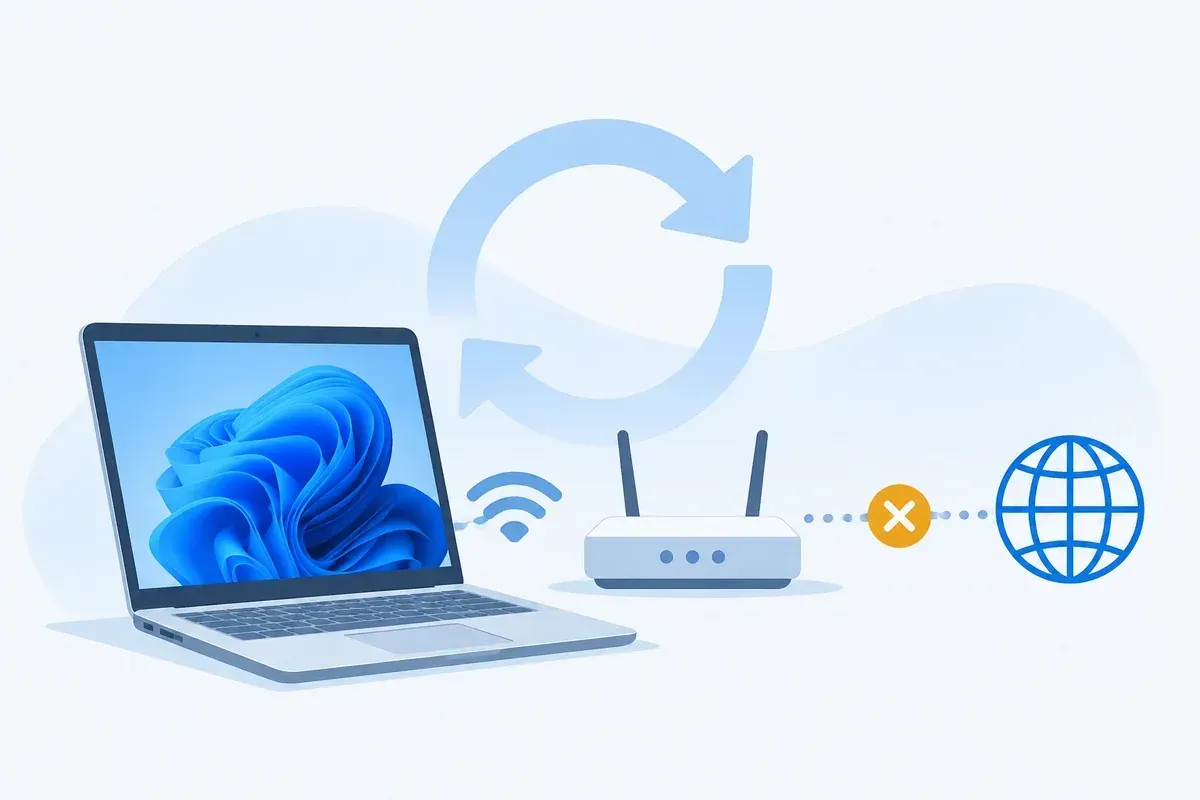
If network reset hasn't fixed Windows 11, check what happened after the restart before running it again. A missing adapter needs a different response from a Wi-Fi password prompt, a lost static address or an internet outage. If the reset never started, record that separately from a reset that completed but left the original problem.
I'd stop after one completed reset and inspect the connection. Repeating it can undo settings you've just restored without explaining why the connection still fails.
Did the reset start and the PC restart?
If a network reset already completed and the PC restarted, move to the current-state checks below instead of resetting again. Before confirming a reset that hasn't run, save your work and record the network settings you'll need to restore. The reset reinstalls adapters with default settings and may require VPN or virtual-switch setup afterward.
The Windows 11 path is Settings > Network & internet > Advanced network settings > Network reset. Microsoft's network reset instructions say to select Reset now > Yes, then wait for the PC to restart. The Status > Network reset route in older instructions is for Windows 10.

Save your work before confirming. If you already confirmed but the PC hasn't restarted, complete a normal Start > Power > Restart when you can safely interrupt work. Reopen the connection afterward and record whether the original symptom changed. Don't repeatedly click Reset now while waiting.
If the button doesn't respond, Settings closes, confirmation fails or Windows displays an error, note exactly which step stops and the error text. Restart once, then check the same screen. On a managed device, give that result to IT rather than trying to remove its networking software or bypass policy. A control that never completed its action is a different support case from working Wi-Fi with no internet.
Choose the branch that matches the current state
| After the restart | Next useful check |
|---|---|
| Wi-Fi is absent, or the adapter shows an error | Read the physical adapter's Device Manager status. |
| Your network appears but isn't connected | Select the intended network and reconnect with its valid credentials. |
| Connected, but internet access still fails | Compare another device and another network; inspect address assignment. |
| Internet works, but VPN or a virtual machine fails | Restore that software's supported networking setup. |
| Internet works, but file or printer discovery changed | Check the trusted network's profile and sharing configuration. |
| A custom address or DNS setting changed | Restore the approved values or the intended DHCP configuration. |
Microsoft describes network reset as removing installed adapters and their settings, then reinstalling adapters with default settings after restart. That doesn't promise a repair for every driver, cable, router or service problem. Nor does seeing the same adapter name prove that nothing happened.
If the adapter or Wi-Fi control is missing
Right-click Start > Device Manager, expand Network adapters and find the physical Wi-Fi or Ethernet device. Open Properties and record Device status, then the driver provider and version. Don't treat VPN entries or WAN Miniports as the physical adapter.
If the intended device is disabled, enable it when that state wasn't required by your administrator. If it has an error, is missing or appears only under View > Show hidden devices, use the adapter status and offline-driver guide. A hidden old entry doesn't establish that Windows currently detects the hardware.
Before uninstalling a driver, prepare the correct package from the PC or adapter manufacturer's official site. Download it on another trusted PC and transfer it if necessary. Microsoft's dedicated driver guide says Windows attempts to reinstall the driver after restart; keep the replacement available if it doesn't. Don't delete the only working package or use a driver for a merely similar computer.
Reconnect and check address assignment
If Wi-Fi networks are visible, select your intended network and connect. Have its current password available if Windows asks for it. For a work, school or certificate-based connection, use the organization's connection instructions. Don't replace those settings with a home-network recipe.
Open Command Prompt and run the following read-only check:
ipconfig /allInspect the active physical adapter's DHCP status, address, default gateway and DNS servers. Microsoft's ipconfig reference explains that /all shows the full TCP/IP configuration for physical and logical adapters. Keep the output private; support usually needs the relevant fields, not an unredacted public dump.
For the intended network, open Settings > Network & internet, choose its Wi-Fi or Ethernet connection and inspect IP assignment > Edit. Microsoft's TCP/IP settings instructions distinguish Automatic (DHCP) from Manual. Use automatic assignment when that network is designed for DHCP; restore documented manual IP, gateway and DNS values when it requires them. Check DNS assignment too. Never copy another device's address or clear a required corporate proxy.
In a Windows 11 Pro reset discussion, the original poster reported unchanged settings after the automatic restart. After trying the suggested command sequence, they reported that interfaces returned to DHCP while DNS settings remained. That report doesn't establish a universal cause, but it does show why the current settings matter more than assuming every reset method has the same effect.
If connected still means no internet
Try the same network on a second device, then try this PC on another trusted connection if available. If several devices fail on the original network, investigate that network or its service provider. If only this PC fails, keep working on its adapter, address and software state.
Run Windows 11's Network and Internet troubleshooter in Get Help when available, and save its result. Then follow the symptom: Ethernet connected without access, phone hotspot connected without access or a Wi-Fi address-assignment failure. A reset on this PC won't resolve an ISP outage or replace a damaged cable.
If VPN, virtual networking or sharing changed
Microsoft warns that VPN clients and Hyper-V virtual switches may need to be reinstalled or set up again after network reset. If ordinary websites work but the VPN or a virtual machine doesn't, restore that component through its vendor's or administrator's documented procedure. Don't remove every virtual adapter to troubleshoot one connection.
The reset may also change known connections to a Public profile. That can affect discovery even while internet access works. Check the active connection's Network profile type; choose Private only for a network whose people and devices you trust. For the remaining access problem, use the shared-folder checks. Changing the profile doesn't grant file permissions or fix an incorrect share path.
When to stop resetting
A command list that clears DNS, renews DHCP or resets the network stack performs specific operations; it isn't proof that the Settings reset completed, and it isn't a universal substitute. Avoid appending another broad command bundle to the same failed procedure without a reason tied to the present symptom.
If the same device error or connection failure remains, collect the Windows version, PC and adapter models, driver version, exact error, whether the restart completed, and the second-device/network comparison. Include any manual settings or VPN components that need restoration, through an appropriate private support channel.
Don't escalate directly to Reset this PC because a network reset didn't help. That is a separate recovery operation with different consequences. Choose the next supported diagnostic step from the evidence you've collected. The Windows networking hub links the related connection guides.


