
If your touchpad isn't working in Windows 11, connect a USB mouse if one is available, then check Settings > Bluetooth & devices > Touchpad. Turn the touchpad on and check whether connecting a mouse disables it. If it remains unresponsive, identify the touchpad in Device Manager before updating or reinstalling its driver.
If the unresponsive surface is the display on a Getac, use the Getac touchscreen mode and device checks. The screen and the touchpad have separate controls; confirm the model and input type before changing the touchpad driver.
If the pointer works on the desktop but disappears only over Excel, use the Excel pointer visibility and app-isolation checks before changing the touchpad driver. Compare a blank workbook and a local versus remote window to narrow that separate symptom.
I'd first separate a dead pointer from a missing gesture. A touchpad that moves the cursor but won't scroll needs a different check from one that has disappeared from Windows entirely.
If the touchpad responds and you need to learn its controls, start with the Windows 11 touchpad gesture and settings guide. It separates taps, physical clicks, scrolling and optional shortcuts so you can identify the action that fails before changing a driver.
Get a way to navigate first
Connect a USB mouse and check whether its pointer works. Keep it connected while changing settings or drivers. A working mouse gives you a way to troubleshoot; it doesn't prove that the touchpad hardware or its driver is healthy.
Without a mouse, press Windows key + I to open Settings. Use Tab and Shift + Tab to move focus forward and back, watching the highlighted control rather than counting key presses. Microsoft's keyboard shortcut reference also lists Spacebar for selecting or clearing a focused checkbox in a dialog. Focus order varies with the window, so don't follow a fixed number of Tab presses from someone else's screen.
Save your work and restart the laptop before deeper changes. After restarting, test movement, a click and two-finger scrolling separately. Note which action fails.
| Symptom | Start here |
|---|---|
| No movement, clicks or taps | Check Touchpad On, mouse-related disabling and the model's touchpad control. |
| Works until a mouse or receiver is connected | Check Leave touchpad on when a mouse is connected. |
| Pointer moves; taps, right-click or scrolling fail | Inspect the relevant gesture or tap setting before changing drivers. |
| Jumps or selects text while typing | Check accidental contact and settings; investigate the exact model and driver. |
| Touchpad settings or device entry are missing | Check both Device Manager categories and the manufacturer's supported driver. |
Check Touchpad On and the mouse option
- Open Settings > Bluetooth & devices > Touchpad.
- Turn Touchpad on.
- Expand the Touchpad row. If available, select Leave touchpad on when a mouse is connected.
- Test the touchpad with your external mouse still connected. Then disconnect the mouse or receiver and compare again.
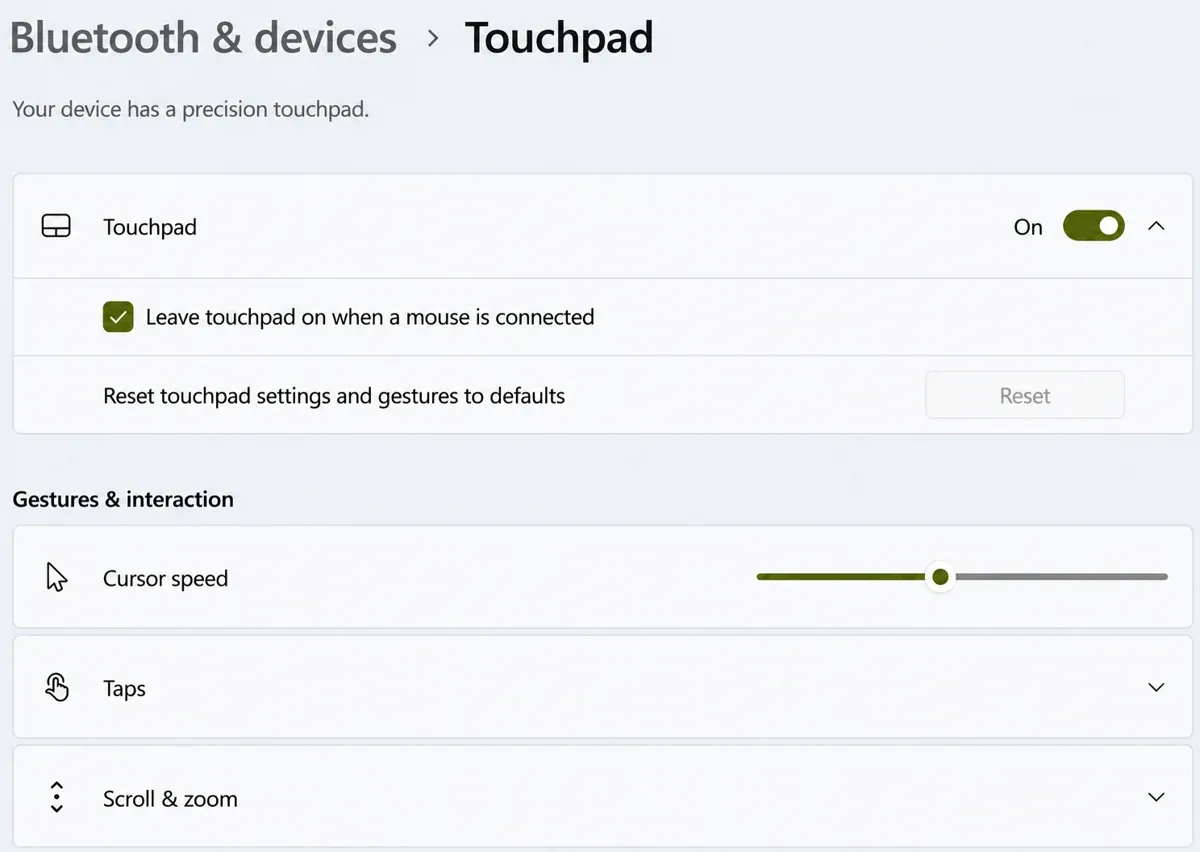
Dell's touchpad troubleshooting guide documents these two enablement checks. If the touchpad works only after you remove a receiver, recheck the mouse option before uninstalling a driver.
Look up your laptop model's documented touchpad toggle as well. Use its manual or official support page to identify the key or control; don't assume another laptop's function-key combination applies. If Settings has no Touchpad page, continue to device detection rather than assuming the missing page means a failed touchpad.
If movement works but gestures or clicks don't
Stay on the Touchpad settings page. Expand Taps if tapping or right-clicking fails, and check the offered right-click options. Expand Scroll & zoom if the problem is scrolling. Record the existing setting, change the relevant option and test that action again.
Keep the checks separate: move the pointer, physically click if your touchpad supports it, tap, then scroll. Microsoft's gesture reference describes two-finger scrolling and notes that some gestures require a precision touchpad. A working pointer with a disabled tap option doesn't call for deleting every input driver. Likewise, Cursor speed controls pointer travel; it isn't a substitute for every sensitivity or gesture setting.
If you want to reset touchpad settings, first record your customized gestures. On devices that offer it, expand the Touchpad row and select Reset to restore touchpad settings and gestures to defaults. That can remove preferences you've deliberately chosen. Leave a grayed-out Reset button alone while checking the actual failure; you don't need to change an unrelated setting just to activate it.
If the pointer jumps or clicks by itself
Check whether the problem happens only while typing, with your palms near the touchpad, or also with your hands clear. Dell notes that accidental palm contact and touchpad sensitivity can contribute to movement while typing. Inspect the relevant controls offered for your device and compare one change at a time.
For cleaning, use a soft microfiber cloth lightly dampened with water, following the laptop maker's instructions. Avoid harsh chemicals or pouring liquid onto the pad. Retest with the surface dry.
A Microsoft Q&A report about a shaking cursor describes a user who still needed the touchpad and had already tried reinstalling its driver. The reply suggested checking the model's updated driver, then disabling the touchpad. Disabling can stop its input, but it doesn't restore a touchpad you need to use, and the thread contains no follow-up confirming a repair. I'd use it only as an intentional temporary workaround with another pointing device available.
If the pointer still moves unexpectedly with hands clear, compare other pointing inputs before blaming the touchpad. The mouse-jump isolation checks separate an external mouse, controller and dialog-only Snap To behavior while keeping a working way to navigate.
Find the right device before changing a driver
Open Device Manager from Start. Microsoft's touchpad repair instructions say to look under Human Interface Devices or Mice and other pointing devices. Check both; the entry isn't in the same place on every laptop.
Record the matching device's name, status message and driver version. Dell gives HID-compliant touchpad as an example, but your model may use a different name. If you can't identify it, consult the manufacturer's device and driver documentation before removing anything.
Don't uninstall every HID device, keyboard entry or I2C controller because a guide shows one with a similar name. A shared category contains more than the touchpad. If the keyboard also fails, record that separate symptom and any status error; it changes what the manufacturer needs to investigate.
Use Windows Update, then the matching manufacturer driver
Open Settings > Windows Update, check for updates and install applicable updates. Save your work and restart as directed, then repeat the same movement, click and scroll checks. Microsoft recommends Windows Update as the first driver-update route for a touchpad.
You can also select the identified touchpad in Device Manager, choose Update driver and search automatically. If Windows doesn't find a useful update, use the laptop manufacturer's official support page for the exact model. Match the Windows version and architecture; avoid third-party driver download sites.
For a Dell laptop, Dell documents SupportAssist as its own update and touchpad-test route. Other manufacturers use their own tools. A general recommendation to “update the BIOS” isn't enough reason to flash firmware: check whether the manufacturer documents a relevant fix for your model and follow its preparation instructions if it does.
If it began after an update, consider rollback before reinstalling
When the failure began immediately after a driver change, inspect the touchpad's Properties > Driver > Roll Back Driver in Device Manager. Rollback requires administrator permissions. If the option is available, follow the prompts, restart as directed and test again. If it isn't available, ask the manufacturer about a supported earlier package rather than forcing a driver for another laptop.
For a later reinstall, prepare a way back first. Keep the external mouse available and download the correct manufacturer package before removing the device. Save your work, identify the touchpad entry, choose Uninstall device, confirm and restart.
Windows attempts to reinstall the driver after restarting; that isn't a guarantee that every model's full touchpad package will return. If it doesn't, use the saved official package or the manufacturer's recovery instructions. Microsoft's Device Manager driver guide covers targeted reinstall, rollback and manual installation. Stop if you can't identify the device or obtain a compatible recovery driver.
Use model-specific diagnostics when Windows checks don't help
Dell offers a SupportAssist touchpad test and describes its own startup diagnostics. Use Dell's instructions only on the supported Dell model; its startup keys aren't a universal laptop test.
In a Surface Book 2 discussion, the owner reported a keyboard driver error and a dead touchpad despite reinstalling drivers and Windows. The reply first asked whether the keys worked and what changed, then proposed checking the touchpad in Surface UEFI. There is no confirmed outcome in the thread. That is a Surface-specific diagnostic suggestion, not a reason to enter an arbitrary laptop's firmware or reinstall Windows again.
If your manufacturer offers a touchpad test outside Windows, follow its exact model instructions and save the result. Failure there can guide its hardware investigation; lack of pointer support in an undocumented firmware screen doesn't establish a broken touchpad.
What to send support if it still fails
Keep the laptop model, Windows version, touchpad driver version and exact device-status error. Include whether an external mouse works, whether removing its receiver changes anything, whether the Touchpad page exists, and which of movement, taps, physical clicks or scrolling fails. Note the last change before the problem and the outcome of each targeted test.
Remove account names and serial numbers from public screenshots. If the touchpad stays absent or fails the manufacturer's supported diagnostic, request model-specific service rather than repeating driver removals or resetting Windows without a diagnosis. Keep using a known working mouse while arranging the repair.
For other device and driver problems, use the Windows device troubleshooting hub.



