
If the mouse pointer disappears inside Excel but remains visible on the desktop, save your workbook with Ctrl+S, switch away and back with Alt+Tab, then compare a blank workbook. Check Office updates and try Excel Safe Mode if the problem returns. I'd establish whether it follows one file, every Excel window or a remote session before removing a mouse driver.
Check what has disappeared
Move the mouse from the worksheet to the ribbon, then outside Excel. Note where it becomes visible again. Use the arrow keys to check whether the active cell changes; a responsive worksheet with an invisible pointer needs a different investigation from a frozen application.
| What you see | Next check |
|---|---|
| Pointer visible elsewhere, invisible over Excel | Compare a blank workbook, Windows visibility settings and Excel Safe Mode below. |
| Selection becomes hard to see only after switching windows | Bring Excel back into focus. Distinguish the selected-cell border from the moving mouse pointer. |
| Pointer fails only inside a remote desktop | Use the local-versus-remote comparison, then give the session administrator the results. |
| Mouse won't move or click anywhere | Use the input-device path rather than changing Excel options. |
A cross-shaped worksheet pointer isn't, by itself, proof that the mouse has stopped working. Check whether it moves and selects the intended cell. Likewise, the text insertion caret while editing a cell is different from both the pointer and the active-cell border. The older discussion of selection visibility when Excel loses focus concerns that separate focus problem; its formatting-changing macro workaround isn't a repair for an invisible mouse.
For missing laptop input throughout Windows, follow the touchpad detection and navigation checks. If the arrow moves by itself, use the unwanted pointer movement checks. Keep those device symptoms separate from Excel-only visibility.
Save the file and compare a blank workbook
Save your work before closing Excel or restarting the PC. If Excel doesn't respond to the keyboard either, avoid repeatedly clicking or forcing it closed while a save may be in progress. A pointer-only comparison can't establish why the whole application has frozen.
- Switch away and return to Excel. Move across the same worksheet and ribbon areas again.
- Open a new blank workbook with Ctrl+N. Compare the pointer there without changing the original file.
- If the blank workbook works, close and reopen a saved copy of the affected workbook. Note whether the problem follows that file or a particular action, such as editing a cell or using a pane.
- If every workbook is affected, save and close Excel normally, reopen it and repeat the comparison. Save work in other apps before a normal Windows restart if needed.
Use a non-sensitive copy for investigation. Don't upload a company workbook to a public forum or enable unfamiliar macros to make a cursor workaround run. A restart that brings the pointer back temporarily is useful recovery, but check the original action again before calling it resolved.
Check the Windows visibility controls
When the pointer disappears while typing, inspect the relevant Windows preference. Microsoft's mouse visibility instructions distinguish hiding the pointer during typing from the CTRL-key locator. These settings provide a reversible comparison; they don't identify an Excel rendering defect.
- Open Settings > Bluetooth & devices > Mouse, then Additional mouse settings under Related settings.
- In Mouse Properties > Pointer Options > Visibility, record the original settings.
- If Hide pointer while typing is selected, clear it and choose OK. Return to Excel, type in a non-sensitive test cell, then move the mouse.
- For a separate locating aid, select Show location of pointer when I press the CTRL key, choose OK, and press CTRL to check the locator.
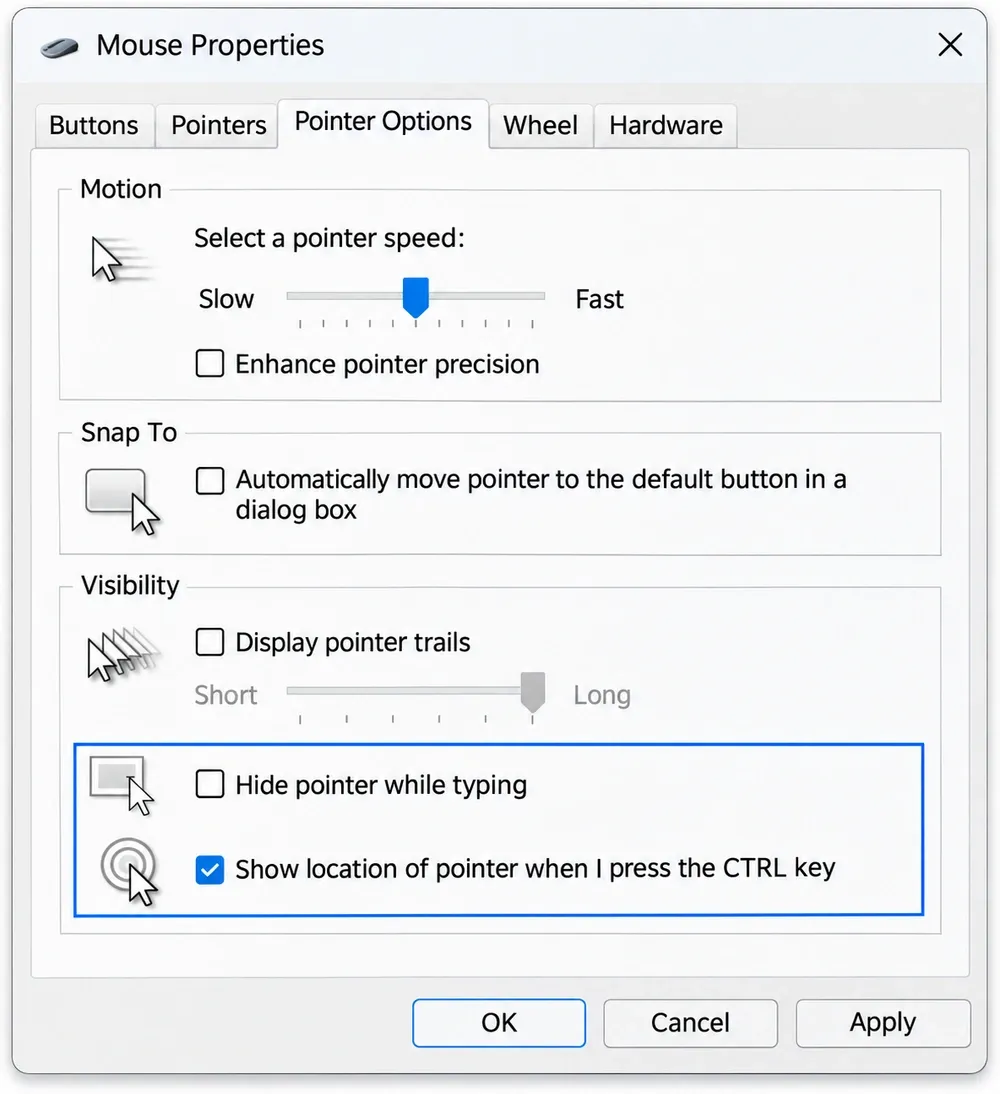
Use Tab, Shift+Tab and the arrow keys to move between controls if the pointer is hard to see; Space changes a focused checkbox. Watch the focused label rather than using a fixed number of keypresses. A locator circle appearing doesn't guarantee that Excel will draw the pointer correctly.
For a pointer that is simply difficult to distinguish from the background, Windows also offers Settings > Accessibility > Mouse pointer and touch to adjust its style and size. Compare the result inside Excel before keeping the change. Don't change pointer speed, button assignment and several visibility options at once.
Update Office through its available controls
Record the Excel version and build from File > Account > About Excel, including the update channel if shown. Follow Microsoft's Office update procedure: under File > Account, choose Update Options > Update Now in Product Information. Complete the offered update, reopen Excel and compare the same workbook and pointer movement.
If Update Options is missing and only About is available, the installation may use volume licensing or company policy to manage updates. Ask the help desk for the approved update path. Don't switch a work PC's update channel or force an older Office build to follow a forum workaround.
Compare Excel Safe Mode, then isolate add-ins
Close Excel after saving your work. Press Windows+R, enter excel /safe with a space before the slash, and press Enter. This is Office Safe Mode; you don't need to restart Windows into its separate Safe Mode.
Compare a blank workbook first, then a safe copy of the affected file if it opens. Microsoft's Excel isolation procedure explains that Safe Mode bypasses startup locations, toolbar changes, Excel add-ins and most COM add-ins. A working pointer here narrows the comparison; it doesn't prove which add-in caused the fault.
If the difference is repeatable and you're allowed to change the configuration:
- Record the checked entries under File > Options > Add-ins. Select COM Add-ins in Manage and choose Go.
- Clear the checked COM add-ins, select OK, close Excel and reopen normally.
- Retest. If the problem stops, re-enable the original add-ins one at a time, restarting Excel and repeating the same action after each.
- If a specific add-in brings the problem back, retain its name and version for its vendor or your administrator. Don't remove a required business add-in without approval.
If Excel won't start in Safe Mode, or the pointer is still invisible there, continue with the update and repair paths rather than repeatedly relaunching it. Record any startup error for support.
Restore the recorded configuration if this comparison doesn't help. Other startup components can still be involved; leave registry and startup-folder changes to a targeted investigation rather than deleting them all. Exit Excel and reopen it normally to leave Office Safe Mode. It has reduced functionality and isn't the final working configuration.
Use reported outcomes without copying an unconfirmed fix
In the Windows 11 25H2 Office-only cursor report, the user says restarting restores the pointer temporarily, while display-driver updates and Office repair had already been tried. The reply initially recommends an acceleration checkbox, then acknowledges that newer Microsoft 365 builds no longer show it. The discussion doesn't establish a final successful repair.
I wouldn't create acceleration registry values merely because that checkbox is missing. The missing control and an unconfirmed suggestion don't establish a supported fix for your Excel build. Keep the version and reproduction results for support instead of layering registry changes onto the problem.
Microsoft's classic Outlook pointer advisory remains marked Investigating and notes reports in other Microsoft 365 apps. Its Outlook message-list and PowerPoint workarounds aren't a confirmed Excel fix. If several Office apps are affected, tell your Microsoft 365 administrator so the broader pattern reaches the support case.
Separate a remote-session problem from local Excel
When Excel runs through AVD, Citrix or another remote service, compare the pointer outside that session and in another app inside it. If permitted, compare the same task in local Excel or an approved alternate client. Don't disconnect a session with unsaved work.
The AVD discussion of Office-only invisible pointers describes Windows 10 session hosts and a mix of Windows 10 and 11 clients. Replies report different color-management and registry workarounds. Those mixed configurations don't establish a universal Windows 11 or Excel correction. Give the administrator the client version, host environment and local-versus-remote results before changing display or host policies.
Repair the suite only after the comparisons
If Excel continues to fail across workbooks after the applicable checks, use the Office repair path. Save and close work in all Office applications first, and arrange the change with IT on a managed device. Repair affects the entire Office suite unless Excel is installed as a standalone application.
In Windows 11, right-click Start, open Installed apps, find your Microsoft 365 or Office product, open its three-dot menu and choose Modify. Follow the options for that installation: Click-to-Run offers Quick Repair and Online Repair; MSI installations use Repair > Continue. Quick Repair replaces detected corrupted files; Online Repair is the broader option. Arrange internet access and have the authorized account available before choosing an online repair.
Afterward, open Excel normally and repeat the original file, window and typing comparisons. Check that required add-ins and ordinary editing still work. If the pointer disappears again, keep the Windows version, Excel build, affected apps, local or remote scope, add-in results and recent change timeline for Microsoft or your administrator. Share recordings and workbooks privately through the approved support channel. The devices and drivers hub connects the separate input-device guides when the symptom extends beyond Excel.



