
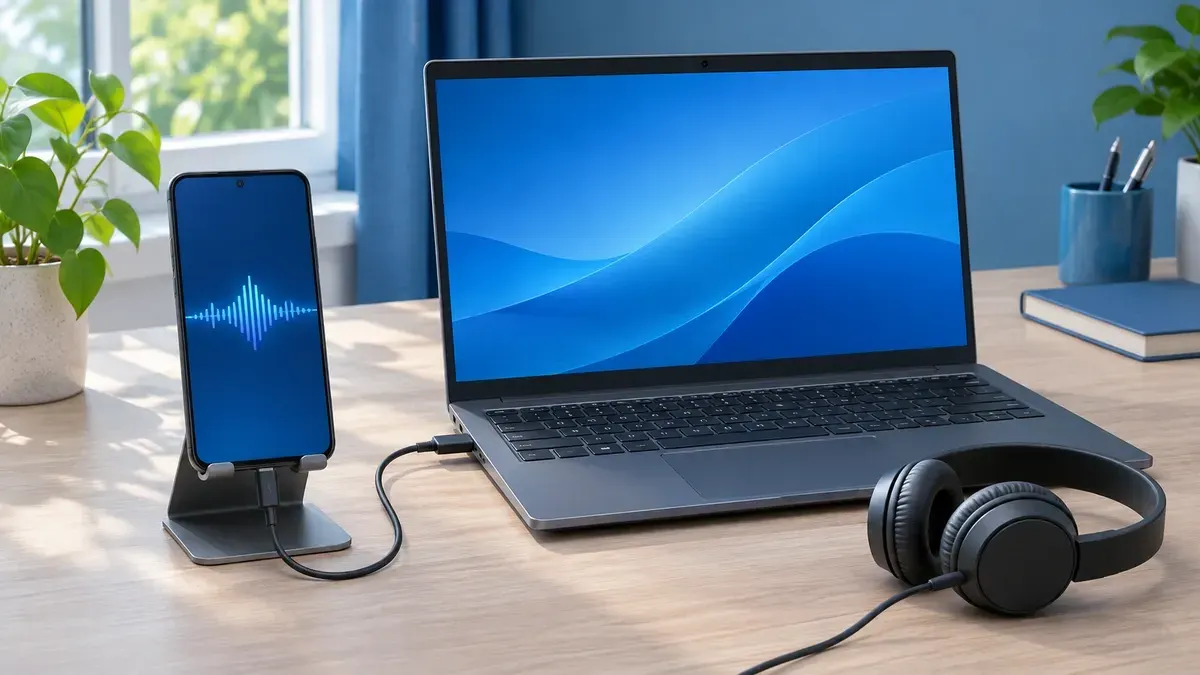
To use WO Mic on Windows, install the phone app and the native Windows client with its virtual-device driver, then connect the phone and select WO Mic Device in your recording app. For a first connection, use Wi-Fi with both devices on the same router. If you've already installed it but hear nothing, check the phone connection, virtual driver and selected recording input separately.
I'd prove that Windows can record the phone before troubleshooting a meeting app. A client saying Connected doesn't establish that the virtual microphone is working or that the call is using it.
Get the phone app and native Windows package
The developer's component description separates three parts: the phone app captures speech, the Windows client receives it, and the virtual device presents it to recording programs. Installing only the phone app leaves the PC side incomplete. You don't need an Android emulator for this documented Windows setup.
Use the official WO Mic download page for the phone-store links, Microsoft VC runtime and Windows installer. Follow those named links rather than an advertisement or a third-party download manager. Its listed Windows package contains client 6.4 and driver 2.1.0.0; old download pages labeled 5.1 or 5.2 aren't the package to choose just because they rank highly. The developer specifically requires the Microsoft x86 VC runtime for the client and associates its absence with missing-DLL errors. Don't fetch individual DLLs from download sites.
Before installing, save work and check that the package is appropriate for your Windows device. Ask IT to approve it on a managed PC. The developer says the installer is unsigned and may trigger a warning; that statement doesn't establish that any file named WO Mic is safe. If Windows or security software blocks your file, keep the detection details and verify the exact download with the developer or IT. Don't disable protection, driver-signing enforcement or organizational policy to force it through.
Install the phone app through its appropriate store, review its microphone permission, then follow the official Windows installer's prompts for the client and driver. Complete a restart if requested. A PC architecture or installation error that the developer's guidance doesn't resolve needs support before you try an unrelated driver package.
Choose a transport your phone supports
The WO Mic transport table lists Wi-Fi for both Android and iPhone. Android also supports USB, Bluetooth and Wi-Fi Direct; the iOS app doesn't list those alternatives. Plugging in an iPhone cable isn't the same as establishing a supported WO Mic USB connection.
Wi-Fi is the common starting path for both phone platforms and avoids the Android USB-debugging setup. Start with a trusted local Wi-Fi network where your PC and phone can communicate. The developer's Wi-Fi quick start requires both devices on the same router. If a workplace or guest network prevents local-device communication, ask its administrator or use an approved alternative; don't change a public network's trust settings just to get the connection working.
Connect over Wi-Fi
- Open WO Mic on the phone. On Android, open Settings > Transport, select Wi-Fi, return to the main screen and start the server. On iPhone, select Start. Allow the microphone access needed for the session if you intend to use it.
- Find the phone IP address shown by the app. On Android, open the transport information if it isn't already visible. Use that address, not an example from a tutorial.
- On the PC, open WO Mic Client, then Connection > Connect.... Select Wi-Fi and enter the phone's displayed address under Phone IP address.
- Select Connect. Check that both the phone server and Windows client report a connection, then continue to the recording test below.

This is the developer's documented connection sequence. Its pictured classic Windows dialog may look different from your desktop theme; the transport and address fields are the useful controls. Keep the phone app available while making the first test.
Check the driver and record the intended input
In WO Mic Client, select Help > Statistics. The developer's driver check defines Driver state: 1 as working and Driver state: 0 as not working. This checks the virtual-driver stage; it doesn't prove that your voice reached a call.
If the driver isn't working, confirm that the official Windows package installed both components and keep its exact error. In Device Manager, the WO Mic device instructions place the virtual device under Sound, video and game controllers. Record its status rather than removing every audio device or installing a Realtek package for a missing virtual microphone.
Use the phone app's mute control to unmute before testing; the WO Mic mute instructions place this control on the phone. With the phone connected and unmuted, open Settings > System > Sound > Input in Windows. Select WO Mic Device, open its properties, and use Start test, Stop test and Play to record and hear normal speech. Microsoft's microphone test instructions describe these controls. Confirm that you selected the phone's virtual input rather than the laptop's built-in microphone.
| Checkpoint | Next check |
|---|---|
| No client connection | Match transport, phone address and local network. |
| Driver state: 0 | Resolve the virtual-device installation and its exact error. |
| Connected, no speech | Check phone mute, app microphone access and the selected Windows input. |
| Windows records clearly | Select the same input in the intended app and test there. |
For Windows access controls or a recording input that still won't work, follow the microphone permissions and recording checks. That route distinguishes desktop-app access from individual Store-app permissions. If speech is present but too quiet, use the input-level and sensitivity checks instead of treating a low level as a failed connection.
If Wi-Fi fails or the sound breaks up
Recheck the phone's current address and the matching transport first. If you changed advanced ports, the WO Mic port documentation requires the same control-port value on phone and PC; the client supplies the media-port setting to the phone during connection. Keep the original values and don't change several ports while also changing networks.
The developer's Wi-Fi failure FAQ identifies blocked incoming UDP audio as one possible reason a connection appears briefly and then fails. Have the administrator check the approved client and its configured media port on the trusted local network. Keep firewall protection on. Don't expose a port on your internet router or broadly allow traffic because a tutorial says to turn the firewall off.
For robotic or interrupted speech, keep the phone app in the foreground and compare the same short recording after closing an unneeded CPU-heavy app. The developer's audio-breakup guidance also recommends USB when available. That is a troubleshooting recommendation, not a measured latency guarantee for your phone.
Android USB requires a suitable data cable, the phone's appropriate USB driver and USB debugging, as described in the official transport setup. Use that route only with your own trusted PC and the handset maker's instructions. Keep it separate from the Wi-Fi test; iPhone users should stay with the documented Wi-Fi path. Don't install a generic phone-driver bundle or weaken Windows security to make an ADB device appear.
A connection that drops when the laptop sleeps needs a different comparison: note whether it remains stable while the display and PC stay awake for the test. The developer's disconnection check uses that distinction. Restore any temporary power-setting change afterward, and use the Windows sleep diagnostics if sleep itself is malfunctioning.
Verify the call and save a useful log
In the target app, explicitly select WO Mic Device and check its mute control. Make a short recording or test call, then listen to the result. The WO Mic input-selection guidance permits making the virtual device the Windows default when an app has no input selector. Note your original default and restore it when you return to a headset or built-in microphone.
If Windows records clearly but one app stays silent, keep that successful sample and investigate the app's input and access settings. An iPhone user on WO Mic's App Store listing reports working Wi-Fi with Discord, but doesn't give a matching Windows build or controlled comparison. That individual result doesn't establish that every meeting app or phone will behave the same way.
For a repeatable WO Mic failure, follow the developer's debug-log procedure: open Options > Advanced..., enable Enable debug mode, exit and reopen the client, reproduce the failure, then exit again. Look in Documents for womic_debug_*.log. Turn debug mode off for normal use. Send the log privately with the phone OS, Windows build, client and driver versions, transport, exact error and failed checkpoint.
When you're done, disconnect the client and stop the phone server. Before relying on this setup for a meeting, verify ordinary speech in that actual app. If installation approval or the transport remains unresolved, use a working approved microphone while support investigates; the devices and drivers hub has the separate hardware routes.


