
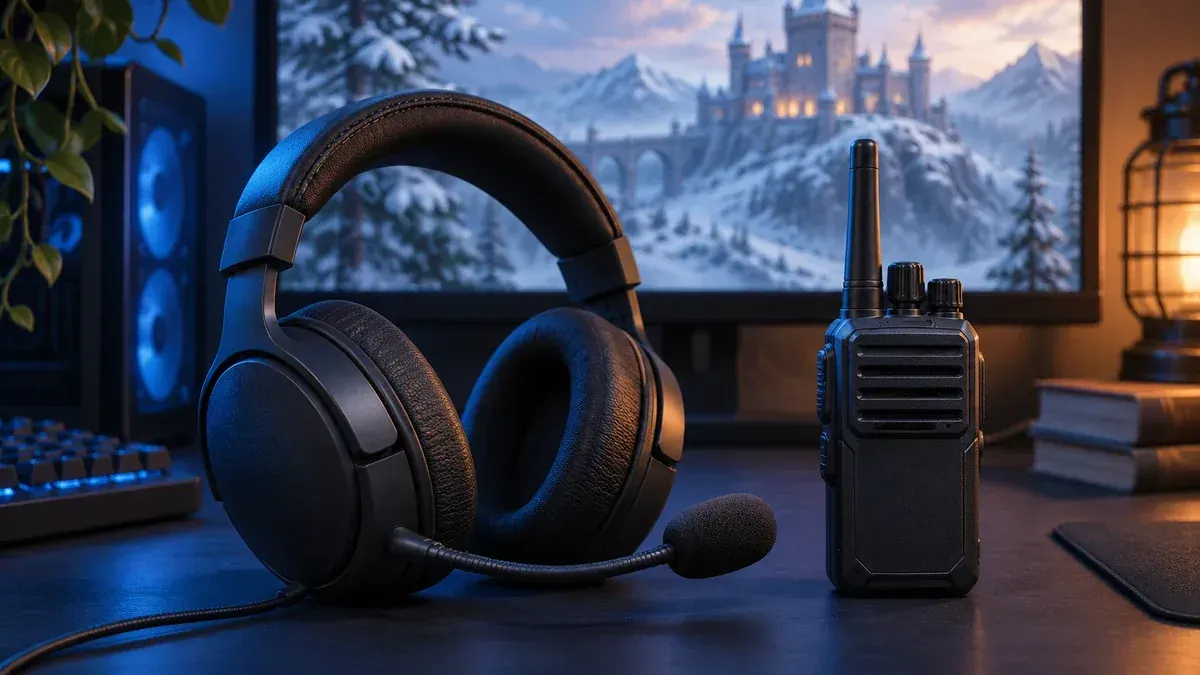
If your mic isn't working in We Were Here Together on PC, choose the same microphone in Windows and the game's audio settings, then test the walkie-talkies one player at a time. Release your talk button while your partner speaks. If that still gives no voice, record a Windows microphone sample and check desktop-app microphone access before changing drivers or network settings.
I'd separate voice capture from the walkie-talkie conversation first. A headset can play game music while its microphone is muted or a different input is selected. These checks are for We Were Here Together on Windows 11; settings and workarounds for Forever, Tomorrow or a console don't automatically apply.
Test the walkie-talkie in both directions
In the game's controls, check which button is assigned to talking. Use that binding rather than copying a keyboard or controller button from another player's setup. Have one person hold their talk button and say a short phrase while the other releases theirs and listens. Then swap.
Total Mayhem Games' Together microphone and walkie-talkie instructions explain that players can't hear each other while talking or holding the button simultaneously. Letting go is part of the test. If you can now hear each other clearly in both directions, keep those settings.
| What happens | Check next |
|---|---|
| Neither player hears the other | Both release the talk button when listening; each checks their own selected input and Windows recording. |
| You hear your partner, but they can't hear you | Check your microphone capture and game input; your partner also checks their listening output and volume. |
| Your partner hears you, but you can't hear them | Check your listening output; ask your partner to test their own capture and input selection. |
| Windows records clear speech, but Together doesn't send it | Check the game's selected microphone, desktop-app access and a direct friend invite. |
| A voice-server connection error appears | Keep the exact message and use the voice-server branch below; a gain slider won't resolve a failed connection. |
For the listening side, open Settings > System > Sound and select the intended headphones or speakers under Output. Check their mute and volume controls, then play a known sound through them. Microsoft's output-device selection instructions distinguish playback from recording. Working music helps confirm playback, but it still doesn't prove that your partner's microphone sent speech.
Don't stop at the radio light or a change in music volume. In a Together Steam discussion about silent walkie-talkies, the player reported both indicators working while neither friend heard speech. They later communicated with a random lobby player after unspecified microphone changes, but didn't confirm the result with the original friend. That report supports testing actual speech with your partner; it doesn't establish a particular setting as the fix.
Choose one microphone in Windows and Together
Check the headset's physical mute switch and its connection. Identify the input you intend to use: a laptop array, webcam microphone and headset microphone can be separate devices. Connect the intended microphone before reopening the game.
- Open Start > Settings > System > Sound.
- Under Input, select the microphone under Choose a device for speaking or recording.
- Open its properties with the arrow beside the device. Under Input settings or Microphone test, select Start test and speak normally.
- Select Stop test, then Play to hear the recorded sample. Adjust Input volume if needed and repeat.
- Open Together's audio settings and explicitly select that same microphone. Check its in-game microphone level, then repeat the turn-taking test.
Microsoft's microphone setup and recording-test steps establish the Windows check; the developer's Together instructions call for matching the Windows default and in-game microphone. Menu labels can differ with the Windows version. A successful Windows sample narrows the investigation to the game and its access; it doesn't prove that your partner received voice.
If the microphone is missing or the sample contains no speech, continue through the Windows microphone detection, mute and recording checks. If the sample is audible but too quiet or distorted, use the input-level and optional Boost checks before raising every volume control. Confirm your headphones can play a known sound before judging a silent sample as failed capture.
The developer also suggests disabling other microphones and unplugging unnecessary USB devices. I'd start by selecting the correct input explicitly. If you need to isolate a webcam or spare headset, note its original state and disconnect only that optional accessory for a comparison. Keep your keyboard, mouse, storage and intended audio device connected; restore an unhelpful change.
Allow desktop apps to use the microphone
Open Settings > Privacy & security > Microphone. Check Microphone access, Let apps access your microphone and the separate Let desktop apps access your microphone control farther down the page.

Microsoft's Windows 11 microphone permission guidance distinguishes desktop apps from the individually listed apps. Together's absence from that individual list isn't a reason to reinstall it. Don't enable every unrelated app. If the controls are managed or unavailable on a work or school PC, ask the administrator to review access rather than editing consent entries in the registry.
Close and reopen the game after changing access, choose the intended input again and retry with your partner. Save any recording or other open work before closing optional audio software for a comparison.
If only Together fails, compare a direct invite
Once the Windows sample is clear and access is allowed, use Invite a friend to invite your partner directly from the friend list rather than relying only on Create a room. This is a specific suggestion in the developer's Together support article. Retest the same microphone and alternate speakers so you can tell whether this changed the result.
The developer's Together common-issue checklist also suggests switching the game host or roles in the lobby. Try one comparison at a time. Keep a result such as “A can hear B only when B hosts” rather than treating a different lobby as a confirmed permanent repair.
For a game-only failure, close optional voice, recording or overlay software you don't need for the test, preserving any work first. The checklist identifies interfering software and overlays as things to compare. If closing an app makes no difference, restore your normal setup; that result doesn't justify uninstalling unrelated software or drivers.
If the game still behaves incorrectly, file verification is another step in the Together checklist. On Steam, right-click We Were Here Together in your Library and open Properties > Installed Files > Verify integrity of game files. Valve's file-verification instructions advise against verifying multiple games at once or alongside other intensive system tasks. Let it finish, then retest the same conversation. For a different launcher, use that launcher's documented verification route.
I wouldn't move the game to an SSD, replace graphics drivers or remove every audio device to address a microphone that already records clearly. Those broad changes don't isolate this symptom.
Keep voice-server errors separate from microphone levels
For an error such as “the connection to the voice server failed”, record the exact wording and whether it appears for one player or both. Include each player's country and network type when contacting support. A working recording shows capture is possible; it doesn't establish a connection to the game's voice service.
The developer's Together article describes regional restrictions affecting its voice servers and explicitly distinguishes the games: the option to cancel past that connection window in Forever doesn't apply to Together. Don't delete a Forever data folder or follow a Tomorrow setup page to repair Together.
Keep firewall and antivirus protection enabled. On a managed network, give the exact error to the administrator or Total Mayhem Games support and ask which current service requirements apply to Together. Don't open a collection of router ports or install a VPN on the assumption that every voice failure has the same network cause. The developer warns that VPN use can interrupt stable game and voice connections; it isn't a guaranteed repair.
An agreed external voice call can be a communication fallback where the game can otherwise proceed. It doesn't repair the in-game radio or guarantee that Together will pass a blocking voice-server screen. Keep that distinction in the support report.
Verify with the same partner before changing more
Return to the original pair and selected microphone. Confirm that each person can send an understandable phrase and hear the reply while releasing the talk button. If the failure followed reconnecting a headset or joining a particular lobby, repeat that condition after the change.
If voice still fails, send support the exact game title, Windows version, launcher, microphone model and connection type, selected input, Windows sample result, failing direction and any server message. Add what happened with the direct invite or host comparison. Remove account details, public IP addresses and private chat from public screenshots. For failures that extend beyond this game, the Windows devices and drivers hub provides the next hardware route.


