

If File Explorer keeps freezing, save your work, note the folder or action that triggers it, and restart Windows Explorer in Task Manager once any important file operation has finished. If the freeze returns, capture the unresponsive process before restarting it again. A repeating “Not Responding” window needs evidence from the stalled operation; another broad cleanup won't identify what Explorer is waiting for.
This page covers Explorer that stays running while its window stops responding. If windows close or the desktop repeatedly disappears and returns, use the File Explorer crash checks. Both symptoms can occur on the same PC, so record which one happens first.
Record what stops and what still works
A window can stop responding while its process is still running. Microsoft's explanation of application hangs describes a window whose thread isn't processing its messages. The thread may be waiting for work to finish or caught in a programming fault. The label alone doesn't establish a deadlock, a damaged drive or corrupt Windows files.
Before dismissing the window, record the time and the action immediately before the freeze: opening a folder, selecting files, searching, showing a preview, right-clicking or copying. Note whether it eventually recovers, closes, or remains frozen. Try another application without repeatedly clicking the stalled window.
Keep these observations separate:
- One folder window freezes, other apps respond: preserve the folder and action as the trigger.
- Explorer and the taskbar stop together: record the wider shell symptom. If only the taskbar is affected while folder windows work, use the taskbar recovery checks.
- The whole PC becomes unresponsive: the problem extends beyond one Explorer window. If Task Manager won't open either, record that limit rather than diagnosing an Explorer-only failure.
CPU or disk activity is useful context, but a percentage by itself doesn't name the cause. I'd keep a short record of the exact trigger and duration before trying settings changes; those details make the same test repeatable after each change.
Capture the hung Explorer process before another restart
For a repeatable freeze that needs support, a memory dump preserves the process state while it's stuck. Collect it during the hang, before choosing Restart or End task. A dump taken after Explorer recovers describes a different state.
Keep memory dumps private. They contain process memory; Microsoft's dump-file documentation notes that even attempted removal of sensitive information isn't guaranteed. Use a trusted support channel, and have workplace IT handle collection on a managed PC. Creating a dump is a diagnostic step; it doesn't repair Explorer.
- Press Ctrl + Alt + Delete and open Task Manager. In Processes, locate Windows Explorer. Check that you're selecting the affected Explorer process, especially if several folder processes are present. The context menu's Go to details entry helps identify its
explorer.exeprocess. - Right-click the process and choose Create memory dump file. Some Windows documentation calls this Create live memory dump file. If the entry isn't available under Processes, use Go to details and right-click that same
explorer.exeprocess there. Select the user-mode Explorer process; you don't need the System process's kernel-dump options for this step. - Wait for the dump to finish. Record the file location shown in the completion dialog before trying to open its folder. Explorer is still hung, so Open File Location may not be useful until you've recovered the shell.
- Keep the dump with the failure time, folder/action and process identification. If collection fails, save the error and have support check permissions or retry timing. Don't start overlapping dump collections.
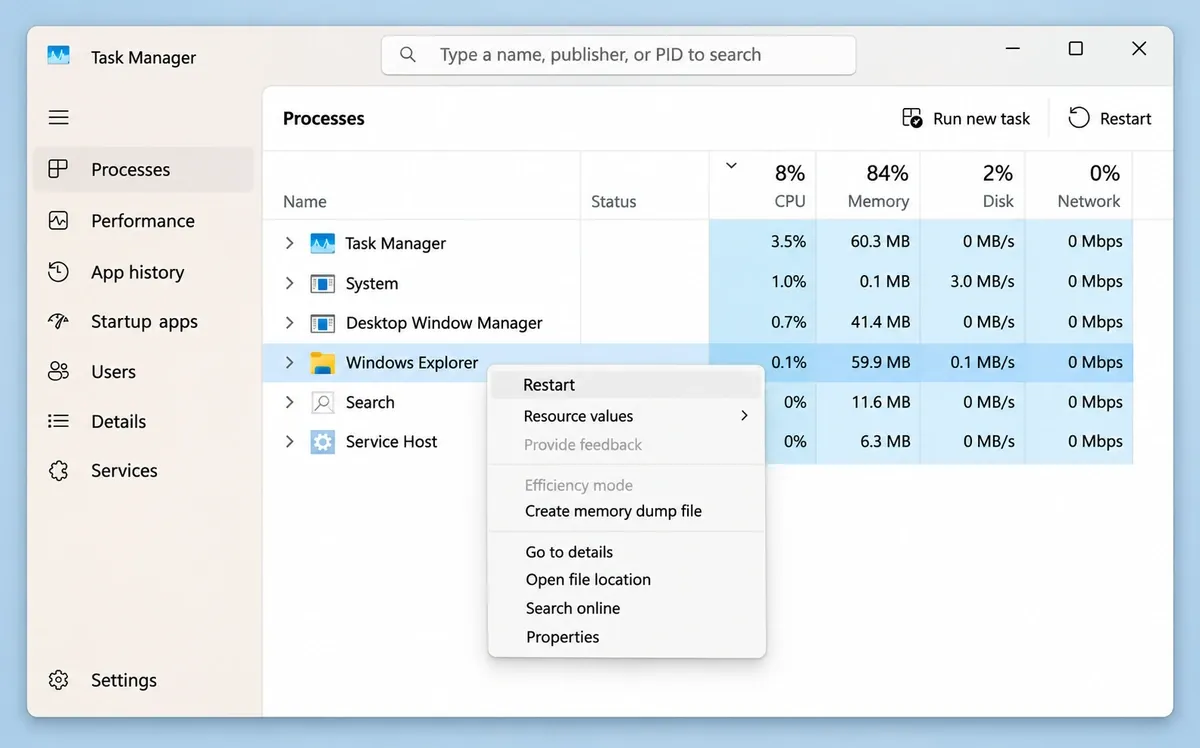
Microsoft documents Task Manager's user-mode dump procedure and the completion dialog. User-mode live dumps are stored under %localappdata%\Temp; use the actual path the dialog reports. This is separate from a system kernel dump and from a crash dump automatically collected after an application fails.
If you're following instructions to enable Windows Error Reporting's LocalDumps registry key, check the purpose first: Microsoft's LocalDumps feature collects application crash dumps and isn't enabled by default. Enabling it isn't a substitute for capturing a still-running hung Explorer process.
Recover Explorer, then repeat the same action
Save work in other apps and let important file copies or moves finish before restarting the shell. In Task Manager, right-click Windows Explorer and select Restart. If Explorer isn't running, use Run new task and enter explorer.exe. The shell recovery procedure restores Explorer without requiring a full Windows reboot.
The desktop or taskbar can disappear briefly during recovery. Reopen a folder you know is stored locally on the internal drive before reopening the original location. Then repeat the same action that froze. If a copy was interrupted, check its destination and completion before assuming all files arrived.
Temporary recovery is useful. If the same operation freezes again, keep that result and the new time. Repeatedly restarting Explorer can restore access while leaving the trigger unchanged.
If the folder window responds and the operation returns Access is denied, use the Explorer elevation and authorized file-access checks. A permission failure needs the right account or task-specific administrative tool; restarting or forcing administrator rights onto the desktop shell does not identify a hang.
Choose the next check from the repeat test
Change one relevant input, then repeat the original action. Don't change history, thumbnails, permissions and network settings together; you won't know which change mattered.
- A local folder works, but a network location stalls: verify that the share and any required VPN are available. An explicit access-denied or credential error belongs in the shared-folder access checks; a hang alone doesn't justify taking ownership of the folder.
- Only Home, a preview or a right-click hangs: use the matching folder and Explorer-integration checks. Keep your trigger record so you can compare the same operation after a targeted change.
- Explorer recovers and freezes in step with Windows Search stopping: follow the Search and indexing checks with that timing evidence. Don't disable content indexing globally just because another PC improved after an index rebuild.
- Every local folder still freezes: give support the hung-process capture, Windows build and recent software changes. If Windows repair is appropriate, use the repair route that checks app and file retention after backing up your data.
The reported outcomes differ. In a firsthand Explorer-freezing case, the owner noticed Explorer responding when Windows Search restarted and freezing when that service stopped again. Rebuilding the index reportedly resolved both symptoms. That's a useful pattern to check, not proof that every frozen folder needs rebuilding.
In the TechCommunity discussion of freezing and crashing, two respondents reported improvement after history and This PC changes, while another reported that repeated reimaging hadn't removed the wider failure. These are different PCs and conditions. They don't establish a universal fix or a repair success rate.
Verify the original workflow before calling it fixed
Test the folder, file action and normal working conditions that triggered the freeze. A network folder that works only with a different connection or a preview that works only while disabled tells you which condition changed. Keep that distinction in your notes rather than calling the whole PC repaired.
If the cause remains unclear, send support the time, Windows build, exact action, affected location type, whether other apps responded, and the private dump if one was collected. A technician can inspect the captured process state; the dump's existence alone doesn't identify a faulty DLL or driver.
Restore unsuccessful test changes and keep the last working setup. The Windows desktop hub groups the separate shell, taskbar and desktop-modification guides so you can follow the symptom that repeats.



